Note
Access to this page requires authorization. You can try signing in or changing directories.
Access to this page requires authorization. You can try changing directories.
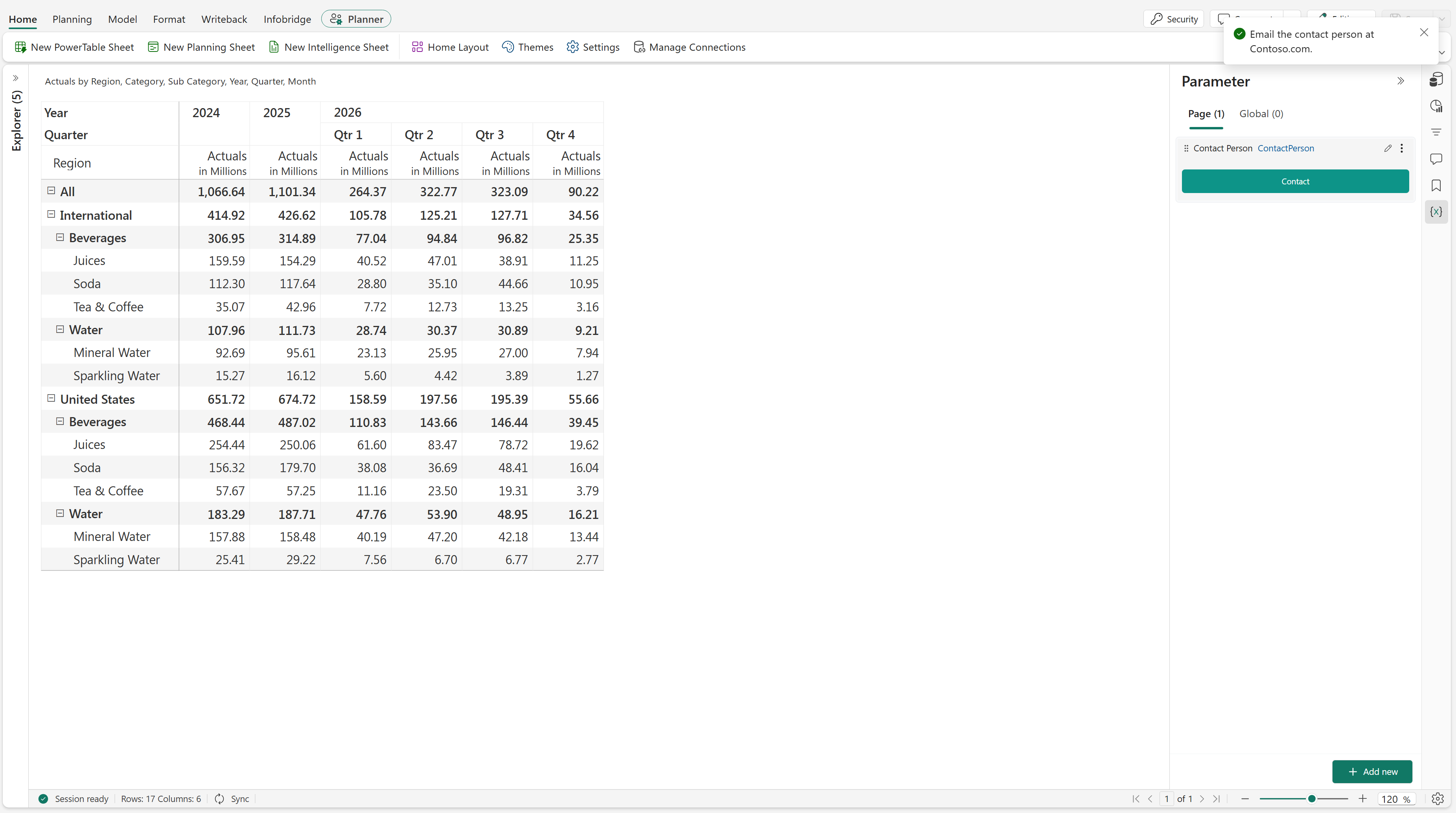
Use the SHOW_MESSAGE function to display a toast message to users when a script runs. For example, display a confirmation, provide a short instruction, or direct users to contact a person.
Syntax
The following syntax displays a message.
SHOW_MESSAGE("message")
Replace message with the text you want to display. Enclose the message in double quotation marks.
Example
The following example displays a message that directs users to email the contact person at Contoso.
SHOW_MESSAGE("Email the contact person at Contoso.com.")
Configure a button to display a message
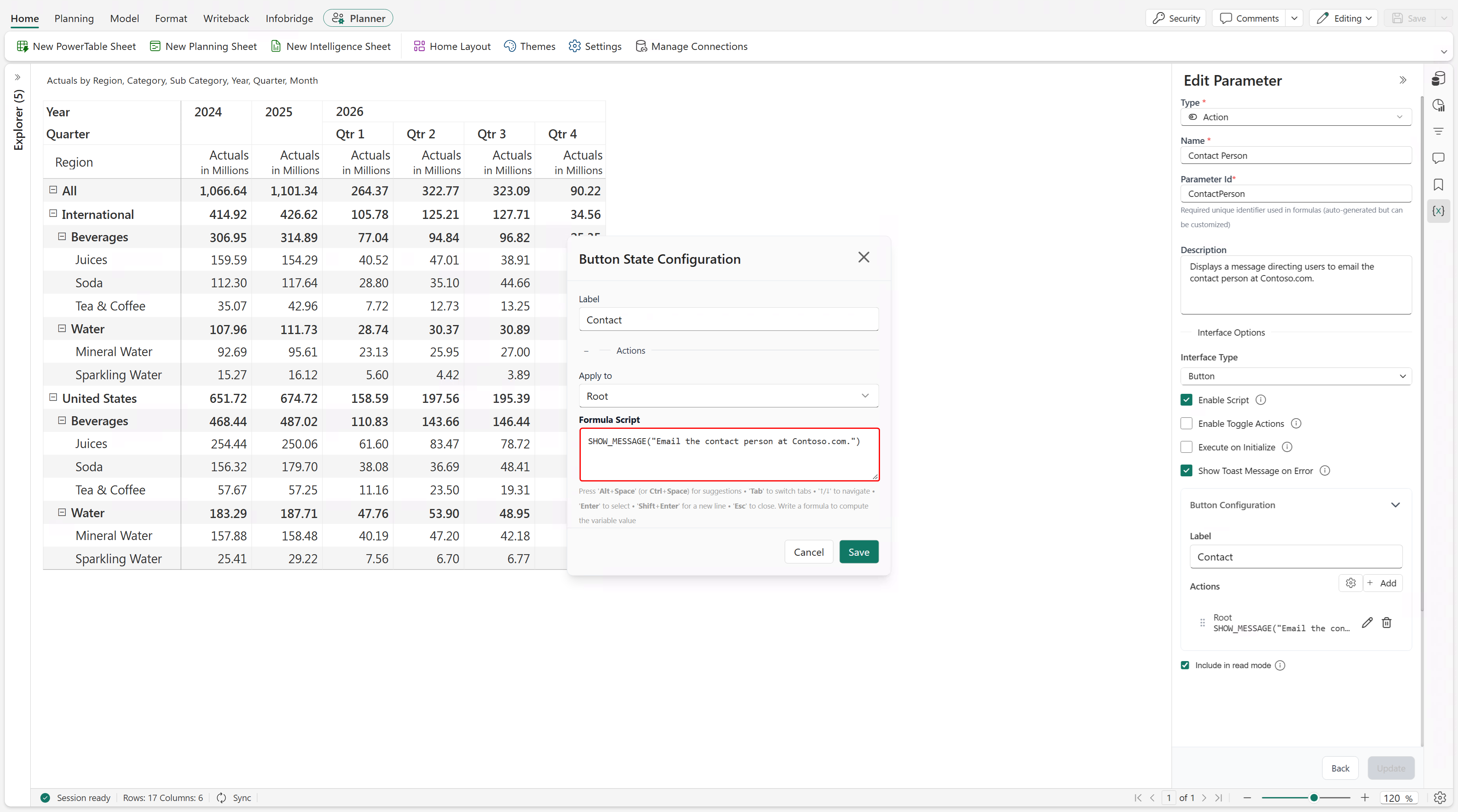
Open the planning item and create or edit an action parameter.
Set Type to Action.
Enter a name, such as Contact Person.
In Description, explain what the action does. For example, enter: Displays a message directing users to email the contact person at Contoso.com.
Under Interface Options, set Interface Type to Button.
Select Enable Script.
Under Button Configuration, set Label to Contact.
Add an action, select the root scope, and enter the following formula script:
SHOW_MESSAGE("Email the contact person at Contoso.com.")Save the button configuration, and then select Update.
When a user selects Contact, the planning item displays the message as a toast notification.