Note
Access to this page requires authorization. You can try signing in or changing directories.
Access to this page requires authorization. You can try changing directories.
Use the SHOWMEASURES function to show or hide all measures in a planning sheet. Pass TRUE to show the measures or FALSE to hide them.
Syntax
Use the following syntax to show or hide measures.
SHOWMEASURES(TRUE)
To hide all measures, use the following formula:
SHOWMEASURES(FALSE)
Example
The following example uses a toggle parameter to show or hide all measures in a planning sheet. When the toggle is on, the SHOWMEASURES function displays the measures. When the toggle is off, the function hides the measures.
Configure a toggle parameter
In the planning sheet, create an Action parameter named Show Measures.
Set the Interface Type to Toggle and select Enable Script.
Under On Actions, add a planning action and enter the following formula in Formula Script:
SHOWMEASURES(TRUE)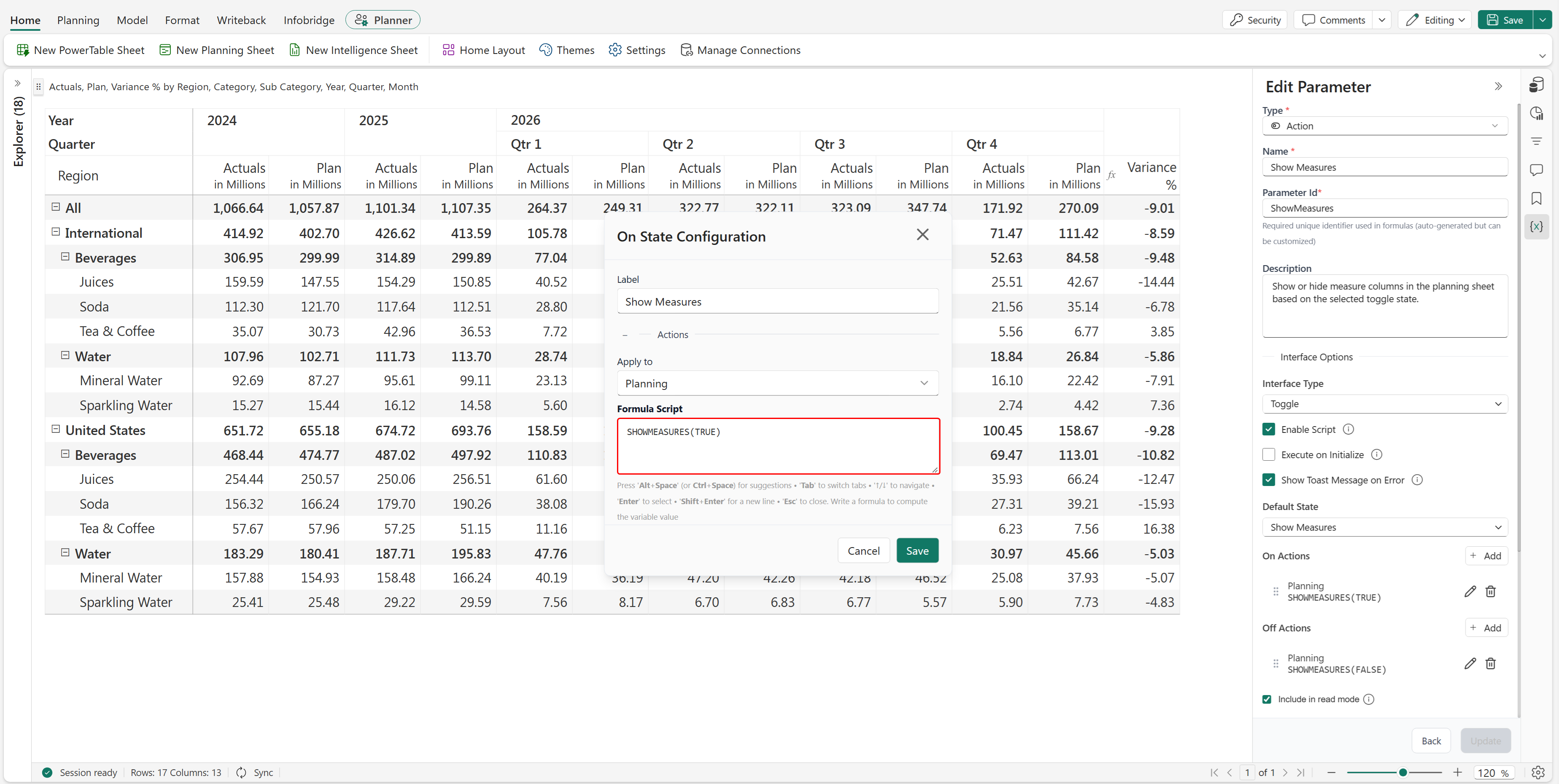
Under Off Actions, add a planning action and enter the following formula in Formula Script:
SHOWMEASURES(FALSE)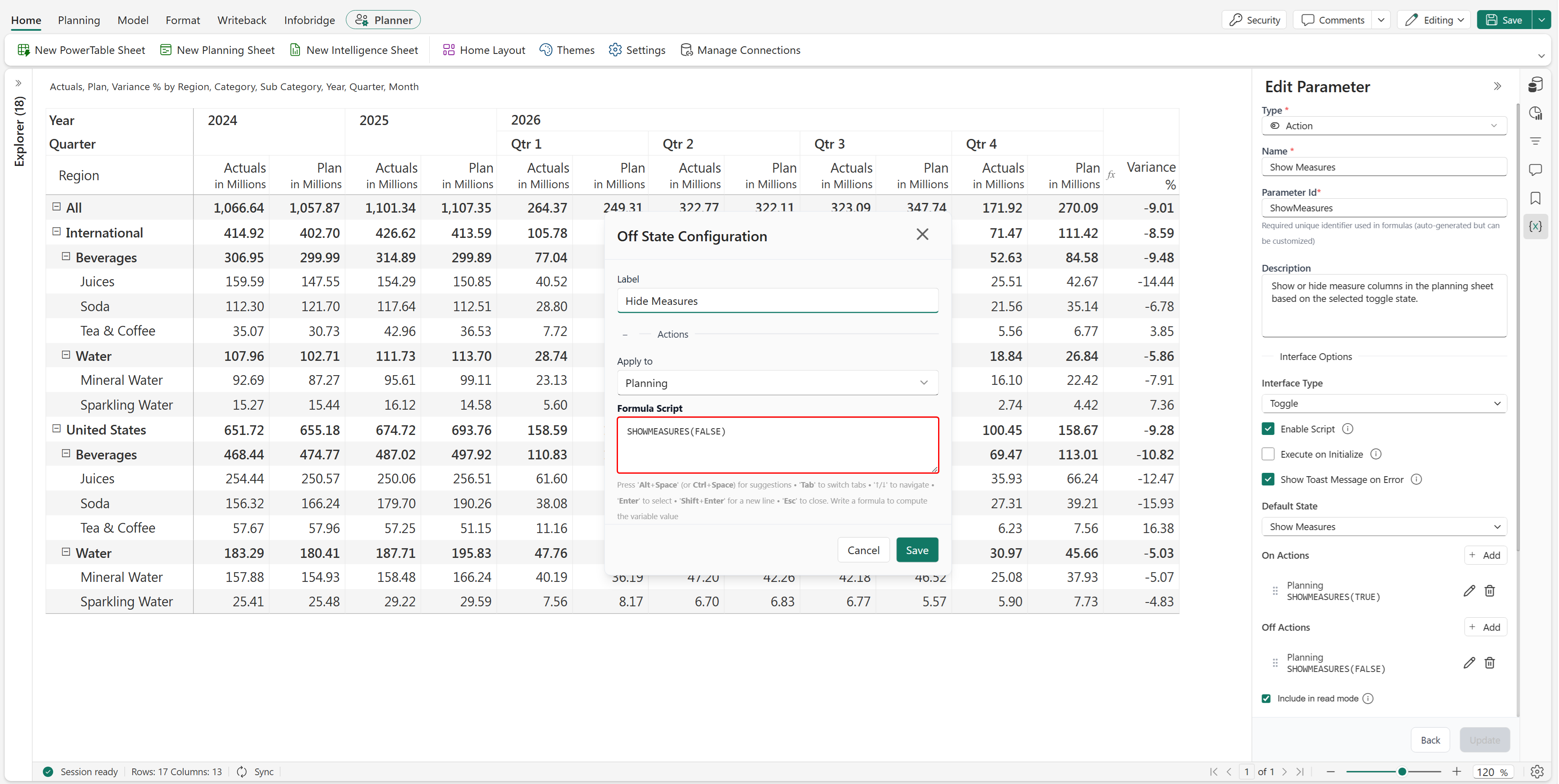
Set Default State to Show Measures.
Save the parameter.
Test the toggle
Open the Parameter pane and switch the toggle between Show Measures and Hide Measures.
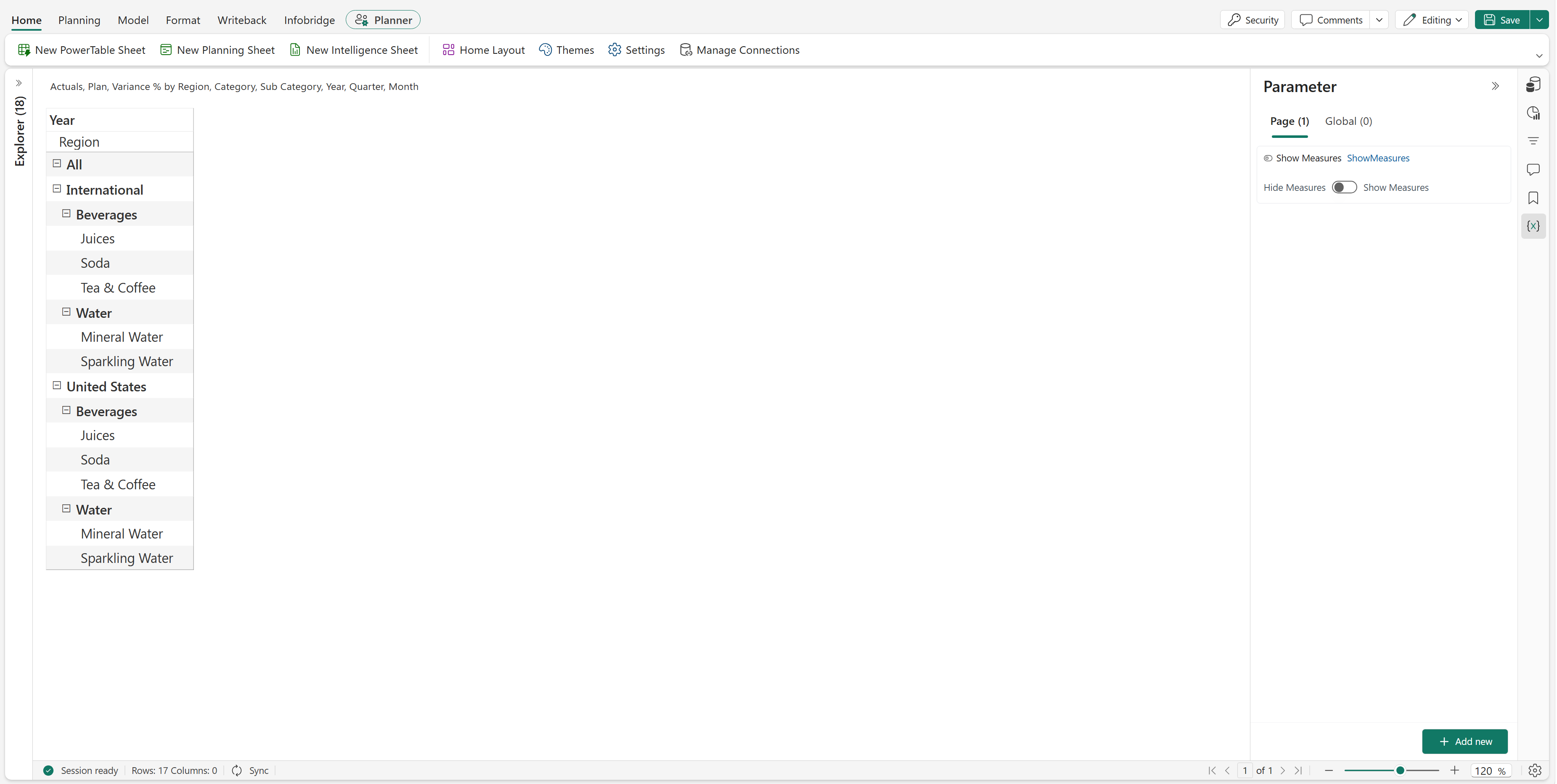
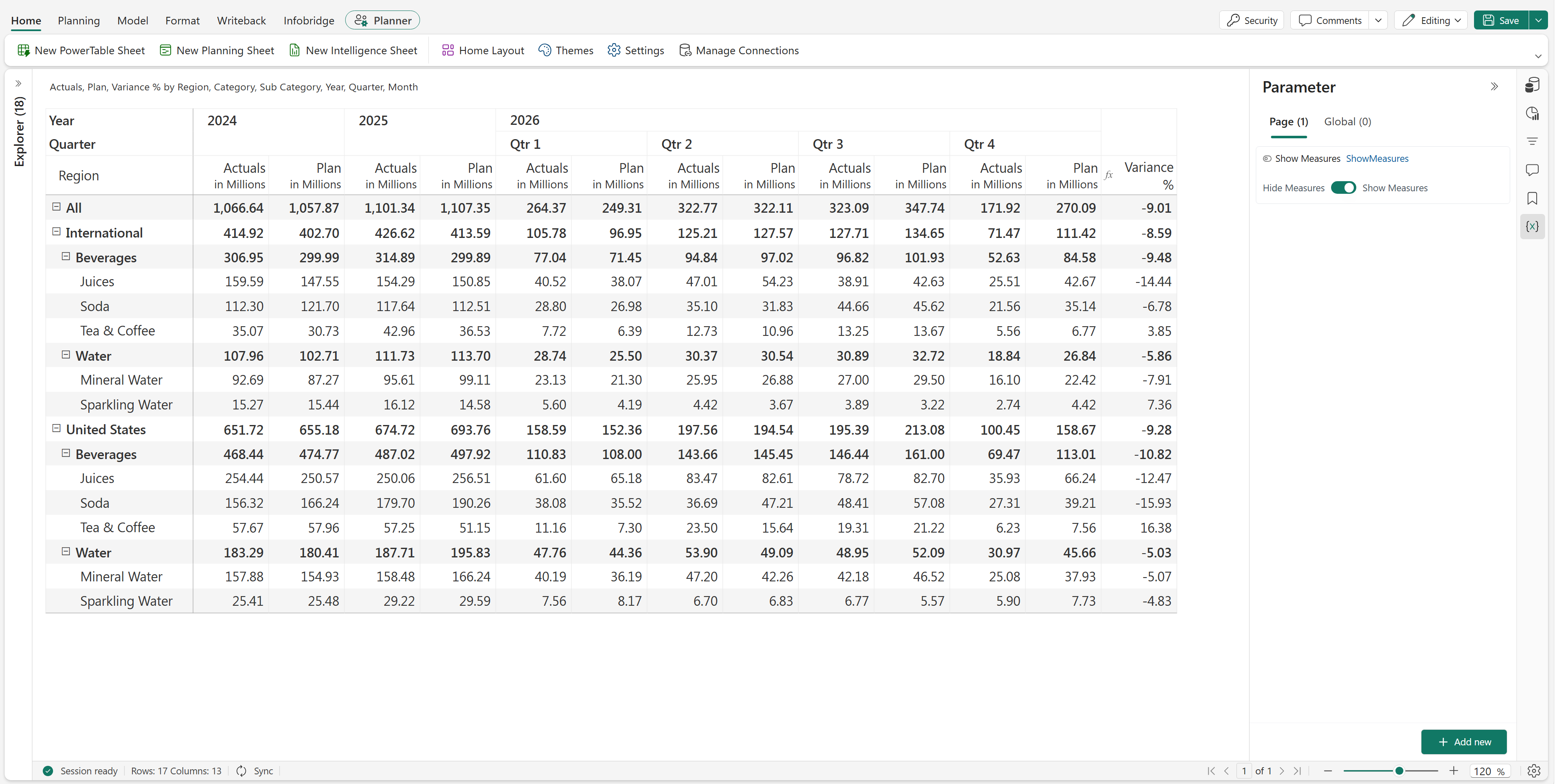
When the toggle is on, the planning sheet displays all measures.
When the toggle is off, the planning sheet hides all measures while retaining the row hierarchy.