Note
Access to this page requires authorization. You can try signing in or changing directories.
Access to this page requires authorization. You can try changing directories.
Use TRIGGERWRITEBACK to trigger a writeback operation when a user selects a button in a planning sheet.
The function runs the writeback action configured for the button.
Note
Configure the writeback destination before users run the action.
Syntax
TRIGGERWRITEBACK()
Example
Use TRIGGERWRITEBACK() in the formula script for an Action parameter to let users run writeback from a button.
Configure the Action parameter
In the planning sheet, open the Parameter pane and select Add new.
In the Edit Parameter pane, set Type to Action.
Enter a name and parameter ID. For example, enter Trigger Writeback for the name and TriggerWriteback for the parameter ID.
In Description, enter a description such as: Triggers the writeback operation when the button is clicked.
Under Interface Options, set Interface Type to Button and select Enable Script.
Under Button Configuration, enter a label for the button. For example, enter Writeback.
In the button's Actions configuration, add an action, set Apply to to Planning, and enter the following formula in Formula Script:
TRIGGERWRITEBACK()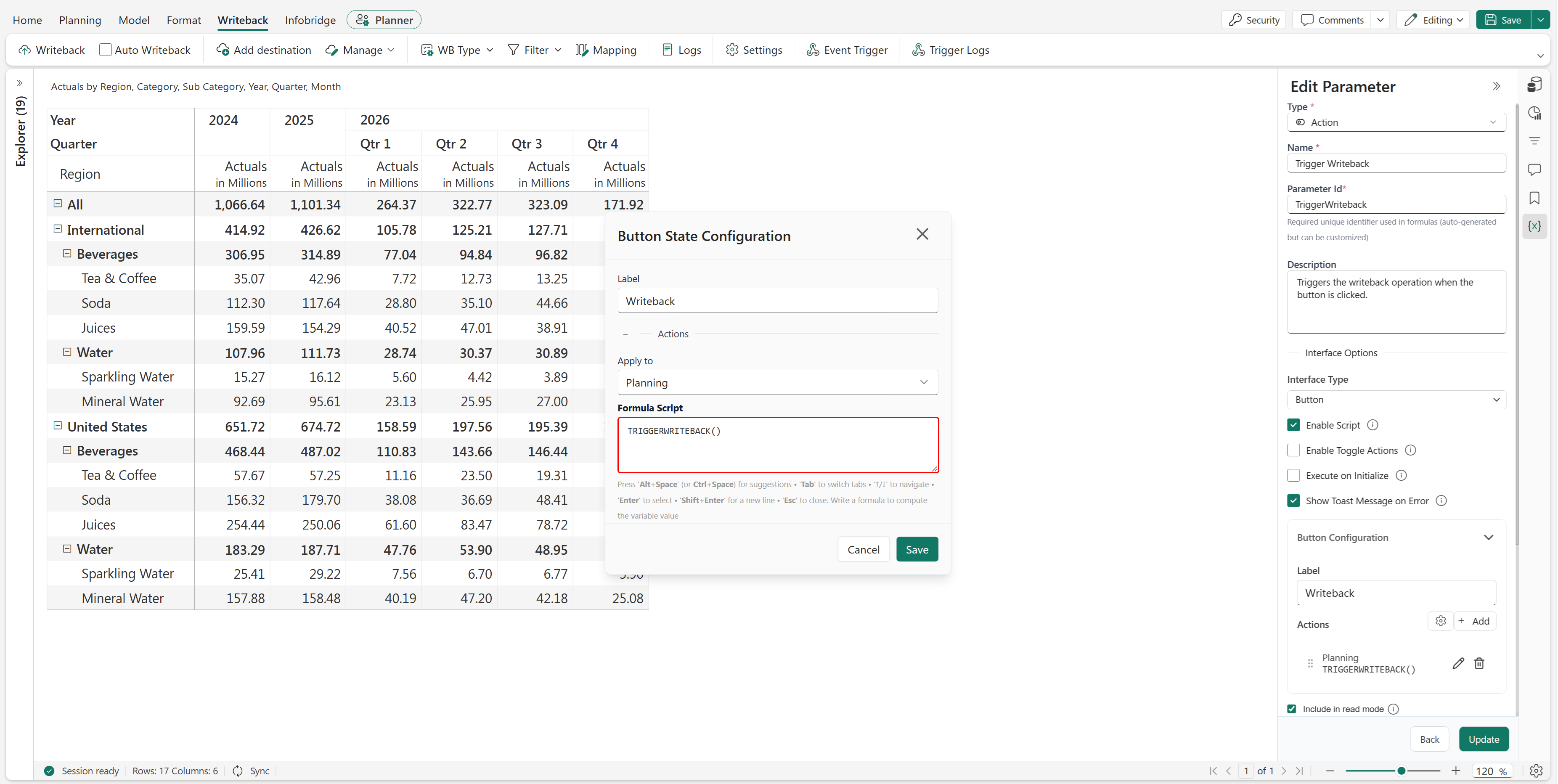
Select Save in the Button State Configuration dialog, and then select Update in the Edit Parameter pane.
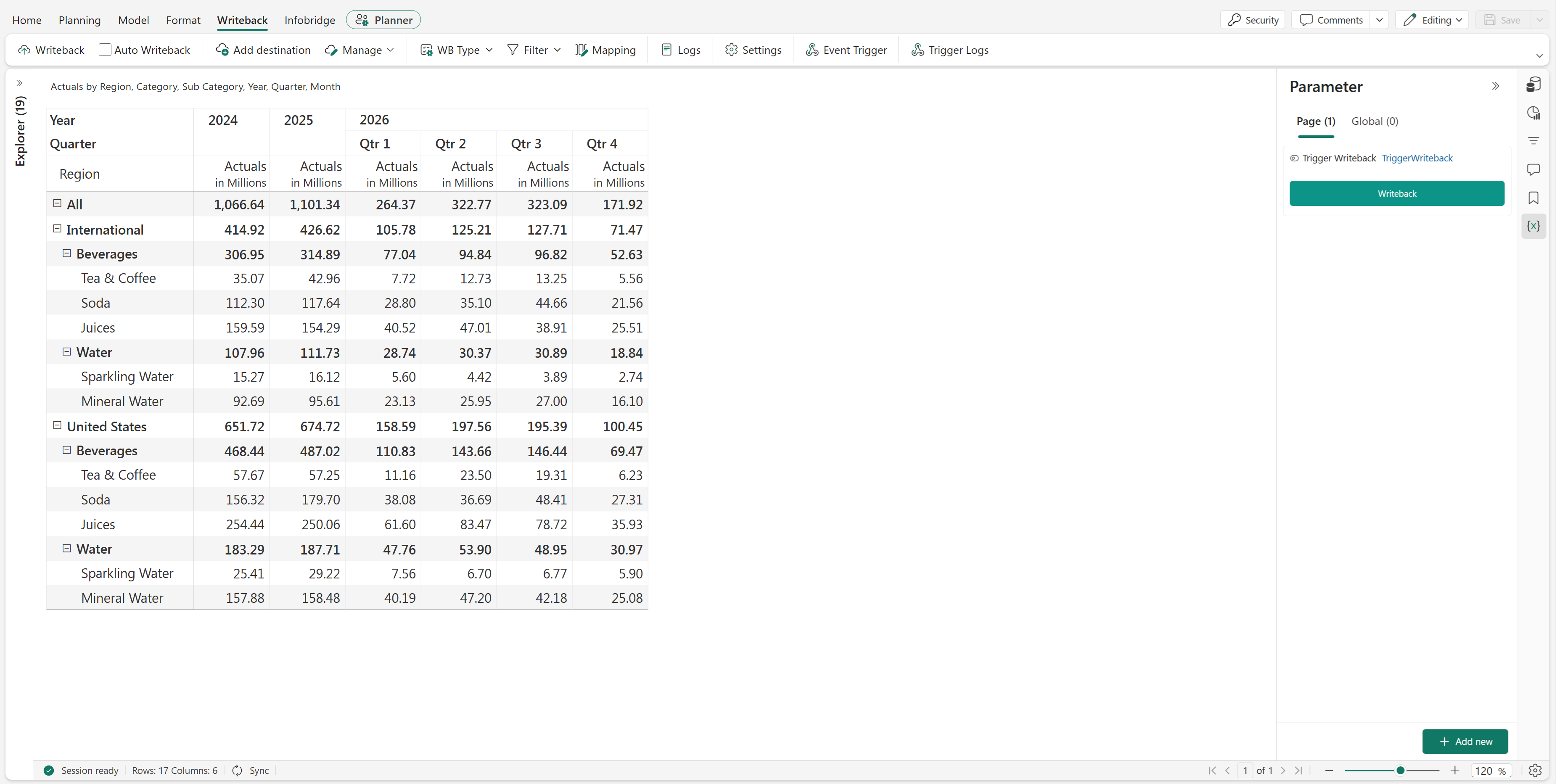
Save the planning sheet. The configured button is available in the Parameter pane.
Run the writeback operation
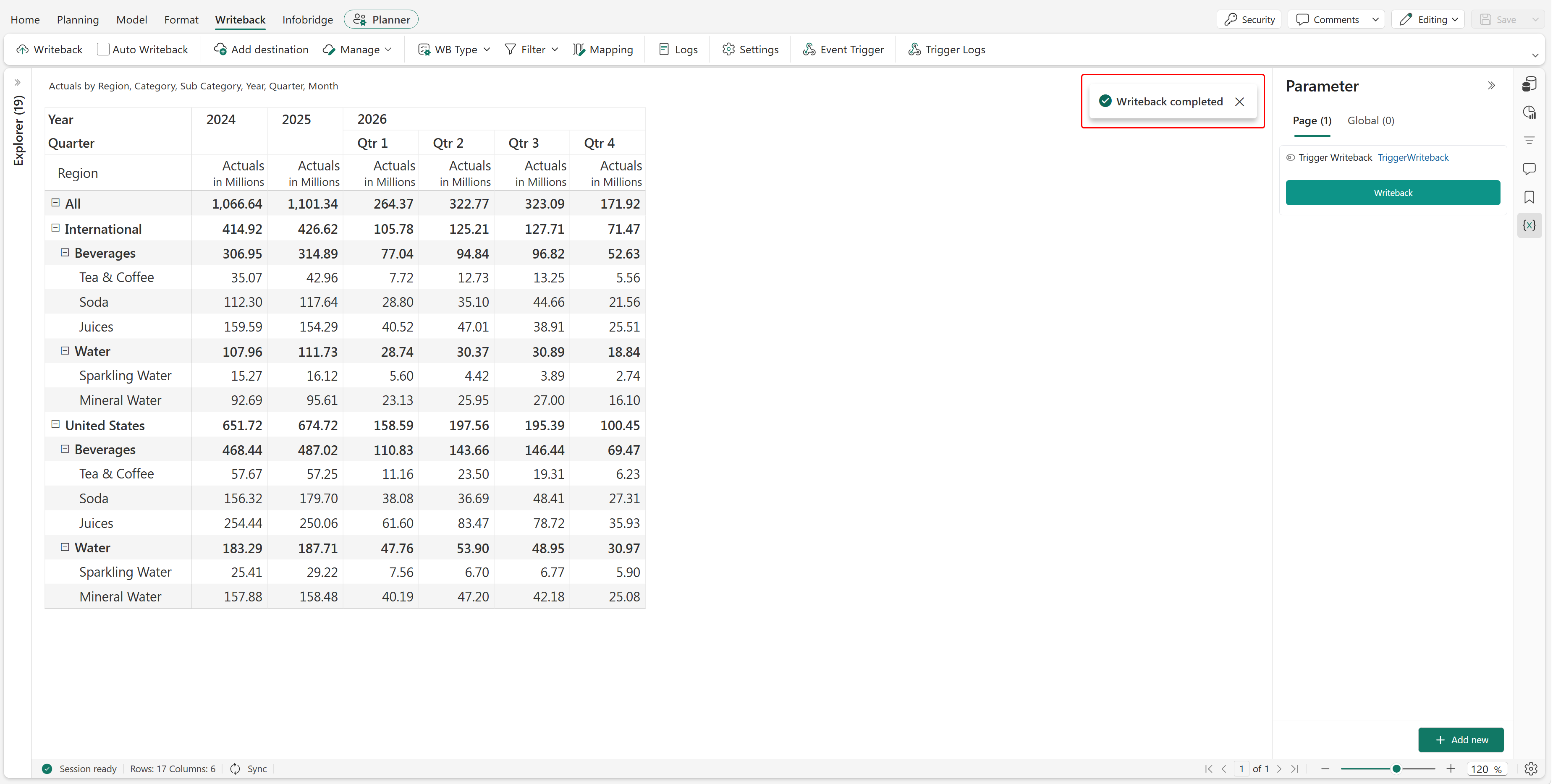
In the Parameter pane, select the Writeback button.
The function triggers the configured writeback operation. When the operation completes successfully, the application displays a Writeback completed confirmation message.