Note
Access to this page requires authorization. You can try signing in or changing directories.
Access to this page requires authorization. You can try changing directories.
You can share a plan item with a user who isn't a member of the workspace by using item sharing. In this example, you first select Allow recipients to modify this semantic model to give the user Read, Write access to the semantic model used by the plan, and then share the plan item with the user.
The example uses the following scenario:
- The user Lisa Taylor isn't a member of the workspace.
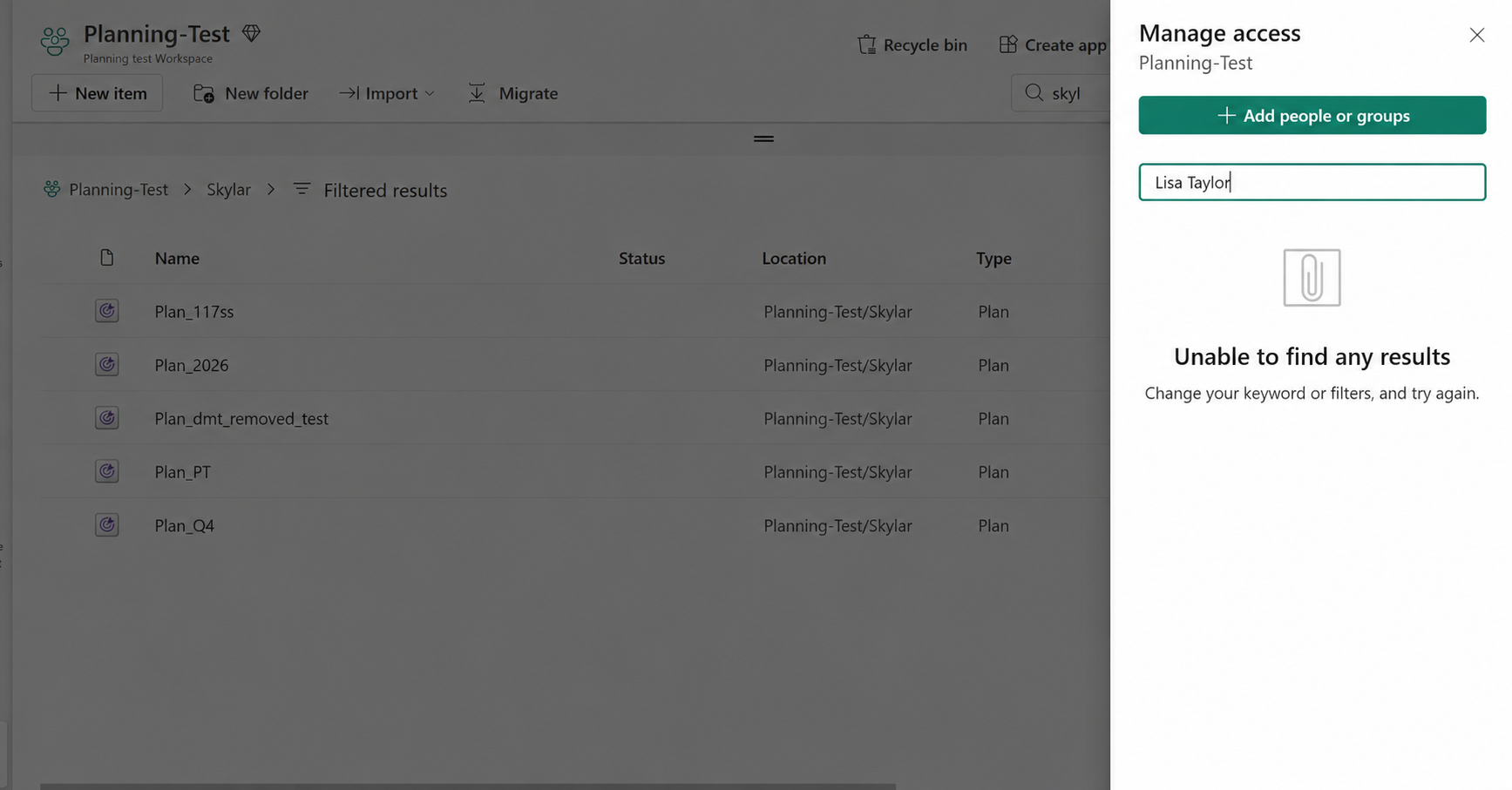
- Lisa Taylor is granted Read, Write access to the semantic model used by the plan.
- The plan Plan_Q4 is then shared directly with Lisa Taylor.
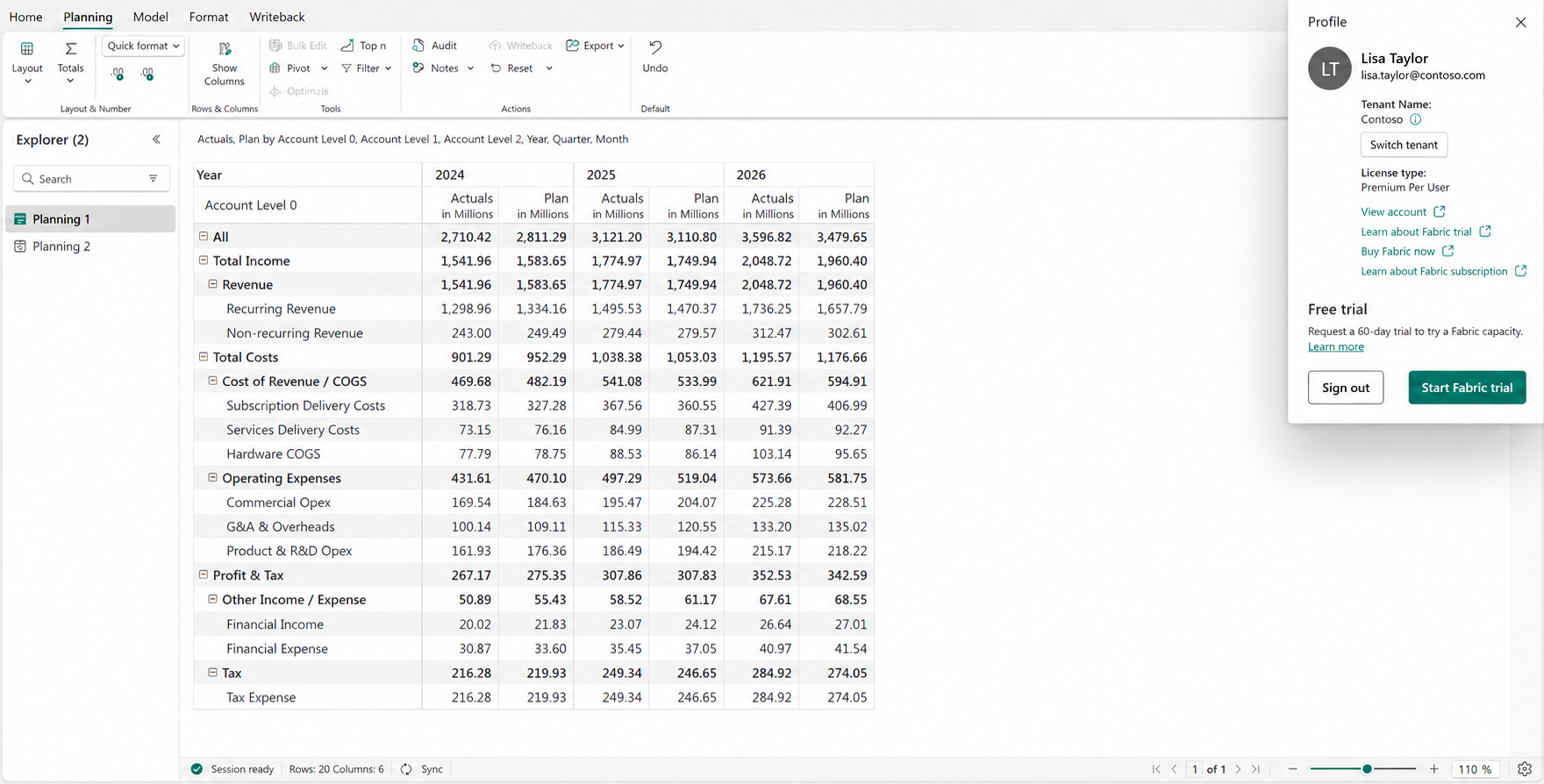
- Lisa Taylor opens the plan in read mode. She can't enter edit mode, but can use stakeholder actions available in read mode, such as data input and comments.
Grant the user access to the semantic model
Before sharing the plan, grant the user access to the semantic model used by the plan.
- Open the semantic model used by the plan.
- Select Add user.
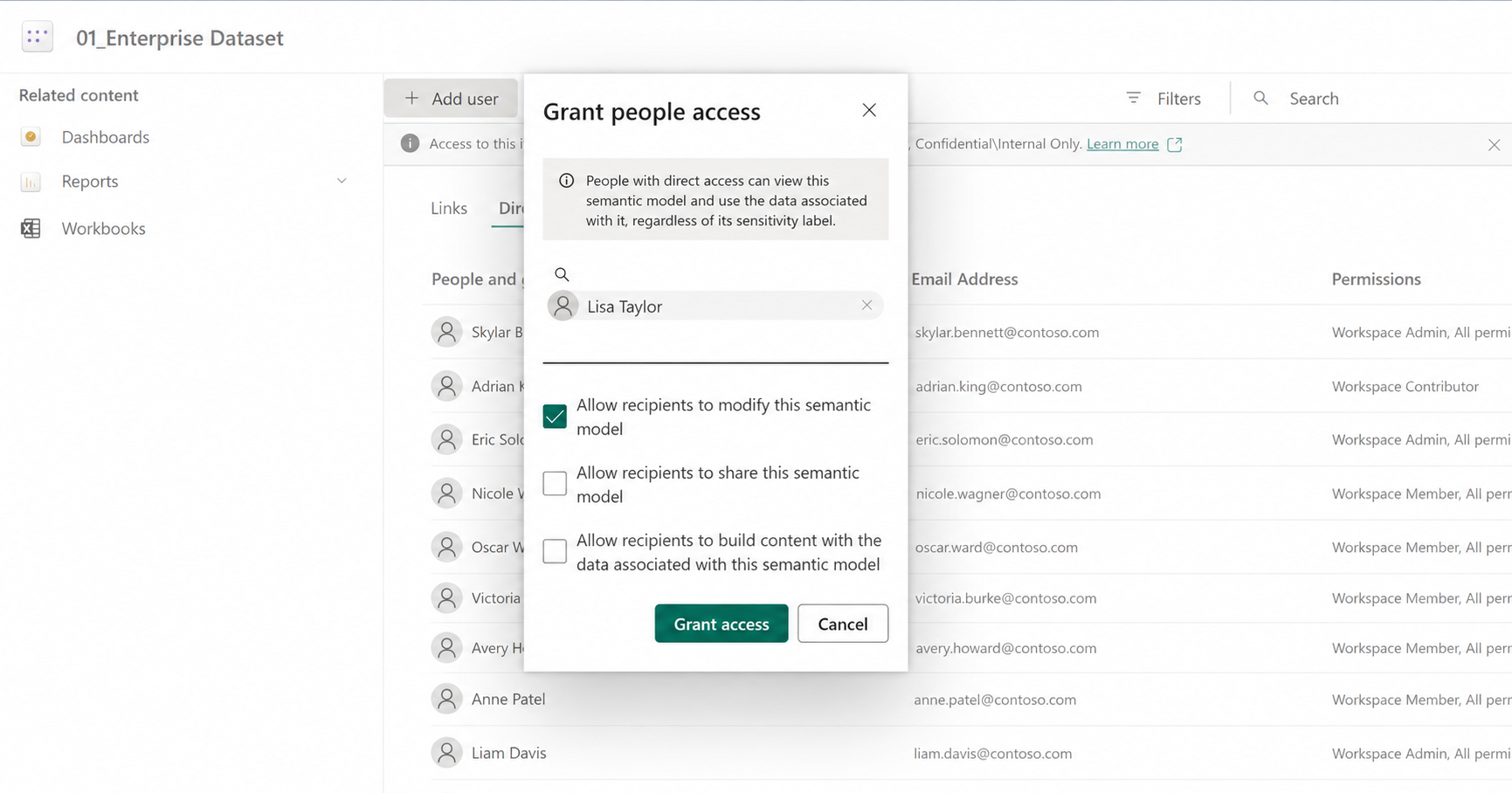
- Enter the name of the user, Lisa Taylor.
- Select Allow recipients to modify this semantic model.
- Select Grant access.
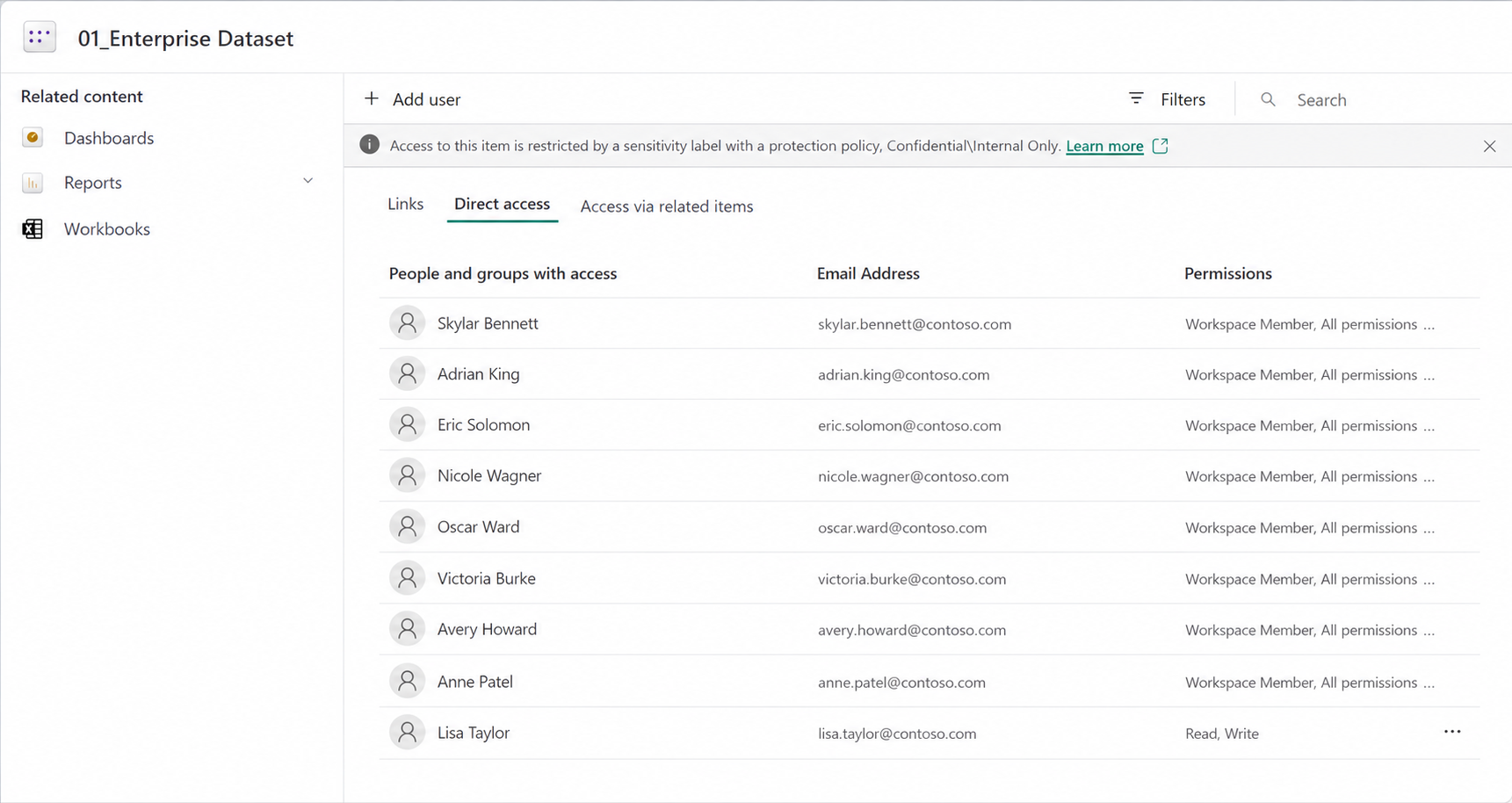
Lisa Taylor now has Read, Write access to the semantic model.
Share the plan
After granting the user access to the semantic model, share the plan item with the same user.
- In the workspace listing, locate the plan that uses the semantic model.
- For Plan_Q4, select Share.
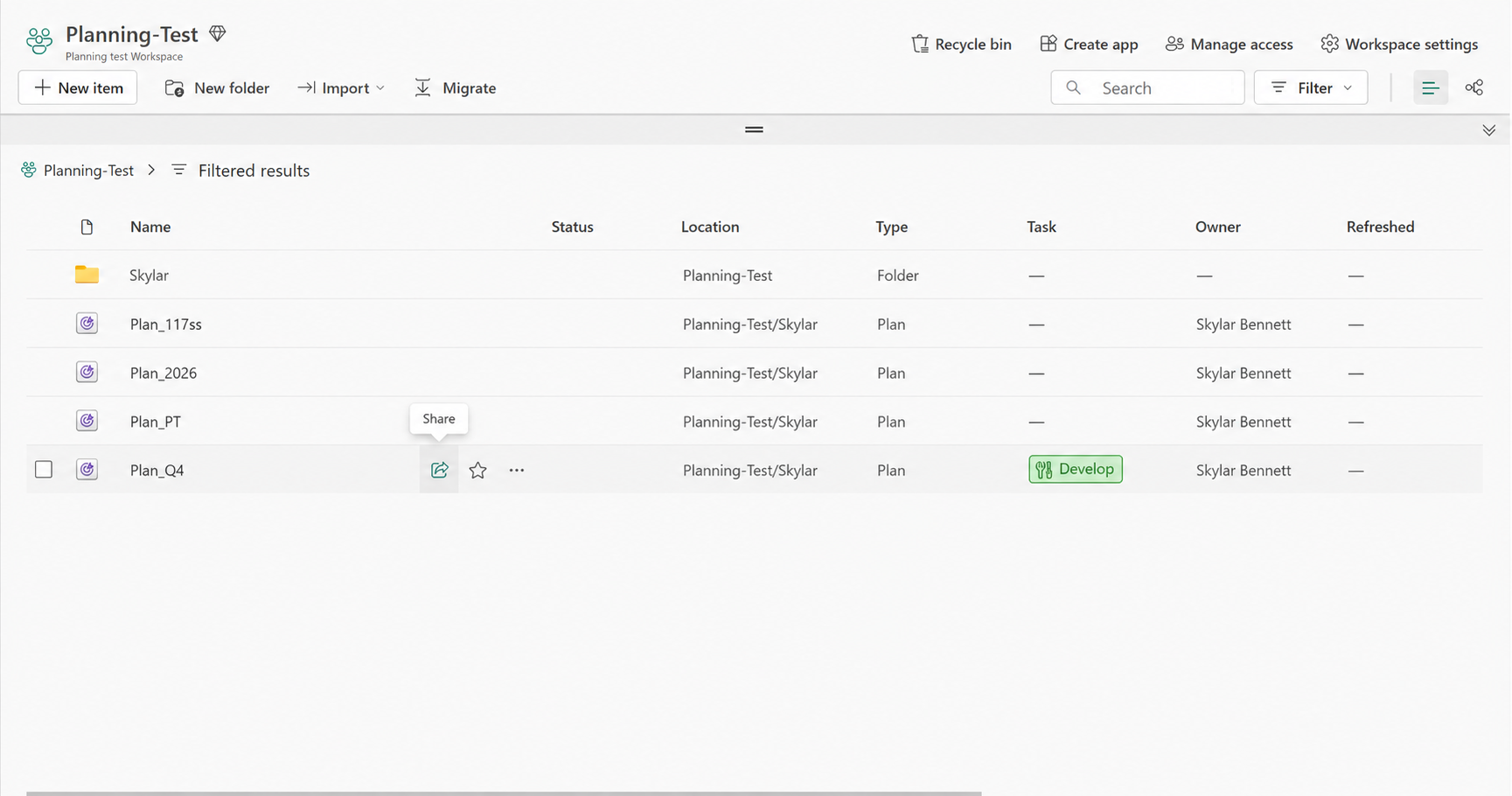
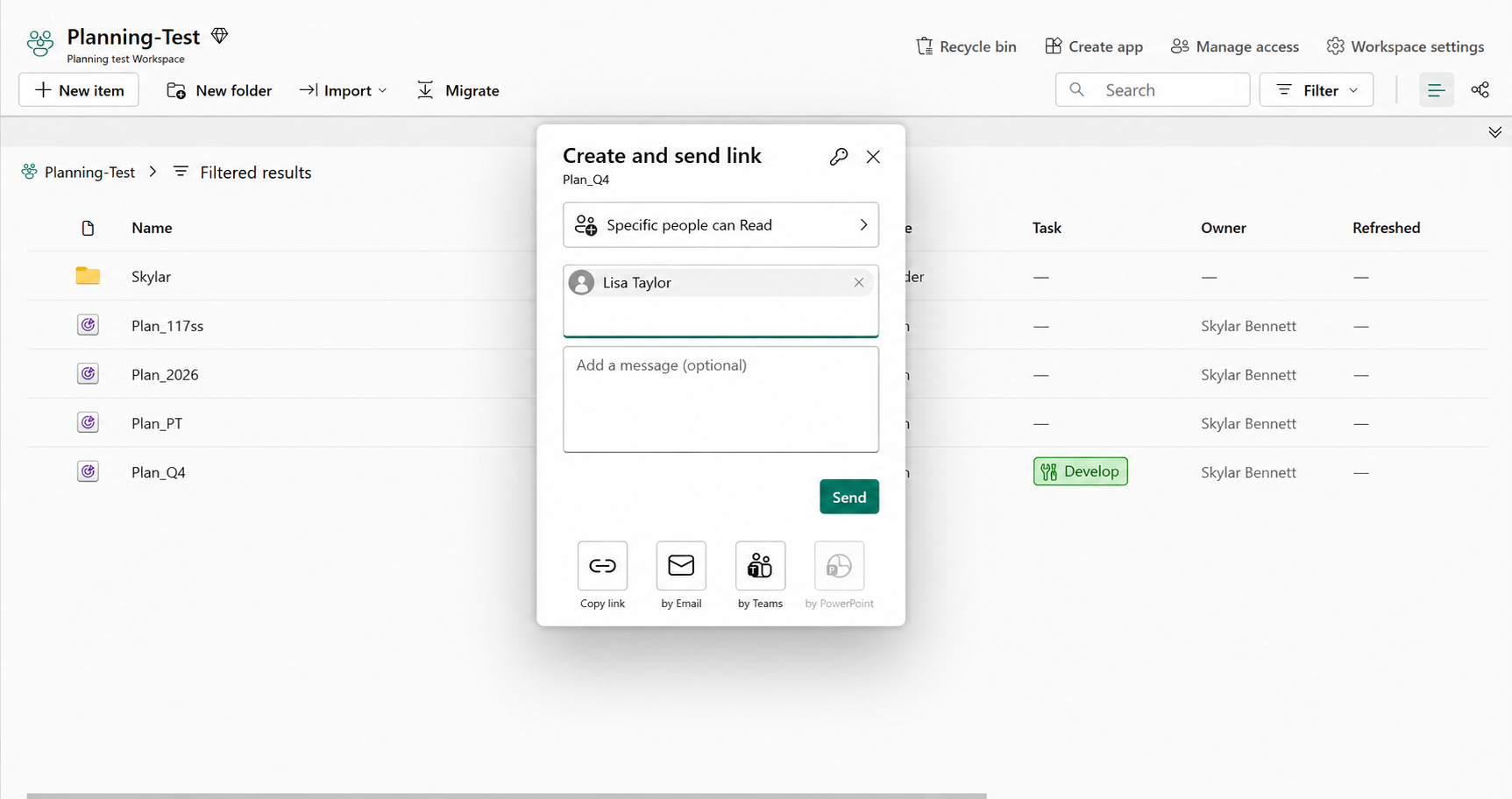
- In the Create and send link pane, select Specific people can Read if it isn't already selected.
- Enter Lisa Taylor as the person to share the plan with.
- Select Send.
Open the shared plan
After you share the plan, Lisa Taylor can open Plan_Q4.
Lisa Taylor can access the plan in read mode and can't enter edit mode. However, stakeholder actions available in read mode, such as data input and comments, remain available.