Note
Access to this page requires authorization. You can try signing in or changing directories.
Access to this page requires authorization. You can try changing directories.
This article describes how to get Fabric capacity overview events as an eventstream in Fabric Real-Time hub.
Fabric capacity overview events are events generated by a Fabric capacity that report utilization status, state changes, and allocation updates
With Fabric eventstreams, you can capture these Fabric capacity events, transform them, and route them to various destinations in Fabric for further analysis. This seamless integration of Fabric capacity events within Fabric eventstreams gives you greater flexibility for monitoring and analyzing activities in your Fabric capacity.
Event types
Here are the supported Capacity overview events:
| Event type name | Description |
|---|---|
| Microsoft.Fabric.Capacity.Summary | Emitted every 30 seconds to summarize the capacity usage across all operations during that interval. |
| Microsoft.Fabric.Capacity.State | Emitted when a capacity’s state changes. For example, when a capacity is paused or resumed. |
For more information, see Explore Capacity overview events.
Note
If you enable workspace outbound access protection on the workspace where you create the consumer (for example, an activator or eventstream), cross-workspace event consumption is blocked by default. To allow it, add the Real-Time Events connector to the workspace's data connection rules. For more information, see Workspace outbound access protection for Real-Time Events.
Note
If workspace-level private links are configured to block public access on the workspace where the events originate (the source workspace), event consumers such as Activator alerts or eventstreams in other workspaces are blocked from consuming those events unless a private link is established from the consumer's network to the source workspace. For more information, see Private links for Azure and Fabric Events.
Prerequisites
- Access to a workspace in the Fabric capacity license mode (or) the Trial license mode with Contributor or higher permissions.
- A Fabric capacity where you have capacity admin role.
Create streams for Fabric capacity overview events
You can create streams for Fabric capacity overview events in Real-Time hub using one of the ways:
Data sources page
Sign in to Microsoft Fabric.
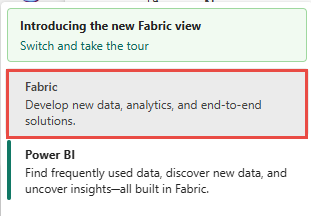
If you see Power BI at the bottom-left of the page, switch to the Fabric workload by selecting Power BI and then by selecting Fabric.
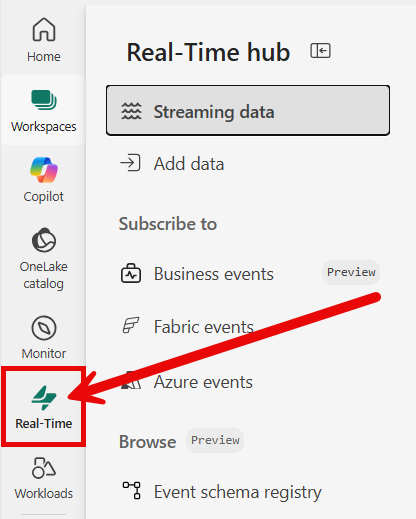
Select Real-Time on the left navigation bar.
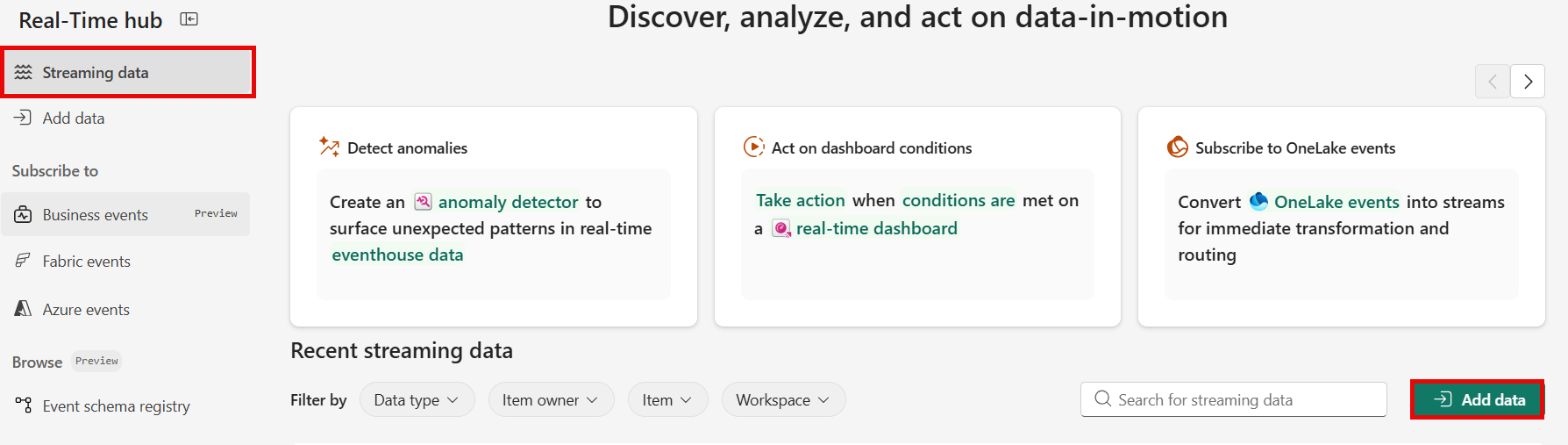
The Streaming data page opens by default. Click on the Add data button to get to the Add data page.
You can also get to the Add data page directly by selecting the Add data option in the left navigation bar.
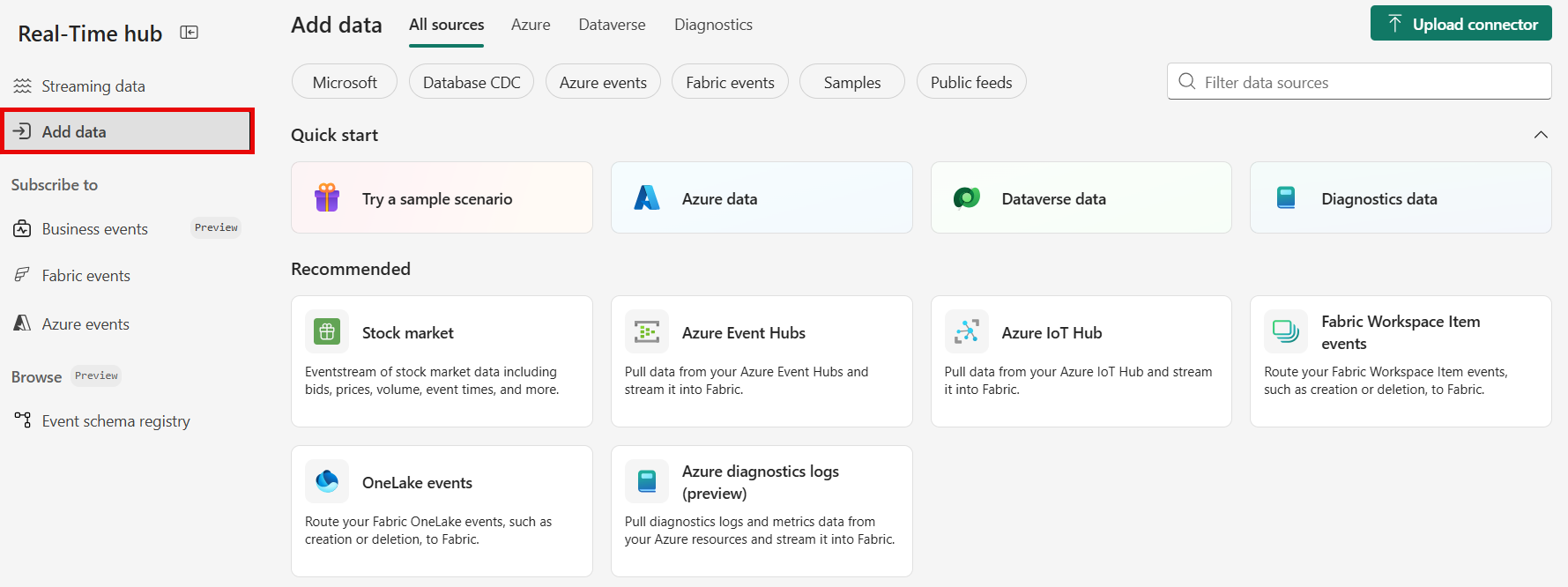
On the Data sources page, select Fabric events category at the top, and then select Connect on the Capacity overview events tile.
Now, use instructions from the Configure and create an eventstream section.
Fabric events page
In Real-Time hub, select Fabric events on the left navigation menu.
Move the mouse over Capacity overview events, and select the + (plus) link, or select ... (ellipsis) and then select Create Eventstream.
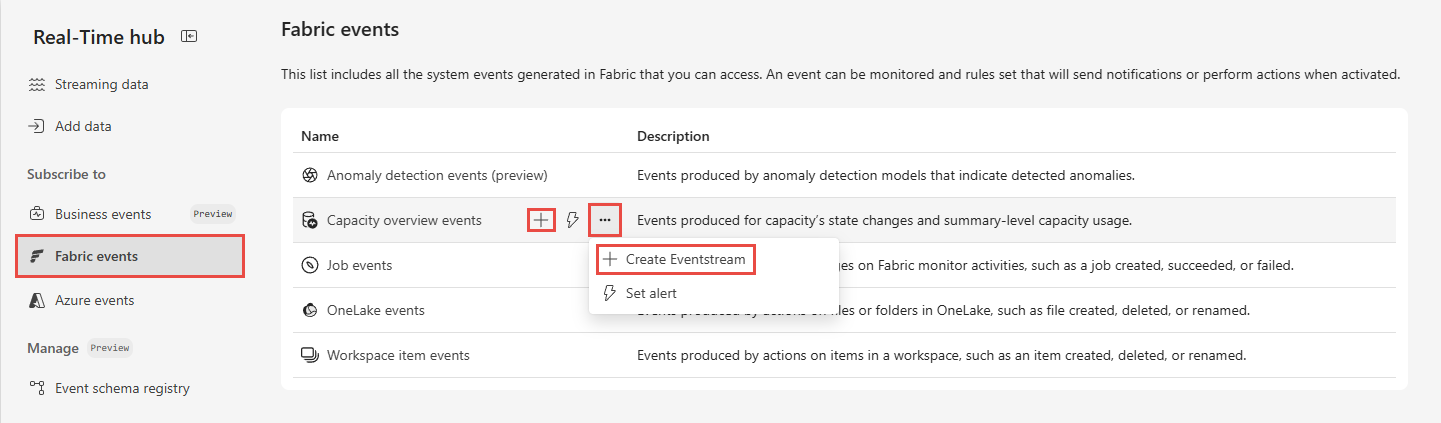
Now, use instructions from the Configure and create an eventstream section, but skip the first step of using the Add source page.
Configure and create an eventstream
On the Connect screen, first select Event type(s) of interest that you want to capture in the eventstream. By default, all supported events are captured.

For Event scope, select the Fabric capacity for which you want to stream capacity overview events. You must have Contributor or higher permissions on the selected capacity to be able to stream its capacity overview events.
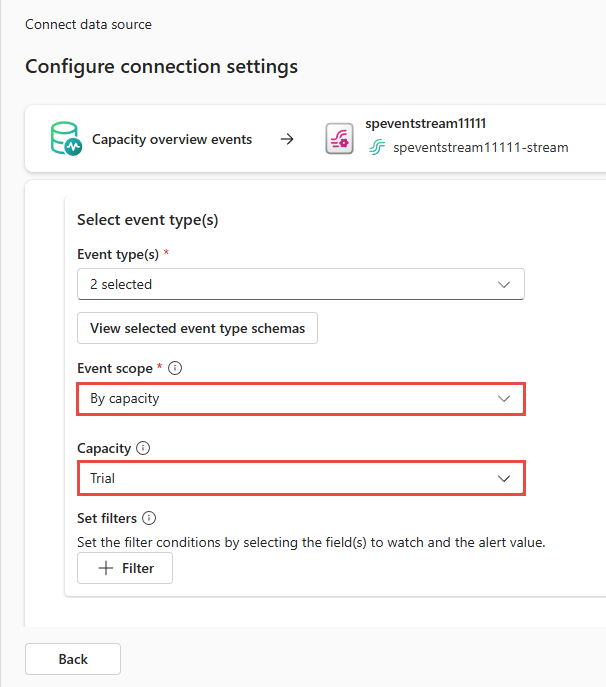
Stream or source details
On the Connect page, follow one of these steps based on whether you're using Eventstream or Real-Time hub.
Eventstream:
In the Source details pane to the right, follow these steps:
For Source name, select the Pencil button to change the name.
Notice that Eventstream name and Stream name are read-only.
Real-Time hub:
In the Stream details section to the right, follow these steps:
Select the Fabric workspace where you want to create the eventstream.
For Eventstream name, select the Pencil button, and enter a name for the eventstream.
The Stream name value is automatically generated for you by appending -stream to the name of the eventstream. This stream appears on the real-time hub's All data streams page when the wizard finishes.
Select Next at the bottom of the Configure page.
Review and connect
On the Review + connect screen, review the summary, and select Add (Eventstream) or Connect (Real-Time hub).
View stream from the Real-Time hub page
Select Real-Time hub on the left navigation menu, and confirm that you see the stream you created. Refresh the page if you don't see it.
For detailed steps, see View details of data streams in Fabric Real-Time hub.
Related content
To learn about consuming data streams, see the following articles: