Note
Access to this page requires authorization. You can try signing in or changing directories.
Access to this page requires authorization. You can try changing directories.
The Rules page in Fabric Real-Time hub brings together all the Activator rules you can access. You can find rules created from Power BI reports, eventstreams, Real-Time Dashboards, warehouse queries, and Real-Time hub without returning to each experience or opening each Activator item.
From this page, you can review rule status, start or stop rules, and view recent activation activity. When you need to change a rule's conditions or other settings, you can open it in Activator.
Note
The Rules page in Real-Time hub is in preview.
Prerequisites
- A Microsoft Fabric account. If you don't have an account, sign up for a free trial.
- Access to an existing Activator rule. To create a rule from a stream in Real-Time hub, see Set alerts on data streams.
Open the Rules page
- Navigate to Real-Time hub in Microsoft Fabric.
- In the left navigation pane, under Automate, select Rules.
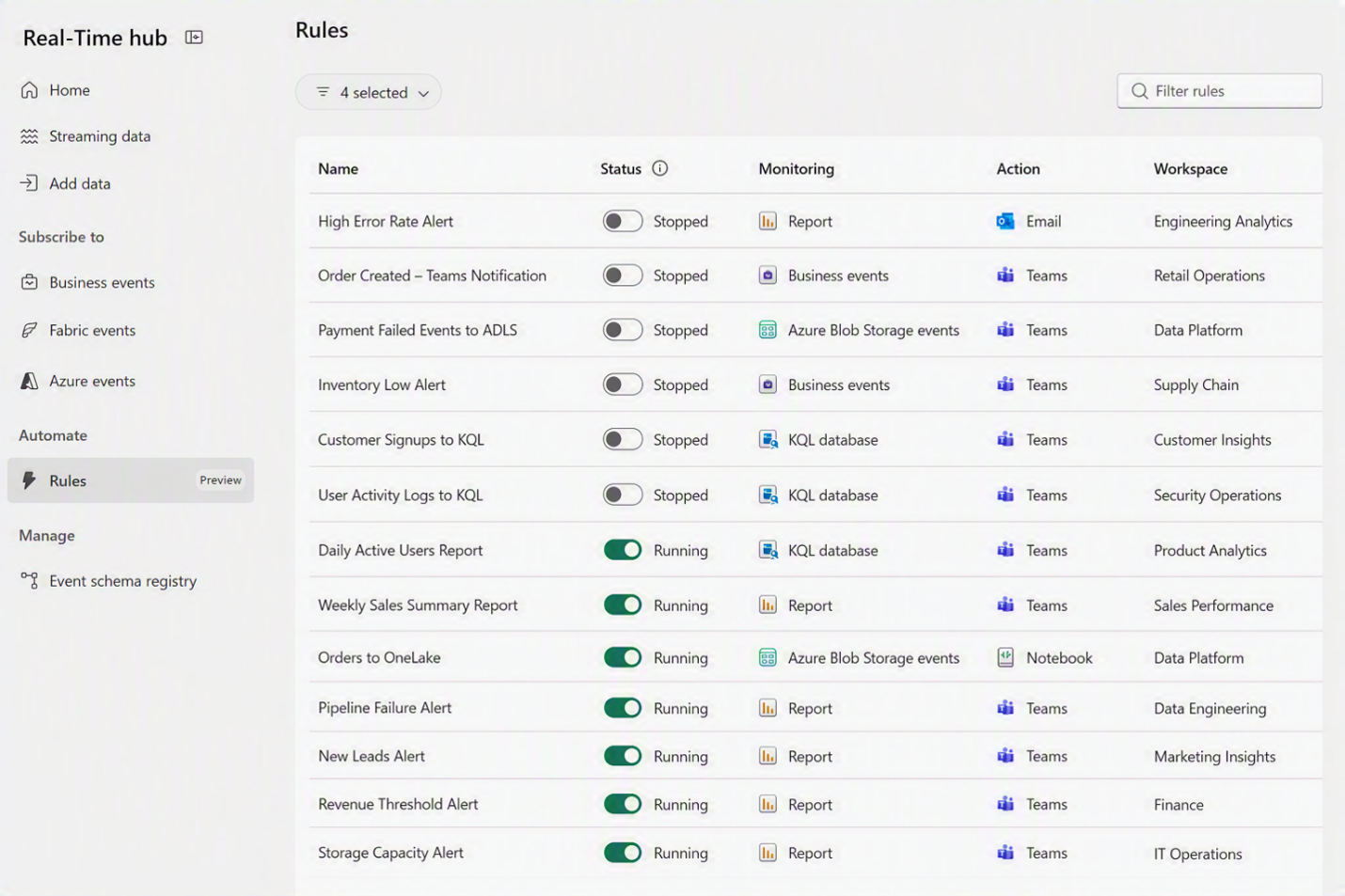
The page lists the rules you can access across workspaces.
Find and review rules
Use the Filter rules box to find a rule. Review the following columns to identify the rule and its current status:
| Column | Description |
|---|---|
| Name | The name of the rule. |
| Status | Whether the rule is Running or Stopped, with a toggle to start or stop it. |
| Monitoring | The source the rule monitors, such as a report, business events, or a KQL database. |
| Action | The action configured for the rule, such as sending an email or a Teams message, or running a notebook. |
| Workspace | The workspace that contains the rule's Activator item. |
Start or stop a rule
You can change a rule's status directly from the list without opening its Activator item.
- Find the rule on the Rules page.
- In the Status column, use the toggle to start or stop the rule:
- To start a stopped rule, turn the toggle on.
- To stop a running rule, turn the toggle off.
- Check that the status shows Running or Stopped, as expected.
View recent activation activity
Use insights to see how often a rule activated recently without opening the monitoring experience in Activator.
- On the Rules page, hover over the rule you want to inspect.
- Select the insights icon, or select More options (...) > View insights.
- Review the View insights pane.
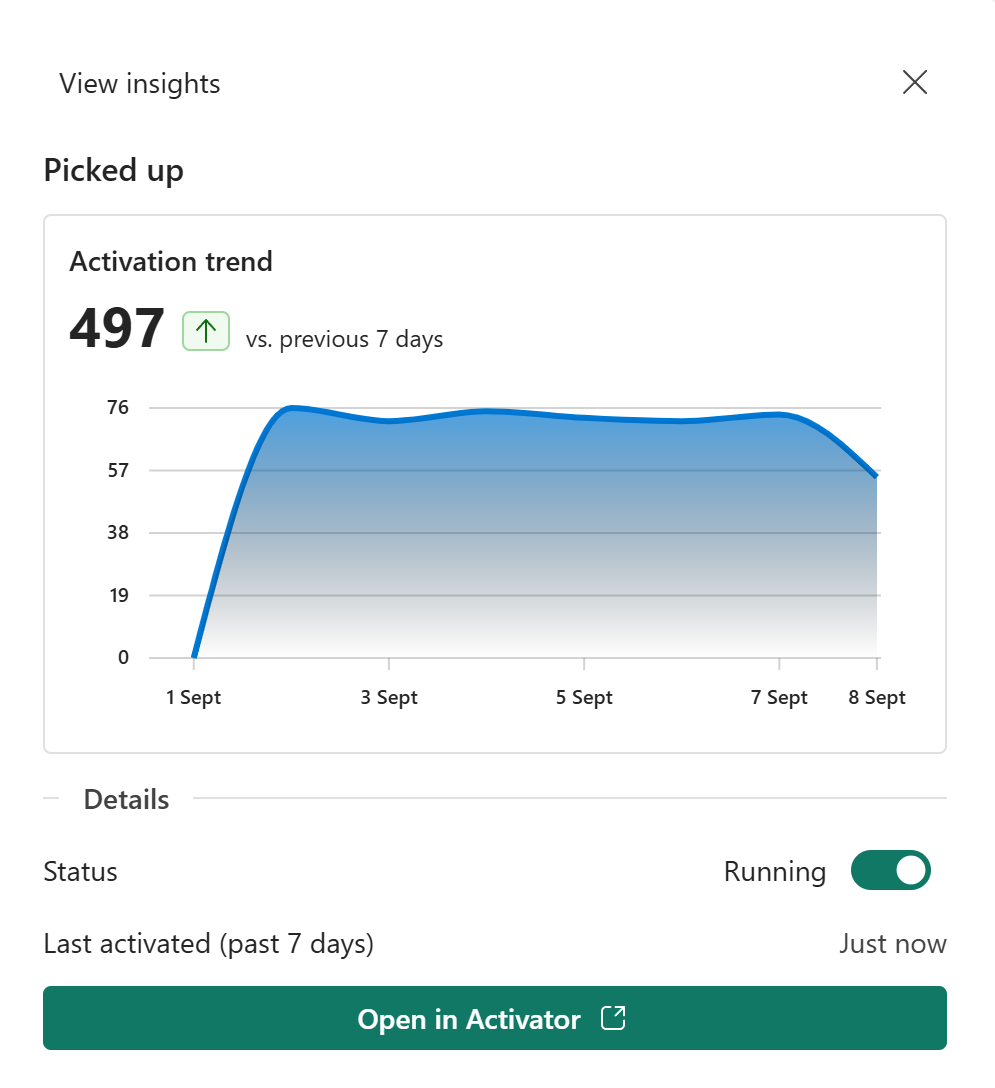
The pane includes the following information:
- Activation trend shows the recent activation count and a chart of activity over time, with a comparison to the previous seven days.
- Status shows whether the rule is running or stopped. You can also use the toggle here to start or stop it.
- Last activated (past 7 days) shows when the rule most recently activated within the past seven days.
Use this information to identify rules that are actively detecting conditions and rules that might need further investigation.
Open a rule in Activator
To change a rule's conditions, action, or other settings, open it in Activator:
- From the Rules page, hover over the rule, and select More options (...) > Edit in Activator.
- From the View insights pane, select Open in Activator.
The More options (...) menu also includes Delete to delete a rule.