Note
Access to this page requires authorization. You can try signing in or changing directories.
Access to this page requires authorization. You can try changing directories.
The Streaming data page in Fabric Real-Time hub helps you discover and manage streams and Kusto Query Language (KQL) tables that you can access. The page layout changes based on whether you have streams or tables.
Page with no streams or tables
If you don't have any streams or tables, the Streaming data page shows four sections.

Common tasks
The first section provides shortcuts to common tasks:
- Learn to monitor streaming data - Open a walkthrough that shows you how to connect a real-time weather source to an eventstream, preview live data, and create an alert rule that sends a notification when a condition is met. For more information, see Learn to monitor streaming data.
- Run operations - Create an operations agent that monitors signals and runs workflows when specified conditions are met.
- Act on dashboard conditions - Create alerts on a real-time dashboard.
- Act on Job events - Create alerts on Fabric events. For more information, see Set alerts for job events.
- Subscribe to OneLake events - Create streams based on Fabric OneLake events. For more information, see Subscribe to OneLake events.
- Connect weather data - Create a data stream based on real-time weather data. For more information, see Real-Time weather source.
- Learn from a tutorial - Open the Fabric Real-Time Intelligence tutorial.
- Case study - Read a Real-Time Intelligence customer story.
Microsoft sources
The second section lists the types of Microsoft sources available in your Fabric tenant. Select a source type, such as Azure Cosmos DB (CDC), to see the sources of that type. You can then select a source and create an eventstream for it.
Jump-start and connect
The third section contains the Jumpstart your experience and Connect data sources subsections.
The Jumpstart your experience subsection has the following cards:
- Try a sample scenario - Explore the Bicycle rentals, Stock market, and Yellow taxi samples. Each sample creates a group of Fabric Real-Time Intelligence items that demonstrate how to stream, analyze, and visualize data. For more information, see End-to-end Real-Time Intelligence sample.
- Free hands-on workshop - Find hands-on workshops for Fabric Real-Time Intelligence.
The Connect data sources subsection has the following cards:
- Explore Fabric events - Open the Fabric events page, where you can subscribe to Fabric events and create eventstreams. For more information, see Explore Fabric events.
- Connect data sources - Open the Add data page to view supported sources and create streams.
Learning resources
The fourth section links to these learning resources:
- Real-Time Intelligence tutorial
- Real-Time Intelligence documentation
- Customer success stories
- Microsoft Fabric partners
- Real-Time Intelligence blog
Page with streams or tables
When you have access to at least one eventstream or KQL table, the Streaming data page shows task cards and an All data streams section.
Task cards
The task cards provide shortcuts to common actions.
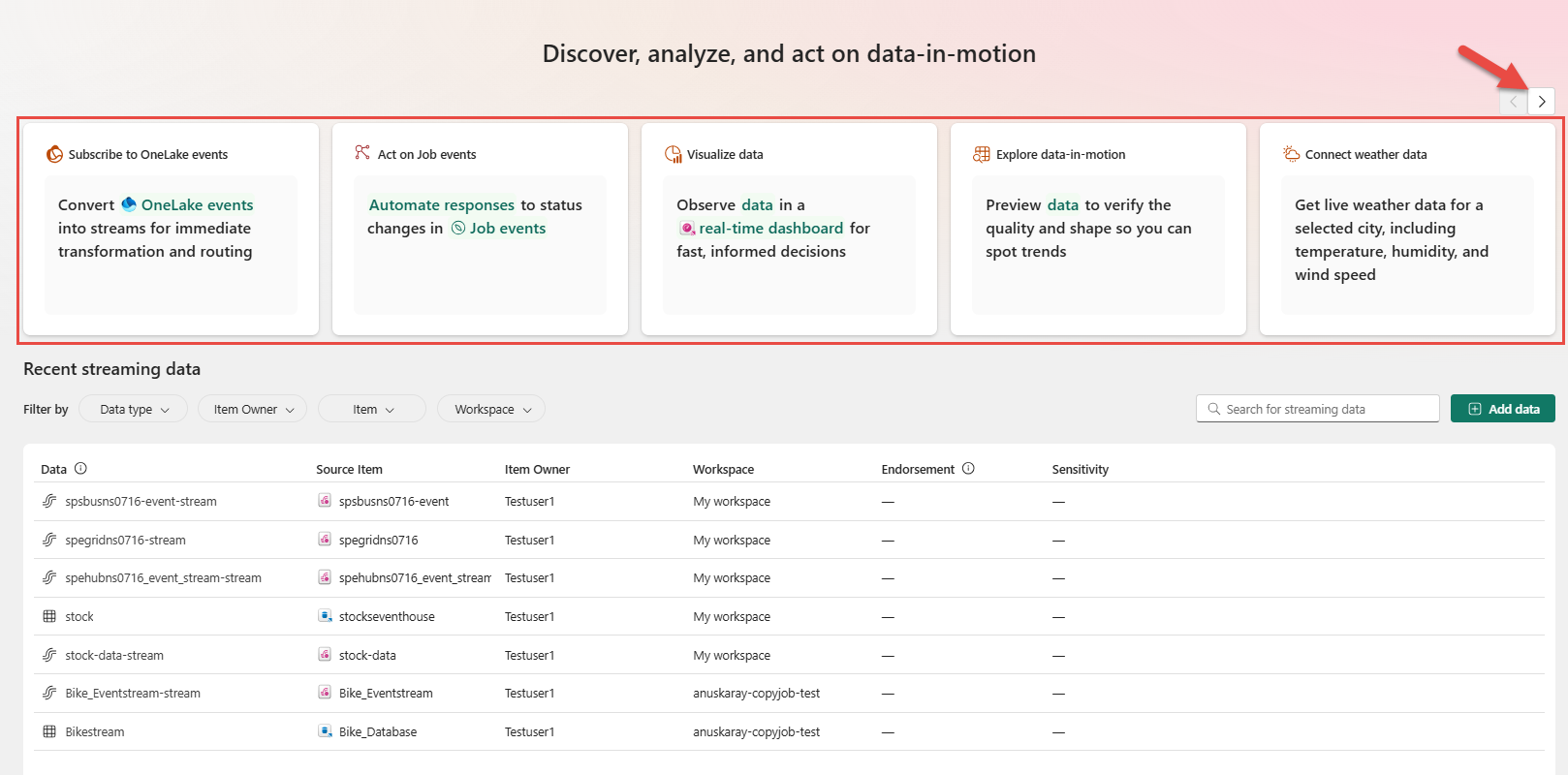
- Subscribe to OneLake events - Create streams based on Fabric OneLake events. For more information, see Subscribe to OneLake events.
- Act on Job events - Create alerts on Fabric events. For more information, see Set alerts for job events.
- Visualize data - Create a dashboard based on data in a KQL table.
- Explore data in motion - Preview data from a source. For more information, see Preview data streams.
- Connect weather data - Create a data stream based on real-time weather data. For more information, see Real-Time weather source.
- Learn from a tutorial - Open the Fabric Real-Time Intelligence tutorial.
- Case study - Read a Real-Time Intelligence customer story.
All data streams
The All data streams section lists the streams and tables that you can access. Streams are outputs from Fabric eventstreams, and tables belong to KQL databases.

The table has the following columns:
| Column | Description |
|---|---|
| Data | Name of the stream or KQL table. |
| Source item | Name of the parent item. For a stream, the source item is the eventstream. For a KQL table, the source item is the KQL database. |
| Item owner | Owner of the parent item. |
| Workspace | Workspace that contains the parent item. |
| Endorsement | Endorsement status of the parent item. |
| Sensitivity | Sensitivity status of the parent item. |
Use the search box to find a stream by name. You can also filter the list by using the following filters:
| Filter | Description |
|---|---|
| Data type | Show streams or tables. |
| Item owner | Show data based on the owner of the parent eventstream or KQL database. |
| Item | Show data based on the name of the parent eventstream or KQL database. |
| Workspace | Show data from a specific workspace. |
Note
To see streams and tables from only your workspace, select My workspace for the Workspace filter.
Stream actions
To view the available actions, hover over a stream, and select More options (...).
| Action | Description |
|---|---|
| Preview data | Preview data in the stream or derived stream. For more information, see Preview data streams. |
| Open eventstream | Open the parent eventstream. You can then transform the data or add destinations. |
| Endorse | Endorse the parent eventstream. For more information, see Endorse data streams. |

KQL table actions
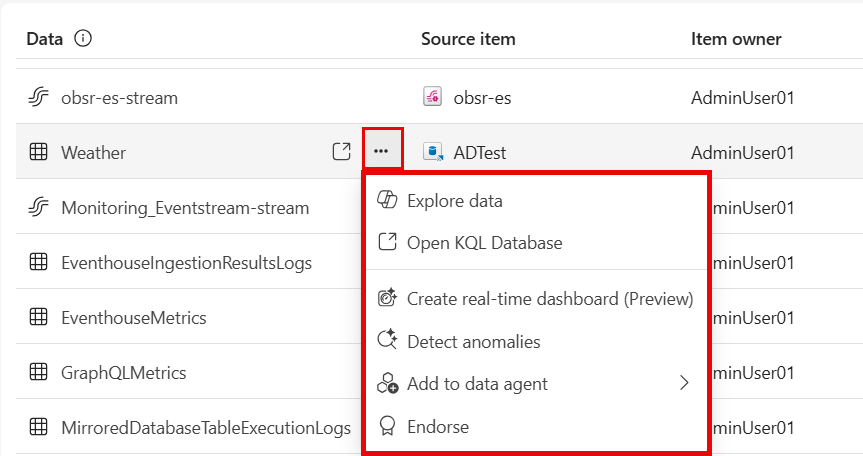
The following actions are available for a KQL table:
| Action | Description |
|---|---|
| Explore data | Explore KQL table data in a Real-Time Dashboard by using Copilot. For more information, see Explore data and tables with Copilot. |
| Open KQL Database | Open the parent KQL database. |
| Endorse | Endorse the parent KQL database. For more information, see Endorse data streams. |
| Detect anomalies (preview) | Detect anomalies in data stored in the KQL table. For more information, see Set up anomaly detection. |
| Create real-time dashboard (preview) | Create a Real-Time Dashboard with Copilot based on data in the KQL table. |
| Add to data agent | Add the KQL table as a data source for a data agent. |
Next step
Go to the Add data page to learn how to connect supported data sources to Real-Time hub.