Note
Access to this page requires authorization. You can try signing in or changing directories.
Access to this page requires authorization. You can try changing directories.
This article shows how to create an Activator rule that alerts you when an eventstream stops sending events.
Scenario overview
In this scenario, you monitor an eventstream powered by real-time data from city bicycle stations. The goal is to receive an automatic alert whenever no events arrive for one hour.
The example uses an eventstream configured with sample bicycle data from London's bike stations, where each event reports a station's current capacity. Rather than ingesting the full eventstream into Activator (which would be costly and inefficient), you add a summarization node in eventstream that emits a count of events per minute. You then send this summarized output to Activator and create a rule that fires when the summarized event flow stops.
This approach provides efficient monitoring with lower cost by processing only aggregated data rather than individual events.
Set up eventstream with sample data
Create a new eventstream and select Use sample data on the welcome screen.

Choose Bicycles from the sample data options and select Add.

Configure event aggregation
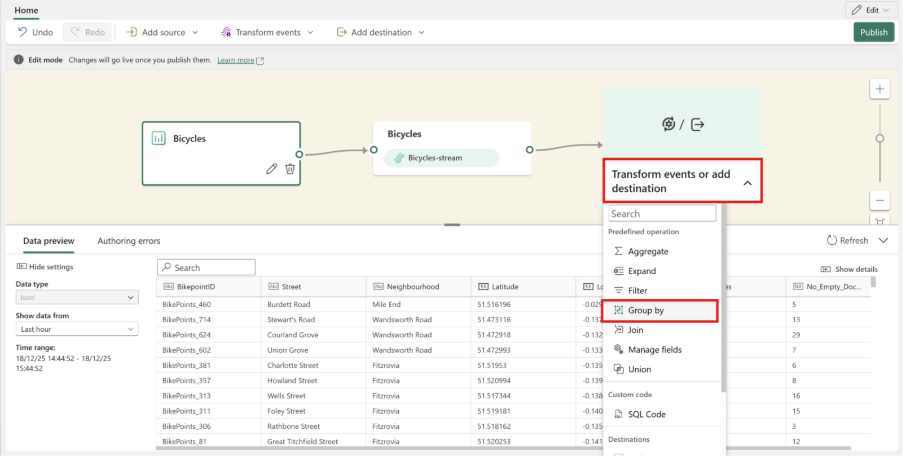
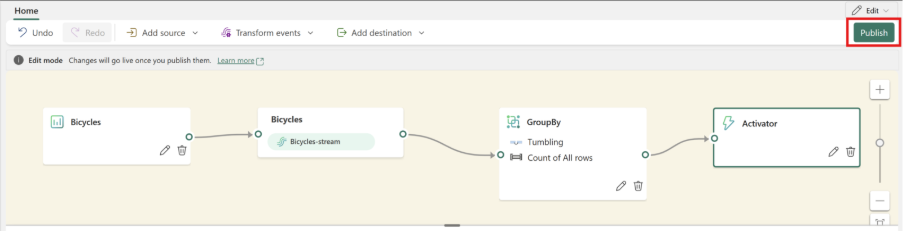
Add a Group by transformation to your eventstream.
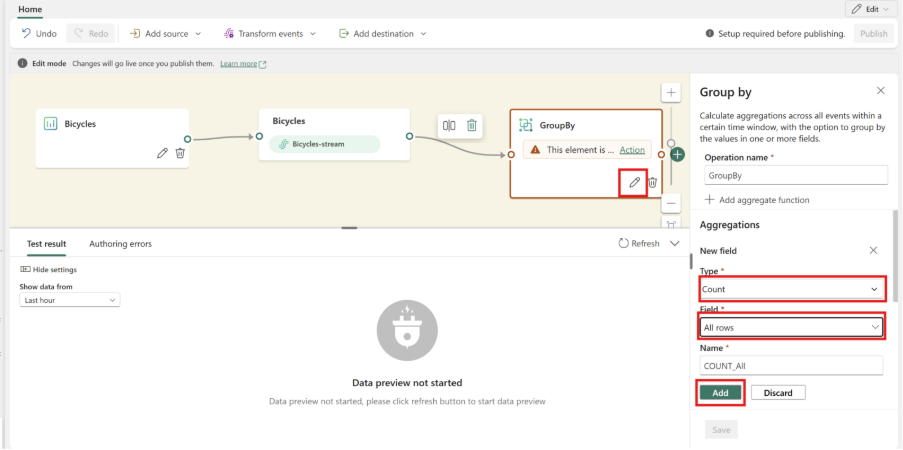
Select the edit icon. In the Aggregations section, choose Count as the operation and select Add.
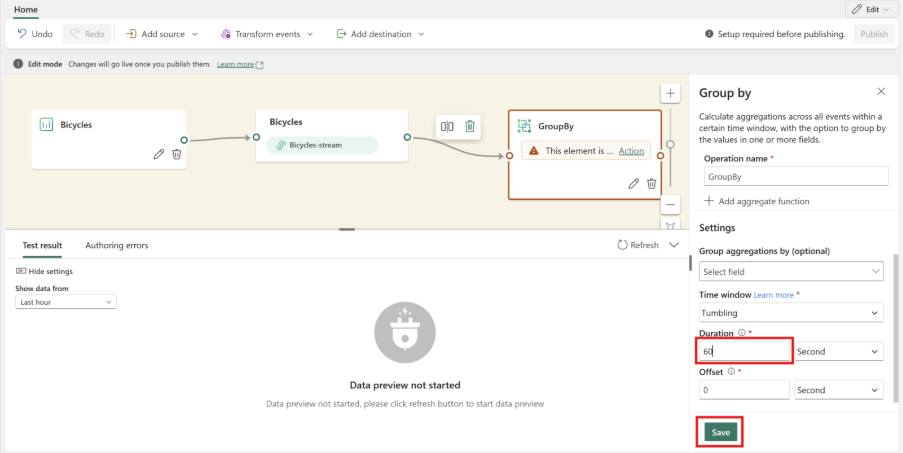
Set the time window duration to 60 seconds and select Save.
Connect to Activator
Add an Activator destination to the GroupBy node.
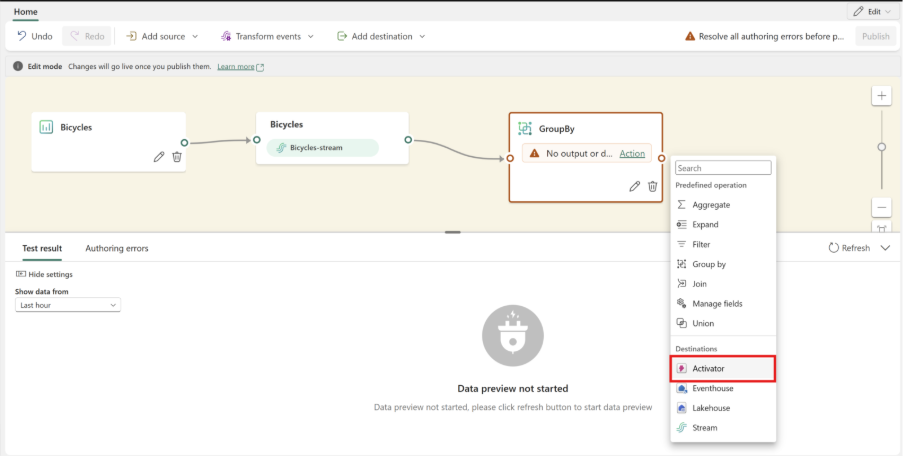
Publish the eventstream to make your changes active.
Create the alert rule
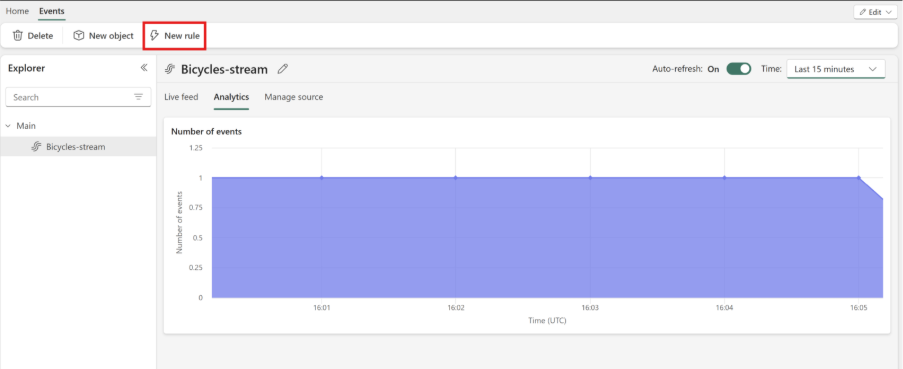
Go to the Activator item connected to your Eventstream. You see that the system ingests only one event per minute. Select New rule.
In the rule configuration, choose No presence of data from the Operation dropdown and select 1 hour in the Time elapsed dropdown. Select Save and start.
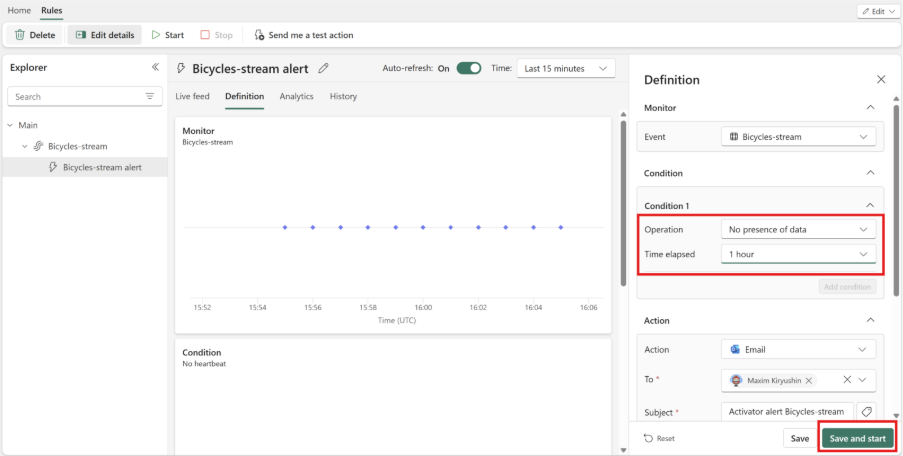
Your rule is now running and sends you an email alert if the eventstream stops sending events for one hour. This alert prompts you to investigate any problems with your data pipeline.