Note
Access to this page requires authorization. You can try signing in or changing directories.
Access to this page requires authorization. You can try changing directories.
In the Fabric portal, you can create and manage Activator rules for OneLake items using Fabric Activator. These rules allow you to automate actions based on specific events or conditions related to OneLake items, such as when a file is created, or deleted. You can also create rules based on the status of processes that interact with OneLake items, such as pipelines, Spark jobs, and notebooks.
Use these templates to create a rule that sends a notification when a process run fails, succeeds, or when a specific event happens during the process run. For example, you can create a rule to send an email notification to the data engineering team when a pipeline run fails, or to trigger an Azure Function when a Spark job succeeds.
For a list of all supported actions for an Activator rule, see Supported actions for Activator rules.
Create and manage rules for a process
Fabric Activator supports templates for the following Fabric processes in OneLake so that you can easily create alerts from the OneLake user interface:
- Pipelines
- Spark jobs
- Notebooks
The supported templates for these processes are:
- Automate action when a process fails.
- Automate action when a process succeeds.
- Automate action when a specific event happens in a process.
Use these templates to automate actions based on the status of the process run or specific events that occur during the process run. For example, you can create a rule to send an email notification to the data engineering team when a pipeline run fails, or to trigger an Azure Function when a Spark job succeeds.
To create a rule for a process, follow these steps:
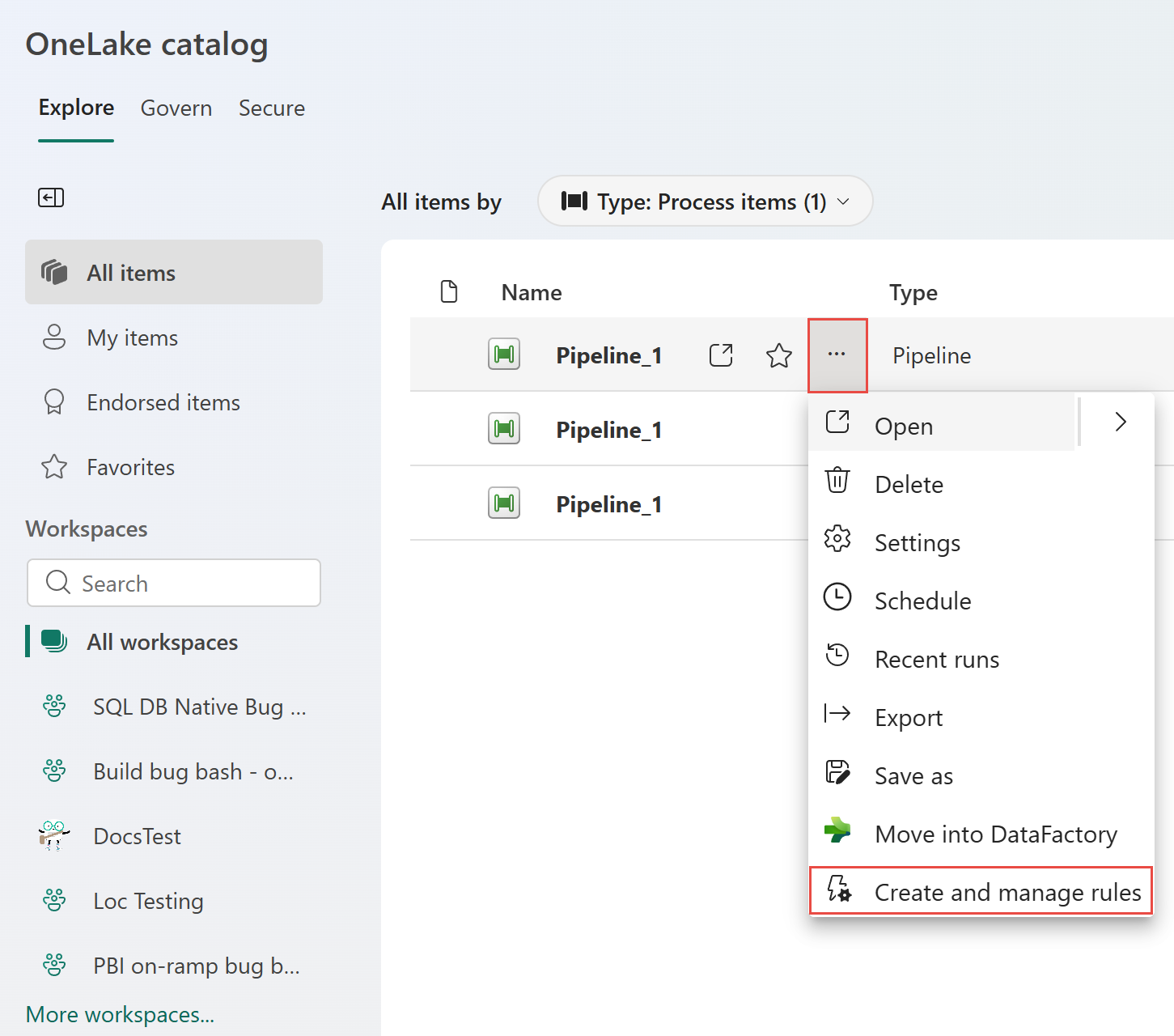
Hover over the process (pipeline, Spark job, or notebook) that you want to create a rule for, select ..., and then select Create and manage rules. The following screenshot shows an example of how to create and manage rules for a pipeline in OneLake.
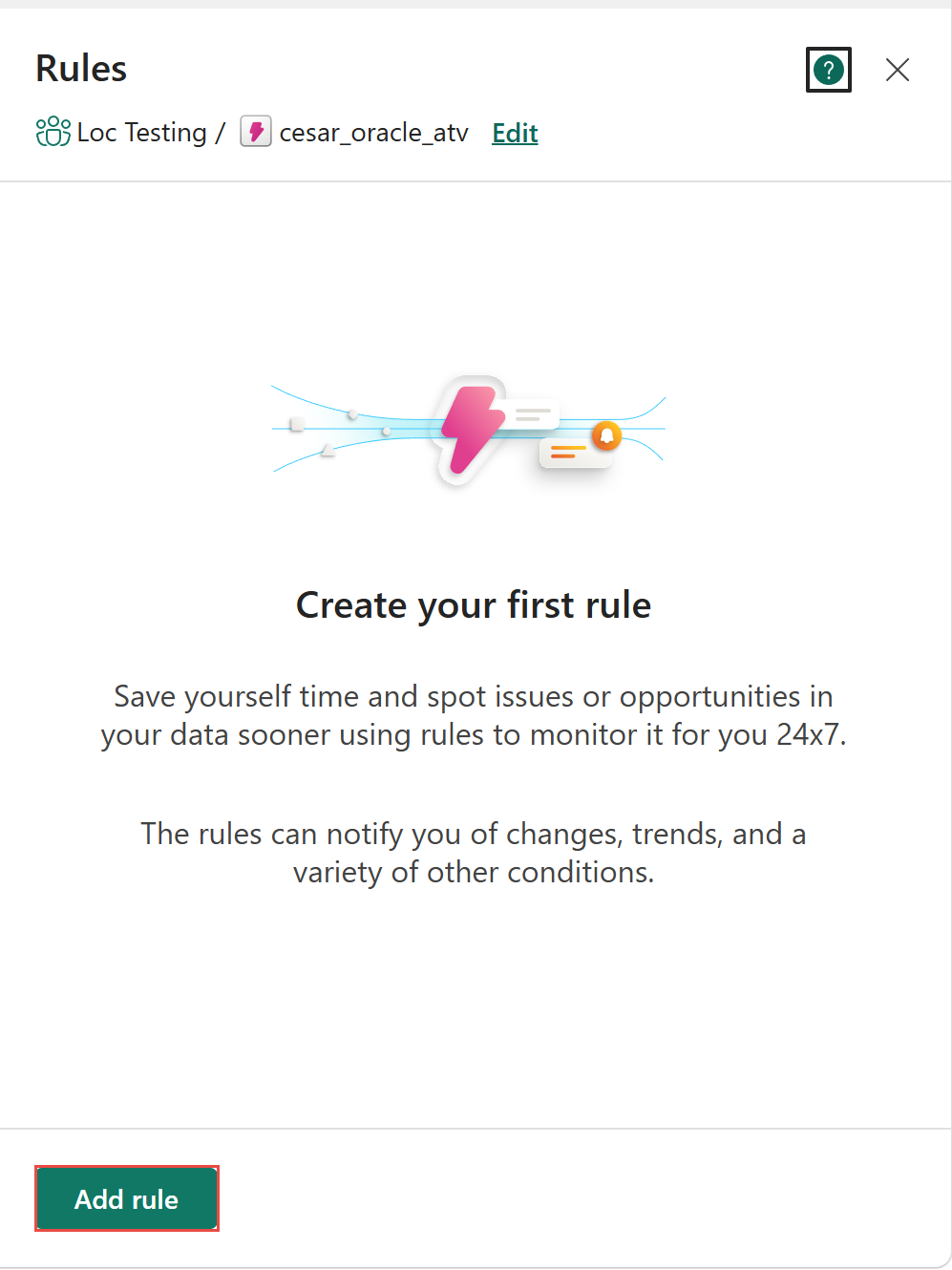
In the Rules pane, select Add rule at the bottom of the pane.
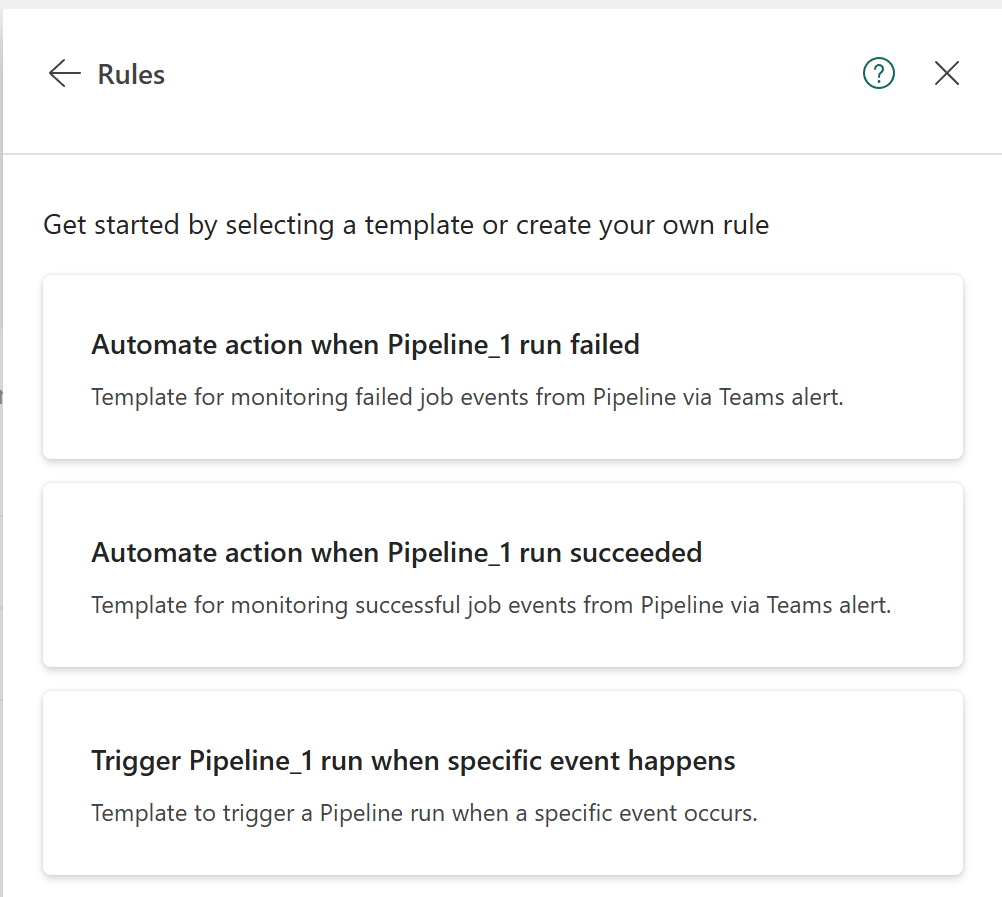
Select a template that fits your needs. For example, select the template to automate an action when a process run fails.
The Details, Monitor, Condition, Action, and Save location sections of the Add rule page are automatically populated based on the template you select.
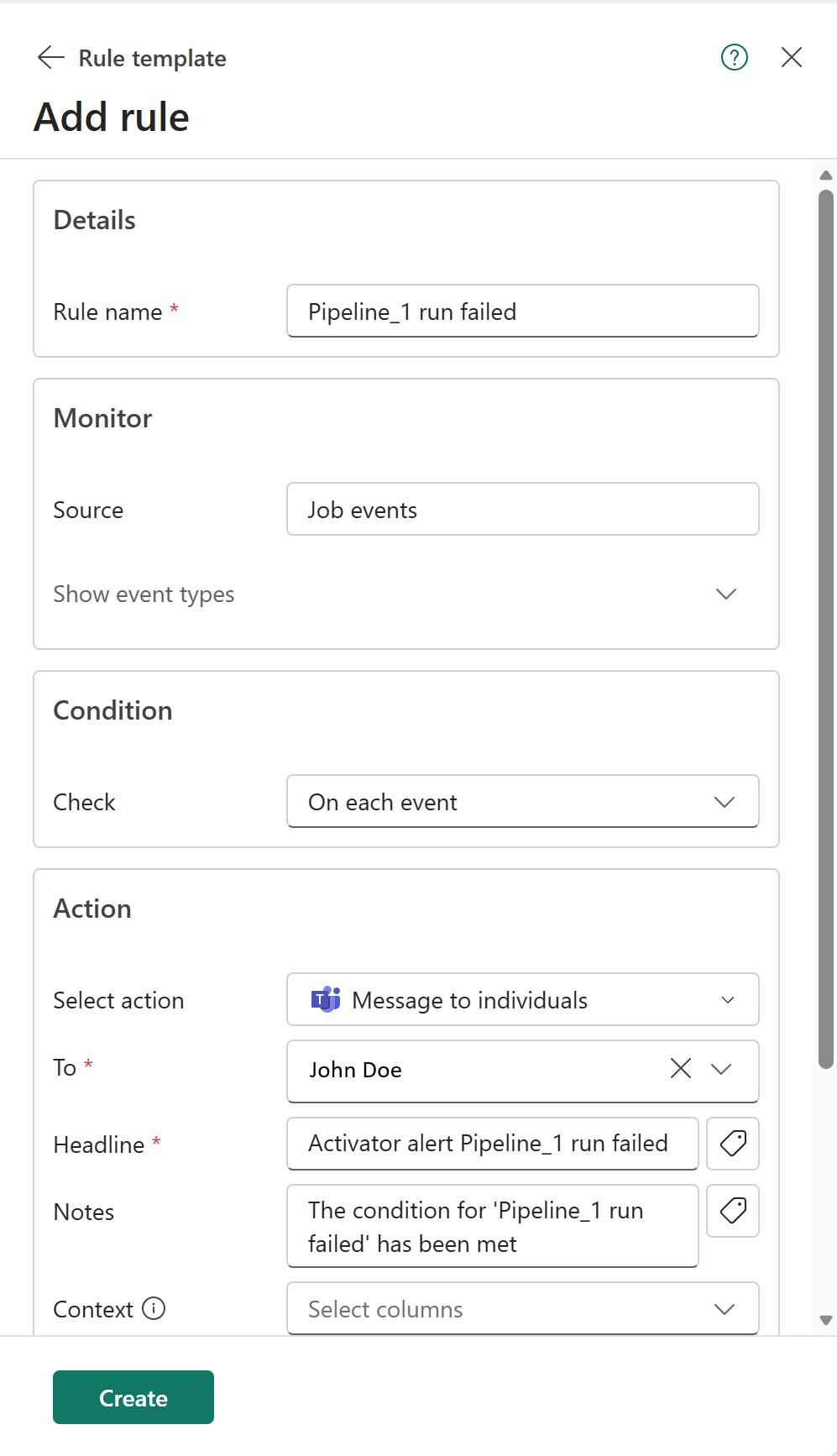
Notice that Source is set to Job events. Select Job events. You see that
Microsoft.Fabric.JobEvents.ItemJobFailedis selected as the event that triggers the rule. You also see that the Item is set to the pipeline that you selected to create the rule for.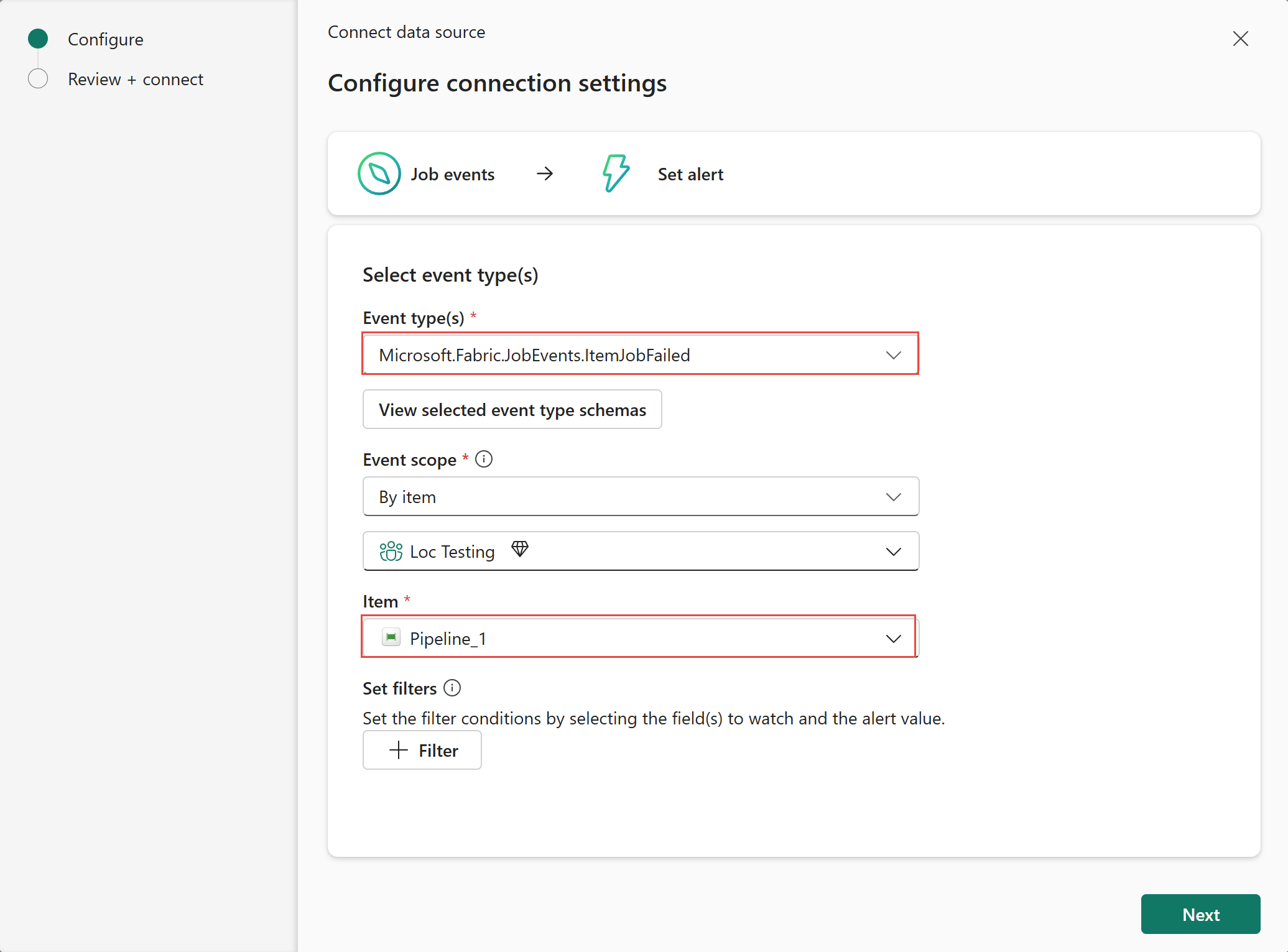
Select X in the top-right corner to close the connection settings pane.
You can customize the Action section based on your needs. For example, in the Action section, you can specify the email address to send the notification to, or the Azure Function to trigger when the rule is activated. For more information about the available actions, see Supported actions for Activator rules.
In the Save location section, select an existing Activator item to save the rule to, or create a new Activator item by selecting + Create new item. An Activator item is a container for rules that share the same context and scope. For example, you can create an Activator item for all rules related to a specific project or team.
On the Add rule page, select Create to create the rule. To learn more about creating an Activator rule, see Create an Activator rule. See the Rules section for instructions on how to manage the rule in the Rules pane.
Create and manage rules for data stores
Fabric Activator supports templates for the following Fabric data stores in OneLake, so you can easily create alerts from the OneLake user interface:
- Lakehouse
- Warehouse
- KQL Database
- SQL Database
- Mirrored Database
The supported templates for these data stores are:
- Automate action when a file or folder is created in OneLake
- Automate action when a file or folder is deleted in OneLake
Use these templates to automate actions based on specific events or conditions related to these data stores. For example, you can create a rule to send an email notification to the data engineering team when a file is created in a Lakehouse, or to trigger an Azure Function when a file is deleted from OneLake.
To create a rule for a data store, follow these steps:
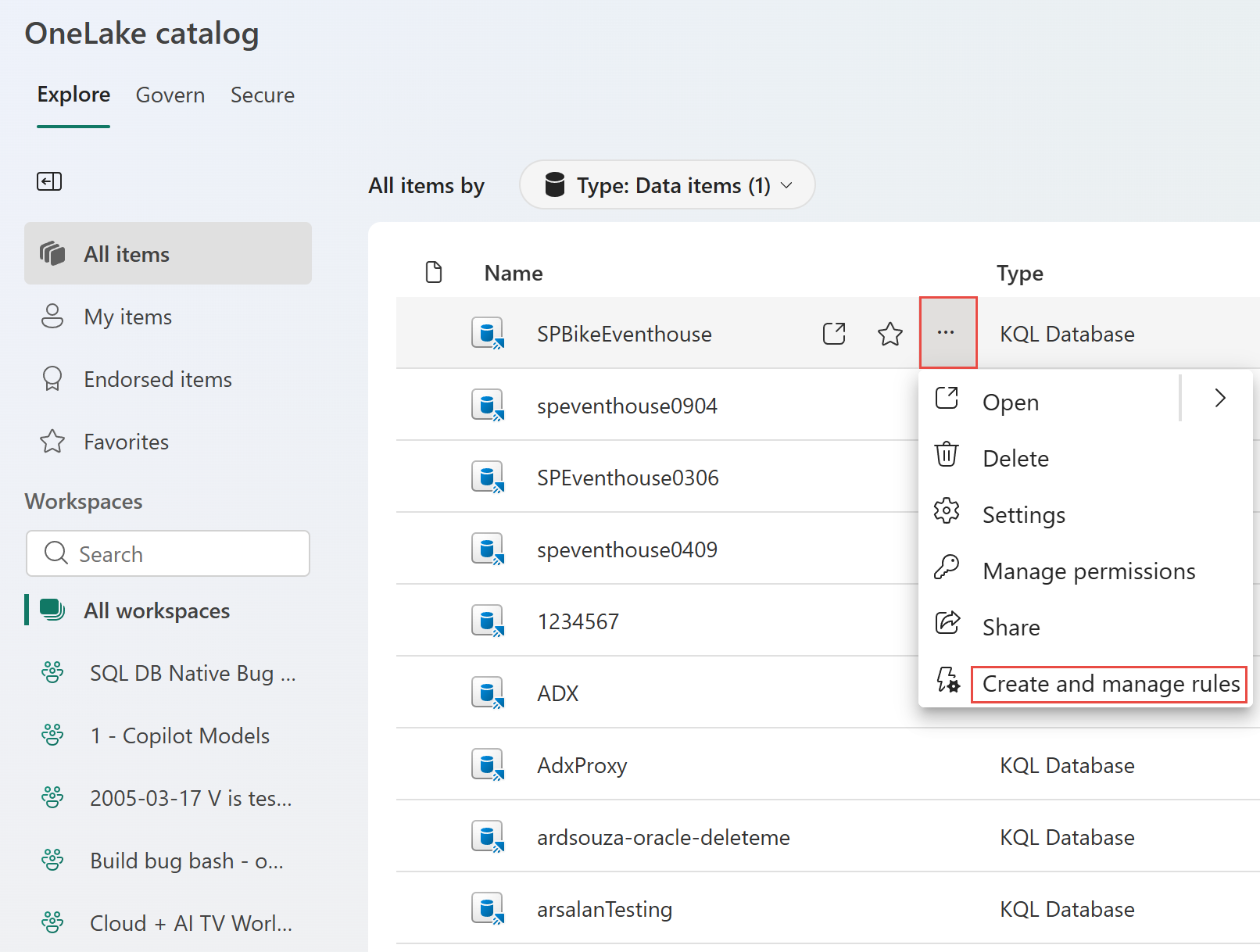
Hover over the data store (Lakehouse, Warehouse, KQL Database, SQL Database, or Mirrored Database) that you want to create a rule for, select ..., and then select Create and manage rules. The following screenshot shows an example of how to create and manage rules for a Lakehouse in OneLake.
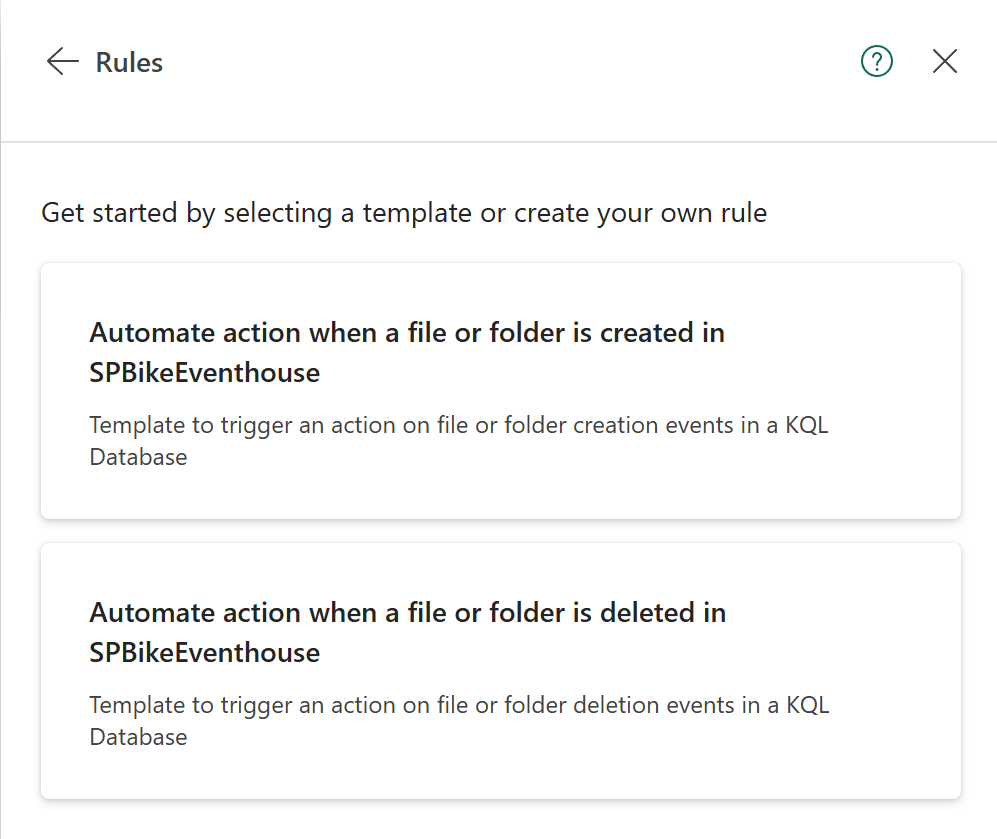
In the Rules pane, select Add rule at the bottom of the pane.
Select a template that fits your needs. For example, select the template to automate an action when a file or folder is created in OneLake.
The Details, Monitor, Condition, Action, and Save location sections of the Add rule page are automatically populated based on the template you select.
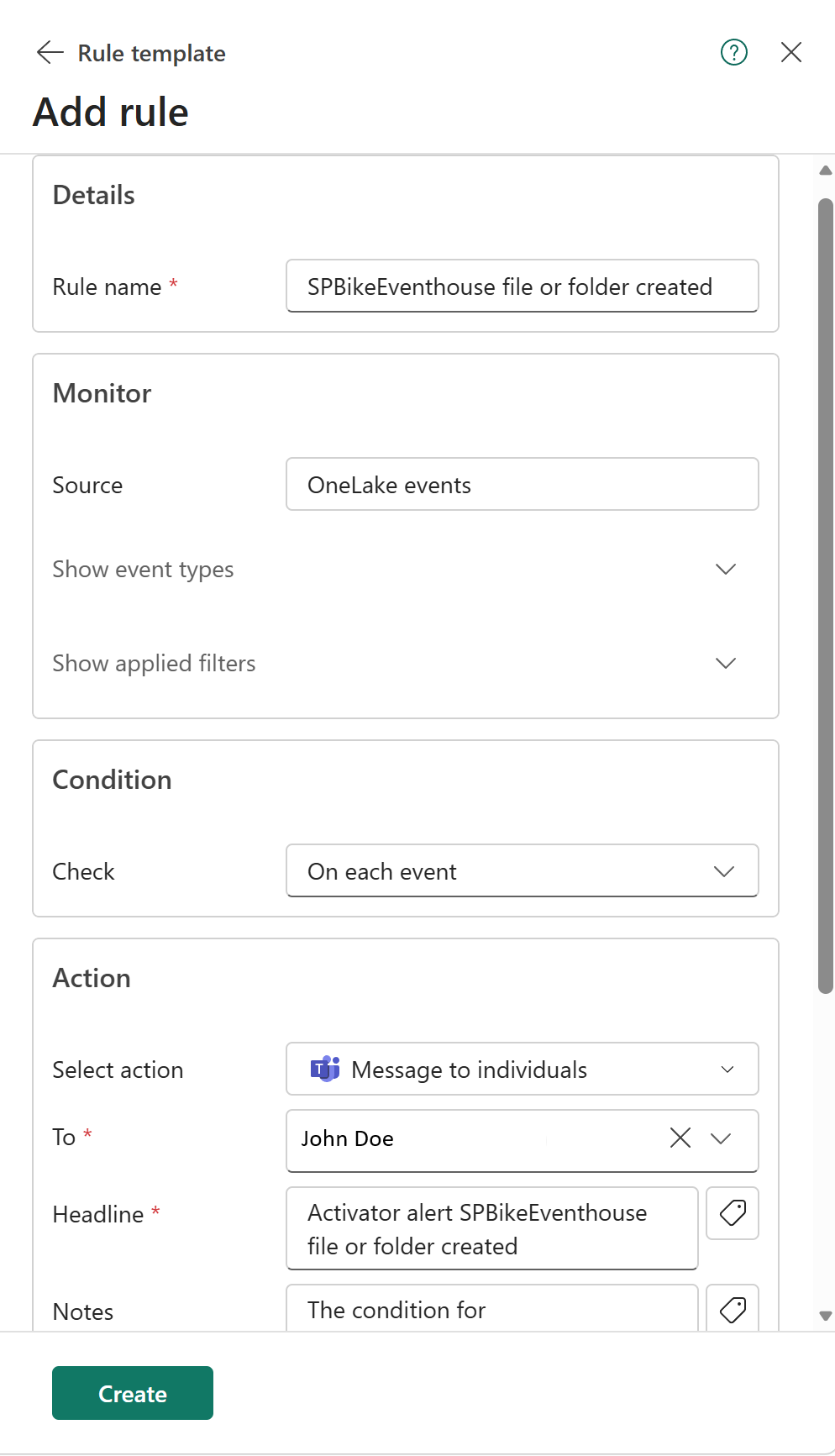
Notice that Source is set to OneLake events. Select OneLake events. You see that
Microsoft.Fabric.JobEvents.ItemJobFailedis selected as the event that triggers the rule. You also see that the Item is set to the pipeline that you selected to create the rule for.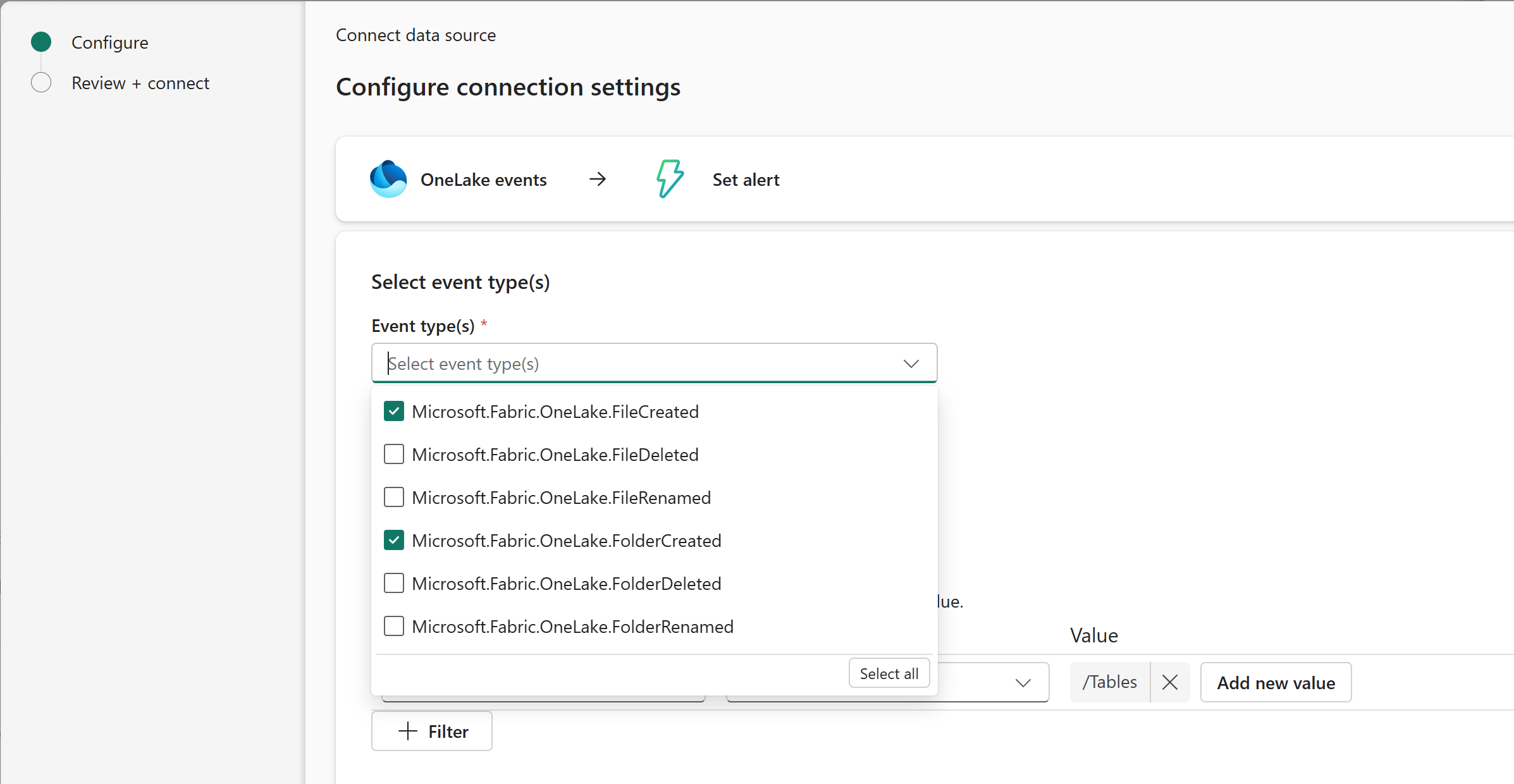
Select X in the top-right corner to close the connection settings pane. Then, select Yes. Cancel in the confirmation dialog to confirm that you want to close the connection settings pane.
You can customize the Action section based on your needs. For example, in the Action section, you can specify the email address to send the notification to, or the Azure Function to trigger when the rule is activated. For more information about the available actions, see Supported actions for Activator rules.
In the Save location section, select an existing Activator item to save the rule to, or create a new Activator item by selecting + Create new item. An Activator item is a container for rules that share the same context and scope. For example, you can create an Activator item for all rules related to a specific project or team.
On the Add rule page, select Create to create the rule. To learn more about creating an Activator rule, see Create an Activator rule. See the Rules section for instructions on how to manage the rule in the Rules pane.
Rules pane
After the rule creation is successful, you see the Rules pane with the list of rules. In the Rules pane, you can perform the following tasks:
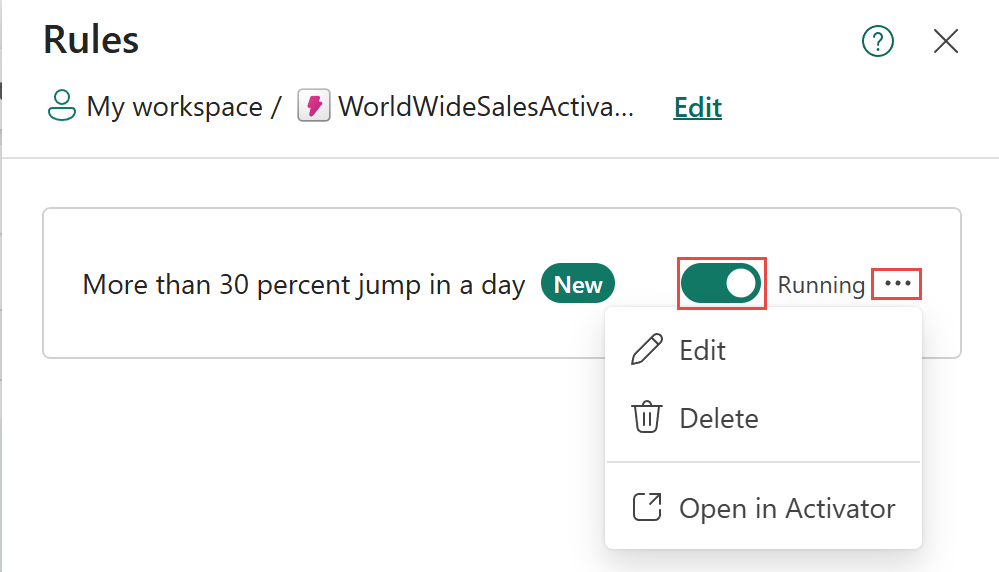
Use the toggle button to start or stop the rule. When the rule is stopped, it doesn't run, and no alerts are sent. If you are testing, once you see a couple of sample alerts, stop the rule to avoid sending too many alerts. You can start the rule again when you want to receive alerts.
Select ... to see the following three options:
Select Edit to edit the rule without leaving the current page. You can edit the rule's details, conditions, actions, and save location.
Select Delete to delete the rule. Once deleted, the rule is removed from the Fabric item on which it was created and from the activator.
Select View in Activator to open the rule in Activator. You can view the rule's details, edit it, or delete it in Activator. When you view in Activator, you can also see the rule's history, including when it was triggered and the alerts that were sent.
Select Add rule to add another rule to the Fabric item and to the Activator.