Note
Access to this page requires authorization. You can try signing in or changing directories.
Access to this page requires authorization. You can try changing directories.
The dedicated SAP Datasphere source creates an eventstream source and a Kafka endpoint for receiving replicated data from SAP Datasphere. You use the endpoint properties to configure an Apache Kafka connection and Replication Flow in SAP Datasphere.
This article shows you how to add the SAP Datasphere source, configure SAP Datasphere to send data, and verify the incoming events.
Prerequisites
Before you begin, make sure you have:
- Access to a workspace assigned to a Fabric capacity or trial capacity.
- Contributor or higher permissions in the workspace.
- An SAP Datasphere account with Premium Outbound Integration enabled.
- Access to an SAP Datasphere space and a supported source connection for the data that you want to replicate.
Add SAP Datasphere as a source
In Fabric, open Real-Time hub.
Select Add data under Streaming data.
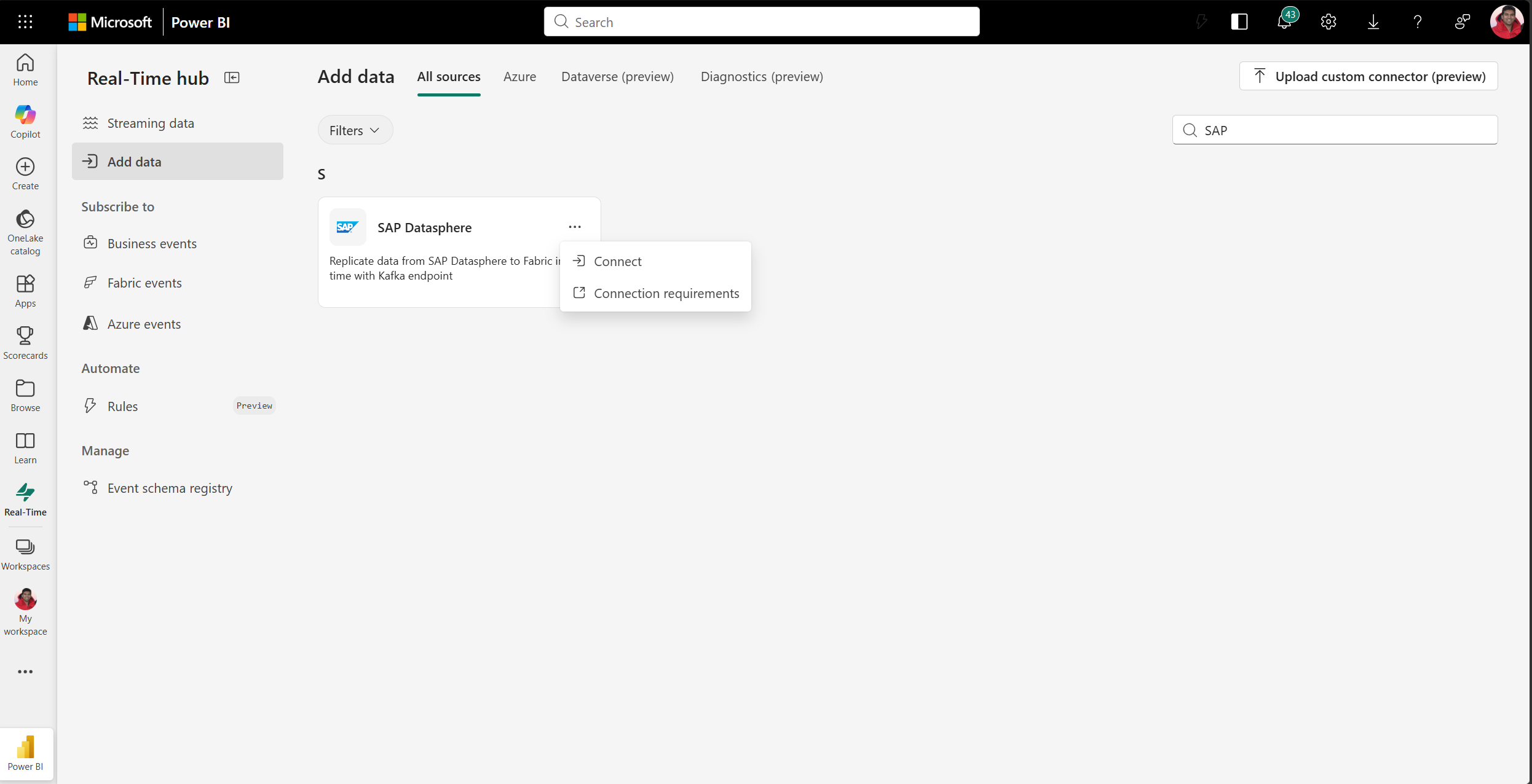
Search for SAP Datasphere.
On the SAP Datasphere tile, select Connect.
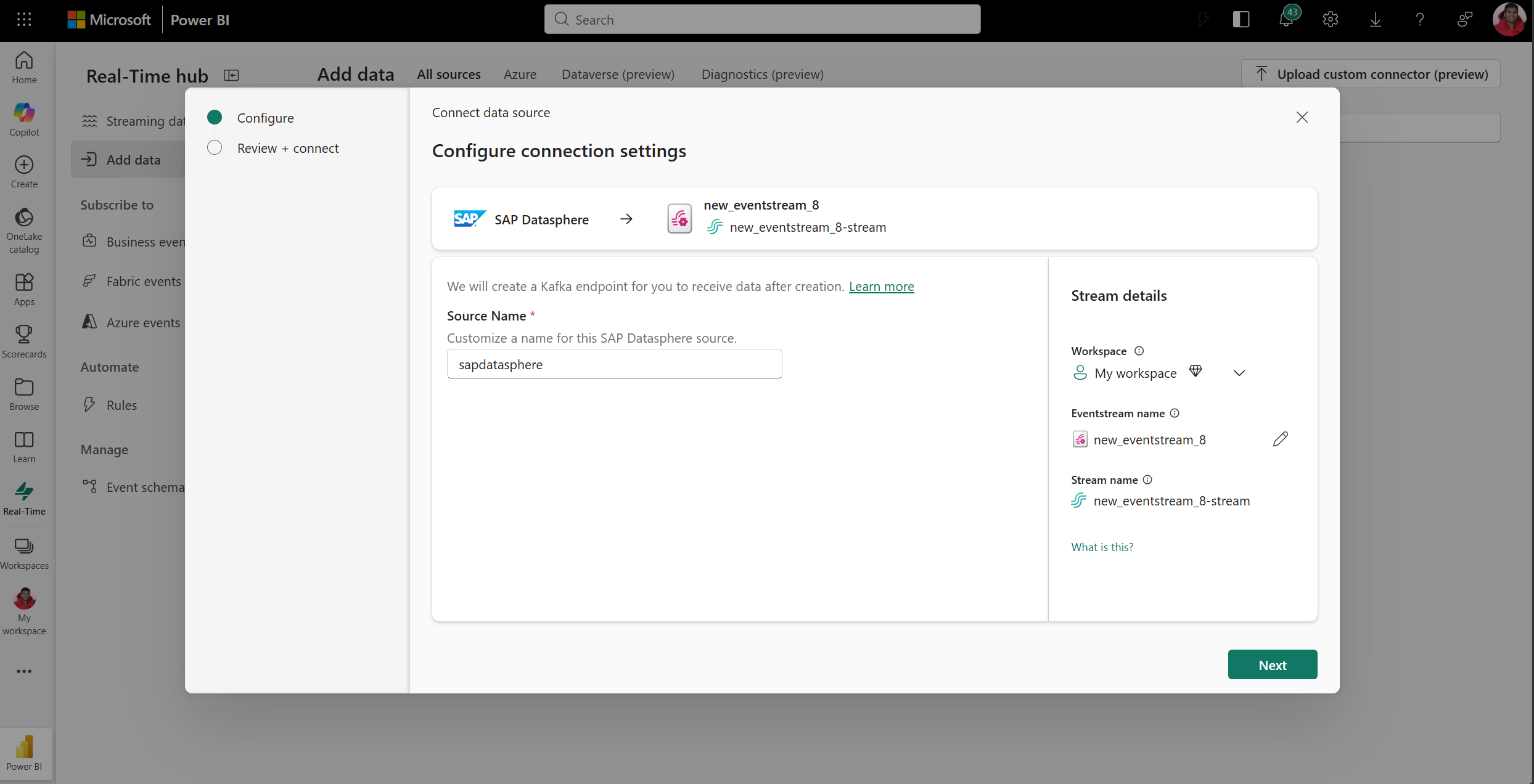
On the Configure connection settings page, enter a name for the source.
Under Stream details, select the workspace and enter a name for the eventstream. Then select Next.
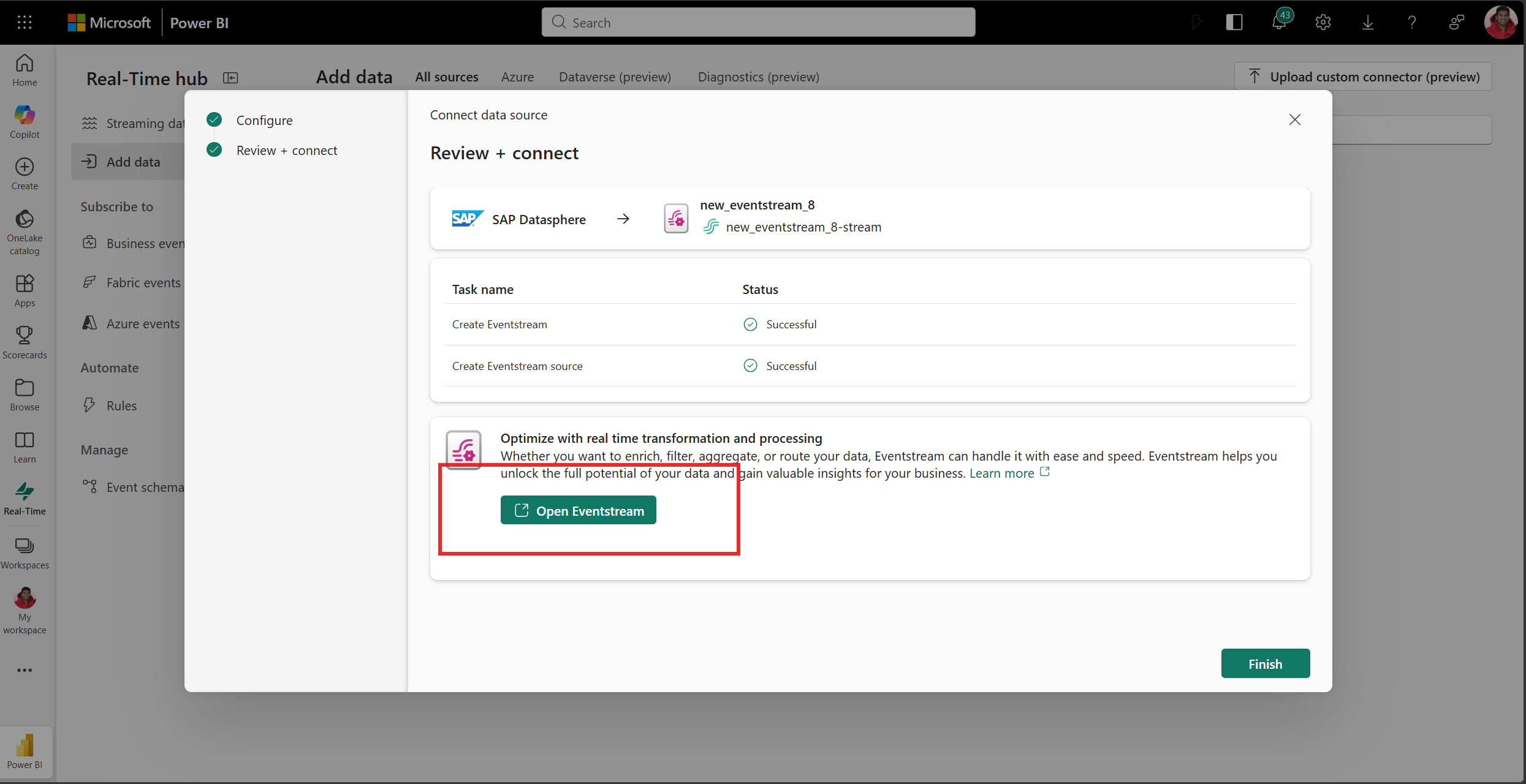
On the Review + connect page, confirm that the eventstream and source were created successfully. Select Open Eventstream.
Get the Kafka connection properties
The SAP Datasphere source provides a Kafka endpoint for SAP Datasphere Replication Flow. Retrieve its properties after you create the source.
In the eventstream live view, select the SAP Datasphere source.
In the Details pane, copy these values:
- Kafka broker
- Topic name
- Kafka SASL password-primary or Kafka SASL password-secondary
Note the displayed Security protocol and SASL mechanism. The connection uses
SASL_SSLwith thePLAINmechanism.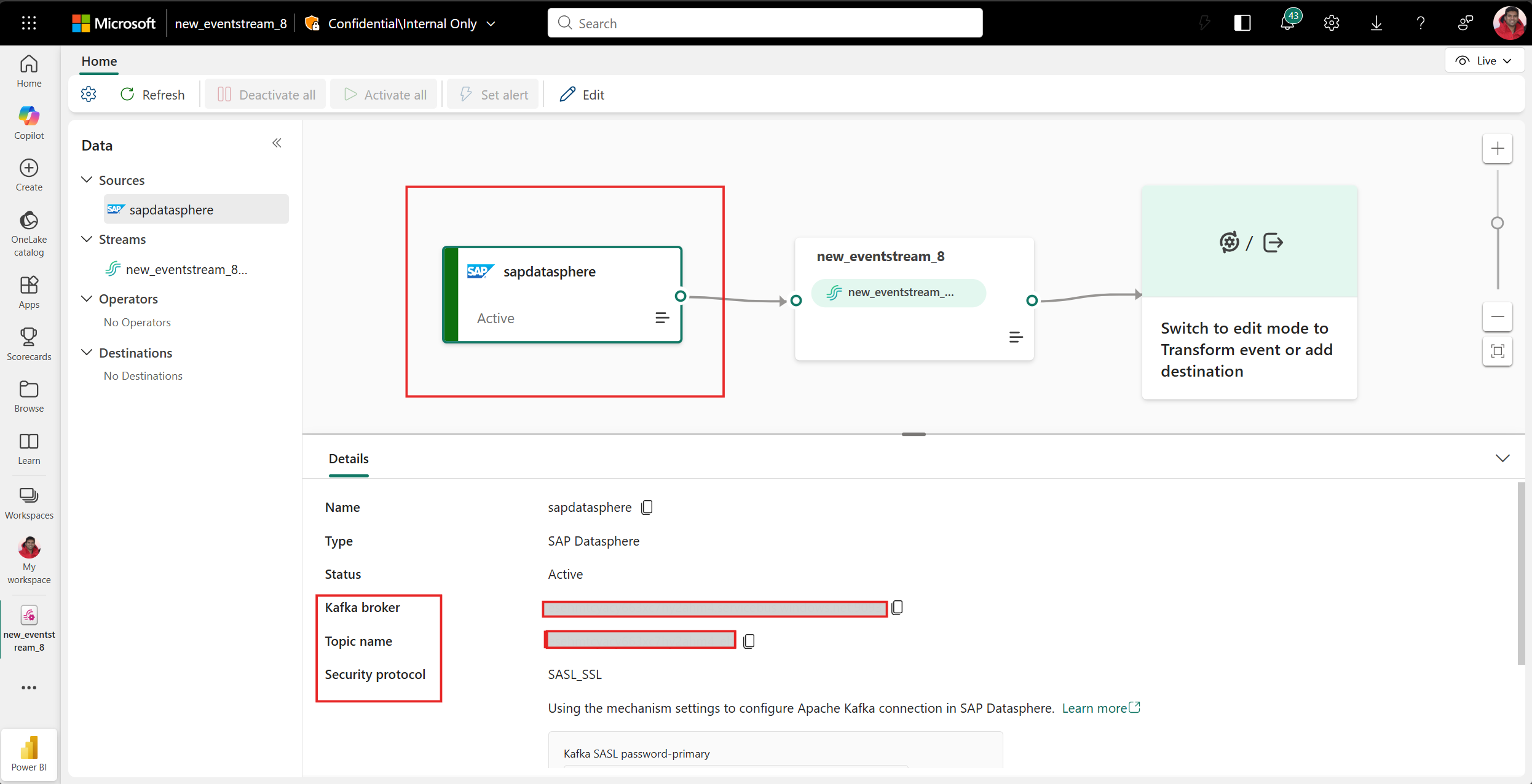
Keep these values available when you create the Apache Kafka connection in SAP Datasphere.
Create an Apache Kafka connection in SAP Datasphere
In the connection management page of your SAP Datasphere space, create a connection.
Select Apache Kafka as the connection type.
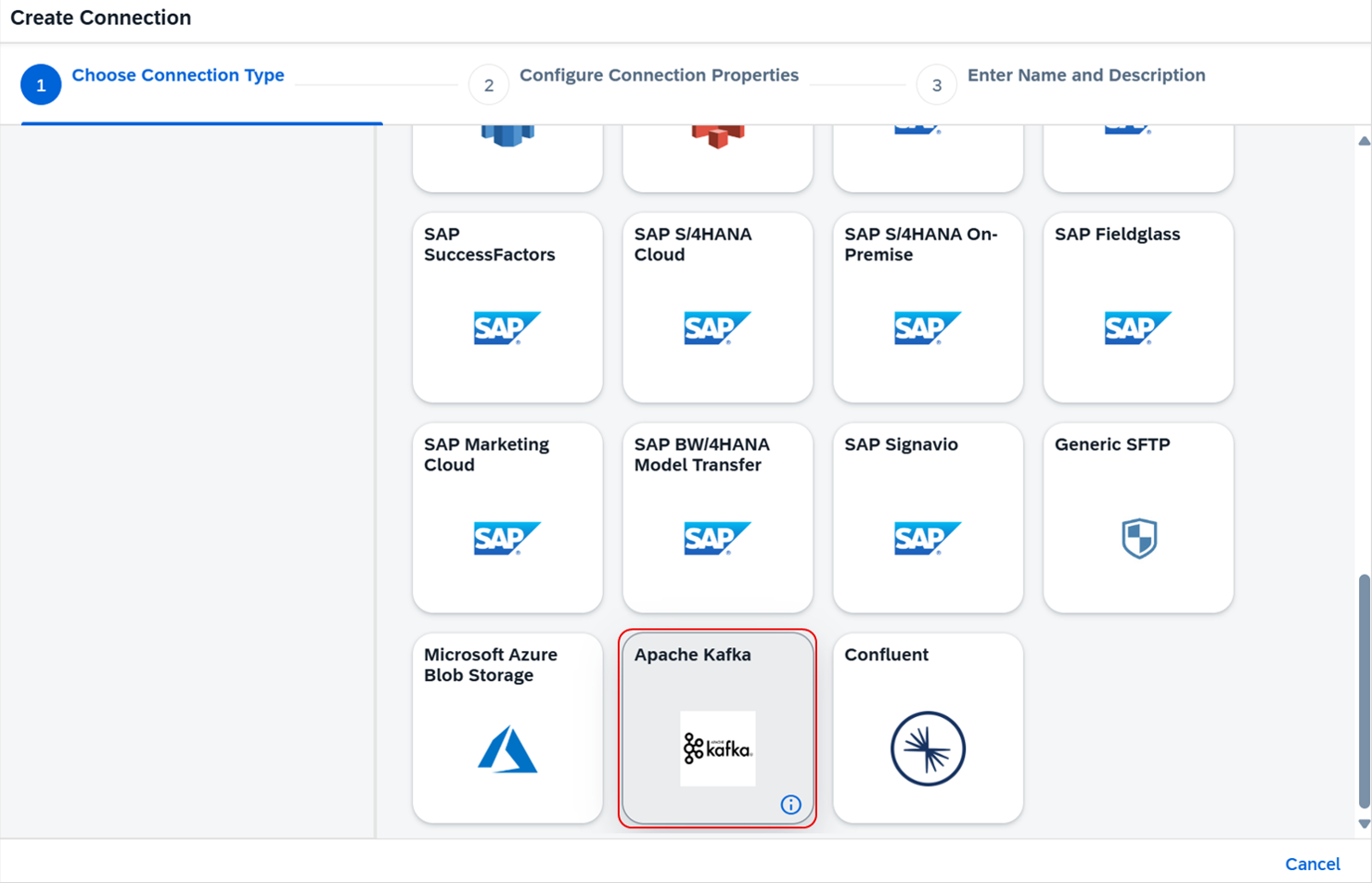
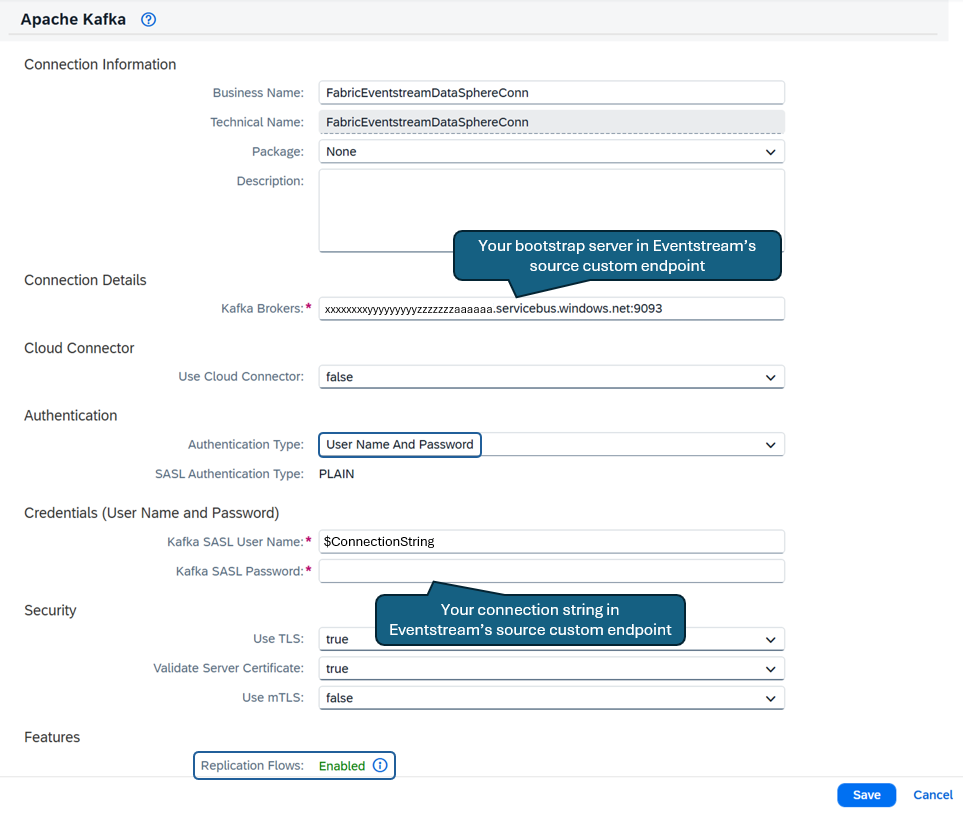
Configure these connection properties:
Property Value Kafka Brokers Enter the Kafka broker value from the SAP Datasphere source in Eventstream. Authentication Type Select User Name And Password. Kafka SASL User Name Enter $ConnectionString.Kafka SASL Password Enter the primary or secondary Kafka SASL password from the SAP Datasphere source. Replication Flows Select Enable. Select Save.
Create a replication flow
Use the Apache Kafka connection as the target of an SAP Datasphere replication flow. For more information, see Create a Replication Flow in the SAP documentation.
In SAP Datasphere, select Data Builder.
Select New Replication Flow.
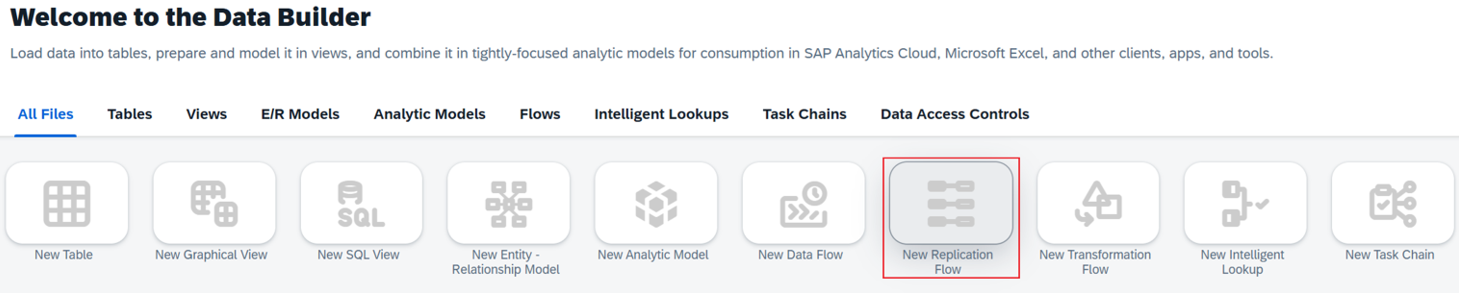
Select a source connection and source container, and then add the source objects to replicate.

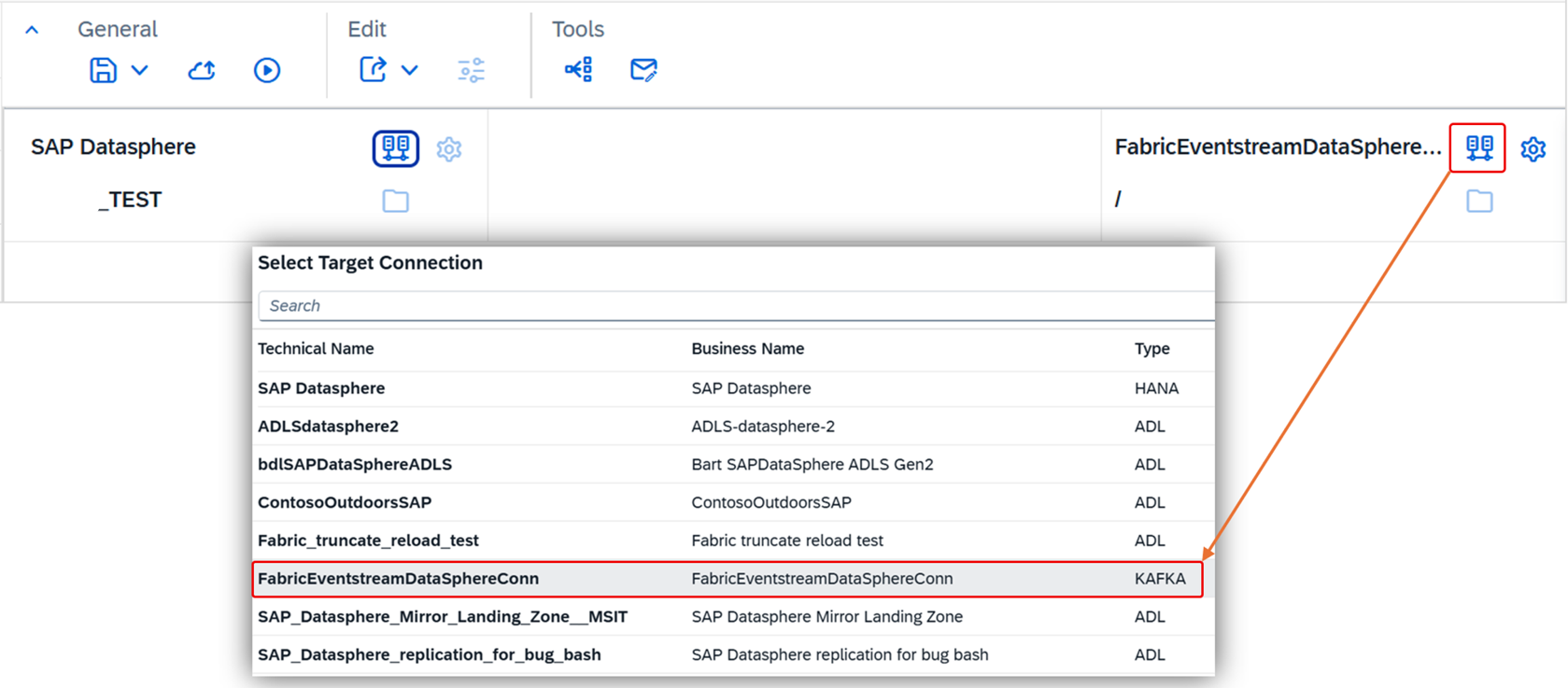
For the target connection, select the Apache Kafka connection that you created.
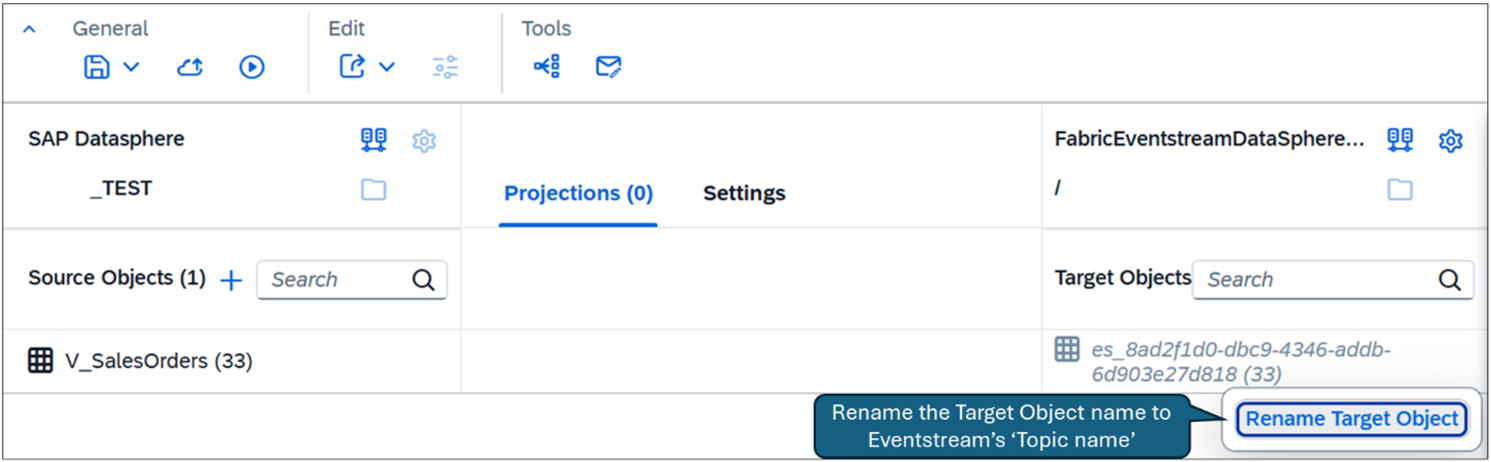
Change the target object name to the Topic name from the SAP Datasphere source in Eventstream.
Important
The target object name must match the Eventstream topic name. SAP Datasphere assigns the source object name by default, so change it before you deploy the flow.
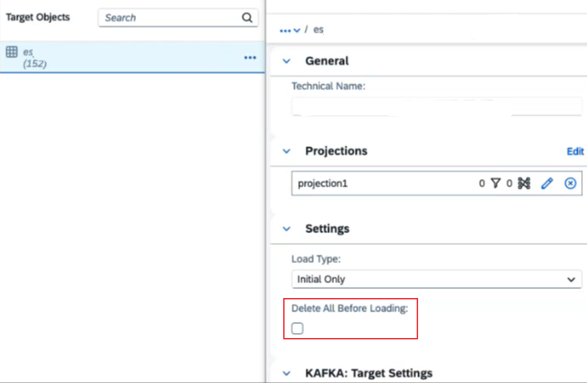
Make sure Delete All Before Loading isn't selected in the target object settings.
Note
The Eventstream Kafka endpoint doesn't allow SAP Datasphere to delete its topic. If you select Delete All Before Loading, target setup fails with an authorization error.
Deploy and verify the replication flow
In SAP Datasphere, deploy and activate the replication flow.
Open the SAP Datasphere monitoring page and confirm that the flow is running without errors.

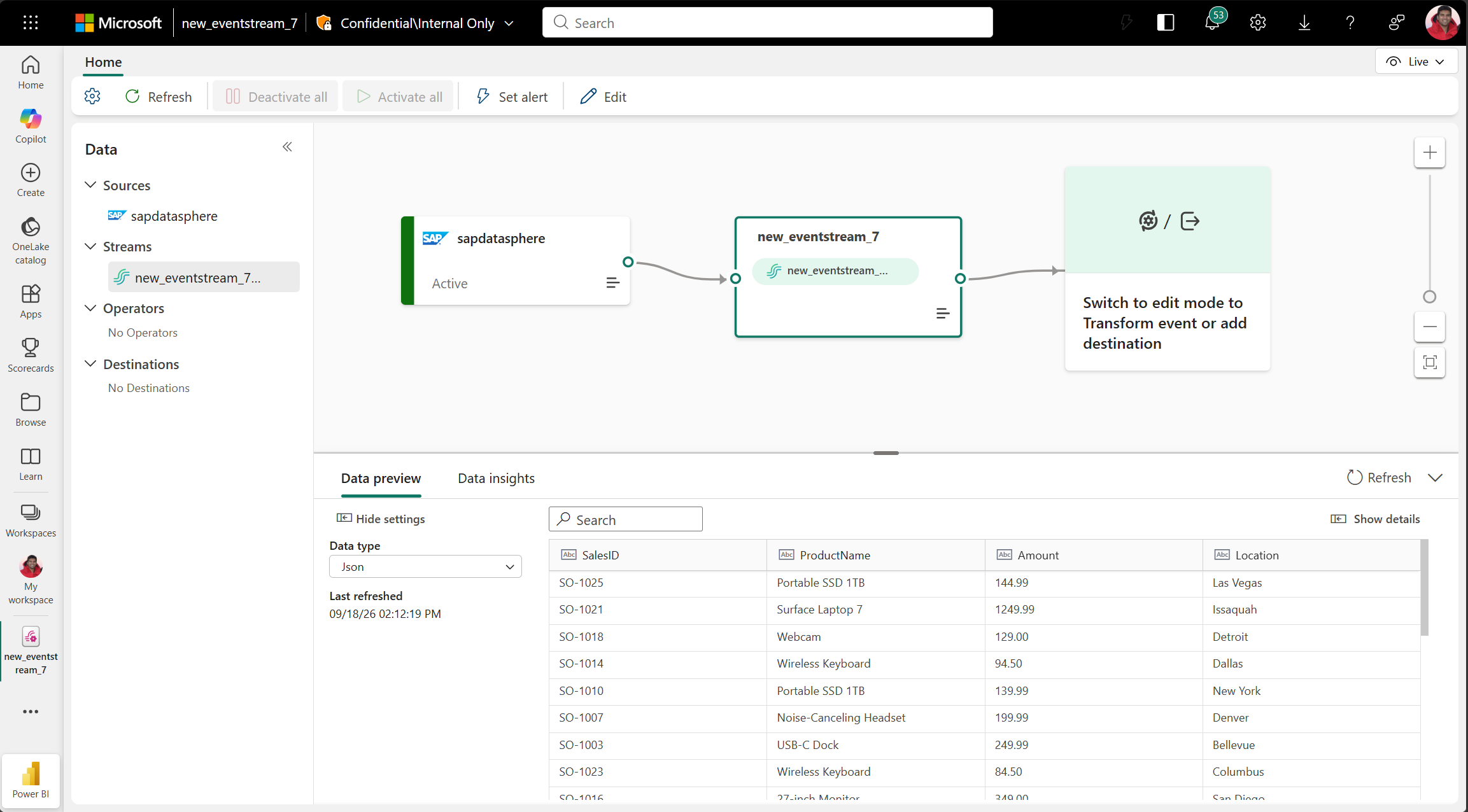
In Fabric, open the eventstream that contains the SAP Datasphere source.
Select the default stream, and then verify that replicated events appear in the data preview.