Note
Access to this page requires authorization. You can try signing in or changing directories.
Access to this page requires authorization. You can try changing directories.
By using the remote Model Context Protocol (MCP) server for operations agents, you can enable AI assistants to interact with an operations agent to configure goals and instructions, manage knowledge sources and actions, generate playbooks, and activate monitoring, all through natural language.
An operations agent exposes two MCP endpoints:
- A configure endpoint for reading and updating the agent's setup and generating its playbook.
- A query endpoint for inspecting the agent's state and its monitoring operations.
To get started with using the remote MCP server for an operations agent, follow these steps:
- Connect to the remote MCP server for operations agents from Visual Studio Code or the GitHub Copilot CLI.
- Configure the MCP client with the server URLs and authentication.
- Use GitHub Copilot to configure the agent, generate a playbook, and manage monitoring by using natural language.
- Validate the connection by using test prompts.
Prerequisites
Before you set up and use the MCP server, make sure you have:
GitHub Copilot in Visual Studio Code.
An operations agent created in the Fabric workspace, and Contributor or Admin access to the workspace.
Note the Workspace and operations agent artifact ID from the Fabric item URL for configuration. The URL format is
https://app.fabric.microsoft.com/groups/<Workspace ID>/operationsagents/<Artifact ID>.
Authentication
The server uses OAuth. You must configure your MCP client to acquire and pass a valid Microsoft Entra ID token. GitHub Copilot automatically supports this token handling.
You need Contributor or Admin access to the workspace that contains the operations agent.
Connection to the operations agent MCP server
The remote MCP server for operations agents acts as an HTTP-based MCP endpoint. Each operations agent exposes two endpoints: one for configuration and one for querying.
Server URLs
https://api.fabric.microsoft.com/v1/mcp/workspaces/<Workspace ID>/operationsAgents/<Artifact ID>/configure
https://api.fabric.microsoft.com/v1/mcp/workspaces/<Workspace ID>/operationsAgents/<Artifact ID>/query
| Parameter | Description |
|---|---|
Workspace ID |
The Fabric workspace ID (UUID) |
Artifact ID |
The operations agent artifact ID (UUID) |
MCP client configuration
Add the definitions for the remote MCP servers for the operations agent to the configuration file for the MCP client (for example, mcp.json and Visual Studio Code Copilot settings).
Important
Currently, only manual configuration is supported.
{
  "servers": {
    "operations-agent-configure": {
      "type": "http",
      "url": "https://api.fabric.microsoft.com/v1/mcp/workspaces/<Workspace ID>/operationsAgents/<Artifact ID>/configure"
    },
    "operations-agent-query": {
      "type": "http",
      "url": "https://api.fabric.microsoft.com/v1/mcp/workspaces/<Workspace ID>/operationsAgents/<Artifact ID>/query"
    }
  }
}
Tip
To add the MCP server by using the GitHub Copilot CLI instead of VS Code, see Adding MCP servers for GitHub Copilot CLI. Use the /mcp add command with the HTTP server type and provide each operations agent URL.
Available tools
The operations agent MCP server exposes a set of tools that AI agents can use to configure and operate an operations agent. The tools are split across the configure endpoint and the query endpoint.
Configure server
Use the configure endpoint to read and update the agent's setup, manage knowledge sources and actions, generate its playbook, and start or stop monitoring.
| Tool | Type | Description |
|---|---|---|
get_agent_instructions |
Read | Get the agent's detailed behavioral guidance. |
get_agent_knowledge_sources |
Read | Get the connected data sources. |
get_agent_actions |
Read | Get the permitted actions. |
get_playbook_summary |
Read | Get the business entities and glossary. |
get_playbook_rules |
Read | Get all monitoring rules. |
get_rule_details |
Read | Get the full condition and binding for a rule. |
get_generate_playbook_status |
Read | Get playbook generation progress. |
set_agent_instructions |
Write | Update the agent's instructions. |
add_or_update_eventhouse_knowledge_source |
Write | Add or update a KQL data source. |
add_or_update_fabric_ontology_knowledge_source |
Write | Add or update a Fabric ontology source. |
remove_knowledge_source |
Write | Remove a data source. |
add_or_update_agent_action |
Write | Add or update an action. |
remove_agent_action |
Write | Remove an action. |
generate_playbook |
Write | Trigger playbook generation. |
start_agent |
Write | Activate monitoring. |
stop_agent |
Write | Deactivate monitoring. |
Query server
Use the query endpoint to inspect the agent's state and its monitoring operations.
| Tool | Description |
|---|---|
get_agent_summary |
Get a high-level summary of what the agent does. |
get_agent_state |
Get the current state: Active, Inactive, or Unconfigured. |
get_monitored_rules |
Get a lightweight list of the agent's rules. |
get_operation_details |
Get the full operation record by ID. |
query_operations |
Search operations by time range and filters. |
Data source connection
An operations agent needs a connected data source before it can generate a playbook. You can connect a data source in two ways:
- Fabric UI: Connect the data source from the agent editor under Knowledge Source.
- MCP tool: Use the
add_or_update_eventhouse_knowledge_sourcetool to add a KQL database or eventhouse, oradd_or_update_fabric_ontology_knowledge_sourceto add a Fabric ontology.
Examples: Configure an agent
Example prompt:
"Set the agent instructions to: Monitor bike availability at all our stations for low bike availability. Alert when less than 3 bikes are available at any station."
Response:
Calls set_agent_instructions and confirms the instructions were updated.
Example prompt:
"Add an Eventhouse knowledge source called MyDB so the agent can monitor my bikes data."
Response:
Calls add_or_update_eventhouse_knowledge_source and confirms the data source was connected.
Example prompt:
"Add an action to let the agent use <URL or description of a Fabric item>, with a Location parameter"
Response:
Calls add_or_update_agent_action and confirms the action was added with the parameter preserved.
Examples: Generate and review a playbook
Example prompt:
"Generate a playbook for this agent."
Response:
Calls generate_playbook and returns a playbook ID with status InProgress. Generation typically takes one to three minutes.
Example prompt:
"What is the playbook generation status?"
Response:
Calls get_generate_playbook_status and reports progress. Repeat until the status is Completed.
Example prompt:
"Show me the playbook summary and rules."
Response:
Calls get_playbook_summary and get_playbook_rules and returns the business entities, glossary, and monitoring rules.
Example prompt:
"Show me the details of the first playbook rule."
Response:
Calls get_rule_details with the rule ID and returns the full condition and binding.
Examples: Manage monitoring
Here are a few example prompts:
"What is the current state of this operations agent?"
"Start the agent."
"Stop the agent."
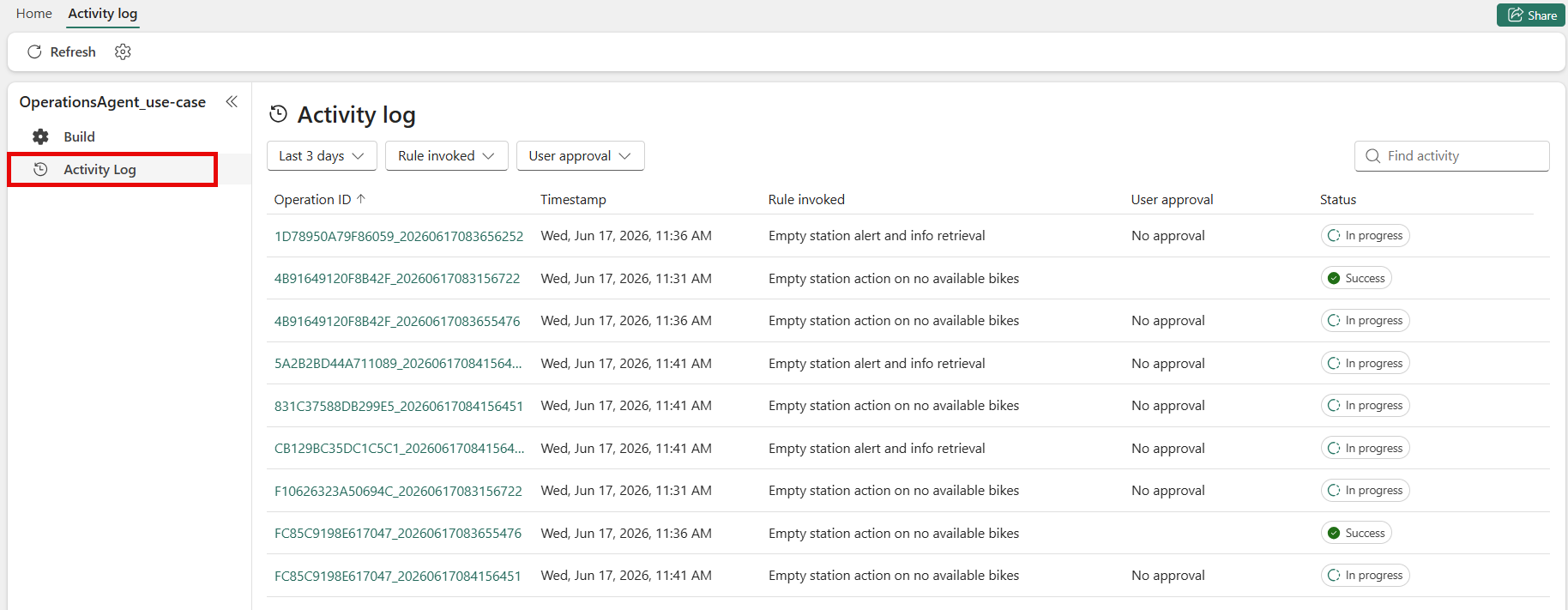
"Show me recent operations."
"Get details on the latest operation."
"Give me a complete picture: instructions, knowledge sources, actions, playbook, and state."
The last prompt chains multiple tools across both endpoints and synthesizes the results into a single summary.
Limitations
Per-item configuration: Each pair of MCP server URLs applies to a single operations agent. To work with multiple agents, you must configure a separate MCP server entry for each one.
Data source required for playbooks: The agent can't generate a playbook until at least one knowledge source is connected. Attempting to generate a playbook without a data source returns an error.
Supported knowledge sources: You can connect eventhouse/KQL database sources and Fabric ontology sources. Other data source types aren't currently supported.
Manual configuration only: You must add the MCP server URLs to the client configuration file manually. Automatic discovery isn't available.
Tips
Connect the eventhouse MCP server too: If your data source is a Fabric eventhouse, connecting the eventhouse MCP server alongside the operations agent significantly improves results. Your agent can then inspect your database schema, sample data, and validate KQL queries.
Be specific with agent instructions: The playbook quality depends on how clearly you describe what to monitor. State the data values, thresholds, and conditions explicitly. For more guidance, see operations agent best practices.
Configure before you generate: Set instructions, actions, and knowledge sources before you call
start_generate_playbook. Reconfiguring after generation requires regenerating the playbook.Check state before acting: Use
get_agent_stateto confirm the agent isActiveorInactivebefore you start or stop monitoring.