Note
Access to this page requires authorization. You can try signing in or changing directories.
Access to this page requires authorization. You can try changing directories.
Operations agents in Microsoft Fabric Real-Time Intelligence respond to the conditions they monitor by taking actions. By default, an operations agent sends a message in Microsoft Teams to the user who created the agent whenever it detects a condition that matches its business goals. You don't need to configure anything extra to receive these messages.
You can also extend the agent with custom actions, such as triggering a Power Automate flow, so the agent can do more than send a notification.
Important
This feature is in preview.
Receive messages from an operations agent
To enable the agent to contact you proactively when it identifies data that matches the defined rules, install the Fabric Operations Agent Teams app. If the app isn't installed automatically, you can find it by searching for Fabric Operations Agent in the Teams app store.

After you install the app, the agent can send messages in Teams when it identifies data that matches the specified conditions. These messages include a summary of the insights and recommended actions. You can update the recipients of these messages in the agent's configuration settings. Recipients must belong to your organization and have write permissions for the agent item in Fabric. You can find this in the operations agent item settings under Agent behavior.

Important
The agent operates by using the delegated identity and permissions of its creator. When a recipient approves a recommendation, the agent executes the action on behalf of the creator, using the creator's permissions.
When the agent makes a recommendation, you receive a message containing context about the data that triggered the condition it was monitoring. You also receive a suggestion from the agent about the best action to take in response.
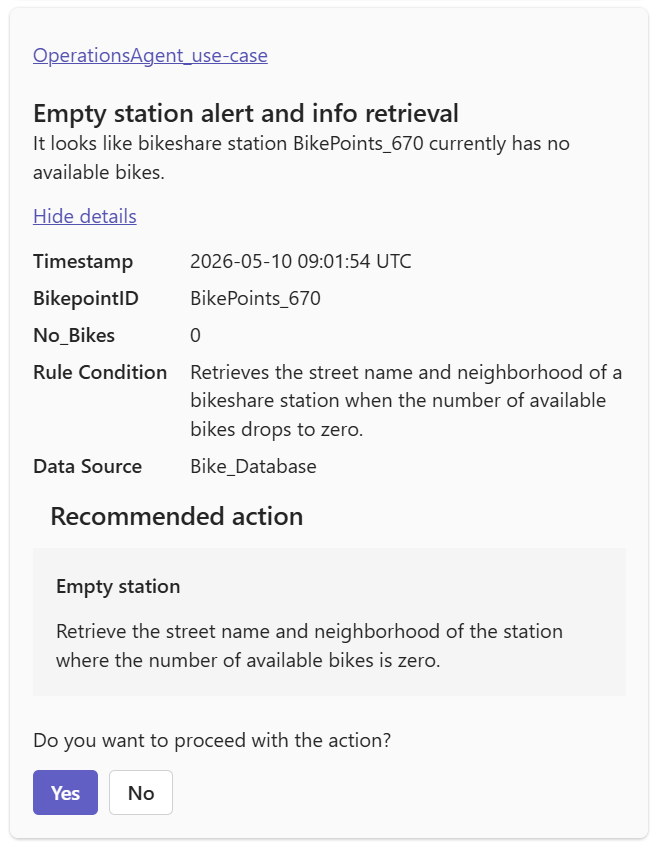
Select Yes to approve or No to reject the recommendation. The message displays the values for any parameters the agent identifies. You can adjust these parameters if needed before providing final approval for the agent to take action.
Create custom actions
In addition to Teams messages, you can define custom actions that the agent can take when it detects a condition. Each action has a name, a description that clarifies its purpose, and an optional list of parameters (such as a specific value) that the agent passes when it invokes the action.
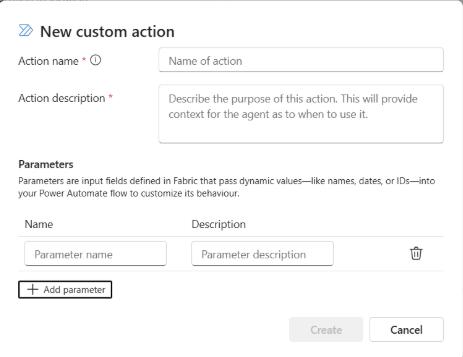
After you create an action, configure it:
Select the action you want to configure.

On the Configure custom action pane, select the workspace and the activator item, and then create a connection.

Select Copy to copy the connection string, and select Open flow builder to create a flow that gets triggered by the action.

In the Flow builder, paste the connection string in the Connection string field and select Save.

To use the values passed through the parameters to the flow, access them through dynamic content as described in Trigger custom actions (Power Automate flows).


