Note
Access to this page requires authorization. You can try signing in or changing directories.
Access to this page requires authorization. You can try changing directories.
Why are some of my MicrosoftGame.config dependencies not installed in the developer sandbox?
The store is unable to install framework dependencies that are declared in MicrosoftGame.config while in a developer sandbox. These dependencies need to be manually installed on the PC for your title to work.
Note
It's important to ensure that the versions you install are the same as the versions that are specified in MicrosoftGame.config.
For more information, see Framework package dependencies.
Why can't I see sandboxed store content after publishing: Error 194?
You need to be signed in to Xbox Live on the PC. If you've recently run wsreset, you should sign out and sign in again.
Why can't I get the latest version of gaming services?
You might not be in the RETAIL sandbox. Switch to the RETAIL sandbox, run Windows Update, and then return to your development sandbox.
How can I uninstall a package that was installed by another user?
To remove a package for all the users on the PC, run the following command in an elevated PowerShell prompt: Remove-AppXPackage -allusers <package_name>.
How can I report a problem?
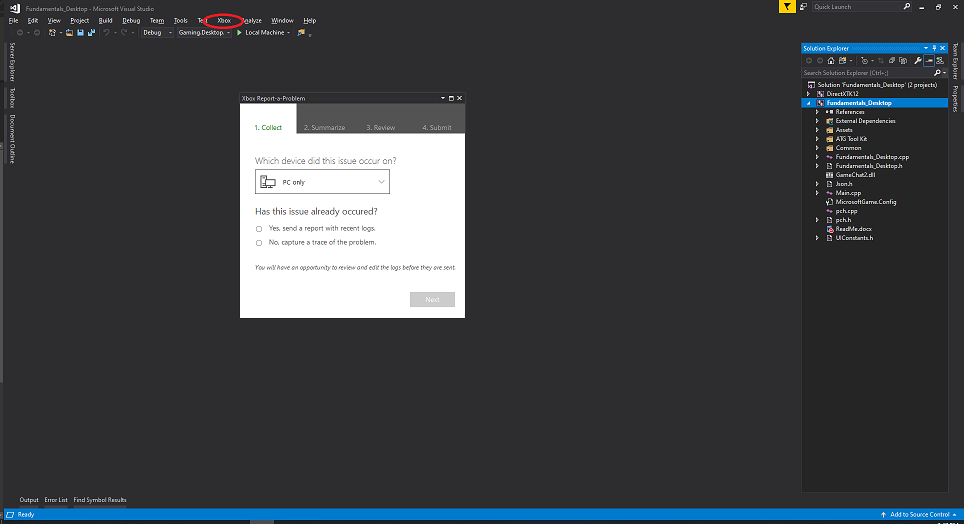
After installing the Microsoft Game Development Kit (GDK), there's an Xbox item in the Visual Studio menu bar. To open a dialog box through which you can report a problem, select Xbox > Xbox Report-a-Problem.
Note
Don't select Feedback icon > Report-a-Problem to report a problem.
Where should I save local game saves?
We recommend using XGameSaveFiles for Game Saves. It provides a managed file path that automatically syncs to the cloud. For titles that are porting to PC Game Pass and can't directly use the GDK, use no-code cloud saves instead. For a full comparison of available APIs, see the Game Saves developer guide.
If your title doesn't use a GDK Game Saves API and manages save data independently, we recommend saving to the Windows Saved Games known folder, using the convention <Developer Name>\<Game Name> to organize your save data. This folder is located at %USERPROFILE%\Saved Games and corresponds to the Windows known folder ID FOLDERID_SavedGames. To retrieve this path programmatically, call SHGetKnownFolderPath as shown in the following example.
#include <shlobj.h>

PWSTR savedGamesPath = nullptr;
HRESULT hr = SHGetKnownFolderPath(FOLDERID_SavedGames, 0, nullptr, &savedGamesPath);
if (SUCCEEDED(hr))
{
    // Use savedGamesPath, e.g., append "\<Developer Name>\<Game Name>"
    // ...
    CoTaskMemFree(savedGamesPath);
}
Caution
Don't save game data under the user's Documents folder. OneDrive automatically syncs the Documents folder, which can cause conflicts with cloud save synchronization and lead to data corruption. The Saved Games known folder is not synced by OneDrive by default, making it the safest choice for local game saves.
Note
Ensure that your code creates these folders if they don't exist. This ensures that gamers can discover their saved games and back them up.
For titles that use no-code cloud saves, set the RelativeTo attribute of NoCodePCRoot to SavedGames in your MicrosoftGame.config to use this same folder. For more information, see Porting previous titles to PC Game Saves with no-code cloud saves.