Note
Access to this page requires authorization. You can try signing in or changing directories.
Access to this page requires authorization. You can try changing directories.
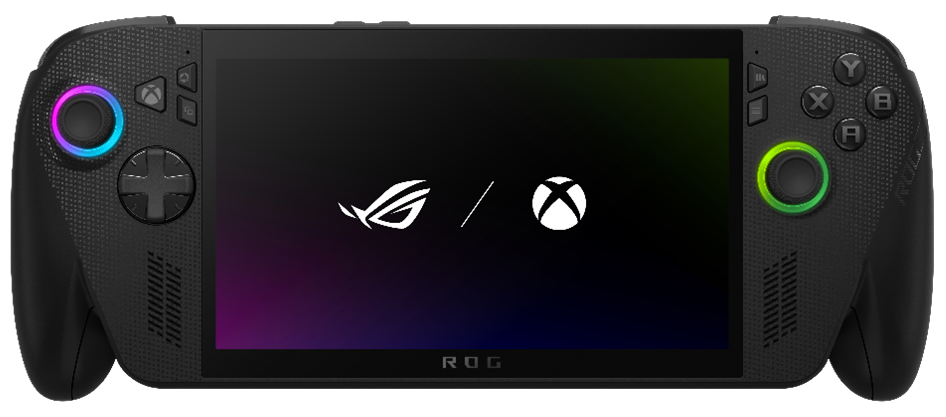
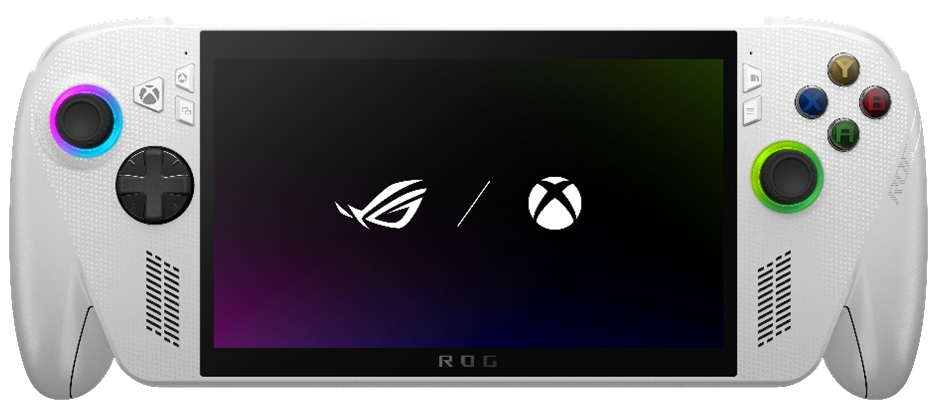
As a platform, Xbox has evolved to bring players from consoles to every screen: Xbox on PC, Smart TVs, streaming devices, mobile devices, and web browsers. This includes millions of gaming devices powered by batteries. These overall efforts are detailed here: https://aka.ms/sustainablegamedev.
Here are a few useful articles and hub pages to help game developers capitalize on making games run well on the newest gaming category: Windows handhelds.
- Handheld Compatibility (https://aka.ms/hhcompatguide). Guides, tools, and samples to build great gaming experiences on portable, touch-enabled, and gamepad-first devices.
- Handheld Performance (https://aka.ms/hhperfguide). This series focuses on simple steps developers can take to keep games on mobile devices running longer and faster.
This article, these resources, and more will be advertised at https://aka.ms/xboxhhdev
Optimizing In-Game Settings
Why do In-Game Settings Matter?
As mentioned in the series introduction (https://aka.ms/hhperfintro), In-Game settings are the first of a few ways developers can control how games run more efficiently on battery-powered devices. When players view an Xbox on PC game in the store, the Product Details Page (PDP) will show a recommendation from our Performance Fit feature if their device can play that game at 30FPS, or more, using the most common (usually the default) game settings.
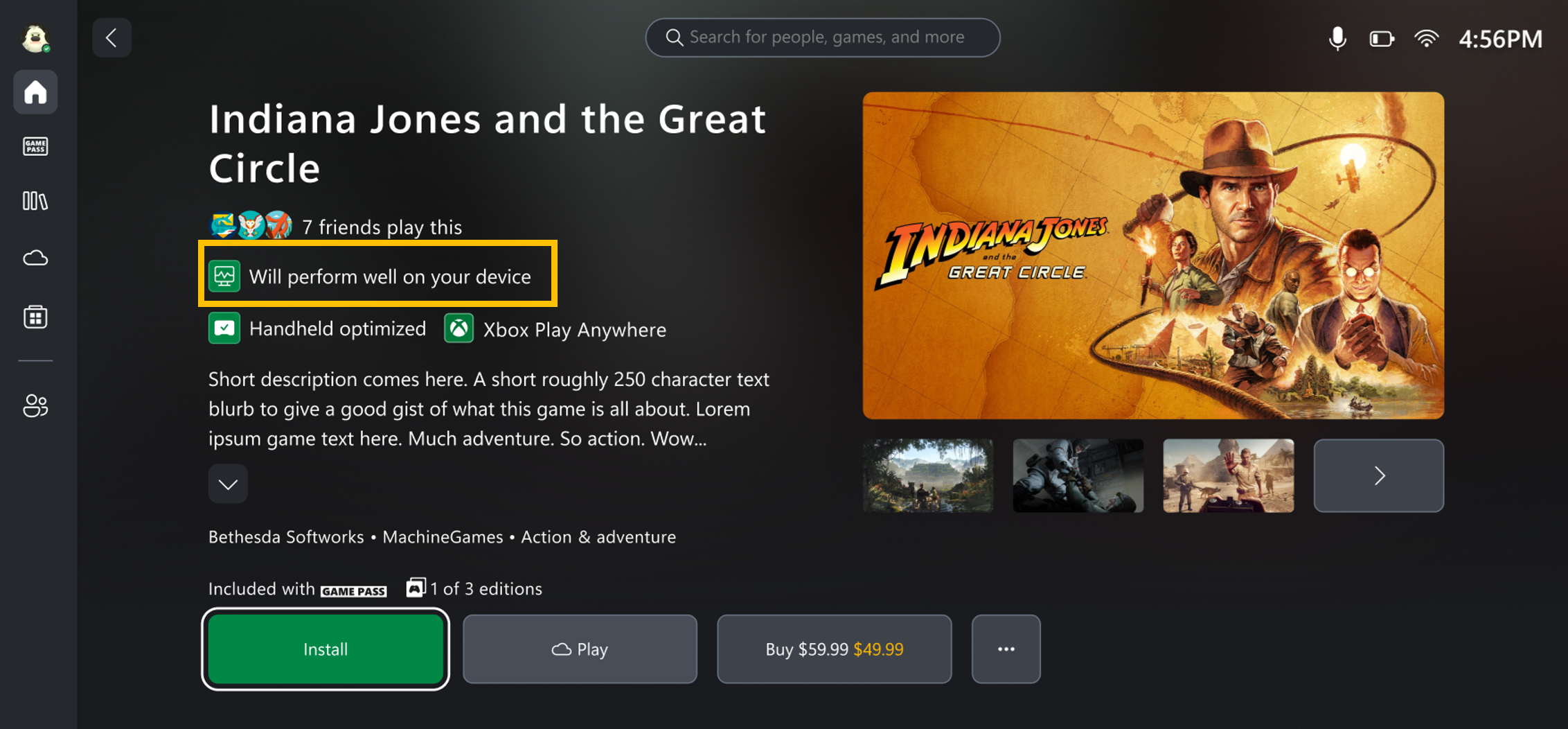
Figure 1 - Example Xbox on PC Store product details page (PDP). Highlighted rectangle (in yellow) shows where Performance Fit recommendations are printed.
The goal is to enable default game settings on Windows gaming handhelds that are easy for developers to define to allow a great first player experience:
- Yes, it’s a PC! Like Windows gaming laptops, handheld gaming devices, are portable PCs. They have integrated touch screens and can run on battery with a variety of power states to balance performance and operating time.
- No, it’s not just a PC! Unlike Windows gaming laptops, handheld gaming PCs are expected to play games for hours on battery power and need smart game settings that help make that happen. Handheld PCs might have no keyboard or mouse, requiring controller support for all layers of the user interface from the Xbox on PC experience, to interaction with game launchers and every prompt that might pop up while playing. Games will also benefit heavily from having native touch support for players convenience and accessibility.
What are the key recommendations for In-Game Settings?
This is a summary of the important takeaways and sections of this article:
- Scale your game to run well on Windows gaming handhelds. This means developers testing and creating settings specifically for a battery powered device. These settings should scale the game down so that battery life is prolonged, but not at the expense of gameplay or overall art style. They will need to test these settings on devices representative of those in the market (e.g. high efficiency ROG Xbox Ally handhelds).
- Implement Automatic Detection of Hardware and Application of In-Game Settings. Some game already have this today, but developers need to think about what options are available in their game that can be mapped to hardware capabilities to create smart defaults.
- Let the ROG Xbox Ally and ROG Xbox Ally X be your first guides. These devices will be the first Windows gaming handhelds to feature the settings optimizations referenced in this series, which will be implemented from Xbox + ASUS.
Guideline | Implement Automatic Detection of Hardware and Application of In-Game Settings
We have provided a native C++ sample (https://aka.ms/hhexpsample) and a Unity Managed C# sample (https://aka.ms/hhexpsample_unity) to make it easier for developers to copy and paste the detection code into their own games. These code snippets can be used to acquire information about the capabilities of the hardware components within a device. The developers can then use these capabilities to help create sensible defaults for their game that scale across a range of devices.
Using the ROG Xbox Ally and ROG Xbox Ally X as examples, here are the returned values from the code snippets with a link to where that value can be found in the C++ sample source code. Please see the items noted with an asterisk (*) and detailed below the table.
| Component | ROG Xbox Ally (2025)* | ROG Xbox Ally X (2025) | Notes |
|---|---|---|---|
| IsHandheld (IsDeviceHandheld.cpp) | TRUE | TRUE | This flag is added by the Original Equipment Manufacturer (OEM) if they want to be identified as a Windows gaming handheld. |
| BaseBoard Product Name* (GetDeviceOEMInfo.cpp) | RC73XA | RC73YA | This SMBIOS field is programmed by the OEM and may be used to differentiate SKUs designed as compatible Windows gaming handhelds. |
| CPU (Processor.cpp) | AMD Ryzen Z2 A | AMD Ryzen AI Z2 Extreme | Along with GPU, provides the first identifiers that most likely indicate the class of hardware. |
| GPU (GetGPUInfo.cpp) | Vendor ID: 1002 Product ID: 150E |
Vendor ID: 1002 Product ID: 163F |
The GPU VID/PID provides the broadest indication of the hardware performance tier. |
| Memory Configuration*** (GetMemoryInfo.cpp) | Total Memory: 16GB Dedicated VRAM: 6GB (shared from 16GB total) |
Total Memory: 24GB Dedicated VRAM: 8GB (shared from 24GB total) |
Useful to make decisions like the size of the textures and cached maps. |
| Screen Resolution (GetDeviceResolutionAndRefresh.cpp ) | 1920x1080** | 1920x1080 | Matching the native resolution of the device can either improve visual quality or deteriorate performance without other settings optimizations. |
- "*" = VRAM Allocation is user-selectable. These are the default values and not guaranteed, just examples to use for baseline profliing calculations.
- "**" = the recommended default resolution for this device is 720p. Developers should test their settings to determine what runs well for their game and set accordingly. Additionally, some Per-Game settings can override the Screen Resolution advertised to the game,to improve efficiency in cases where testing has shown this game to run below 30FPS at higher resolutions, but this can be overridden by the player.
- "***" = For DirectX games, the existing recommendation is to use QueryVideoMemoryInfo to dynamically determine the game budget for video memory. The (GlobalMemoryStatusEx) method used in the example GetMemoryInfo.cpp is an additional solution in case other dimensions of how your game uses memory would be valuable to know.
Important Note on UI / Scaling Factors. Adjusting to the difference in Screen Resolution can sometimes create less desirable results with regards to readability of the in-game UI, especially on a smaller screen. Some general app guidance around Screen Sizes and Breakpoints, which may be helpful to your game designers can be found here : /windows/apps/design/layout/screen-sizes-and-breakpoints-for-responsive-design.
Guideline | Create Static In-Game Settings
Static in-game settings only consider the hardware configuration in a single power state, when the state was last checked. Creating a static in-game setting starts with targeting an objective metric, like framerate.
Player Expectation
The game understands what it needs to play well and by default installs with the best settings to provide a minimum of 1080p30 performance (e.g. ROG Xbox Ally X) or 720p30 performance (ROG Xbox Ally).
Test Steps
- Test on battery. Install and the launch the game on a Handheld unit unplugged with full battery with your default settings.
- Monitor performance w/ FPS meters both at launch and after assets have loaded / IO has stabilized. Access the Windows Game Bar Frames Per Seconds (FPS) meter by pressing Windows + G or run PresentMon (See GitHub project for more details) to log and track FPS in real time.
- Focus on minimum FPS vs. average FPS settings. Adjust settings until the FPS is running consistently at a minimum of 1080p30 (e.g.ROG Xbox Ally X or equivalent hardware) or 720p30 (e.g. ROG Xbox Ally or equivalent hardware).
- Create a library of in-game settings for both high-performance and efficient hardware configurations. Save these settings for future testing on different devices to confirm ideal settings for different hardware SKUs (e.g. ROG Xbox Ally vs. ROG Xbox Ally X).
Expected Result You will create/capture at least [2] in-game settings that work equally well to maintain stable framerates for both the high-performance class of Windows gaming handhelds (e.g. ROG Xbox Ally X) and the high-efficiency class (e.g. ROG Xbox Ally).
Guideline | Create Dynamic In-Game Settings
Dynamic in-game settings, are more granular than static in-game settings. They map to at least 2 power states (plugged in or on-battery) and can ideally respond to Power Mode change events while the game is running.
Player Expectation
Especially for Windows gaming handhelds, as I jump back and forth between being plugged in or on battery power, I expect my game will balance both performance and battery life as best as possible.The game understands what it needs to play well and by default installs with the best settings to provide a minimum of 1080p30 performance (e.g. ROG Xbox Ally X) or 720p30 performance (ROG Xbox Ally)
Test Steps
- Test on battery. Install and the launch the game on a Handheld unit unplugged with full battery with your default settings.
- Monitor performance w/ FPS meters both at launch and after assets have loaded / IO has stabilized. Access the Windows Game Bar Frames Per Seconds (FPS) meter by pressing Windows + G or run PresentMon to log and track FPS in real time.
- Focus on minimum FPS vs. average FPS settings. Adjust settings until the FPS is running consistently at a minimum of 1080p30 (e.g. ROG Xbox Ally X or equivalent hardware) or 720p30 (e.g. ROG Xbox Ally or equivalent hardware).
- Create a library of in-game settings for both high-performance and efficient hardware configurations. Save these settings for future testing on different devices to confirm ideal settings for different hardware SKUs (e.g. ROG Xbox Ally vs. ROG Xbox Ally X).
- Implement detection method. Please see Dynamic Preset detection section below.
Expected Result You will create/capture up to [4] in-game settings that will be applied either on launch of the game or upon notification that the Power Mode has changed. These in-game settings map to the high-performance and high-efficiency classes of Windows gaming handhelds, but also to the plugged-in and on-battery states these each device when they switch battery frequently.
Guideline | Detect Hardware Power State
- Dynamic (Recommended): If a title has registered to receive power scheme/profile changes using the RegisterPowerSettingNotificiation API with any of the known Power Setting GUIDs, additional WM_POWERBROADCAST messages will also be sent with the WPARAM value set to PBT_POWERSETTINGCHANGE along with additional details in the LPARAM value. For example, registering for GUID_POWERSCHEME_PERSONALITY will notify if the system has changed from, for example, Balanced to High Performance. Using GUID_ACTIVE_POWERSCHEME will notify if any power profile change has occurred. Using GUID_ENERGY_SAVER_STATUS will notify if the device has gone into Battery/Energy Saver mode.
- Static: The device can be manually queried as shown in the samples to more simply determine if the device is powered or running on battery.
Support | Where do I go if I have questions or concerns about optimizing my game settings for handheld gaming PCs?
In addition to the summary of resources below, developers in an Xbox Developer Program such as ID@Xbox are encouraged to connect with us in the forums (https://forums.xboxlive.com – active NDA account sign-in required) and all developers can connect with us on the Microsoft Game Dev Discord server (https://discord.gg/msftgamedev).
- Microsoft Game Dev Handheld Development Hub: https://developer.microsoft.com/games/resources/handheld-development/
- Microsoft Windows Gaming Handheld Code Samples:https://developer.microsoft.com/games/articles/2025/07/windows-gaming-handheld-code-samples/
- Microsoft Game Dev Discord: https://discord.gg/msftgamedev
- Microsoft NDA Developer Forums: https://forums.xboxlive.com (use “handheld” tag to route your request to our subject matter experts)