Note
Access to this page requires authorization. You can try signing in or changing directories.
Access to this page requires authorization. You can try changing directories.
Important
If you're an Oracle Health customer, Oracle Health Hosting manages the VDI plugin installation and configuration on your behalf. For more information, contact your Oracle Health Hosting representative.
The Dragon Copilot VDI plugin is required to be able to dictate into an EHR in the following single-hop scenarios. Here, "single hop" describes the connection path between Dragon Copilot desktop and the VDI plugin:
- Dragon Copilot desktop runs on a local client endpoint and connects directly to the VDI plugin running alongside the EHR on a Citrix virtual machine. The connection between Dragon Copilot desktop and the VDI plugin is single hop.
- Dragon Copilot desktop runs on a Citrix virtual machine and connects directly to the VDI plugin running alongside the EHR on a second Citrix virtual machine. Although the overall environment might be described as "double hop", the connection between Dragon Copilot desktop and the VDI plugin is single hop. In this scenario, you need to configure audio and button redirection between the local client endpoint and Dragon Copilot desktop.
Multi-hop connection paths between Dragon Copilot desktop and the VDI plugin are currently not supported.
The following diagram outlines the supported and unsupported scenarios:
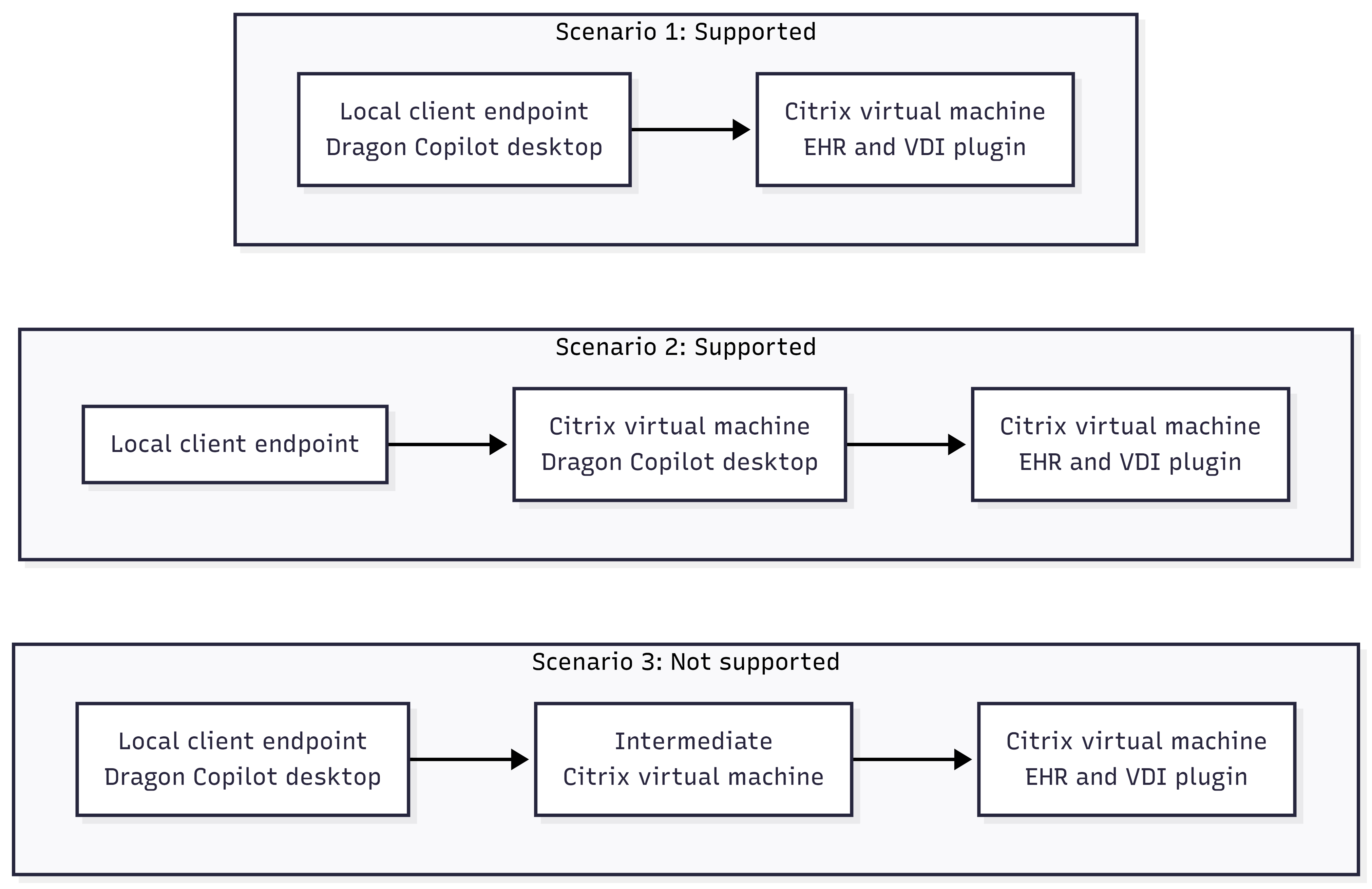
The lightweight plugin in the virtual session securely connects supported text controls to the local Dragon Copilot desktop app, without requiring the desktop app to be installed alongside the hosted EHR. The VDI plugin lets you keep microphone audio processing on the local endpoint and avoid the complexity of VDI audio redirection.
Prerequisites
- Install Dragon Copilot desktop on your local client endpoint or on a Citrix virtual machine. If Citrix is detected on the machine, the Dragon Copilot desktop installer automatically sets up the Citrix client driver.
- Install PowerShell 7 on the Citrix virtual machine that hosts the EHR.
- Ensure you have administrator rights on the machine where Dragon Copilot desktop is installed and on the Citrix virtual machine where you install the VDI plugin.
Install and enable the Dragon Copilot VDI plugin
- Connect to the Citrix virtual session that hosts the EHR.
- Go to Microsoft Download Center. Alternatively, open the Overview page of the Dragon Copilot capability you want to download in Dragon admin center and select Dragon Copilot desktop.
- On the Dragon Copilot desktop download page, select the language from the dropdown list that corresponds to the data center region you're licensed for.
- Select Download.
- Select
Microsoft Dragon Copilot VDI Plugin-version_<version>.msi. - Select Download.
- Run
Microsoft Dragon Copilot VDI Plugin-version_<version>.msias an administrator. - From the VDI plugin installation directory (by default
C:\Program Files\Microsoft\Dragon Copilot VDI Plugin), runMicrosoft.DragonCopilot.Desktop.VdiPlugin.exe.
Allow the MSDCPD virtual channel in the Citrix policy settings
- Open Citrix Studio and select Policies.
- Edit the policy for the target Virtual Delivery Agents (VDA).
- Select Virtual Channel Allow List (or Client Virtual Channels on older Citrix versions).
- Add MSDCPD to the list of allowed virtual channels.
- Apply the policy.
- Open a PowerShell or Windows command prompt on the VDA and run
gpupdate /force, or reconnect the Citrix session.
Configure the VDI plugin to start with new Citrix sessions
The Dragon Copilot VDI plugin must be running before the Citrix session can establish the Dragon Copilot desktop virtual channel. To create a scheduled task that starts the VDI plugin with every new Citrix session:
On the Citrix virtual machine that hosts the EHR, open Task Scheduler.
Select Create Task, and select the General tab.
In the Name field, enter Dragon Copilot VDI plugin.
Select Run only when user is logged on and Run with highest privileges.
On the Triggers tab, select New.
In the Begin the task dropdown list, select At log on, and configure the additional settings for this option.
Select OK.
On the Actions tab, select New.
In the Action dropdown list, select Start a program.
In the Program/script field, enter the path to the VDI plugin executable (by default
C:\Program Files\Microsoft\Dragon Copilot VDI Plugin\Microsoft.DragonCopilot.Desktop.VdiPlugin.exe).Select OK, then save the task.
To verify that your scheduled task works as expected, sign out of any existing Citrix sessions, then start a new Citrix session. Open a PowerShell or Windows command prompt and enter:
tasklist | findstr /i Microsoft.DragonCopilot.Desktop.VdiPluginConfirm that the virtual channel is established and functioning as expected.
The VDI plugin now runs within the user's session context. When the user signs out and the Citrix session ends, Windows automatically terminates the VDI plugin process.
Disable the Citrix VDI integration
To disable the Citrix VDI integration, use Registry Editor to remove the registry settings for the applicable architecture on the client machine where Dragon Copilot is installed.
Warning
Incorrectly editing the registry can cause serious system problems. Back up the registry before making changes.
For a 32-bit installation:
- Go to
HKEY_LOCAL_MACHINE\SOFTWARE\WOW6432Node\Citrix\ICA Client\Engine\Configuration\Advanced\Modules\ICA 3.0. - Remove
MSDCPDfrom theVirtualDriverExvalue. - Delete the
HKEY_LOCAL_MACHINE\SOFTWARE\WOW6432Node\Citrix\ICA Client\Engine\Configuration\Advanced\Modules\MSDCPDkey. This key contains the following values:DriverName:Microsoft.DragonCopilot.Desktop.CitrixClientDriver.dllDriverNameWin16:Microsoft.DragonCopilot.Desktop.CitrixClientDriver.dllDriverNameWin32:Microsoft.DragonCopilot.Desktop.CitrixClientDriver.dll
For a 64-bit installation:
- Go to
HKEY_LOCAL_MACHINE\SOFTWARE\Citrix\ICA Client\Engine\Configuration\Advanced\Modules\ICA 3.0. - Remove
MSDCPDfrom theVirtualDriverExvalue. - Delete the
HKEY_LOCAL_MACHINE\SOFTWARE\Citrix\ICA Client\Engine\Configuration\Advanced\Modules\MSDCPDkey. This key contains the following values:DriverName:Microsoft.DragonCopilot.Desktop.CitrixClientDriver64.dllDriverNameWin16:Microsoft.DragonCopilot.Desktop.CitrixClientDriver64.dllDriverNameWin32:Microsoft.DragonCopilot.Desktop.CitrixClientDriver64.dllDriverNameWin64:Microsoft.DragonCopilot.Desktop.CitrixClientDriver64.dll