Note
Access to this page requires authorization. You can try signing in or changing directories.
Access to this page requires authorization. You can try changing directories.
Dragon Copilot SDK for JavaScript provides APIs to add a correction menu to your apps.
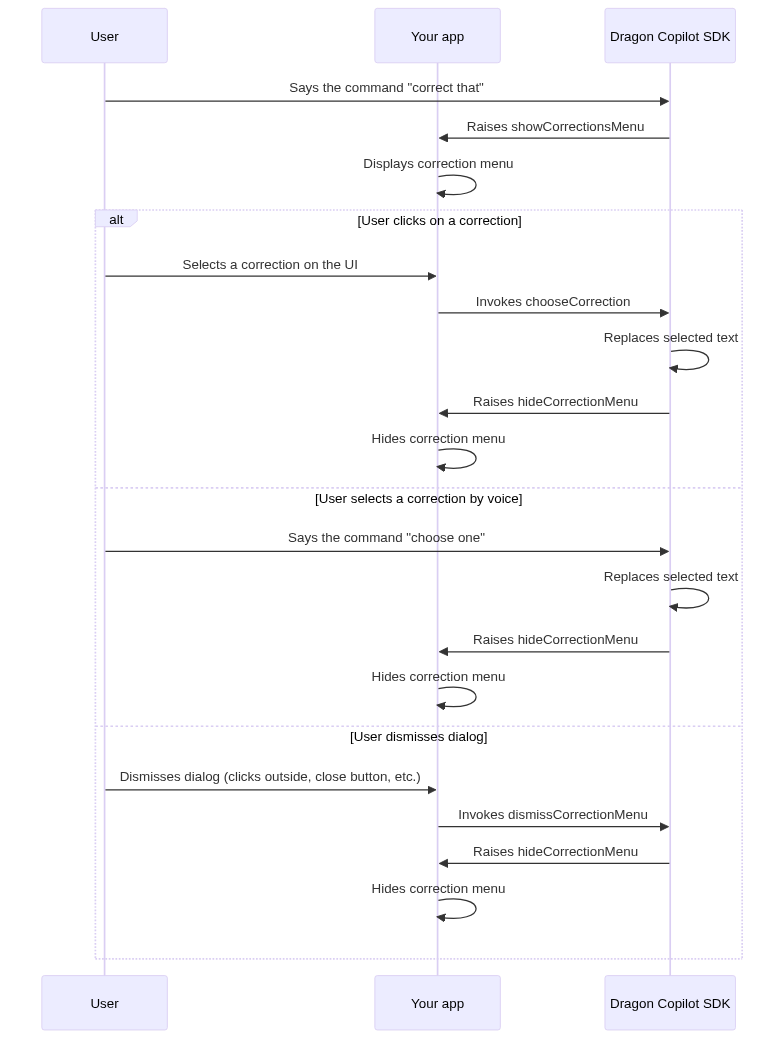
Your app should display the correction menu when users select text by voice command (for example, correct that, select that). The correction menu is triggered only when the user selects text by voice command and not when the user selects text using the GUI.
The correction menu offers users a numbered list of possible correction alternatives for the selected text, based on similarity to the recognition result.
The user can choose one of the alternatives by voice. The voice command for selecting an alternative is choose and a number from the list, such as choose two.
The user should also be able to select an alternative using your app's UI.
The Dragon Copilot SDK supplies your app with all the necessary data to render the correction menu, including the list of alternatives. You can implement and display the UI in alignment with your own user experience guidelines.
For detailed information, see the API reference.
Recommendations for implementing a correction menu
Positioning: Display the correction menu next to the selected text. Consider screen space when determining placement. For example, if the selection is near the bottom of the screen, position the menu above the text to ensure visibility.
Interaction: Users should be able to select correction options directly by clicking/tapping them. When the user selects a correction option using the GUI, call chooseCorrection and pass the correction's ID. Don't hide the correction menu until you receive the hideCorrectionMenu event from the SDK.
Dismissal: Provide an obvious way to close the correction menu, such as an X button, so that users can easily choose not to apply any corrections. When the correction menu is dismissed, call dismissCorrectionMenu. Don't hide the correction menu until you receive the hideCorrectionMenu event from the SDK.
Focus management: Maintain focus on the underlying control when displaying the correction menu, so that users can overwrite the selected text by typing over it if they want.
Note
Only hide the correction menu when you receive the hideCorrectionMenu event.
Events
To add listeners for correction menu events, call DragonCopilotSDK.dragon.correction.events.addEventListener.
| Correction menu event | Detail type | Description |
|---|---|---|
showCorrectionMenu |
ShowCorrectionMenuDetail |
Dispatched when the correction menu has been triggered and is available to display; you should show your correction menu UI. |
hideCorrectionMenu |
null |
Dispatched when the correction menu UI should be hidden. |
For more information, see the API reference.
Verify ownership of the text control
When the Dragon Copilot web UI is displayed in an iframe (for example, to display the settings), both your SDK integration and the Dragon Copilot UI can independently trigger showCorrectionMenu events in response to user actions in the iframe. When the correction event is triggered in the iframe, Dragon Copilot handles the event and displays the correction menu. Make sure your app doesn't show its own correction menu in this scenario, as simultaneously displaying multiple correction menus confuses users and causes unpredictable correction behavior.
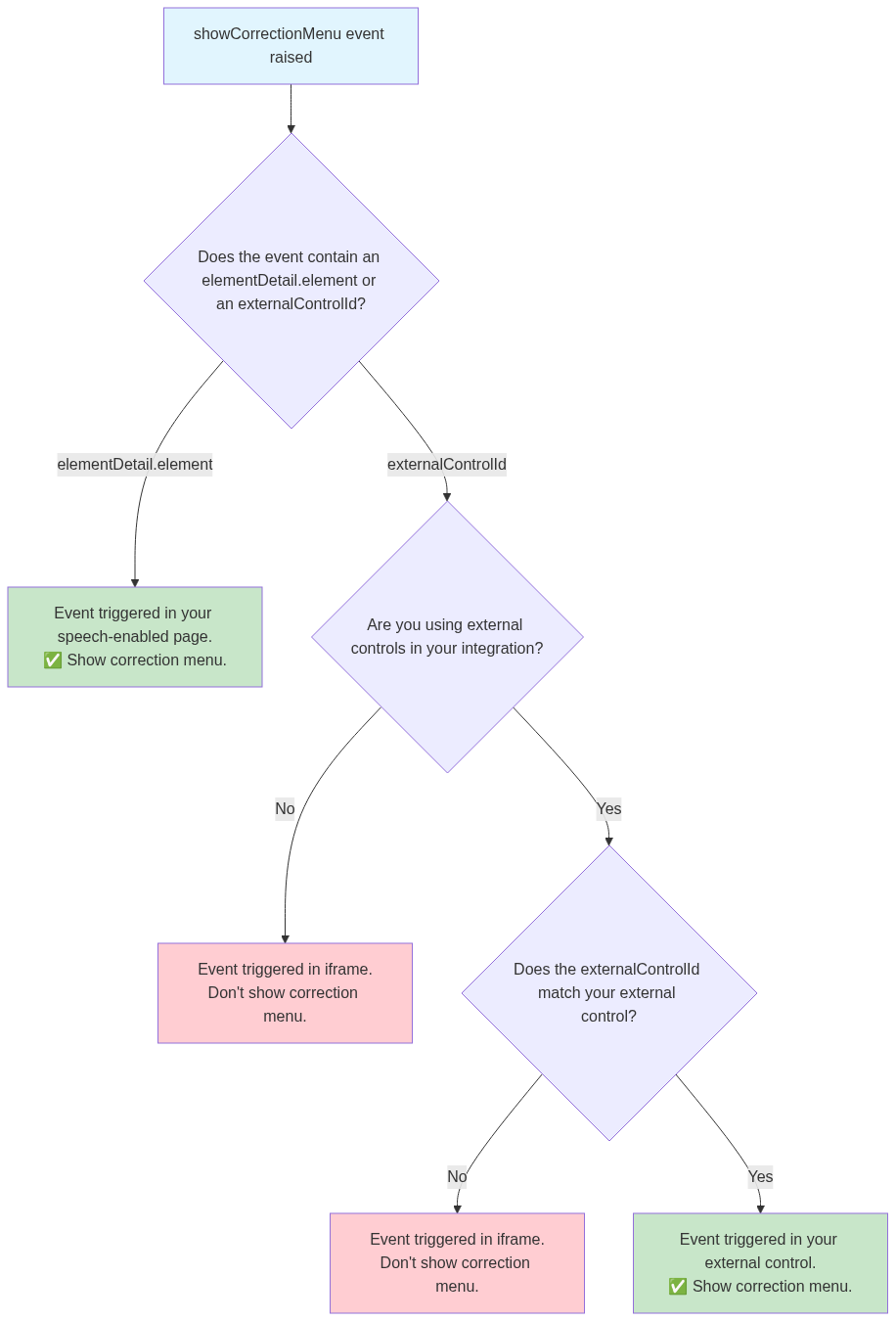
To make sure you only show your app's correction menu when the correction event is triggered in your app's text control (and not in the Dragon Copilot UI in the iframe), use the following information from the event.detail object:
Correction events triggered in your speech-enabled page include an
elementDetail.elementproperty but noexternalControlId.Correction events triggered in the Dragon Copilot UI in the iframe include an
externalControlIdproperty but noelementDetail.element.If you're using external controls, correction events triggered in your external control include an
externalControlIdproperty that matches the external control ID you passed to the Dragon Copilot SDK.
The following diagram provides a simplified version of this decision tree:
Sample code
DragonCopilotSDK.dragon.correction.events.addEventListener("showCorrectionMenu", (event) => {
  // Read properties that might be useful to inform where the correction menu should
  // be positioned on the screen.
  const selectionStart = event.detail.selectionStart;
  const selectionLength = event.detail.selectionLength;
  const control = event.detail.elementDetail.element;

  // Read correction alternatives from event.
  const corrections = event.detail.corrections;

  // Loop through correction alternatives to add to the correction menu UI.
  corrections.forEach((correction) => {
    // Get the spokenForm for the correction - this should be shown in the UI.
    const spokenForm = correction.spokenForm;

    // Get the text that will replace the selected text if that correction is chosen - this should be shown in the UI.
    const text = correction.text;

    // Get the id for the correction. This is needed when calling chooseCorrection, not shown in the UI.
    const correctionId = correction.id;

    // Add correction to list in correction menu UI (correction id is stored in the UI elements id field for this example)...
  });

  // Show correction menu UI...
});

DragonCopilotSDK.dragon.correction.events.addEventListener("hideCorrectionMenu", (event) => {
  // Hide the correction menu if it is showing...
});

// Click handler for correction in UI.
onCorrectionClicked(event) {
  // Get the ID for the correction from the clicked element.
  const correctionId = event.currentTarget.id;

  // Tell the Dragon Copilot SDK which correction was chosen.
  DragonCopilotSDK.dragon.correction.chooseCorrection(correctionId);
}

// Click handler for an interaction which closes the correction menu without choosing a correction.
// For example, a close button.
onCloseCorrectionMenu() {
  // Dismiss the correction menu without choosing a correction.
  DragonCopilotSDK.dragon.correction.dismissCorrectionMenu();
}
Flow diagram