Note
Access to this page requires authorization. You can try signing in or changing directories.
Access to this page requires authorization. You can try changing directories.
Follow these steps to validate your implementation before rolling out Dragon Copilot to your users.
If you find it useful to work with a printout of this article:
- Right‑click this page, select Print > Save as PDF.
- Select More settings, clear Headers and footers and activate Background graphics on.
- Select Save.
Note
The features and functionality available to you might vary based on your organization's configuration.
Step 1: Launch Dragon Copilot and sign in
| Test case | Pass | Fail | Comments |
|---|---|---|---|
| Launch the Dragon Copilot desktop icon and enter user credentials to sign in. |
Step 2: Settings
| Test case | Image | Pass | Fail | Comments |
|---|---|---|---|---|
Select the settings icon  in the upper right corner and confirm the Settings menu is displayed.
 |
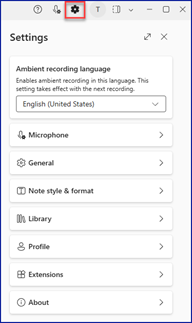
|
|||
Confirm primary specialty of Family Medicine.
|
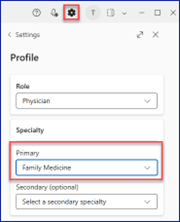
|
Step 3: Microphone input
| Test case | Image | Pass | Fail | Comments |
|---|---|---|---|---|
1. Select the microphone settings icon  at the top of the screen.
2. Select a microphone. An omnidirectional microphone is recommended, as it captures sound evenly from all directions (front, back, and sides). 3. Confirm the microphone you want to use. |
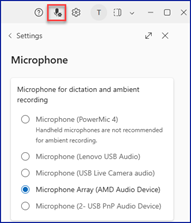
|
Step 4: Dictate at the cursor
| Test case | Image | Pass | Fail | Comments |
|---|---|---|---|---|
| 1. Select the Note tab. 2. Place the cursor in the History of Present Illness section. 3. With the mouse, select the dictation microphone icon in the lower left. |

|
|||
| Confirm the microphone has a solid blue background indicating the microphone is on. |

|
|||
| 1. Say the patient presents with chest pain. 2. Confirm the dictated text is entered in the History of Present Illness section. |
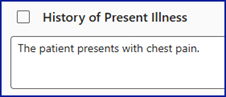
|
|||
| 1. Select the dictation microphone icon in the lower left with your mouse. 2. Confirm that the microphone turns off. |
||||
If you're using a USB hand-held microphone, such as a PowerMic.
|
|
|||
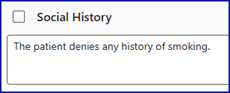
| 1. Say the patient denies any history of smoking. 2. Confirm the dictated text is typed in the Social History section. |
|
|||
| Release the Record button on the microphone and confirm the dictation microphone icon turns off. | ||||
| 1. Turn on the microphone. 2. Say go to family history then turn off the microphone. 3. Confirm the cursor is in the Family History section. |
Step 5: Transfer content to the EHR
| Test case | Image | Pass | Fail | Comments |
|---|---|---|---|---|
| 1. Place the cursor in the target app. 2. Turn on the dictation microphone and say transfer HPI or transfer history of present illness. 3. Confirm the content is transferred to the target app, at the cursor. |
||||
Say transfer all.
|
||||
| 1. Select the checkbox to the left of the History of Present Illness heading. 2. Select the copy icon to the far right of the section heading. |

|
|||
| 1. Place the cursor in the target app, and then paste the copied text using CTRL+V. 2. Confirm the History of Present Illness section heading and dictated text are transferred to the target app, at the cursor. |
Step 6: Dragon voice commands
| Test case | Pass | Fail | Comments |
|---|---|---|---|
| 1. Open a test chart in your EHR and place the cursor where you want the text to go. 2. Turn on the dictation microphone and say the patient presents with chest pain period. 3. Confirm the dictated text is typed where you placed your cursor." |
|||
| 1. Say insert before chest pain, pause, then say severe. 2. Confirm the dictated text is edited to read "The patient presents with severe chest pain." |
|||
| 1. Say go to end. 2. Confirm the cursor moved to the end of the dictation. |
|||
| 1. Say new paragraph. 2. Confirm the cursor moved down two lines. |
|||
| 1. Say go to top. 2. Confirm the cursor moved to the top of the field. |
|||
| 1. Say select severe. 2. Confirm that "severe" is selected, then say delete that. |
|||
| 1. Say go to end, pause, then say The patient denies smoking cigarettes in the past month. 2. Confirm that "The patient denies smoking cigarettes in the past month" is typed at the end of the field. |
|||
| 1. Say scratch that. 2. Confirm the sentence is removed. |
Step 7: Anchor speech focus
| Test case | Image | Pass | Fail | Comments |
|---|---|---|---|---|
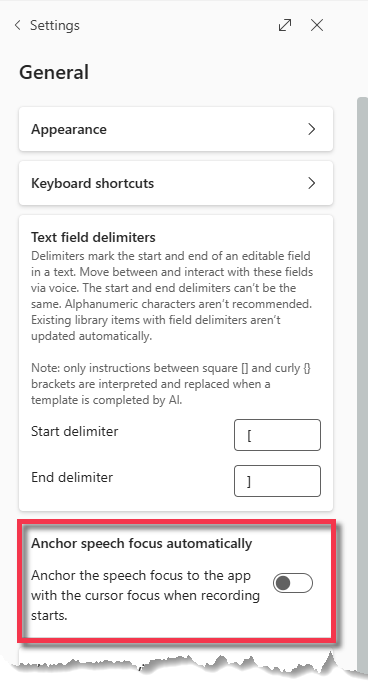
| 1. Select the settings icon
in the upper right corner. 2. Select General. 3. Ensure that Anchor speech focus automatically is disabled. |
|
|||
| 1. Place the cursor in the same test chart you used in Step 6 above (Dragon voice commands). 2. Turn on the microphone and say anchor speech focus. 3. Ensure the microphone icon changes to a microphone with a lock symbol. |

|
|||
| 1. Place the cursor in a different app or document. 2. Say patient presents today with shoulder pain. 3. Return to the field where you anchored your speech focu and ensure that the dictated text appears there. |
||||
| 1. Say release speech focus. 2. Ensure the microphone icon changes back to a microphone icon without the lock. |
|
Step 8: Library
| Test case | Image | Pass | Fail | Comments |
|---|---|---|---|---|
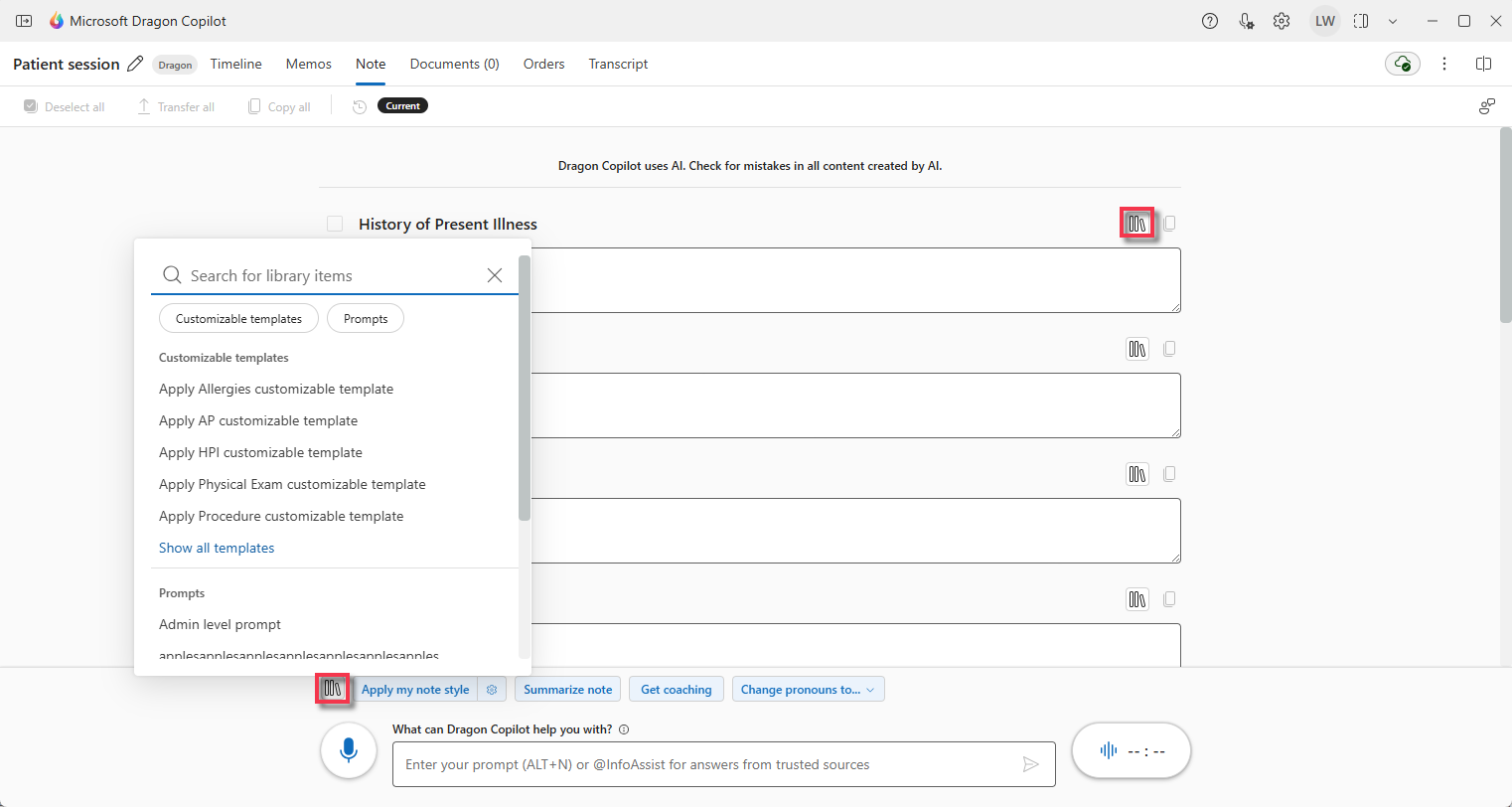
| 1. Select the Note tab. 2. Select the library icon to the left of the Apply my note style button (or the library icon above any note section). 3. Confirm the Library opens. |
|
|||
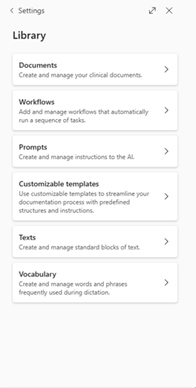
| 1. Select the settings icon
in the upper right corner. 2. Select Library. 3. Confirm the Library menu is displayed. |
|
|||
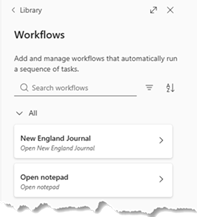
| 1. In the Library menu, select Workflows. 2. Confirm any expected commands appear in this section. |
|
|||
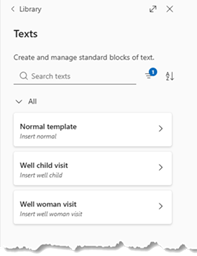
| 1. In the Library menu, select Texts. 2. Confirm any expected text templates appear in this section. |
|
|||
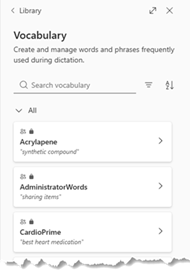
| 1. In the Library menu, select Vocabulary. 2. Confirm any expected vocabulary items appear in this section. |
|
Step 9: Resources
| Test case | Image | Pass | Fail | Comments |
|---|---|---|---|---|
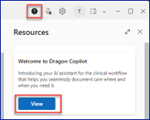
1. Select the help icon  in the upper right corner.
2. Select Resources. 3. Select View and confirm the "Welcome to Dragon Copilot" video is displayed. |
|
|||
| Select the play icon and confirm the video plays. |

|
|||
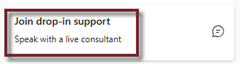
| 1. In the Resources section scroll down to the Support and training section. 2. Select Join drop-in support. 3. Follow the on-screen prompts and confirm a new Teams meeting window opens. 4. Confirm an active Join now button is available. |
|
|||
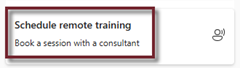
| 1. In the Resources section select Schedule remote training. 2. Confirm a new Schedule Appointment with Microsoft window opens with the ability to select a date and time to schedule an appointment. |
|