Note
Access to this page requires authorization. You can try signing in or changing directories.
Access to this page requires authorization. You can try changing directories.
Important
Some or all of this functionality is available as part of a preview release. The content and the functionality are subject to change.
Segmentation in Nonprofit data solutions allows you to group constituents, donors, or other entities based on specific criteria (for example, Age, Giving History, Engagement). You can customize existing segmentation logic or create new segments tailored to your organization's needs.
In this solution, segmentation is implemented using a Many-to-Many relationship pattern in the gold lakehouse.
Architecture
The segmentation logic follows a many-to-many relationship pattern between constituents and segments, allowing each constituent to belong to multiple segment types simultaneously. The architecture uses separate dimension and bridge tables for each segment type:
Segment Types:
- Age Range: Age-based segmentation (for example, 18-24, 25-34, 35-44)
- Lifetime Giving Range: Total donation amount segmentation (for example, $250-$999, $1,000-$4,999)
- Gift Recurrence: Donor behavior patterns (for example, New Donor, Recurring Donor, Active, LYBNT, Lapsed Donor, Prospect)
Table Structure:
Each segment type has two dedicated tables:
- DimConstituentSegment_[SegmentType]: Defines available segments with names and ordering
- DimConstituentSegmentBridge_[SegmentType]: Links constituents to their applicable segments
Examples:
DimConstituentSegment_AgeRangeandDimConstituentSegmentBridge_AgeRangeDimConstituentSegment_LifetimeGivingRangeandDimConstituentSegmentBridge_LifetimeGivingRangeDimConstituentSegment_GiftRecurrenceandDimConstituentSegmentBridge_GiftRecurrence
This multi-table design enables independent management of each segment type while maintaining flexibility for future extensions. The Fundraising_GD_CreateSegments notebook populates each bridge table based on constituent attributes and business rules.
Current implementation
The Fundraising_GD_CreateSegments notebook runs segmentation logic for each segment type independently:
Age Range Segmentation:
- Loads data: Fetches constituent data from
dm_Constituentand segment definitions fromDimConstituentSegment_AgeRange. - Applies classification: Matches each constituent's age to the appropriate age range segment (for example, 18-24, 25-34).
- Handles unclassified: Assigns constituents without valid age data to the "Unclassified" segment.
- Clears existing mappings: Deletes all existing Age Range records from
DimConstituentSegmentBridge_AgeRange. - Inserts new mappings: Appends the newly calculated constituent-to-segment relationships.
Lifetime Giving Range Segmentation:
- Loads data: Fetches
LifetimeDonationAmountfromdm_Constituentand segments fromDimConstituentSegment_LifetimeGivingRange. - Applies classification: Matches donation amounts to giving ranges (for example, <$250, $250-$999, $1,000-$4,999).
- Handles null values: Treats null donation amounts as $0 for classification purposes.
- Clears existing mappings: Deletes all existing Lifetime Giving Range records from
DimConstituentSegmentBridge_LifetimeGivingRange. - Inserts new mappings: Appends the newly calculated constituent-to-segment relationships.
Gift Recurrence Segmentation:
- Loads data: Fetches constituent attributes, donation history from
FactDonation, and segments fromDimConstituentSegment_GiftRecurrence. - Applies classification: Evaluates multiple donor behavior conditions:
- New Donor: Recently acquired donors
- Recurring Donor: Has recurring donation records
- Active: Donated within the last 12 months
- LYBNT (Last Year But Not This): Gave last calendar/fiscal year but not this year
- Lapsed Donor: No donations in 24+ months but has historical giving
- Prospect: Never donated
- Supports multiple segment assignment: A constituent can match multiple Gift Recurrence segments (for example, both New Donor and Active).
- Clears existing mappings: Deletes all existing Gift Recurrence records from
DimConstituentSegmentBridge_GiftRecurrence. - Inserts new mappings: Appends the newly calculated constituent-to-segment relationships.
Key Design Principles:
- Each segment type operates independently, allowing parallel processing and isolated modifications.
- Deletion operations are scoped to specific segment types, preventing cross-contamination of data.
- Bridge tables use composite keys (
ConstituentKey+ConstituentSegmentKey) hashed to createConstituentSegmentBridgeKey. - The
ConstituentSegmentMappingIdfield distinguishes system-generated segments (NULL) from manually created mappings.
Prerequisites
Before customizing segmentation, ensure that you have:
- A Microsoft Fabric workspace with Nonprofit data solutions installed.
- Familiarity with the silver and gold layer data models.
- Knowledge of PySpark or your preferred notebook language.
- Understanding of your organization's segmentation requirements.
Customize existing segmentation
The Fundraising_GD_CreateSegments notebook executes the logic for each segment type. To modify the logic of existing segments (for example, changing age range boundaries or giving level thresholds):
Sign in to Microsoft Fabric.
In the left navigation pane, select Workspaces and navigate to the workspace where Nonprofit data solutions are installed.
Locate and open the Fundraising_SL_GD_Enrichment pipeline, which is responsible for creating the gold data model, enrichment, and segmentation.
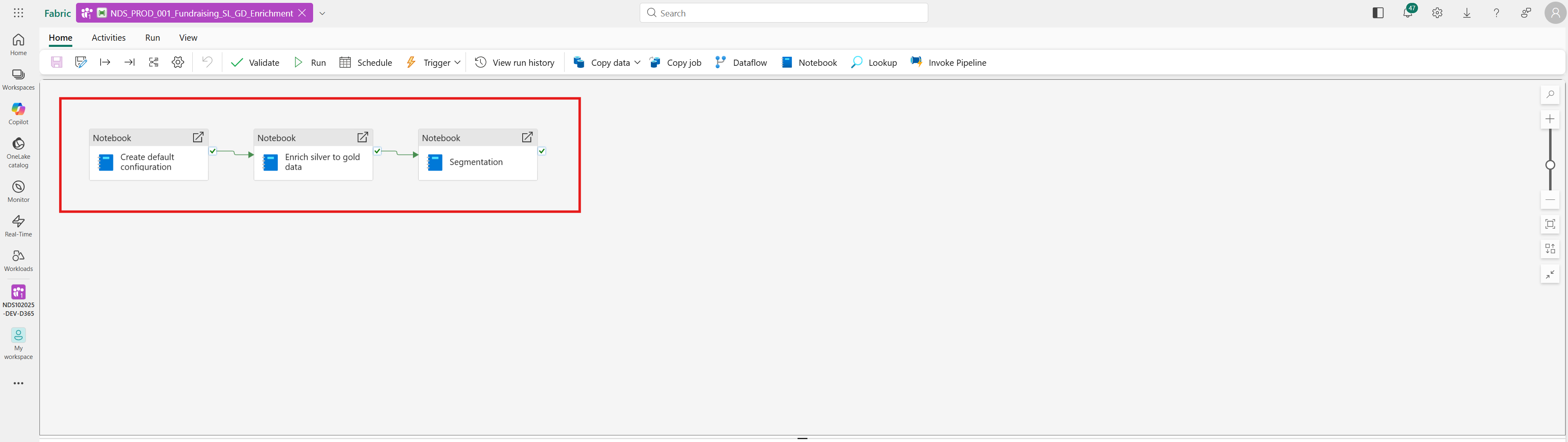
Find the Fundraising_GD_CreateSegments notebook activity.
Open the notebook and locate the section corresponding to the segment type (for example,
# Age Range Segments,# Lifetime Giving Range Segments, or# Gift Recurrence Segments).Modify the logic according to your requirements:
- Adjust segmentation criteria and thresholds.
- Add or remove attributes used for segmentation.
- Change filtering or grouping logic.
- Safe modifications: Changing
when/otherwiseconditions for age boundaries or donation amount ranges. - Risky modifications: Changing join keys, removing "Unclassified" fallback logic, or modifying table names.
- Safe modifications: Changing
Update metadata: If the segment names or definitions change, update the appropriate segment dimension table first (for example,
DimConstituentSegment_AgeRange) via theFundraising_GD_CreateSchemanotebook seed data or manual SQL updates.Test execution: Run the notebook to test your changes. The logic is designed to be idempotent for each segment type. It clears old associations for that specific type and replaces them with new calculations.
Save the notebook and the pipeline.
Modify segment labels (example, changing currency symbols)
To change the display name of a segment (for example, changing "$250–$999" to "€250–€999") without changing the underlying logic, follow these steps:
Update the segment name in Silver: The segment definitions are stored in the
ConstituentSegmenttable in the Silver lakehouse. You must update them using a SQLUPDATEcommand in a notebook.Update the notebook logic: The
Fundraising_GD_CreateSegmentsnotebook uses the segment name to determine the logic. You must update the code to look for the new label string exactly.- Open the Fundraising_GD_CreateSegments notebook.
- Find the relevant section (for example,
# Lifetime Giving Range Segments). - Update the condition to match the new label (for example, change
"$250–$999"to"€250–€999").
Propagate and Verify: Run the Fundraising_SL_GD_Enrichment pipeline. This step propagates the name change to the Gold
DimConstituentSegment_*tables and execute the updated notebook logic to reconfirm segment assignments.
Note
The Fundraising_SL_DefaultConfig notebook is only used for the initial deployment. Updating it doesn't change segments that are already created in the database. Always use SQL UPDATE for existing environments.
Create new segmentation logic
To create an entirely new segment type (for example, Volunteer Status or Event Attendance Level), you need to add new dimension and bridge tables following the established naming pattern.
Prerequisites for new segment types
Before implementing the logic, ensure the table structure exists:
- Update the schema notebook: Edit
Fundraising_GD_CreateSchemato add new table definitions:DimConstituentSegment_[YourSegmentType]: Define the segment dimension schemaDimConstituentSegmentBridge_[YourSegmentType]: Define the bridge table schema
- Add to entity list: Include both new tables in the
get_entities()method - Create seed data: Define initial segment values (for example, "High Engagement", "Medium Engagement", "Low Engagement")
- Run schema creation: Execute the
Fundraising_GD_CreateSchemanotebook to create the new tables
Option 1: Edit the existing notebook (recommended for simple logic)
Add a new section to Fundraising_GD_CreateSegments.
- Advantages: Maintains the entire segmentation logic in one place; easier to maintain if logic is simple.
- Disadvantages: The notebook can become large; failure in one segment type affects the entire process.
Implementation steps:
- Copy an existing block (for example, the "Age Range Segments" section) as a template.
- Update table references to your new segment type tables (for example,
DimConstituentSegment_VolunteerStatusandDimConstituentSegmentBridge_VolunteerStatus). - Implement your specific classification logic based on constituent attributes or fact table data.
- Important: Ensure the delete statement targets only your new segment type keys to avoid deleting other segments.
Option 2: Create a new notebook (recommended for complex logic)
Create a new notebook (for example, Fundraising_GD_CreateVolunteerSegments) in the same directory.
- Advantages: Modular design; isolated failures; can run in parallel with other segmentation notebooks.
- Disadvantage: Requires updating the gold enrichment pipeline.
Implementation steps:
Create the notebook and implement a logic following the pattern: Load Data -> Calculate Classifications -> Delete Old Mappings -> Insert New Mappings.
- Load a constituent and a fact table data from the gold layer.
- Define your segmentation criteria (for example, giving behavior, engagement level, demographics).
- Apply logic to assign constituents to segments.
- Clear existing bridge table records for your segment type.
- Write new segmentation results to your bridge table.
Locate and open the Fundraising_SL_GD_Enrichment pipeline.
Create a new Notebook activity and attach your new notebook.
Place the new activity after the Fundraising_GD_CreateSegments activity and connect it.
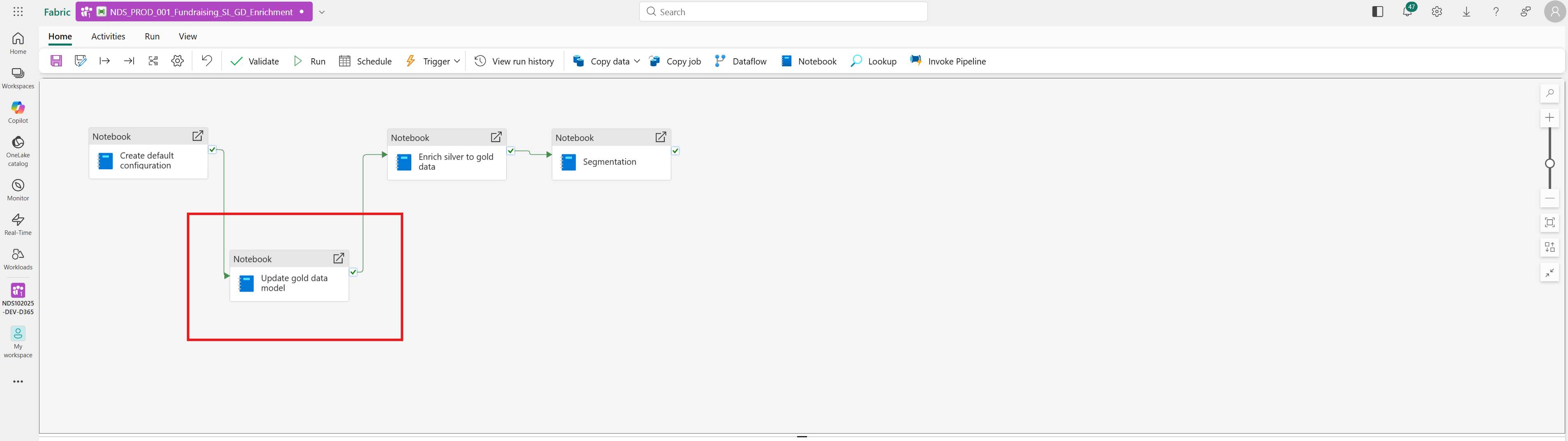
Select Save.
Update the semantic model
To make new segment types available in Power BI reports:
- Add segment tables: Include your new segment dimension and bridge tables in the Semantic Model (for example,
DimConstituentSegment_VolunteerStatusandDimConstituentSegmentBridge_VolunteerStatus). - Define relationships: Connect the bridge table to
dm_ConstituentusingConstituentKeyto enable segment-based filtering. - Create measures: Build DAX measures that use the new segment dimensions.
- Refresh the semantic model: Refresh to load the new data and relationships.
Best practices
When customizing or creating segmentation logic, consider the following best practices.
General best practices
- Clear definitions: Define clear, mutually exclusive criteria for segments when possible.
- Business alignment: Ensure that segments align with your organization's fundraising and engagement strategies.
- Maintainability: Design segmentation logic that can be easily understood and maintained.
- Documentation: Document the business rules and criteria for each segment.
- Monitoring: Regularly review segment distributions to ensure that they remain relevant.
- Flexibility: Design segments that can adapt to changing organizational needs.
Technical and performance guidelines
Handle nulls: Always have a fallback strategy (for example, "Unclassified") or ensure your logic covers 100% of cases.
Preserve manual mappings: The
ConstituentSegmentMappingIdfield distinguishes system-generated segments (NULL) from manually created mappings. Always filter byConstituentSegmentMappingId IS NULLwhen deleting to preserve user-defined segments.Performance: Segmentation logic involves joining large tables. Complex logic increases pipeline duration.
- Use broadcast joins for small dimension tables such as
DimConstituentSegment_*. - Filter fact tables early to reduce data volume.
- If using Option 2 (New Notebook), configure the pipeline to run segmentation notebooks in parallel to reduce total execution time.
- Use broadcast joins for small dimension tables such as
Testing: Validate segment assignments with sample data. The
Fundraising_GD_CreateSegmentsnotebook includes validation tests at the end to verify logic correctness.
Next steps
After creating or customizing segmentation logic, you can use the segments to drive organizational action:
Use segments in reporting and analytics
Make your segments available for analysis and visualization.
- Update the semantic model to include your new segment tables and relationships.
- Create Power BI reports that filter and analyze data by segments.
- Build dashboards that track segment performance over time.
- Design visualizations that compare metrics across different segments.