Note
Access to this page requires authorization. You can try signing in or changing directories.
Access to this page requires authorization. You can try changing directories.
This quickstart shows you how to use the MIP Protection SDK to list protection templates available to the user.
Prerequisites
Complete the following prerequisites before continuing:
- Complete Quickstart - Client application initialization - Protection SDK (C++) first, which builds a starter Visual Studio solution. This "List protection templates" quickstart relies on the previous quickstart to create the starter solution correctly.
- Optional: Review RMS templates concepts.
Add logic to list the protection templates
Add logic to list protection templates available to a user by using the Protection engine object.
Open the Visual Studio solution you created in the previous "Quickstart - Client application initialization - Protection SDK (C++)" article.
In Solution Explorer, open the .cpp file in your project that contains the implementation of the
main()method. It defaults to the same name as the project containing it, which you specified during project creation.Add the following
usingdirective afterusing mip::ProtectionEngine;, near the top of the file:using std::endl;Toward the end of the
main()body, below the closing brace}of the lastcatchblock and abovereturn 0;(where you left off in the previous quickstart), insert the following code:// List protection templates const shared_ptr<ProtectionEngineObserver> engineObserver = std::make_shared<ProtectionEngineObserver>(); // Create a context to pass to 'ProtectionEngine::GetTemplateListAsync'. That context will be forwarded to the // corresponding ProtectionEngine::Observer methods. In this case, we use promises/futures as a simple way to detect // the async operation completes synchronously. auto loadPromise = std::make_shared<std::promise<vector<shared_ptr<mip::TemplateDescriptor>>>>(); std::future<vector<shared_ptr<mip::TemplateDescriptor>>> loadFuture = loadPromise->get_future(); engine->GetTemplatesAsync(engineObserver, loadPromise); auto templates = loadFuture.get(); cout << "*** Template List: " << endl; for (const auto& protectionTemplate : templates) { cout << "Name: " << protectionTemplate->GetName() << " : " << protectionTemplate->GetId() << endl; }
Create a PowerShell script to generate access tokens
Use the following PowerShell script to generate access tokens that the SDK requests in your AuthDelegateImpl::AcquireOAuth2Token implementation. The script uses the Get-MsalToken cmdlet from the MSAL.PS module you installed earlier, in "MIP SDK setup and configuration".
Create a PowerShell script file (.ps1 extension), and copy and paste the following script into the file:
$authorityand$resourceUrlare updated later, in the following section.- Update
$appIdand$redirectUrito match the values you specified in your Microsoft Entra app registration.
$authority = '<authority-url>'                   # Specified when SDK calls AcquireOAuth2Token()
$resourceUrl = '<resource-url>'                  # Specified when SDK calls AcquireOAuth2Token()
$appId = '<app-ID>'                              # App ID of the Microsoft Entra app registration
$redirectUri = '<redirect-uri>'                  # Redirect URI of the Microsoft Entra app registration
$scope = $resourceUrl + "/.default"
$response = Get-MsalToken -ClientId $appId -Authority $authority -RedirectUri $redirectUri -Scopes $scope -Interactive
$response.AccessToken | clip                     # Copy the access token text to the clipboard
Save the script file so you can run it later, when requested by your client application.
Build and test the application
Build and test your client application.
Use Ctrl+Shift+B (Build Solution) to build your client application. If the build has no errors, use F5 (Start debugging) to run your application.
If your project builds and runs successfully, the application prompts for an access token each time the SDK calls your
AcquireOAuth2Token()method. You can reuse a previously generated token if prompted multiple times and the requested values are the same:To generate an access token for the prompt, go back to your PowerShell script and:
Update the
$authorityand$resourceUrlvariables. They must match the values specified in the console output in step 2.Run the PowerShell script. The
Get-MsalTokencmdlet triggers a Microsoft Entra authentication prompt, similar to the following example. Specify the same account provided in the console output in step 2. After successful sign-in, PowerShell places the access token on the clipboard.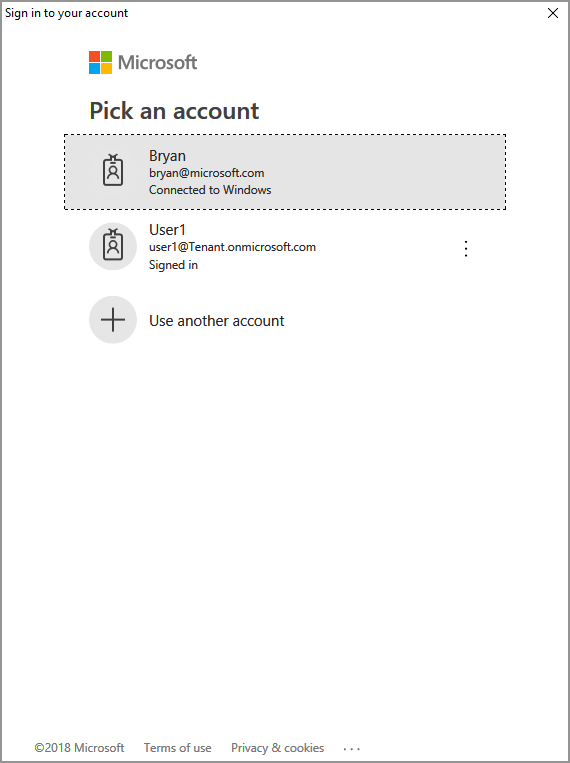
You might also need to give consent to allow the application to access the MIP APIs while running under the sign-in account. This happens when the Microsoft Entra application registration isn't pre-consented (as outlined in "MIP SDK setup and configuration"), or you're signing in with an account from a different tenant (other than the one where your application is registered). Select Accept to record your consent.

After you paste the access token into the prompt from step 2, your console output should show the protection templates, similar to the following example:
*** Template List:
Name: Confidential \ All Employees : a74f5027-f3e3-4c55-abcd-74c2ee41b607
Name: Highly Confidential \ All Employees : bb7ed207-046a-4caf-9826-647cff56b990
Name: Confidential : 174bc02a-6e22-4cf2-9309-cb3d47142b05
Name: Contoso Employees Only : 667466bf-a01b-4b0a-8bbf-a79a3d96f720

C:\MIP Sample Apps\ProtectionQS\Debug\ProtectionQS.exe (process 8252) exited with code 0.
To automatically close the console when debugging stops, enable Tools->Options->Debugging->Automatically close the console when debugging stops.

Press any key to continue . . .
Note
Copy and save the ID of one or more of the protection templates (for example,
f42a3342-8706-4288-bd31-ebb85995028z), as you use it in the next quickstart.

Troubleshooting
Problems during execution of C++ application
| Summary | Error message | Solution |
|---|---|---|
| Bad access token | An exception occurred... is the access token incorrect/expired? Failed API call: profile_add_engine_async Failed with: [class mip::PolicySyncException] Failed acquiring policy, Request failed with http status code: 401, x-ms-diagnostics: [2000001;reason="OAuth token submitted with the request cannot be parsed.";error_category="invalid_token"], correlationId:[aaaa0000-bb11-2222-33cc-444444dddddd]' C:\VSProjects\MipDev\Quickstarts\AppInitialization\x64\Debug\AppInitialization.exe (process 29924) exited with code 0. Press any key to close this window . . . |
If your project builds successfully, but you see output similar to the left, you likely have an invalid or expired token in your AcquireOAuth2Token() method. Go back to Create a PowerShell script to generate access tokens and regenerate the access token, update AcquireOAuth2Token() again, and rebuild/retest. You can also examine and verify the token and its claims, using the jwt.ms single-page web application. |
Next steps
Now that you've learned how to list the protection templates available to an authenticated user, try the next quickstart:
- Explore the MIP Protection SDK C++ sample on GitHub.