Note
Access to this page requires authorization. You can try signing in or changing directories.
Access to this page requires authorization. You can try changing directories.
Intune supports a security baseline for auditing Windows devices against the recommended configurations defined in the Security Technical Implementation Guides (STIGs) published by the Defense Information Systems Agency (DISA). Unlike other Intune security baselines that configure and enforce settings on devices, the STIG audit baseline is read-only. It assesses the current state of a device's configuration and generates detailed audit reports without changing any settings.
This baseline is designed for organizations that must demonstrate compliance with STIGs as part of their Department of Defense (DoD) security requirements.
Applies to:
- Windows 10
- Windows 11
Overview
Security Technical Implementation Guides (STIGs) are configuration standards developed by DISA for the DoD. These guides define how software, hardware, and network systems should be configured to reduce vulnerabilities. Federal agencies and DoD contractors must follow STIGs and demonstrate that devices meet the required configurations.
Available STIG baselines
The following STIG audit baselines are available in Intune:
| Baseline | STIG version | Rules | Benchmark date |
|---|---|---|---|
| Microsoft Windows 11 STIG SCAP Benchmark | Version 2, Release 7 | 197 | January 5, 2026 |
DISA typically updates STIGs on a quarterly cadence. When Intune makes a newer version available, you can create a new audit profile or update an existing profile to use the latest version. For details about the rules in each STIG, see the DISA STIG library.
What the STIG audit baseline does
Intune's STIG audit baseline helps organizations with this assessment by:
- Auditing device configuration — The audit evaluates each device's current settings against the STIG audit rules defined in the DISA-published schema.
- Generating detailed audit reports — Intune produces per-setting and per-device audit reports that you can view in the admin center, retrieve through the Microsoft Graph API, or export to CSV.
- Supporting XCCDF compliance reporting — Audit results map to NIST XCCDF (Extensible Configuration Checklist Description Format) result categories, supporting the formal reporting formats that DISA and DoD auditors require.
Note
Although the Microsoft Windows 11 STIG SCAP Benchmark baseline can be assigned to both Windows 10 and Windows 11 devices, rules that don't apply to a device's operating system version are reported as Not applicable.
Important
The STIG audit baseline is an audit-only tool. It doesn't configure or enforce settings on devices. To bring devices into compliance, use the audit results to identify gaps and then apply the appropriate configuration through Settings Catalog profiles, compliance policies, or other security baselines.
Prerequisites
Before you use the STIG audit baseline, confirm that your environment meets the following requirements:
 Cloud requirements
Your organization must use a US Government Community Cloud High (GCC High) tenant. The STIG audit baseline isn't available in commercial cloud or GCC environments.
 Licensing requirements
The STIG audit baseline requires Intune Advanced Analytics.
This feature requires a subscription in addition to Microsoft Intune Plan 1 or Plan 2. For licensing options, see Microsoft Intune plans and pricing and Microsoft 365 Security Enterprise Plans.
 Device platform requirements
This feature supports the following platforms:
- Windows 10
- Windows 11
 Enrollment methods
Devices must be enrolled in Intune. For co-managed devices, the Device configuration workload slider must be set to Pilot Intune or Intune. The STIG audit baseline is delivered through Intune's device configuration pipeline, so this workload must be owned by Intune for the audit policy to apply.
 Roles requirements
To create and manage STIG audit baseline profiles, use an account with an Intune role that includes the following permissions:
- Organization: Read
- Security baselines: Assign, Create, Delete, Read, Update
The Endpoint Security Manager built-in role includes these permissions. You can also add them to a custom role.
You also need scope tag permissions for the device groups you want to audit.
Create a STIG audit baseline profile
To create a STIG audit baseline profile, use the following steps:
Sign in to the Microsoft Intune admin center.
Go to Endpoint security > Security baselines to view the list of available baselines.
Select Microsoft Windows 11 STIG SCAP Benchmark from the list of available baseline types.
Note
If you don't see the STIG baseline in the list, confirm that your tenant meets the prerequisites for tenant type and licensing.
Select Create profile.
On the Basics tab:
- Enter a descriptive Name for the profile, such as STIG audit - Windows clients.
- Optionally, add a Description to clarify the purpose and scope of this audit profile.
On the Configuration settings tab, no configuration is required. This tab confirms that the profile contains recommended settings from the current STIG version, and that assigning the profile enables auditing of those settings on targeted devices.
Note
The STIG audit baseline audits all settings in the baseline as a single profile. You can't select or modify individual settings. The audit rules and their expected values are defined by DISA in the publicly available SCAP benchmark files, not by Intune.
On the Scope tags tab, optionally add scope tags to control which admins can see this profile.
On the Assignments tab, select the device groups that you want to audit against the STIG baseline. You can target all devices or specific groups.
Review your settings on the Review + create tab, and then select Create.
After you create the profile and assign it to groups, Intune evaluates the targeted devices against the STIG baseline as devices check in. Audit report data begins to populate as devices report their assessment results. Initial results for newly targeted devices can take up to 24 hours to appear.
Review STIG audit results
After devices check in, you can review audit results through the Audit report view in the Intune admin center.
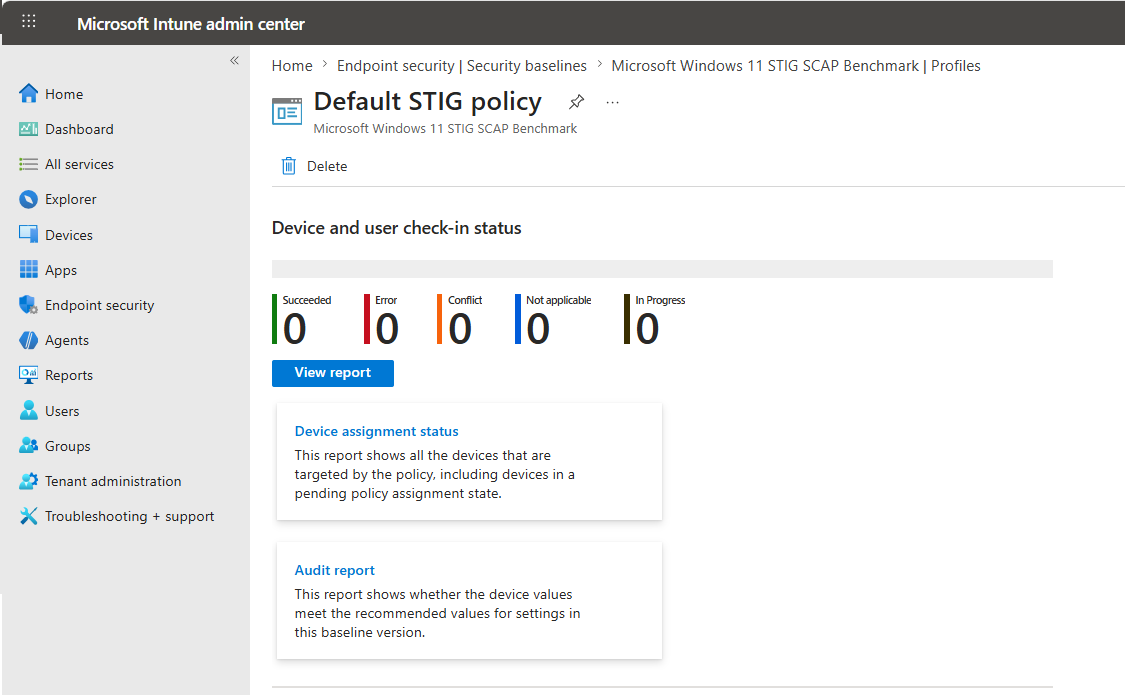
Go to Endpoint security > Security baselines, and select Microsoft Windows 11 STIG SCAP Benchmark.
Select the audit profile you want to review.
Select Audit report to load the report view. You might need to select Generate the first time to begin populating data.
Device assignment status
The Device assignment status report shows all devices that the policy targets, including devices in a pending policy assignment state. Use this report to confirm which devices received the audit profile and to track assignment progress.
| Column | Description |
|---|---|
| Device name | The display name of the device as registered in Intune. |
| Last active user | The last user who signed in to the device. |
| Assignment status | The current policy assignment state for the device. |
| Last report modification time | The last time the device reported its assignment status. |
| Intune Device ID | The unique device identifier in Intune. |
| Microsoft Entra Device ID | The device's identifier in Microsoft Entra ID. |
| Model | The hardware model of the device. |
| Platform | The operating system platform of the device. |
| Entra User ID | The identifier of the associated user in Entra ID. |
Audit report
The Audit report shows whether device values meet the recommended values for settings in the baseline version. This report provides a per-setting summary across all targeted devices, so you can quickly identify which STIG rules have the highest failure rates and prioritize remediation efforts. Each row represents a single STIG rule and shows how many devices passed, failed, or reported other statuses for that rule.
The report includes the following columns:
| Column | Description |
|---|---|
| Settings name | The display name of the STIG rule. |
| Reference ID | The STIG Group ID for the rule. |
| Severity | The severity of the STIG rule: CAT I (high), CAT II (medium), or CAT III (low). |
| Success devices | The number of targeted devices that passed the check for this rule. |
You can filter the report by Severity to focus on specific areas. Use the Search field to find specific settings by name or reference ID.
Per-device drilldown
Select the device count for a rule, such as the number under Success devices, to open a detailed view for that rule. The drill-down view includes:
- A summary bar that shows the count of devices in each status: Pending, Not applicable, Success, Error, Conflict, and Total.
- A device list that shows the audit result for each targeted device. You can filter the list by status, search for specific devices, and export the results.
The device list includes the following columns:
| Column | Description |
|---|---|
| Device name | The display name of the device as registered in Intune. |
| Status | The audit result for this specific setting on the device: Unknown, Not applicable, Pass, Fail, Error, or Conflict. |
| Last check-in time | The last time the device checked in and reported its status for this setting. |
Audit status values
Each device is evaluated per setting and assigned one of the following status values:
| Status | Description | XCCDF mapping |
|---|---|---|
| Unknown | The device hasn't reported results for this setting yet. | unknown |
| Not applicable | The setting doesn't apply to this device. | notapplicable |
| Pass | The device passes this STIG check. | pass |
| Fail | The device fails this STIG check. | fail |
| Error | An error occurred while evaluating this setting on the device. | error |
| Conflict | A conflicting policy was detected for this setting. | conflict |
The XCCDF mapping column shows how each Intune status maps to the NIST XCCDF result categories used in formal DISA reporting to auditors.
Export audit data
You can export audit results by using the following methods:
- Graph API bulk export (recommended) — Use the Intune report export API to download all STIG audit data for a tenant in a single job. This approach is the most efficient for large-scale or cross-tenant reporting. For details, see Export STIG audit data in bulk.
- CSV export — Use the Export option in the audit report view to download per-device results for individual rules.
- Graph API per-setting — Use the Microsoft Graph API cached report endpoints to retrieve audit data one setting at a time. This approach is useful for targeted lookups but requires many API calls for full-baseline exports. For details, see Use the Graph API for STIG audit reports.
Data freshness
Audit report data isn't real-time. Reporting data can lag one to two device check-in cycles behind the policy deployment. After the initial evaluation period for newly targeted devices, the system refreshes audit data based on the following cycle:
- Each device evaluates STIG rules locally at regular intervals.
- Devices check in with the Intune service periodically to report results.
- Depending on the timing of the evaluation cycle and the device check-in, there can be a delay of one to two check-in cycles between a device evaluation and updated data appearing in the audit report.
To refresh the report with the latest available data, use the Generate again button in the audit report.
Tip
For devices that already have the audit policy, you can initiate a device sync from the admin center to retrieve the most recent locally cached evaluation results without waiting for the next scheduled check-in.
Use the Graph API for STIG audit reports
You can use the Microsoft Graph API to programmatically retrieve STIG audit data. This approach is useful for integrating audit results with external assessment tools, automating STIG reporting workflows, or aggregating assessment data across multiple tenants.
Note
Use the /beta/ endpoint for Graph API calls to STIG audit reporting. The /v1.0/ endpoint doesn't support these calls.
Export STIG audit data in bulk
For organizations that need to export all STIG audit data at once, use the Intune report export API instead of the per-setting cached report pattern described in the following sections. The export API differs in three ways:
- No pagination — Returns the full dataset in a single downloadable file rather than requiring skip/top paging across multiple requests.
- No per-setting iteration — Retrieves results for all settings in one job. The cached report pattern requires three API calls per SettingId (create, poll, retrieve). For a baseline with 197 STIG rules, that's at least 591 API calls for a single tenant. The export API does it in two to three calls total.
- Blob storage delivery — Results are written to a temporary blob URL and downloaded as a ZIP/CSV, rather than returned in the HTTP response body. This handles large datasets (hundreds of thousands of device-setting rows) without timeouts.
For more information about the export API pattern, including the request parameters and throttling limits, see Export Intune reports using Graph APIs.
The bulk export uses the exportJobs endpoint and follows a create, poll, download pattern. All calls use the /beta/ endpoint.
Authenticate with Microsoft Graph for the target tenant.
Create the export job with a POST request to
https://graph.microsoft.com/beta/deviceManagement/reports/exportJobs. Use theIndustryBaselinePerSettingDeviceAuditListreport name and select the columns you need:POST https://graph.microsoft.com/beta/deviceManagement/reports/exportJobs { "reportName": "IndustryBaselinePerSettingDeviceAuditList", "filter": "(PolicyId eq '{PolicyId}')", "format": "csv", "select": [ "PolicyId", "SettingId", "DeviceId", "MaxSettingStatus", "UserId", "DeviceName", "PspdpuLastModifiedTimeUtc" ] }Where
{PolicyId}is the GUID of your STIG Audit profile. To find the PolicyId, see Retrieve the PolicyId. The response includes anidvalue for the export job.Poll the job status with a GET request until
statusreturnscompleted:GET https://graph.microsoft.com/beta/deviceManagement/reports/exportJobs('{exportJobId}')Where
{exportJobId}is theidvalue returned in the previous step.When the job completes, the response includes a
urlfield with a temporary blob storage link. Download the ZIP file from that URL. The ZIP contains a CSV with all STIG audit results for the tenant.
Retrieve baseline metadata
Start by retrieving metadata about the STIG baseline template. You need the template id from this response to look up the PolicyId in the next step.
GET /beta/deviceManagement/templates?$filter=templateFamily eq 'baseline'
The response includes the following fields for the STIG baseline template:
| Field | Description |
|---|---|
| displayName | The full benchmark name (for example, Microsoft Windows 11 Security Technical Implementation Guide). |
| displayVersion | The STIG version and release (for example, Version 2, Release 7 Benchmark Date: 05 Jan 2026). |
| settingTemplateCount | The number of STIG rules in the baseline (for example, 197). |
| baseId | The identifier for the STIG baseline. This value is globally consistent across tenants for the same STIG benchmark. |
| id | The identifier for the specific STIG version. Use this value as the templateId in the next step. This value is globally consistent across tenants for the same version. |
Retrieve the PolicyId
Before you can call the report APIs, you need the PolicyId (GUID) of your STIG Audit profile. You can find the PolicyId in the admin center or retrieve it programmatically through the Graph API.
Admin center — Open the STIG Audit policy in the Intune admin center and copy the GUID from the URL after
/policyID/. This GUID is tenant-specific.Graph API — Use the template
idfrom the previous section to list all policies created from that template:GET /beta/deviceManagement/configurationPolicies?$filter=templateReference/templateId eq '{templateId}'Where
{templateId}is the template ID retrieved in the previous section (for example,c64bf257-bce5-4c4d-8ad8-03222f13d84c_1). Theidfield in each returned policy is the PolicyId to use in the report API calls.
Note
Policy IDs are tenant-specific and change when a tenant upgrades to a new STIG version. For organizations that aggregate STIG audit data across multiple tenants, such as for the DISA Continuous Monitoring and Risk Scoring (CMRS) program, run this discovery call in each tenant to find the current PolicyId. Setting IDs are globally consistent across tenants for a given STIG template version, so you can correlate results across tenants by SettingId.
Retrieve the per-policy audit summary
After you have the PolicyId, you can retrieve a summary of all STIG settings with the count of devices that passed for each rule. This report shows the same data as the Audit report view in the admin center.
The per-policy report uses a three-step pattern: create a cached report configuration, monitor its status, and then retrieve the results.
Step 1 — Create the cached report configuration:
POST /beta/deviceManagement/reports/cachedReportConfigurations

{
  "id": "IndustryBaselinePerSettingDeviceAuditSummary_<PolicyId>",
  "filter": "(PolicyId eq '<PolicyId>')",
  "orderBy": [],
  "select": [
    "SettingName",
    "SettingId",
    "StigRuleId",
    "StigSeverity",
    "NumberOfCompliantDevices"
  ]
}
Step 2 — Monitor the report status (repeat until the status is complete):
GET /beta/deviceManagement/reports/cachedReportConfigurations('IndustryBaselinePerSettingDeviceAuditSummary_<PolicyId>')
Step 3 — Retrieve the results:
POST /beta/deviceManagement/reports/getCachedReport

{
  "id": "IndustryBaselinePerSettingDeviceAuditSummary_<PolicyId>",
  "filter": "(PolicyId eq '<PolicyId>')",
  "orderBy": [],
  "select": [
    "SettingName",
    "SettingId",
    "StigRuleId",
    "StigSeverity",
    "NumberOfCompliantDevices"
  ],
  "skip": 0,
  "top": 50
}
The response columns include:
| Column | Description |
|---|---|
| SettingName | The display name of the STIG rule as parsed from the STIG documentation. |
| SettingId | A unique identifier for the setting within Intune. This value is globally consistent across tenants for the same STIG template version. |
| StigRuleId | The DISA STIG Rule ID (for example, SV-253275r828909) that maps to the original STIG benchmark. |
| StigSeverity | The severity of the STIG rule: high (CAT I), medium (CAT II), or low (CAT III). |
| NumberOfCompliantDevices | The count of targeted devices that passed this specific STIG check. |
Retrieve per-setting device details
To identify which devices passed or failed a specific STIG rule, use the per-setting report. This report follows the same three-step pattern. You need both the PolicyId and the SettingId (retrieved from the per-policy report results).
Step 1 — Create the cached report configuration:
POST /beta/deviceManagement/reports/cachedReportConfigurations

{
  "id": "IndustryBaselinePerSettingDeviceAuditList_<PolicyId>",
  "filter": "(PolicyId eq '<PolicyId>') and (SettingId eq '<SettingId>')",
  "orderBy": [],
  "select": [
    "DeviceName",
    "MaxSettingStatus",
    "PspdpuLastModifiedTimeUtc"
  ]
}
Step 2 — Monitor the report status:
GET /beta/deviceManagement/reports/cachedReportConfigurations('IndustryBaselinePerSettingDeviceAuditList_<PolicyId>')
Step 3 — Retrieve the results:
POST /beta/deviceManagement/reports/getCachedReport

{
  "id": "IndustryBaselinePerSettingDeviceAuditList_<PolicyId>",
  "filter": "(PolicyId eq '<PolicyId>') and (SettingId eq '<SettingId>')",
  "orderBy": [],
  "select": [
    "DeviceName",
    "MaxSettingStatus",
    "PspdpuLastModifiedTimeUtc"
  ],
  "skip": 0,
  "top": 50
}
The response columns include:
| Column | Description |
|---|---|
| DeviceName | The display name of the device as registered in Intune. |
| MaxSettingStatus | An integer that represents the audit status of the setting on the device. See Audit status values for the full mapping. |
| PspdpuLastModifiedTimeUtc | The last time the device checked in with the Intune service and reported status for this setting, in UTC format. Use this timestamp to identify stale data or to design incremental sync strategies. |
Understand audit-only behavior
The STIG audit baseline works differently from other Intune security baselines:
| Capability | Configuration baselines | STIG audit baseline |
|---|---|---|
| Pushes settings to devices | Yes | No |
| Modifies device configuration | Yes | No |
| Reports assessment status | Yes (delivery of policy) | Yes (on-device value assessment) |
| Customizable settings | Yes | No (all rules audited) |
| Can conflict with other policies | Yes | No |
| Available in commercial cloud | Yes | No (GCC High only) |
| Supports CSV export and Graph API | Yes | Yes |
| XCCDF result mapping | N/A | Yes |
Because the STIG audit baseline doesn't push configuration to devices, it doesn't conflict with other Intune policies or baselines. You can safely deploy it alongside your existing configuration baselines, compliance policies, and device configuration profiles.
Remediate STIG audit findings
The STIG audit baseline identifies configuration gaps but doesn't fix them. Use the following approaches to bring devices into compliance:
- Settings Catalog profiles — Create or update Settings Catalog profiles in Intune to enforce specific settings identified by the STIG audit. This approach is recommended for STIG remediation.
- Intune security baselines — The Windows MDM security baseline enforces many settings that overlap with STIG requirements.
- Compliance policies — Use compliance policies to define requirements and take action when devices fall out of compliance.
- Group Policy (hybrid environments) — For co-managed environments, use Group Policy for settings that aren't yet available through Intune.
STIG rules that require manual verification
You can't automatically evaluate some STIG rules because they require physical inspection, administrative judgment, or verification of conditions that the device's configuration service providers can't detect. The audit report excludes these rules. Assess them through separate manual procedures. Your organization should establish a process to evaluate and document compliance for these rules.
The following STIG rules require manual verification:
| Rule ID | Description |
|---|---|
| V-253256 | Windows 11 systems must have UEFI firmware and be configured to run in UEFI mode, not Legacy BIOS. |
| V-253258 | Windows 11 must employ automated mechanisms to determine the state of system components with regard to flaw remediation. |
| V-253262 | The operating system must employ a deny-all, permit-by-exception policy to allow the execution of authorized software programs. |
| V-253269 | Only accounts responsible for the administration of a system must have Administrator rights on the system. |
| V-253276 | SNMP must not be installed on the system. |
| V-253280 | Software certificate installation files must be removed from Windows 11. |
| V-253281 | A host-based firewall must be installed and enabled on the system. |
| V-253282 | Inbound exceptions to the firewall on domain workstations must only allow authorized remote management hosts. |
| V-253290 | Orphaned SIDs must be removed from user rights on Windows 11. |
| V-253291 | Bluetooth must be turned off unless approved by the organization. |
| V-253292 | Bluetooth must be turned off when not in use. |
| V-253293 | The system must notify the user when a Bluetooth device attempts to connect. |
| V-253294 | Administrative accounts must not be used with applications that access the internet. |
| V-253296 | The Windows 11 time service must synchronize with an appropriate DOD time source. |
| V-253340 | Permissions for the Application event log must prevent access by non-privileged accounts. |
| V-253341 | Permissions for the Security event log must prevent access by non-privileged accounts. |
| V-253342 | Permissions for the System event log must prevent access by non-privileged accounts. |
| V-253430 | The US DOD CCEB Interoperability Root CA cross-certificates must be installed in the Untrusted Certificates Store. |
| V-253431 | Default permissions for the HKEY_LOCAL_MACHINE registry hive must be maintained. |
| V-253452 | Anonymous SID/Name translation must not be allowed. |
| V-268318 | Windows 11 systems must use either Group Policy or an approved MDM product to enforce STIG compliance. |
Known limitations
- Audit-only — The STIG Audit baseline doesn't enforce or fix settings. Use Settings Catalog profiles for configuration.
- No custom baselines — You can't upload custom STIG profiles. The baseline includes the full set of STIG rules for the supported benchmark.
- No actual device values — The Audit report shows the pass or fail result of each rule check, but it doesn't display the actual configuration value on the device.
- Single baseline version — You can only use the latest supported baseline version to create new Audit profiles. You can't create profiles against older baseline versions. However, profiles you previously created with an older version remain available to run.
- GCC High only — The STIG Audit baseline isn't available in commercial, GCC, or DoD cloud environments.
- UX-only profile creation — You must create STIG Audit profiles through the Intune admin center. API-based profile creation isn't supported.
- Data latency — Audit data isn't real-time. There can be a delay of several hours between a device evaluation and the data appearing in the report. For details, see Data freshness.
Frequently asked questions
Does the STIG Audit baseline enforce settings on devices?
No. The STIG Audit baseline is Audit-only. It evaluates the current device configuration and reports whether each device meets the recommended STIG values. It doesn't change or enforce any settings. To fix findings, configure the appropriate policies by using Settings Catalog or other Intune policy types.
Which STIG version does the baseline use?
The initial baseline audits against the Microsoft Windows 11 STIG SCAP Benchmark, Version 2, Release 7 (benchmark date: January 5, 2026). Once Intune makes a newer version available, you must create a new Audit profile or update your existing profile to use that newer version.
Can I use the STIG Audit baseline in a commercial cloud tenant?
No. The STIG Audit baseline is available only for GCC High tenants.
Can I customize which STIG rules are audited?
No. The STIG Audit baseline evaluates all rules in the supported benchmark as a single profile. You can't select a subset of rules for auditing. CAT I, CAT II, and CAT III rules are all included in a single baseline - there are no separate profiles by severity category.
Does the STIG audit baseline conflict with other baselines or policies?
No. Because the STIG audit baseline is read-only and doesn't push configuration to devices, it doesn't conflict with other Intune baselines, compliance policies, or device configuration profiles.
How do I find the PolicyId for Graph API calls?
Open the STIG audit policy in the Intune admin center and copy the GUID from the URL after /policyID/. You can also retrieve the PolicyId programmatically through the Graph API. For both methods, see Retrieve the PolicyId.
Can I aggregate STIG audit data across multiple tenants?
Yes. Use the Graph API to programmatically discover audit policies and retrieve audit data across tenants. Setting IDs are globally consistent across tenants for the same STIG template version, so you can correlate results by setting. Policy IDs are tenant-specific and you must discover them per tenant. For details, see Retrieve the PolicyId.
Related content
- Security baselines overview - Learn about all available Intune security baselines.
- Create security baseline profiles - Learn how to deploy configuration baselines in Intune.
- Monitor your baselines - Monitor baseline compliance status.
- Microsoft Intune for US Government GCC High and DoD - Learn about Intune's GCC High service.
- DISA STIGs - Access the full STIG library from DISA.
- DISA SCAP benchmarks - Download the SCAP benchmark files used to generate STIG audit profiles.