Do a quick document lookup
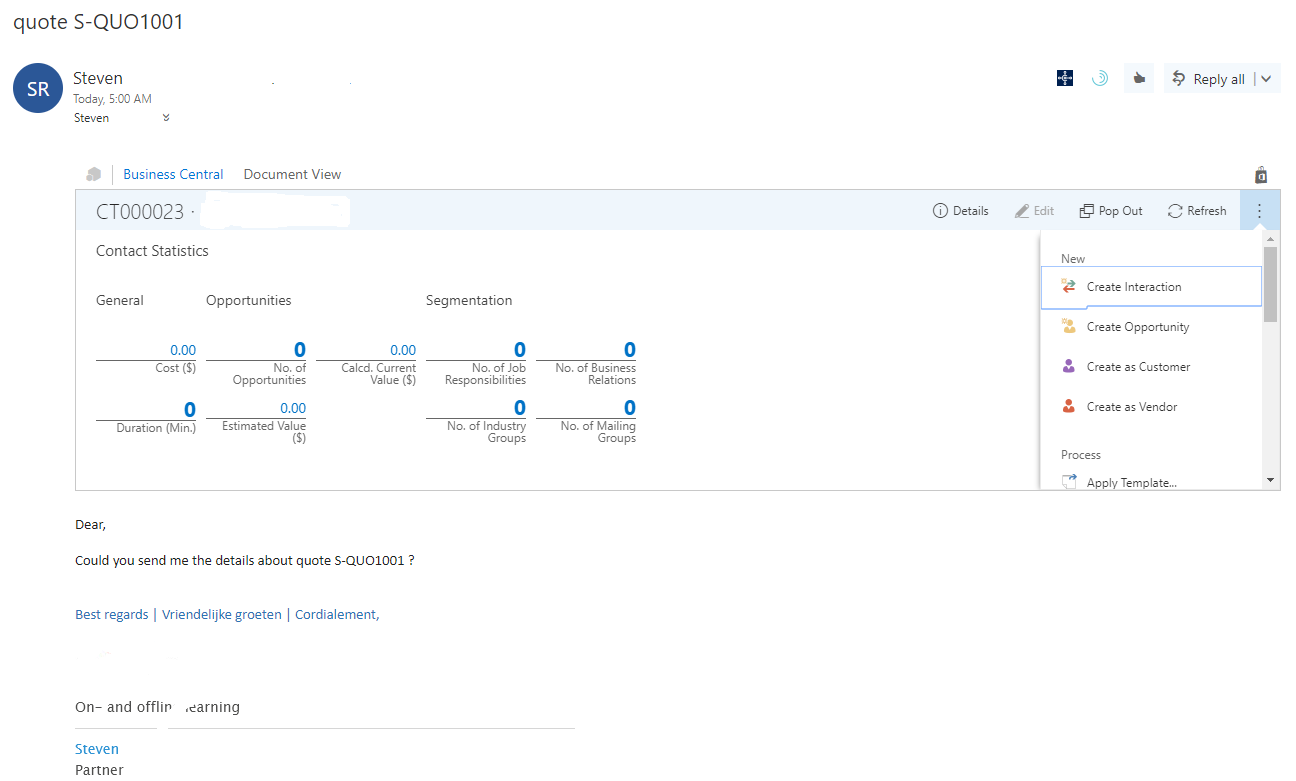
The Business Central Document view add-in gives you quick access to documents mentioned in email messages. The add-in is available for an email message if a document number is recognized in the body of the message. Opening the add-in provides quick access to the document.
For example, if you receive an email message that mentions the text S-QUO1001, Business Central identifies that as a sales quote, and so you can open this document in Outlook.
In the Outlook app, choose Document Link at the top of the email message. In Outlook on the web, choose the document reference link in the body of the email message, such as Sales Quote S-QUO1001.
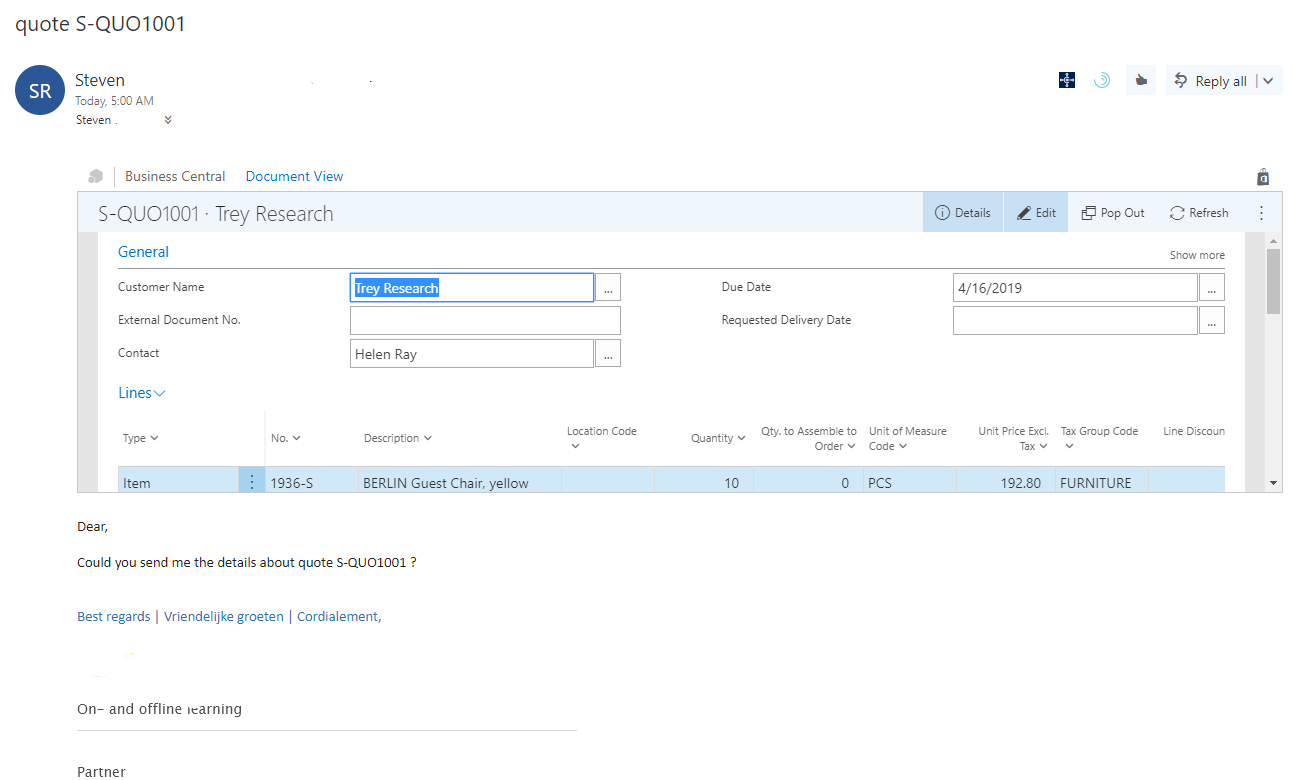
In the Document view add-in, you can modify and take actions with the document, just like you can in Business Central.
Save business contacts to Microsoft Outlook
You can save the contacts that you work with in Business Central to your Microsoft 365 contacts, so that they're available in Outlook and Microsoft Teams. For example, if you're a salesperson, you might do some of your work in Outlook and some of your work in Business Central. If the contacts are available in both places, your work is more straightforward.
Synchronization copies contacts to your own Microsoft 365 contacts list, so the contacts are only visible to you. You can then find them from the To field of a draft email, or use them to start a chat, place a call, or schedule a meeting.
Note
This experience applies to Business Central 2026 release wave 1 (version 28) and later. In earlier versions, synchronization was configured on the Exchange Sync Setup and Contact Sync Setup pages, and a background job could keep contacts in sync automatically. Those pages are deprecated, and background synchronization jobs are no longer available. Each user now synchronizes contacts to their own Microsoft 365 account.
To save your business contacts to Outlook, follow these steps:
Select Search (Alt+Q) in the upper-right corner, enter Contacts, and then choose the related link.
In the action bar, expand More options, choose Actions, and then choose Synchronize with Outlook.... Select Next.
Use the Choose contacts option to filter the contacts that you want to save, for example on salesperson code, city, or country/region. Filters that you set on the Contacts list page itself have no effect on which contacts are synchronized.
Use the Contacts folder option to choose where the contacts are stored in the People page in Outlook. Choose the Default folder to save them together with your other contacts, or choose a specific folder to keep your business contacts separate. Select Next.
Preview the contacts that will be synchronized. You can exclude individual contacts with the Exclude, Exclude selected, or Exclude All actions.
Select Synchronize. When synchronization finishes, Business Central shows a summary with the duration, the number of contacts processed, and any errors.
Repeat the task periodically to get the latest business contacts into Outlook. If contact information gets out of step, turn on the Force full sync option to ignore the last synchronization date and synchronize all contacts again.
By default, Business Central only saves contacts to Outlook and doesn't change your Business Central data. If you set the What to update option to Business Central and Outlook, contacts from the selected Outlook folder are also copied back to Business Central, where other users can see them. This two-way synchronization isn't recommended, because you risk copying personal or internal contacts into Business Central.
Keep the following conditions in mind when you synchronize contacts:
Only contacts of type Person that have an email address are saved. Contacts of type Company and contacts without an email address are always ignored.
If a contact with the same email address already exists in Outlook, it's assumed to be the same contact and isn't copied again or overwritten.
If you change other fields for a contact in Business Central after it was saved, those changes aren't copied to Outlook the next time you synchronize.
Only contacts from the company that you're currently signed in to are copied. If you work with several companies, switch company and synchronize again.
Synchronization uses Microsoft Graph and requires Exchange Online. It isn't supported if your organization uses Exchange Server, or if you access Business Central as a guest or external user.
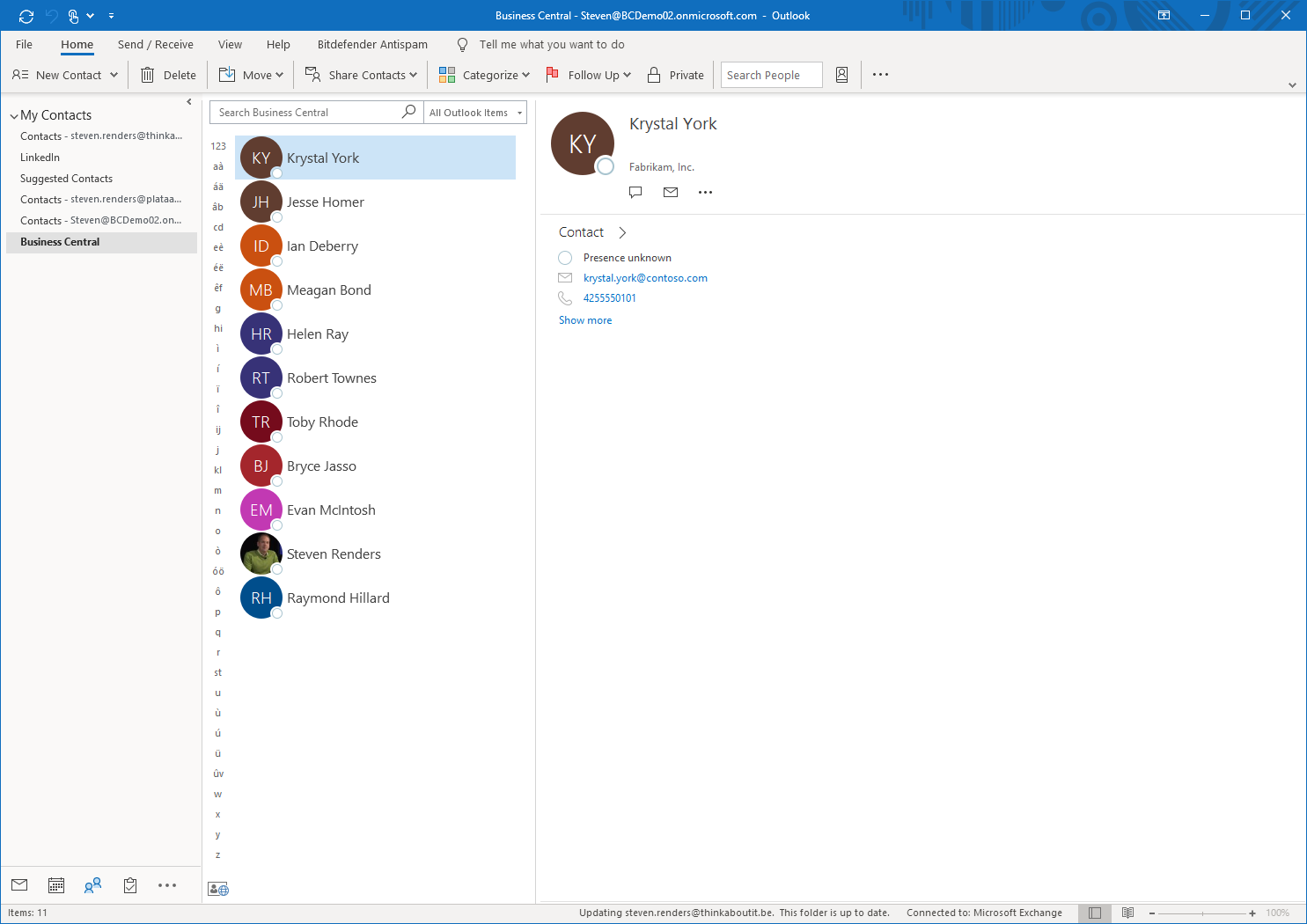
In Outlook, the contacts from Business Central are shown in the folder that you selected in the People view. If you aren't familiar with the People view in Outlook, then you can get to it from the navigation options in Outlook.