Explore Azure blob storage
Tip
See the Text and images tab for more details!
Azure Blob Storage is a service that enables you to store massive amounts of unstructured data as binary large objects, or blobs, in the cloud. Blobs are an efficient way to store data files in a format that's optimized for cloud-based storage, and applications can read and write them by using the Azure blob storage API.
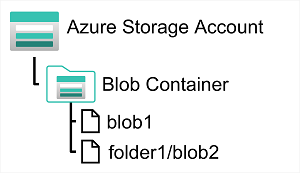
In an Azure storage account, you store blobs in containers. A container provides a convenient way of grouping related blobs together. You control who can read and write blobs inside a container at the container level. Microsoft Entra ID (Azure's identity and access management service) authentication is the recommended sign-in method for Azure Blob Storage, letting you assign precise permissions through Azure role-based access control (RBAC)—a system that controls who can perform specific actions on Azure resources.
Within a container, you can organize blobs in a hierarchy of virtual folders, similar to files in a file system on disk. However, by default, these folders are simply a way of using a "/" character in a blob name to organize the blobs into namespaces. The folders are purely virtual, and you can't perform folder-level operations to control access or perform bulk operations.
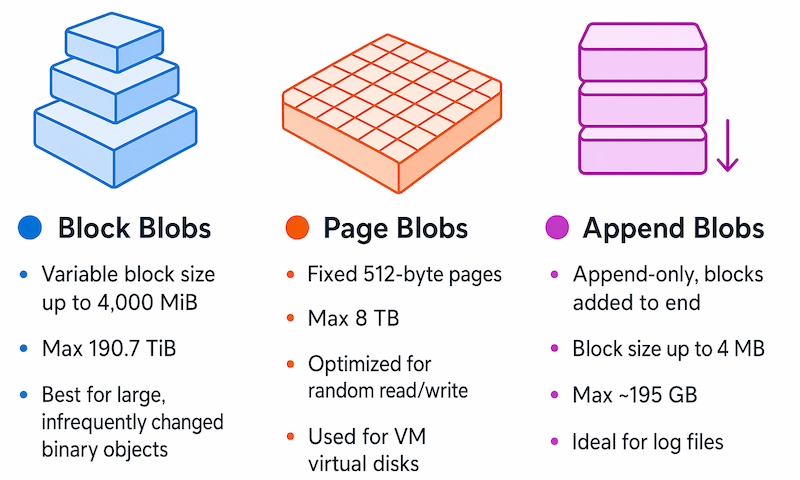
Azure Blob Storage supports three different types of blob:
Block blobs. A block blob is handled as a set of blocks. Each block can vary in size, up to 4,000 MiB. A block blob can contain up to 190.7 TiB (4,000 MiB X 50,000 blocks). The block is the smallest amount of data that can be read or written as an individual unit. Block blobs are best used to store discrete, large, binary objects that change infrequently.
Page blobs. A page blob is organized as a collection of fixed size 512-byte pages. A page blob is optimized to support random read and write operations; you can fetch and store data for a single page if necessary. A page blob can hold up to 8 TiB of data. Azure uses page blobs to implement virtual disk storage for virtual machines.
Append blobs. An append blob is a block blob optimized to support append operations. You can only add blocks to the end of an append blob; updating or deleting existing blocks isn't supported. Each block can vary in size, up to 4 MiB. The maximum size of an append blob is just over 195 GiB.
Blob storage provides four access tiers, which help to balance access latency and storage cost:
The Hot tier is the default. You use this tier for blobs that are accessed frequently. The blob data is stored on high-performance media.
The Cool tier has lower storage costs but higher access costs compared to the Hot tier. Use the Cool tier for data that is accessed infrequently. Data should remain in the Cool tier for a minimum of 30 days to avoid early deletion penalties. It's common for newly created blobs to be accessed frequently initially, but less so as time passes. In these situations, you can create the blob in the Hot tier, but migrate it to the Cool tier later. You can migrate a blob from the Cool tier back to the Hot tier.
The Cold tier is optimized for storing data that is rarely accessed or modified, but still requires fast retrieval. The Cold tier has lower storage costs and higher access costs compared to the Cool tier. Data should remain in the Cold tier for a minimum of 90 days to avoid early deletion penalties. Use this tier for data such as short-term backups, disaster recovery data, or large datasets that need cost-effective storage.
The Archive tier provides the lowest storage cost, but with increased latency. The Archive tier is intended for historical data that mustn't be lost, but is required only rarely. Data should remain in the Archive tier for a minimum of 180 days to avoid early deletion penalties. Blobs in the Archive tier are effectively stored in an offline state. Typical reading latency for the Hot, Cool, and Cold tiers are a few milliseconds, but for the Archive tier, it can take up to 15 hours for the data to become available. To retrieve a blob from the Archive tier, you must change the access tier to Hot, Cool, or Cold. The blob is then rehydrated. You can read the blob only when the rehydration process is complete.
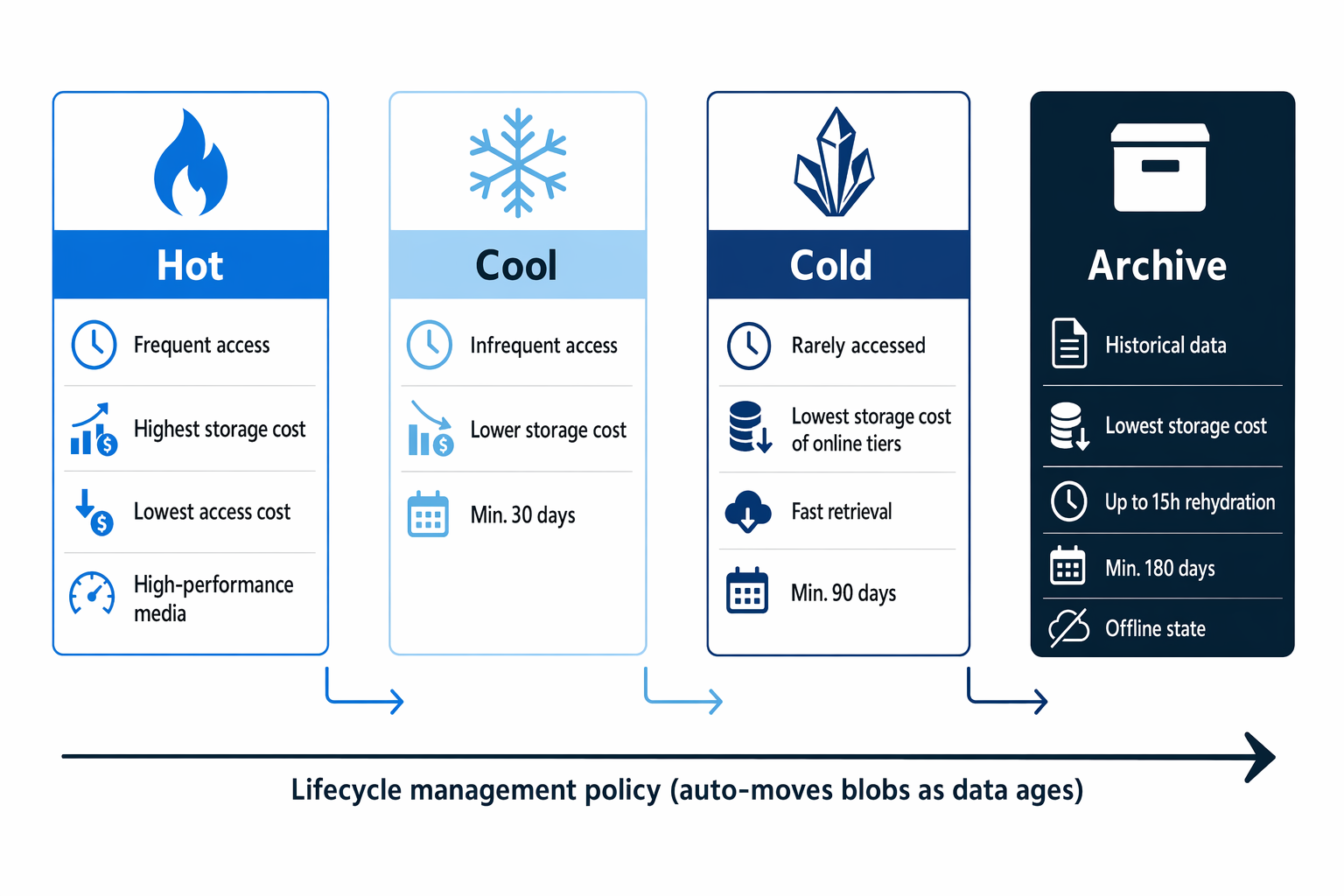
You can create lifecycle management policies for blobs in a storage account. A lifecycle management policy can automatically move a blob from Hot to Cool, then to Cold, and finally to the Archive tier, as it ages and is used less frequently (policy is based on the number of days since modification). A lifecycle management policy can also arrange to delete outdated blobs.
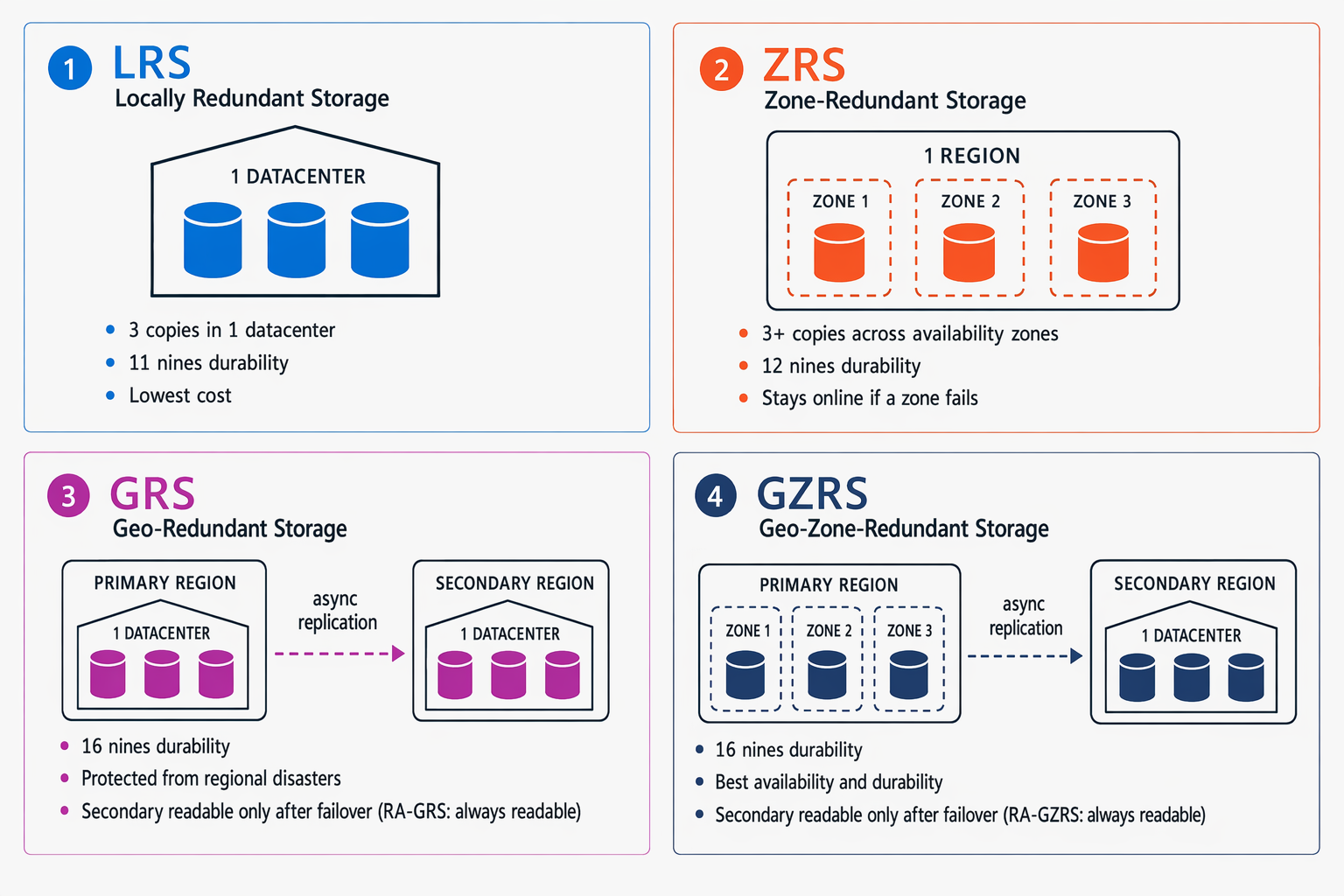
Azure Storage also provides built-in redundancy options to keep your data highly available and protected against failures. Locally redundant storage (LRS) keeps three copies of your data within a single datacenter. Zone-redundant storage (ZRS) spreads copies across three availability zones in the primary region, so your data remains accessible even if one zone goes down. For protection against regional disasters, geo-redundant storage (GRS) and geo-zone-redundant storage (GZRS) asynchronously replicate your data to a secondary region hundreds of miles away. You can also enable read access to the secondary region (RA-GRS or RA-GZRS) so your application can read data from the secondary region even before a failover occurs.