Text handling actions
To perform operations with text type variables, the text actions require specifying the text either by entering it as input, or as a text variable. The actions store the output in a new variable.
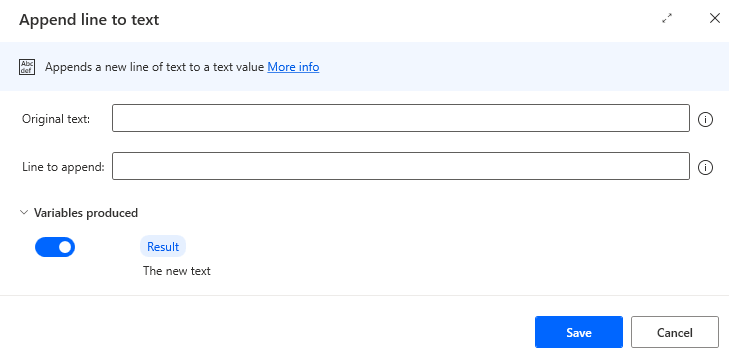
To add a line of text to a single text value or list of text values, use the Append line to text action. The action stores the resulting text in a new text variable.
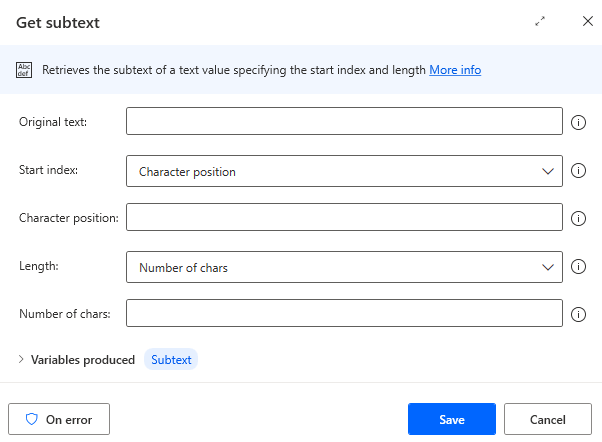
To retrieve a specific portion of a text or list of text values use the Get subtext action. Set the Start index property to retrieve text starting at a character position or at the start of the text, and set the Length property to end at another position or at the end of the text. The action stores its output in a text variable.
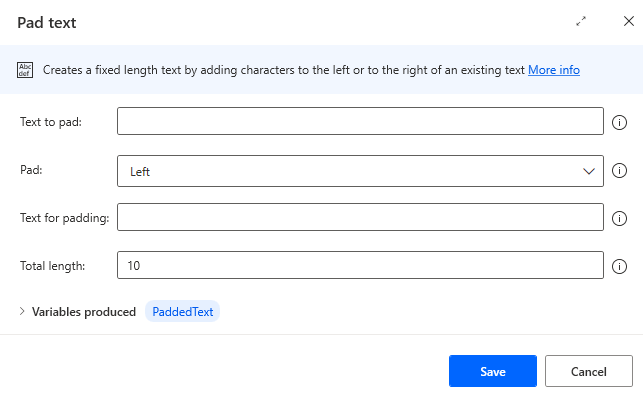
Pad text by adding whitespace, a word or phrase before or after the text, or a list of text values with the Pad text action. The action adds the specified characters to the text so that the resulting text reaches the specified length. Optionally, enter the text value to pad, or the characters that are used to pad the text value, as variables. The action stores the padded text a new text variable.
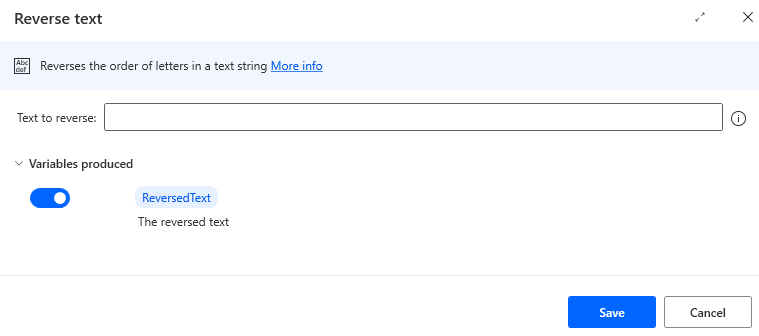
Reverse text reverses the order of letters in a text string.
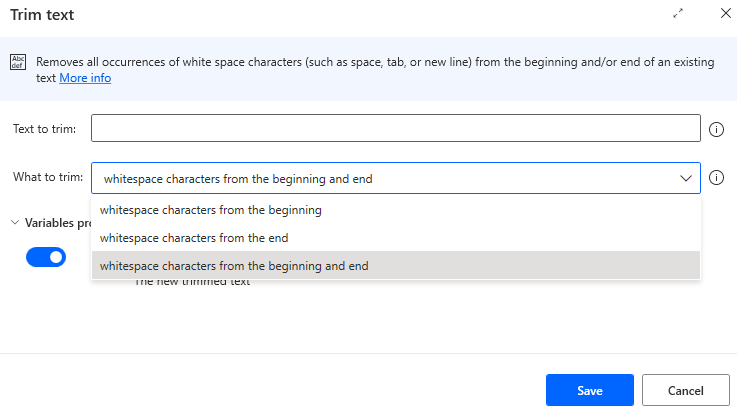
To remove whitespace from a text string, use the Trim text action. Trim whitespaces from the beginning of a text string, the end of a text string, or both.
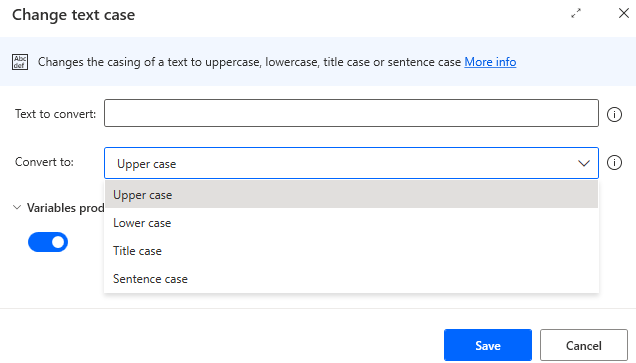
To change the case of a text value, apply the Change text case action to a single text value or list of text values.
Note
To get the length of a text variable use the following syntax:
%Variable.length%
This will return the numerical value of a text variable's length.
Text, dates, and numbers
Four text actions are dedicated to converting text values to and from the number and datetime data types. Certain scenarios can occur where data that includes numbers is extracted from a source, such as a spreadsheet or webpage, and is stored as a datatable, datarow, or even a text value, but it must be entered as a numerical value elsewhere.
For example, a flow extracts data from multiple columns of an Excel sheet into a datatable type variable. Some of the columns contain text values, while others contain numbers. The numbers must be entered into multiple drop-down fields in a desktop application. The numbers must be stored as numerical values; otherwise, the data isn't processed correctly and can't be entered.
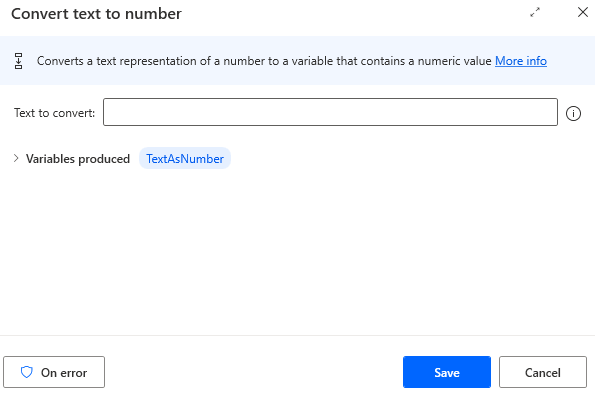
To ensure that numbers are stored as numerical values, use the Convert text to number action. This action requires as input single text items, text list items, datarow items, or datatable items. For list, datarow, or datatable items, the item’s index must be specified.
The Convert number to text action performs the reverse conversion. Enter a number or a numeric variable to convert to a text variable. Set the number of decimal places to include, and configure the digit grouping options.
Use the Convert datetime to text action to convert a datetime value to text. This action's properties contain several options regarding the format of the datetime input. For example, convert a datetime variable that was created with the Get current date and time action to text using this action.
With this approach, the datetime value is guaranteed to be in a recognizable format. Alternatively, use a custom value as input. In this case, ensure that it is in a compatible datetime format. Configure the action to save datetime as text by using one of the available formats or a custom format.
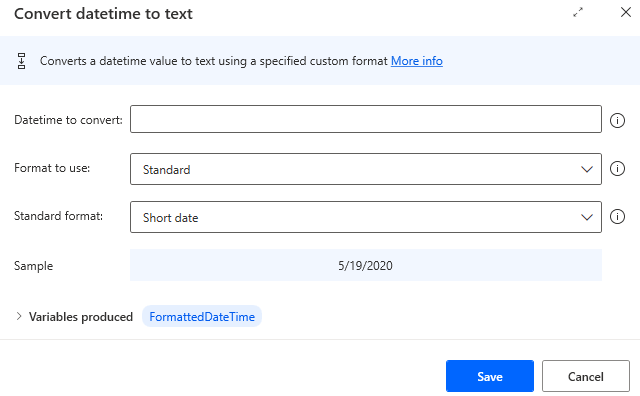
Use the Convert text to datetime action to perform the reverse conversion. Enter a text value or variable that uses a compatible datetime format. If the value that was entered uses a custom format, select the Date is represented in custom format check box in the properties and then define the custom format in the field that appears underneath.

Date formatting
When displayed on their own, the following characters produce the following formats.
| Format | Description |
|---|---|
| d | The short date (04/02/2010) |
| D | The long date (Friday, April 02, 2010) |
| f | The full date and time - short time (Friday, April 02, 2010 10:00 AM) |
| F | The full date and time (Friday, April 02, 2010 10:00:46 AM) |
| g | General date time - short time (04/02/2010 10:00 AM) |
| G | The general date time - long time (04/02/2010 10:00:46 AM) |
| M | The month and day of the month (April 02) |
| m | The month and day of the month (April 02) |
| r | A shorter full date (Fri, 02 Apr 2010 10:00:46 GMT) |
| R | A shorter full date (Fri, 02 Apr 2010 10:00:46 GMT) |
| s | The sortable date and time (2010-04-02T10:00:46) |
| t | The short time (10:00 AM) |
| T | The long time (10:00:46 AM) |
| y | The month and year (April, 2010) |
When used as a combination, the characters have the following representation.
| Representation | Description |
|---|---|
| d | The day of the month as a number from 1 to 31 (2) |
| dd | The day of the month as a number from 01 to 31 (02) |
| ddd | The abbreviated day of the week (Fri) |
| dddd | The full day of the week (Friday) |
| gg | The period era (AD) |
| h | The hour as a number from 1 to 12 (10) |
| hh | The hour as a number from 01 to 12 (10) |
| HH | The hour as a number from 00 to 23 (10) |
| m | The minutes as a number from 0 to 59 (0) |
| mm | The minutes as a number from 00 to 59 (00) |
| M | The month as a number from 1 to 12 (4) |
| MM | The month as a number from 01 to 12 (04) |
| MMM | The abbreviated month (Apr) |
| MMMM | The month (April) |
| s | The seconds as a number from 0 to 59 (46) |
| ss | The seconds as a number from 00 to 59 (46) |
| tt | The AM/PM designator (AM) |
| y | The last digit of the year (0) |
| yy | The last two digits of the year (10) |
| yyyy | The year (2010) |
| zz | The time zone (+02) |
| zzz | The time zone in full format (+02:00) |
Other text actions
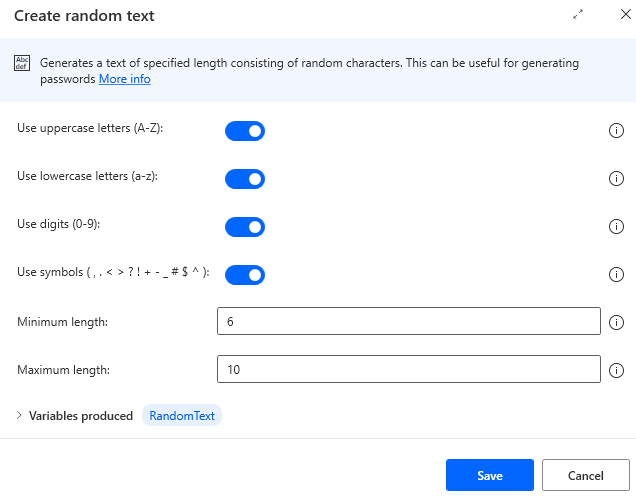
The Create random text action is ideal for generating passwords because it can be configured to generate text of a certain length and include uppercase and lowercase letters, digits, and symbols.
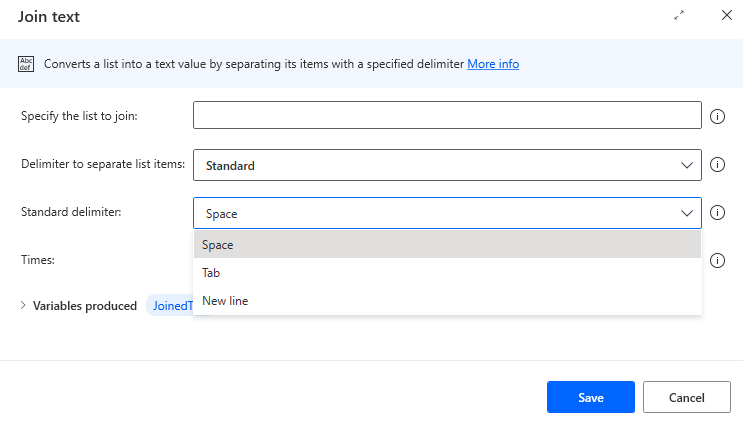
To combine a list of text values into a single text value, use the Join text action and then enter a list variable as its input. Separate the list items by using a delimiter, such as a space, or specify a custom delimiter.
To separate a single text value into a list of items, use the Split text action. Enter a value or a text variable as the input. Ideally, the text should include recognizable delimiters that separate the items. Select one of the standard delimiters or enter a custom delimiter.
Search for a text value for a specific string of text with the Parse text action. Set the action to search for the first occurrence, or all occurrences, of the text string. Optionally, set the action to Ignore case (thus making the search case-insensitive). The output of the action stores the position, or list of positions, as a numerical value (or list of numerical values) that indicates the positions where the search string was found in the text.
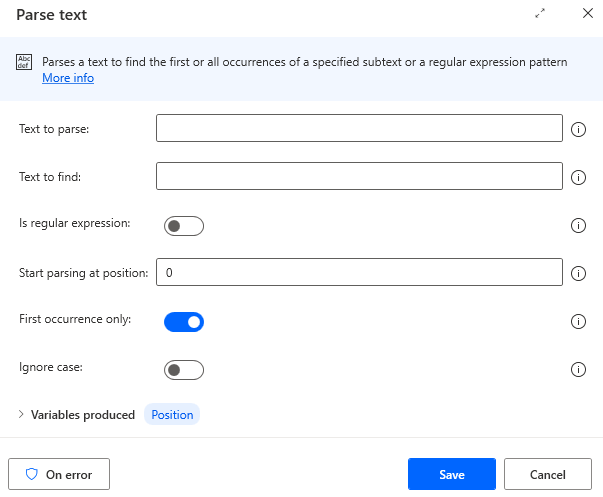
If the search string isn't known beforehand, search for a regular expression. Select the Is regular expression check box to store the matched string of a regular expression in a new variable.

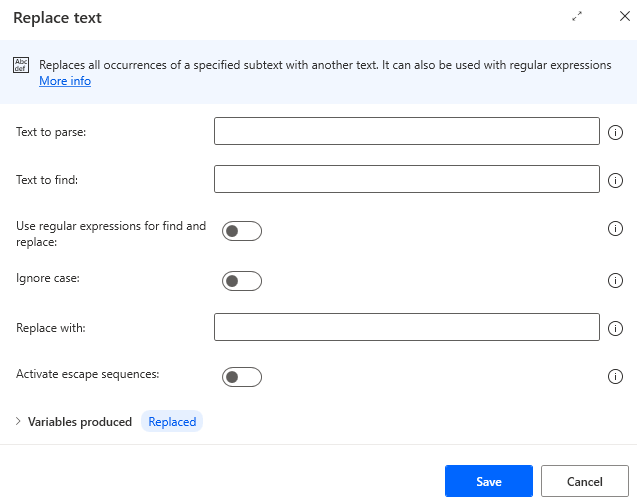
To find a string in a text and replace it with another string or character, use the Replace text action. The Text to parse, Text to find, and Replacement text are required inputs. Similar to the Parse text action, in the Replace text action, configure the search to be case-insensitive, or to contain regular expressions. Escape sequences enable the user to add characters, such as a tab or a new line, into the replacement text.
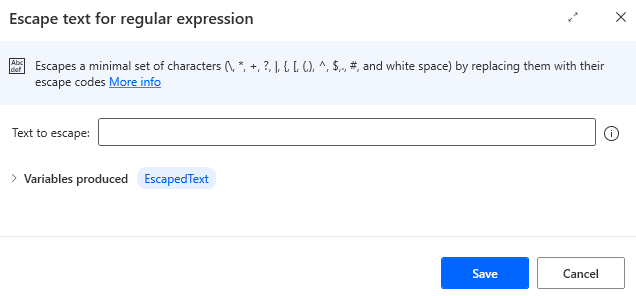
Use the Escape text for regular expression action to modify a regular expression so that the characters used in regular expressions are escaped and are treated as literal characters in the string. Use this action if a regular expression contains a variable with a text value to escape the value in the variable. This action ensures that the regular expression handles all characters in the text.