Note
Access to this page requires authorization. You can try signing in or changing directories.
Access to this page requires authorization. You can try changing directories.
Warning
Deprecation Notice: The Marketing Version 202511 (Marketing November 2025) will be sunset on November 16, 2026. We recommend that you migrate to the latest versioned APIs to avoid disruptions. For information on all the supported versions, refer to the migrations documentation. If you haven’t yet migrated and have questions, submit a request on the LinkedIn Developer Support Portal.
Boost lets a member or a Company Page turn an existing, eligible post into a sponsored ad without leaving the native post-boosting flow. The Boost APIs support two separate identity contexts:
- Member Boost - Boosts a post owned by the authenticated member. See Member Post Boost.
- Company Page Boost - Boosts a post on behalf of an organization the authenticated member can manage. See Organization Post Boost.
Each context exposes a parallel set of REST.li actions and finders. Member Boost endpoints are prefixed member (for example, memberBoostInit) and Company Page Boost endpoints are prefixed organization (for example, organizationBoostInit).
Permissions
Your developer application must be approved for the Advertising API product for the relevant Boost permissions to call these endpoints.
Note
For fetching member posts, your application must have created the posts with the w_member_social permission and saved their post IDs from the response. Fetching member posts is restricted with the r_member_social permission under the "Member Posts Management API" product, which has closed access.
| Context | Permission | Description |
|---|---|---|
| Member Posts | r_member_social |
Retrieve your posts, comments, reactions, and other engagement data. |
| Member Boost | r_member_boost |
Retrieve boost status and analytics for the authenticated member's posts. |
| Member Boost | rw_member_boost |
Initialize, preview, and create boosts for the authenticated member's posts, including retrieving boost status and analytics. |
| Company Page Posts | r_organization_social |
Retrieve your organization's posts, comments, reactions, and other engagement data. |
| Company Page Boost | r_organization_boost |
Retrieve boost status and analytics for posts in the specified sponsoring organization's context. |
| Company Page Boost | rw_organization_boost |
Initialize, preview, and create boosts for a sponsoring organization's posts, including retrieving boost status and analytics. |
Versioning
All Boost requests require the Linkedin-Version header set to 202610 or a higher available version, and the X-Restli-Protocol-Version: 2.0.0 header. For more information, see Versioning.
Note
Applications must be authorized and authenticated before they can fetch data from LinkedIn or get access to LinkedIn member data. To learn more about the OAuth flows, see Authentication.
Boost workflow
A typical Boost integration calls the following endpoints in sequence for a given post:
- Status - Call
memberBoostStatusororganizationBoostStatusto confirm the post is eligible to be boosted and to learn why it is ineligible if not. - Init - Call
memberBoostInitororganizationBoostInitto resolve or create the sponsored account and billing configuration that will fund the boost. - Hydrate - Call
memberBoostHydrateororganizationBoostHydrateto preview targeting, forecast, and pricing for a hypothetical budget and objective before committing. - Post - Call
memberBoostPostororganizationBoostPostto create the sponsored campaign group, campaign, and creative that make up the boost. - Analytics - Call
boostAnalytics(see Boost Analytics) to retrieve performance metrics for member and organization posts that have already been boosted.
How to call the APIs
Note
The advertiser doesn't need a payment method on file before you start. Init returns billingConfigured: false when billing setup is needed. Redirect the advertiser to https://www.linkedin.com/campaignmanager/boost/billing/{account_id}?origin=partner, replacing {account_id} with the numeric ID from the account URN that init returned. After the advertiser finishes billing setup, call init again and continue only when it returns billingConfigured: true.
Member Boost flow
The user is the authenticated member boosting their own post.
- Authenticate. Obtain a 3-legged OAuth token for the member with
r_member_boostandrw_member_boost. - Check eligibility.
GET /rest/memberBoostStatus?q=boostStatus&targetPosts=List({postUrn}). - Initialize the boost.
POST /rest/memberBoostInit. If the response returnsbillingConfigured: false, redirect the member to the billing setup page, then call init again before continuing. - Make the first hydrate call to get the suggested configuration.
POST /rest/memberBoostHydrate.- Use the values from the init response in this first request.
- Don't set
totalBudgetin the first hydrate request. - After the first hydrate call returns, the member can change only the objective, run schedule, and budget. Call hydrate each time one of these changes to get the latest forecast. Pass the suggested
targetingCriteriainto each later hydrate call, and stay within the boost limits (minimum spend) returned by the first hydrate call.
- Create and launch the boost.
POST /rest/memberBoostPost. SetcallToActionLabel.valueandcallToActionTargetonly when the goal isLEAD_GENERATION. - Retrieve analytics.
GET /rest/boostAnalytics?q=boostAnalytics&targetPosts=List({postUrn}). - Manage the ad. Use this flow when a member wants to review or stop a boost they already started:
- Find the boost. Call
GET /rest/memberBoostStatusfor the post. If the post has a current or past boost, the status isCURRENTLY_BOOSTED,IN_REVIEW,SCHEDULED, orPREVIOUSLY_BOOSTED, and the response includes the campaign URN and account URN for that boost. You need both URNs for the next steps. - Load the boost details. Pass the campaign URN and account URN to
POST /rest/memberBoostInit. The response contains the campaign's objective and run schedule, so you can show the member those settings. - End the boost. When the member confirms they want to stop the boost, call
DELETE /rest/memberBoostCampaignwith the same campaign and account URNs.
- Find the boost. Call
Note
memberBoostPost (at creation) and memberBoostInit also return the campaign and account URNs, so you can reuse them from an earlier step. memberBoostStatus is the most reliable way to look them up for any post.
Company Page Boost flow
The user is a Company Page admin boosting a page post.
- Authenticate. Obtain a 3-legged OAuth token for the page admin with
r_organization_boostandrw_organization_boost. - Check eligibility.
GET /rest/organizationBoostStatus?q=boostStatus&organization={organizationUrn}&targetPosts=List({postUrn}). - Initialize the boost.
POST /rest/organizationBoostInit. If the response returnsbillingConfigured: false, redirect the admin to the billing setup page, then call init again before continuing. - Make the first hydrate call to get the suggested configuration.
POST /rest/organizationBoostHydrate.- Use the values from the init response in this first request.
- Don't set
totalBudgetin the first hydrate request. - After the first hydrate call returns, the admin can change only the objective, run schedule, and budget. Call hydrate each time one of these changes. Pass the suggested
targetingCriteriainto each later hydrate call, and stay within the boost limits (minimum spend) returned by the first hydrate call.
- Create and launch the boost.
POST /rest/organizationBoostPost. SetcallToActionLabel.valueandcallToActionTargetonly when the goal isLEAD_GENERATION. - Retrieve analytics.
GET /rest/boostAnalytics?q=boostAnalytics&targetPosts=List({postUrn}). - Manage the ad. Follow the same steps as the member flow, using the organization endpoints (
organizationBoostStatus,organizationBoostInit, andorganizationBoostCampaign).
Comparison with native boost experience
The following screenshots show where each Boost endpoint maps to an action in the native boost experience.
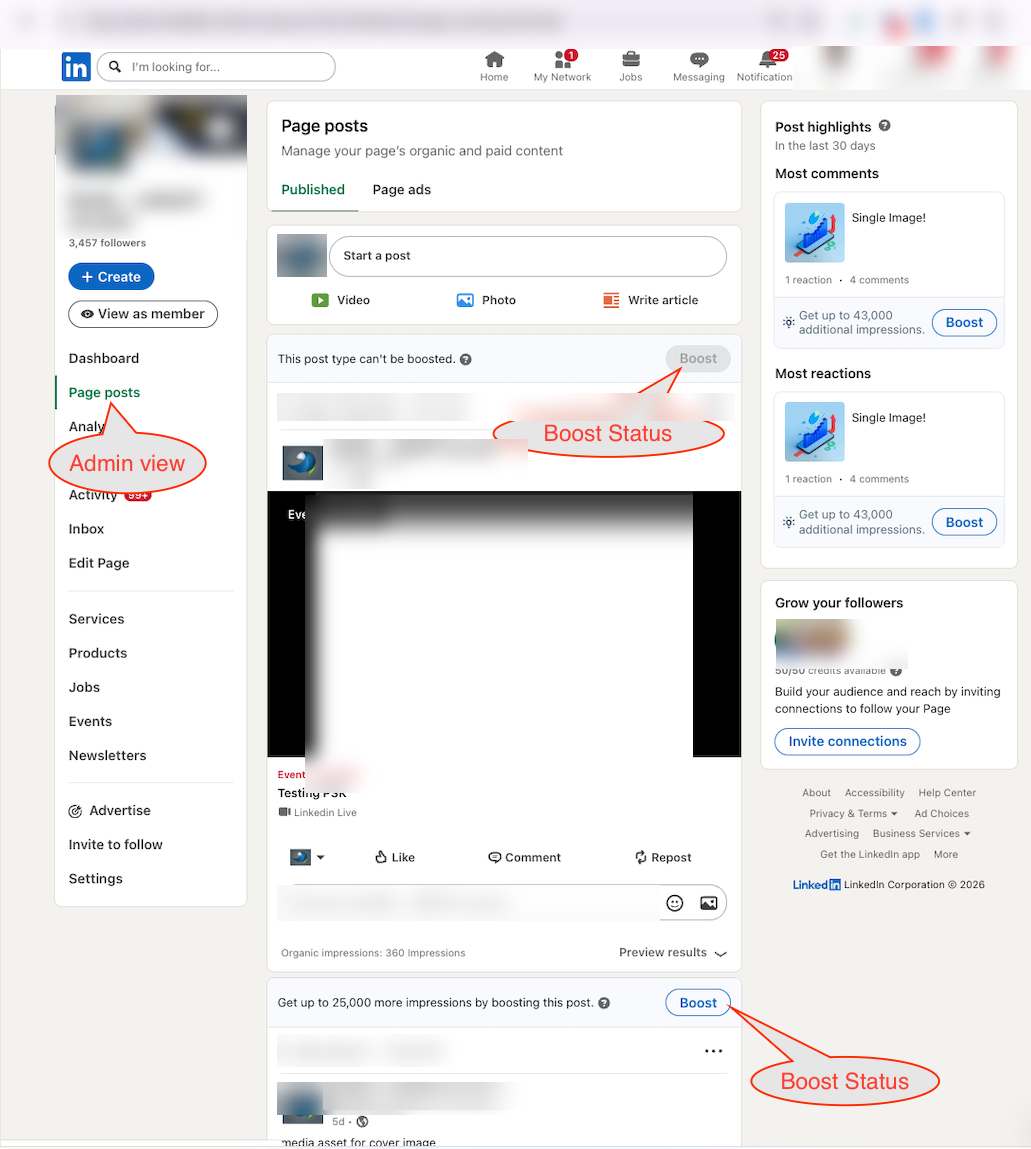
Check boost status on a Company Page
The Boost button on the Page posts tab reflects the status returned by organizationBoostStatus. A disabled button indicates the post can't be boosted.
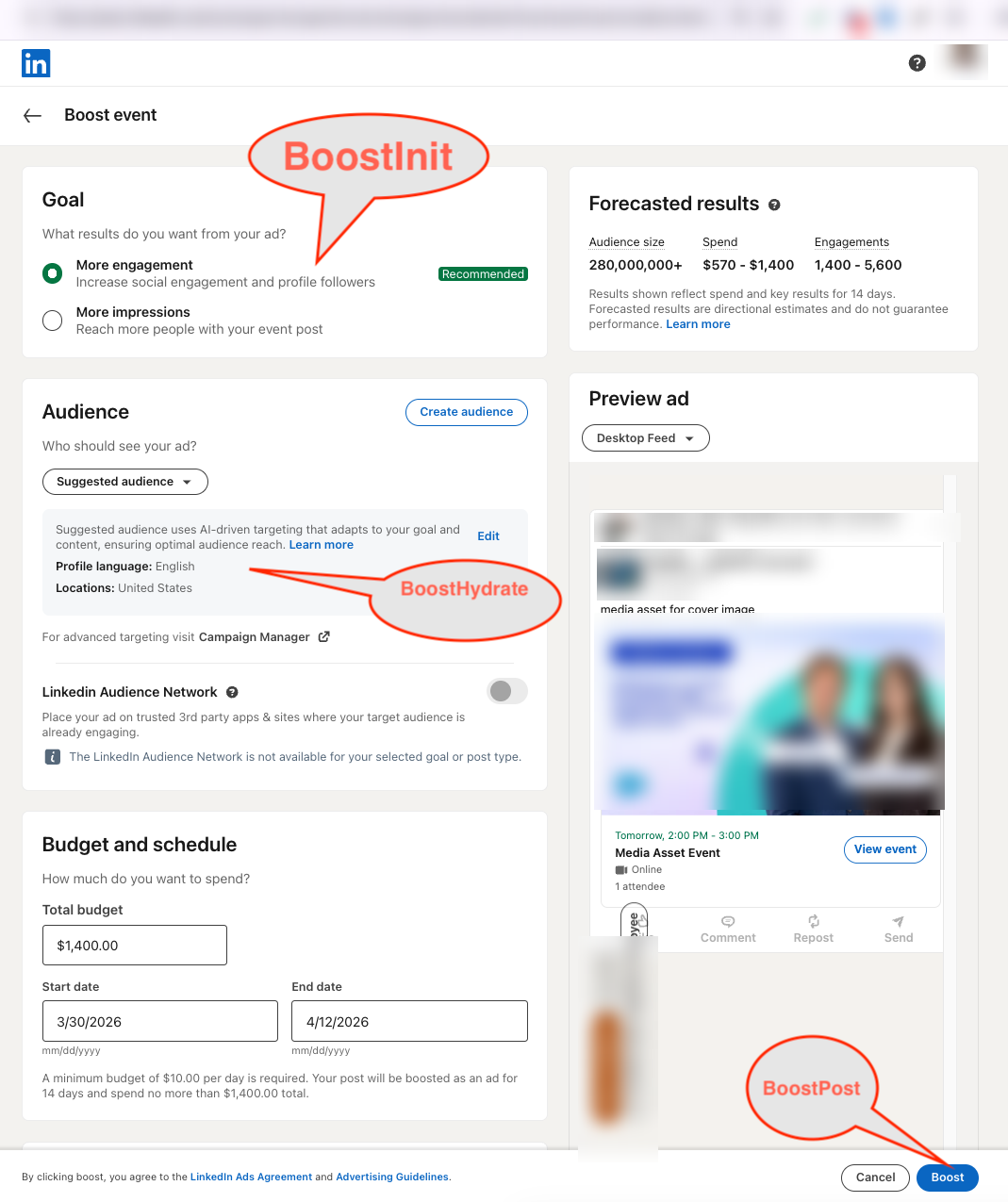
Configure and create a boost
Selecting Boost opens the boost creation flow. Selecting a goal calls the init endpoint, changing the audience, budget, or schedule calls the hydrate endpoint to refresh the preview, and selecting Boost calls the post endpoint.
View boost analytics
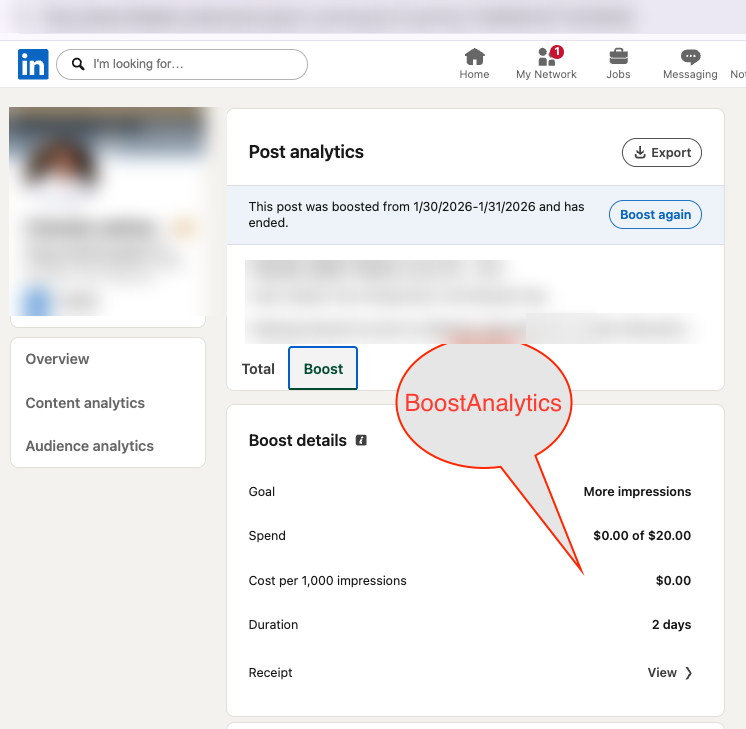
After a post is boosted, the Boost tab on the post analytics page shows the performance data returned by boostAnalytics.