Note
Access to this page requires authorization. You can try signing in or changing directories.
Access to this page requires authorization. You can try changing directories.
This guide walks through the prerequisites for integrating Display Services. Before you begin, make sure you are an approved partner for this integration. If you are unsure, please reach out to your LinkedIn representative or become a partner today.
Create a LinkedIn Developer Application
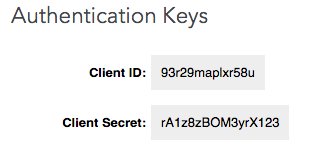
Using the iframe requires you to have an application registered with LinkedIn. If you have not already done so, create an application. If you have an existing application, select it in My Apps to modify its settings. Once you have your application, please notify your LinkedIn technical representative with your application's "Client ID". You can find it in the "Authentication Keys" section under the "Authentication" tab:
Note
Each customer/tenant will need to use a unique application key. Partners can automate the application creation process on behalf of their customers with LinkedIn's Provisioning API.
Configure Your LinkedIn Application for JavaScript Use
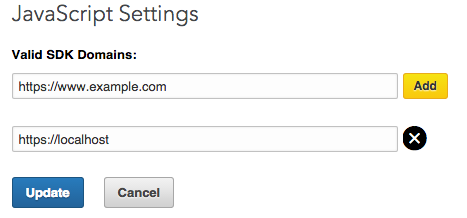
In order for the sign-in button to load, https://www.linkedin.com must be configured as one of the app's valid JavaScript SDK Domains.
To add, navigate to your app's settings (Application Settings), then select JavaScript. In the "Valid SDK Domains" field, please add https://www.linkedin.com, then press Add. Afterwards, press Update.
Receiving the Required Permissions
Once your developer application has been properly configured, your application must be granted the r_sales_nav_display permission to be able to integrate with the iframe. Approved partners can be granted this permission; if you application does not have this permission and you are an approved partner, please reach out to your LinkedIn representative. You can verify that the permission has been granted for your application on the Application Settings page on developer.linkedin.com.
Embedding the Iframe
After the above steps are complete, you are ready to begin integrating with the Display Services iframe. For a detailed walkthrough on embedding the iframe and other technical details, visit Embedding the Iframe.