Note
Access to this page requires authorization. You can try signing in or changing directories.
Access to this page requires authorization. You can try changing directories.
As a LinkedIn API partner, use this page to navigate LinkedIn's support ecosystem and build reliable, scalable, and well-governed API integrations across all LinkedIn business lines.
Note
For LinkedIn Talent Solutions partners, refer to the Talent Solution-specific best practices for partner support.
This page explains how to:
- Request API access
- Contact the LinkedIn Customer Support team
- Handle identity vetting, review, and appeals
- Reach the LinkedIn Developer Technical Support team
- FAQs and troubleshooting
- Stay updated and track changes
Request API access
To access LinkedIn APIs, log in to the LinkedIn Developer Portal with your LinkedIn credentials and create an application.
Within the LinkedIn Developer Portal:
- Navigate to the My Apps section.
- Click Create App and configure your application details.
- Once the app is created, go to the Products tab and select the API products you want to request access to.
Different business lines have different requirements and eligibility criteria. Some allow immediate access without approval; others require a vetting process and use-case review before access can be granted.
For example, LinkedIn Marketing APIs use a tiered vetting process. Development tier access lets you build and test your integration with limited capabilities. Once your integration meets the business line requirements, you can request standard tier access for full production functionality and broader API usage.
Access to LinkedIn APIs is granted based on the intended use case and compliance with LinkedIn business line requirements. LinkedIn reserves the right to review applications and approve API access at its discretion.
For the full list of OAuth permissions and partner programs available per business line, refer to Getting access to LinkedIn APIs.
For business-line-specific guidance, refer to:
Contact the LinkedIn Customer Support team
Direct customers to LinkedIn Customer Support for issues unrelated to API integration—account configuration, product settings, billing, policy enforcement, or platform UI behavior. If the customer is using a third-party platform to integrate with LinkedIn and the issue appears unrelated to direct API request/response behavior, route it to LinkedIn Customer Support.
Refer to the following help centers:
- LinkedIn Members: Member Support
- LinkedIn Marketing Solutions (LMS API): LMS Help Center
- LinkedIn Talent Solutions: LTS Help Center
- LinkedIn Sales Navigator: Sales Navigator Help Center
- LinkedIn Learning: Learning Help Center
Identity vetting, review, and appeals
If your API access is denied due to identity vetting issues, submit a vetting appeal using the Contact form. For the list of denial reasons, refer to Developer application review status definitions.
Required information for a vetting appeal
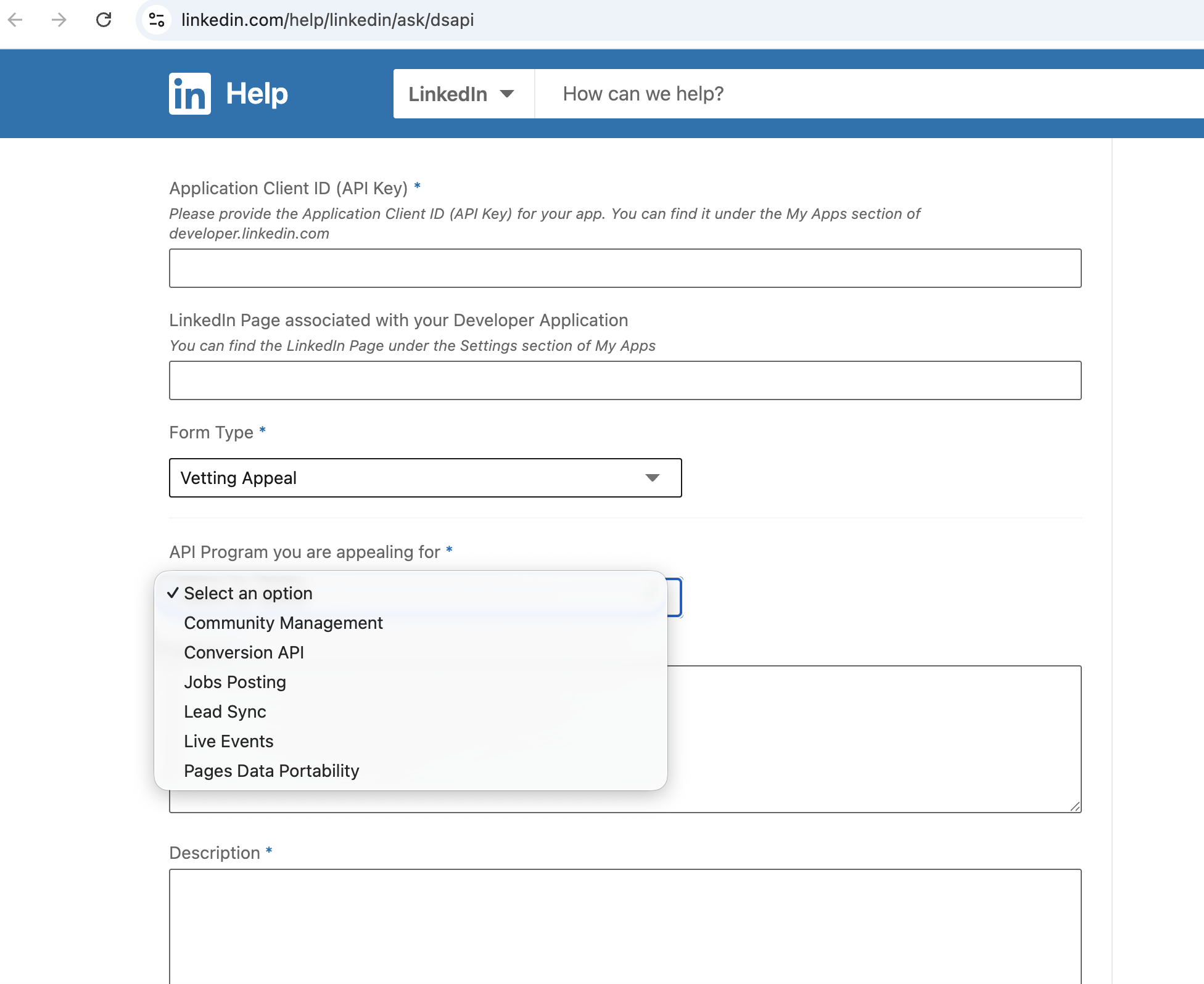
Take the following steps to submit a vetting appeal:
- Open the Contact form.
- In the Application Client ID field, enter your API key.
- In the Form Type field, select Vetting Appeal.
- In the API Program you are appealing for field, select the applicable API product (for example, Advertising APIs, Community Management API).
- In the Description field, provide a clear and concise subject and description of the issue.
Reach out to the LinkedIn Developer Technical Support team
Before submitting a support ticket, search the LinkedIn documentation or try the Help Assistant on the LinkedIn Developer Platform for common questions about API usage, configuration, and integration troubleshooting. If neither resolves your issue, raise a support request with the LinkedIn API Developer Support team.

For more information please refer to the walkthrough video as follows:
When submitting a ticket
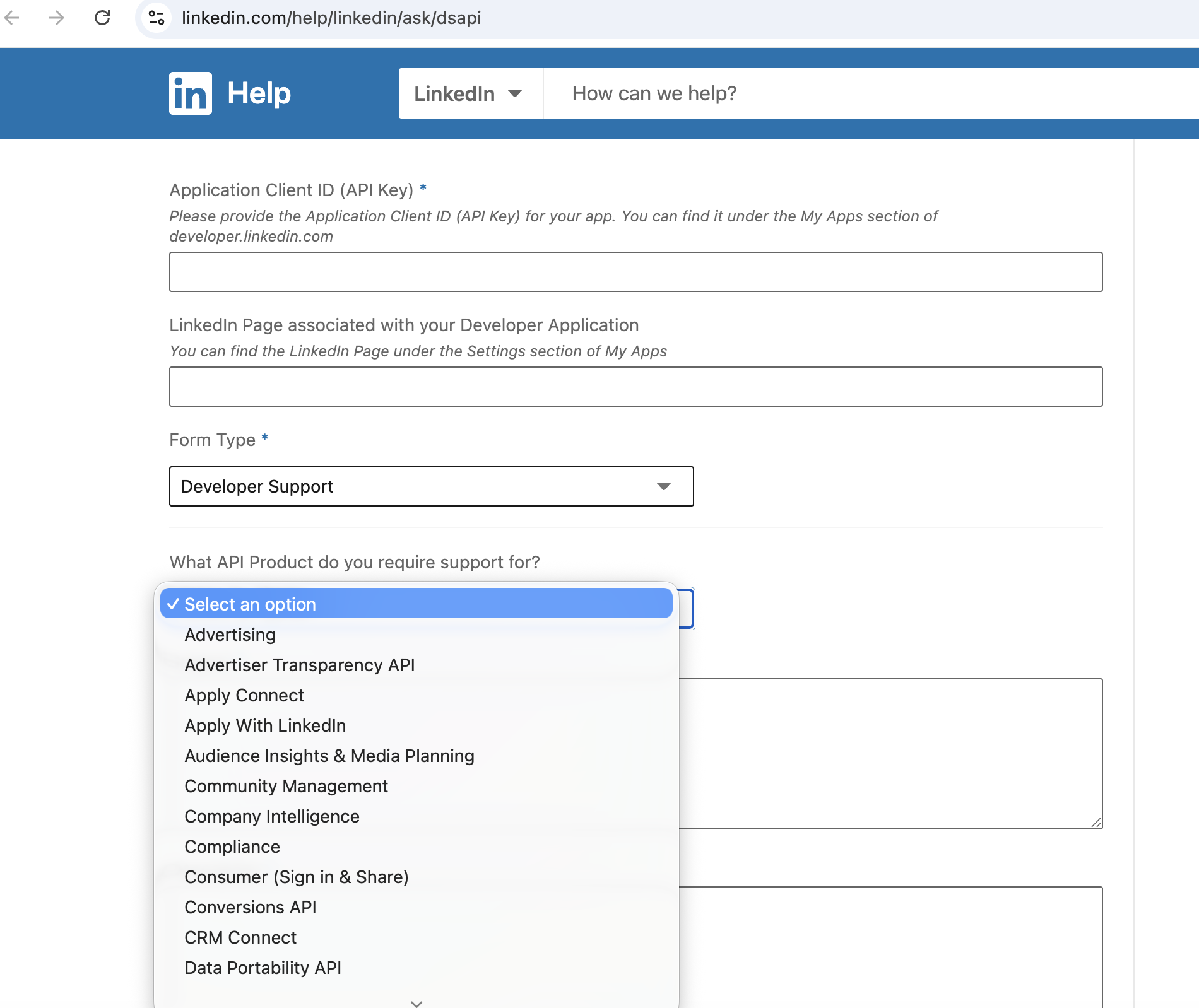
Take the following steps to submit a developer support ticket:
- Open the Contact form.
- In the Application Client ID field, enter your API key.
- In the Form Type field, select Developer Support.
- In the What API Product do you require support for? field, select the relevant API (for example, Advertising, Community Management, Recruiter System Connect).
- In the Description field, provide a clear and concise description of the issue.
Required information for investigation
To help the LinkedIn Partner Integrations team quickly validate the issue, reproduce the behavior, and escalate it to the appropriate engineering team, include the following details when submitting a ticket:
- LinkedIn Application or Client ID
- API endpoint or API URL used in the request
- API request body (where applicable)
- UUID from the API response (if available)
- Error message or error code received (if applicable)
- Number of customers impacted (if applicable)
- Screenshots or logs demonstrating the issue (if applicable)
FAQs and troubleshooting
Why is the Community Management API request button grayed out?
The Community Management API requires that it be the only product associated with a developer application due to legal and security constraints. If your current application already has other provisioned products (for example, Ads API, Share) or pending product requests, the option to request the Community Management API is disabled (grayed out).
In this case, create a new developer application using the same company page that is associated with your existing Ads API or other API application.
After creating the new application, follow these steps:
- Apply for Community Management API Development Tier access through the new developer application.
- Once the Development Tier request is approved, complete the Standard Tier access request form.
- Submit the required screen recording of your application as part of the Standard Tier upgrade request.
- After approval, request Community Management API Standard Tier access. In the access form, enter the application ID of the newly created developer application to skip most of the repeated questions.
The newly created developer application is used for verification purposes only and can be discarded after approval.
For more details, refer to the Community Management API migration guide.
How does the vetting survey work for API access requests?
When you apply for API products that require vetting of your company and use case, a survey is automatically generated and made available in the Developer Portal. You must complete this survey within 21 days from the date it is triggered.
Once your survey is submitted, the review team works to review all access requests in a timely manner. If additional information is required, the review team reaches out on your registered business email to request further documentation. Such follow-ups may result in a slight delay in the final decision.
If the survey is not submitted within the 21-day timeframe, your request is marked as incomplete and the application may be closed.
If your application was missing information, a Reapply option appears in the Developer Portal, which allows you to resubmit your request for the same product. This applies in cases where:
- The survey was not started or completed.
- The survey was partially filled but not submitted.
- Additional information was requested but no response was provided within 21 days.
In all such scenarios, the request is marked as Insufficient Details, and the Reapply flow is enabled, allowing you to submit a new request without creating a new application.
What does a 403 error mean and how do I resolve it?
A 403 Forbidden error generally means the request was understood by LinkedIn's servers, but the application or member does not have the required permission to access the resource.
Step 1: Verify API product access
- Log in to the LinkedIn Developer Portal and navigate to My Apps → [Your App] → Products.
- Confirm that the required API product (for example, Advertising API, Community Management API) shows as Approved.
- If the status shows Pending or Access Denied, the request may still be under review or was not approved.
Step 2: Validate OAuth scopes
- Review the OAuth scopes granted during the member authorization flow.
- Ensure the required scopes for the endpoint are included in the access token (for example,
r_ads,w_member_social,r_organization_social). - If scopes are missing, re-initiate the OAuth authorization flow with the correct scope parameters.
Step 3: Confirm resource-level permissions
Verify that the authenticated member has the appropriate role and permissions on the target resource (for example, Ad Account, Organization Page):
- For Advertising APIs, the member must have an active role (for example,
ACCOUNT_BILLING_ADMIN,CAMPAIGN_MANAGER) on the Ad Account. - For Organization APIs, the member must be an authorized administrator of the LinkedIn Page.
Step 4: Check access token validity
- Ensure the access token has not expired — LinkedIn access tokens have a limited lifespan.
- Use the Token Introspection endpoint to verify the token's status, scopes, and expiration.
- If expired, use the refresh token to generate a new access token.
Step 5: Confirm the API endpoint URL is correct
Confirm the API endpoint URL is correct and matches the official documentation.
How do I request a tier upgrade for the Ads API?
Note
There is no limit on the number of accounts you can call to retrieve data or analytics. Do not apply for a tier upgrade for data or analytics use cases only — these requests are rejected.
The tier upgrade from Development to Standard is only needed to create Ads for more than 5 Ad Accounts using the POST method.
To request a tier upgrade:
Log in to the LinkedIn Developer Portal.
Navigate to My Apps → Select the app → Products.
Locate the Advertising API product.
Review your current access tier.
If you are on the Development Tier, submit a Standard Tier access request via a support ticket. Include the following information:
- Business use case — describe what your application offers to customers and how it uses LinkedIn Ads APIs (for example, campaign creation, optimization, analytics).
- Demo video recording — provide a video (Google Drive or Microsoft SharePoint link) demonstrating campaign creation, campaign editing, and campaign optimization workflows.
Important
If your use case includes creating Ads for more than 5 Ad Accounts, ensure this functionality is clearly demonstrated in the video.
The review process can take up to 30 business days due to the high volume of requests. LinkedIn follows up with status updates as the review progresses.
Stay updated and track changes
To ensure your integration remains compliant, performant, and aligned with the latest LinkedIn platform updates, regularly monitor:
- Developer News and Announcements — latest product launches, deprecations, policy updates, and API enhancements.
- LinkedIn Marketing Solutions API Changes — recent changes, version updates, and breaking changes across LinkedIn Marketing APIs.
- LinkedIn Talent Solutions Release Notes — recent changes, version updates, and breaking changes across LinkedIn Talent Solutions APIs.