Note
Access to this page requires authorization. You can try signing in or changing directories.
Access to this page requires authorization. You can try changing directories.
This guide is ONLY applicable to you if you're going through the Microsoft 365 Certification and:
- You have multiple integrations of the same exact app (for example the same app has Teams, Outlook, Office, and SharePoint integrations).
- You have two apps that share the exact same backend and supporting infrastructure.
In these two scenarios your app will have the same evidence in-scope for certification and you can use this cloning feature to expedite the certification of multiple apps.
Important
This feature currently only works between different M365 Apps (Sharepoint apps, Teams apps, and Office add-ins), OR between web apps (SaaS). You cannot clone between a web app and an M365 App.
Note
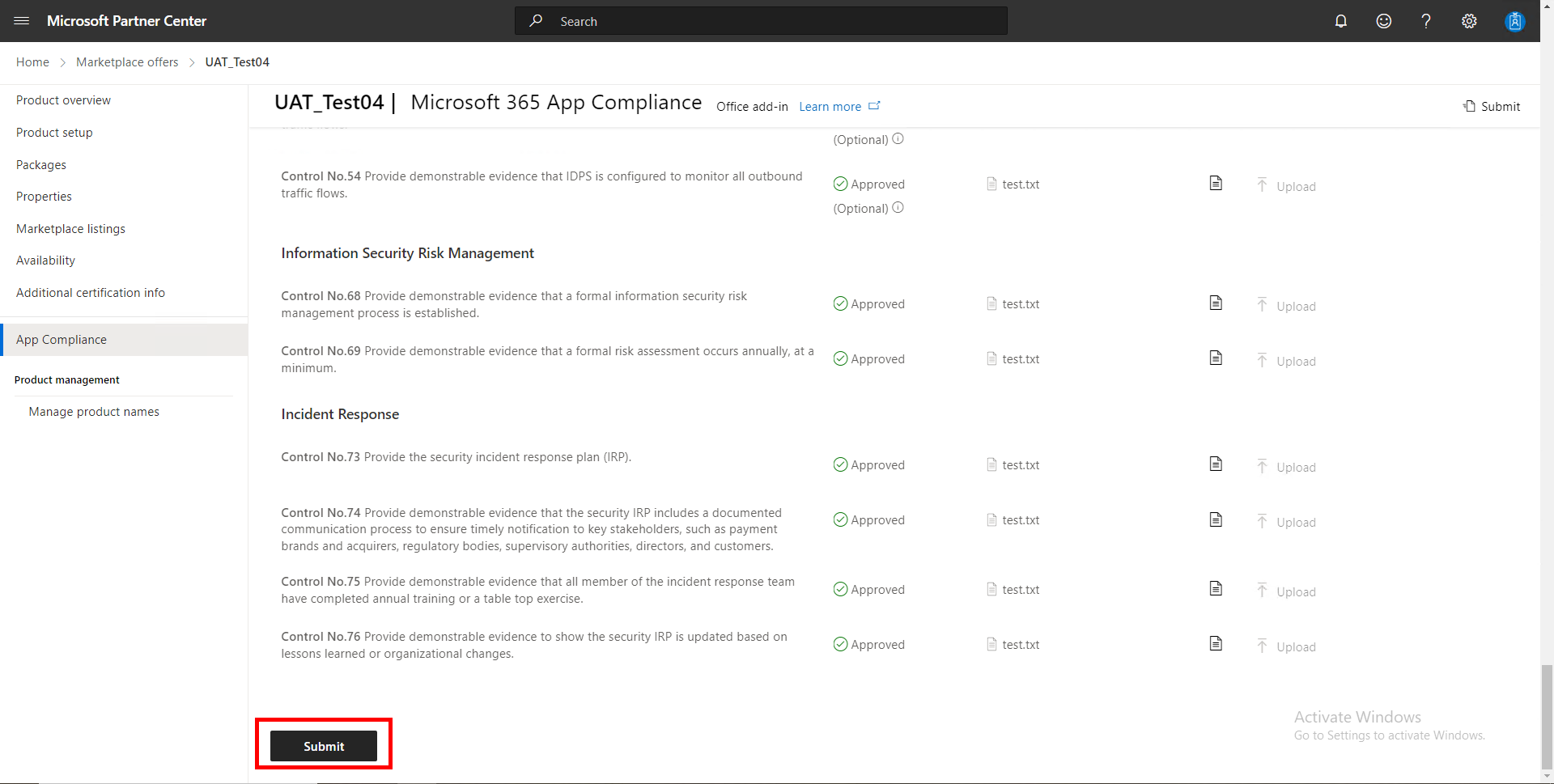
You can only clone from apps that have fully completed certification. You cannot clone from apps that are currently in progress for certification.
Step 1. Start Certification
Start the certification by checking the consent box and clicking submit.
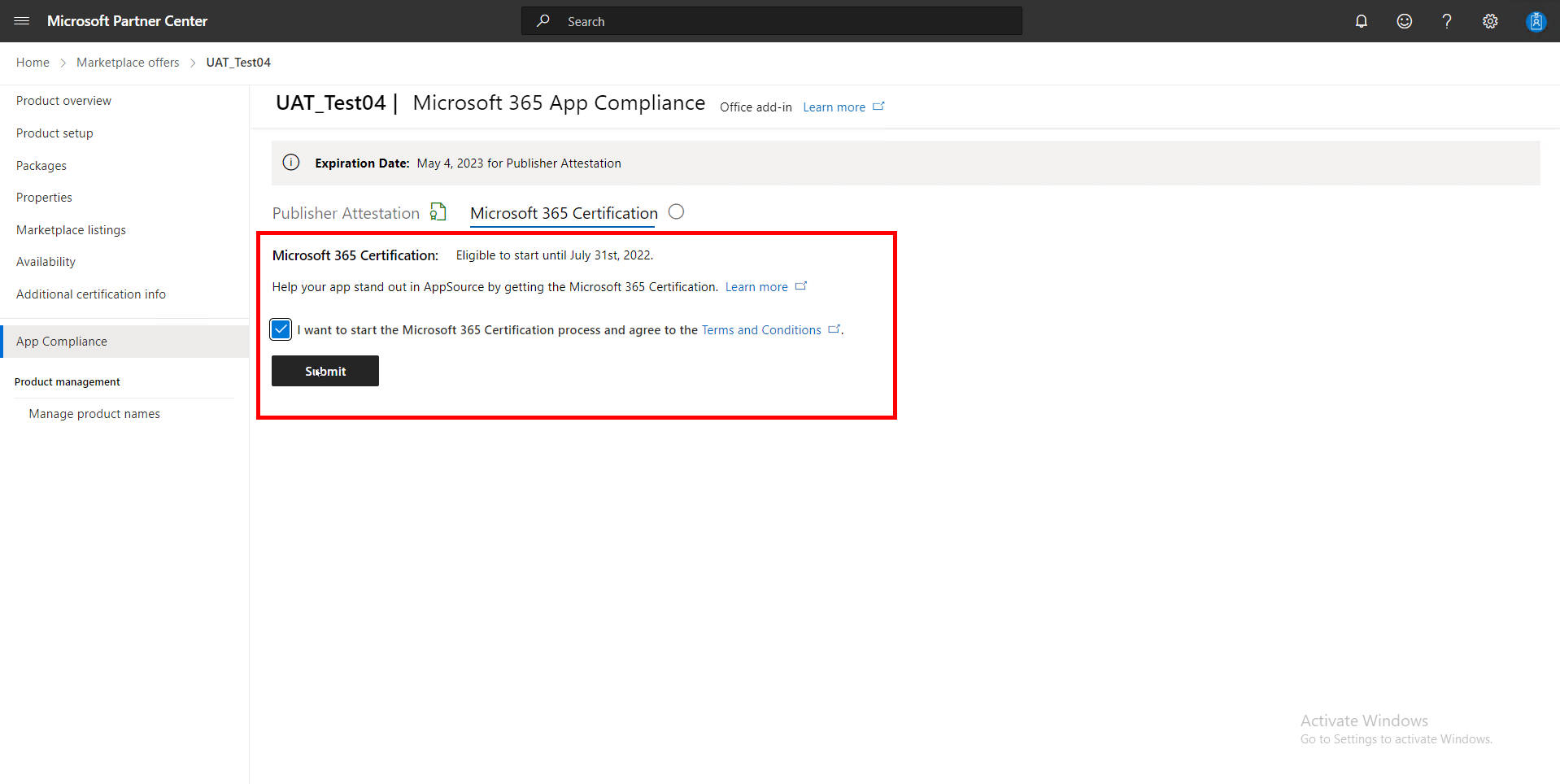
Step 2. Select the app you wish to clone from
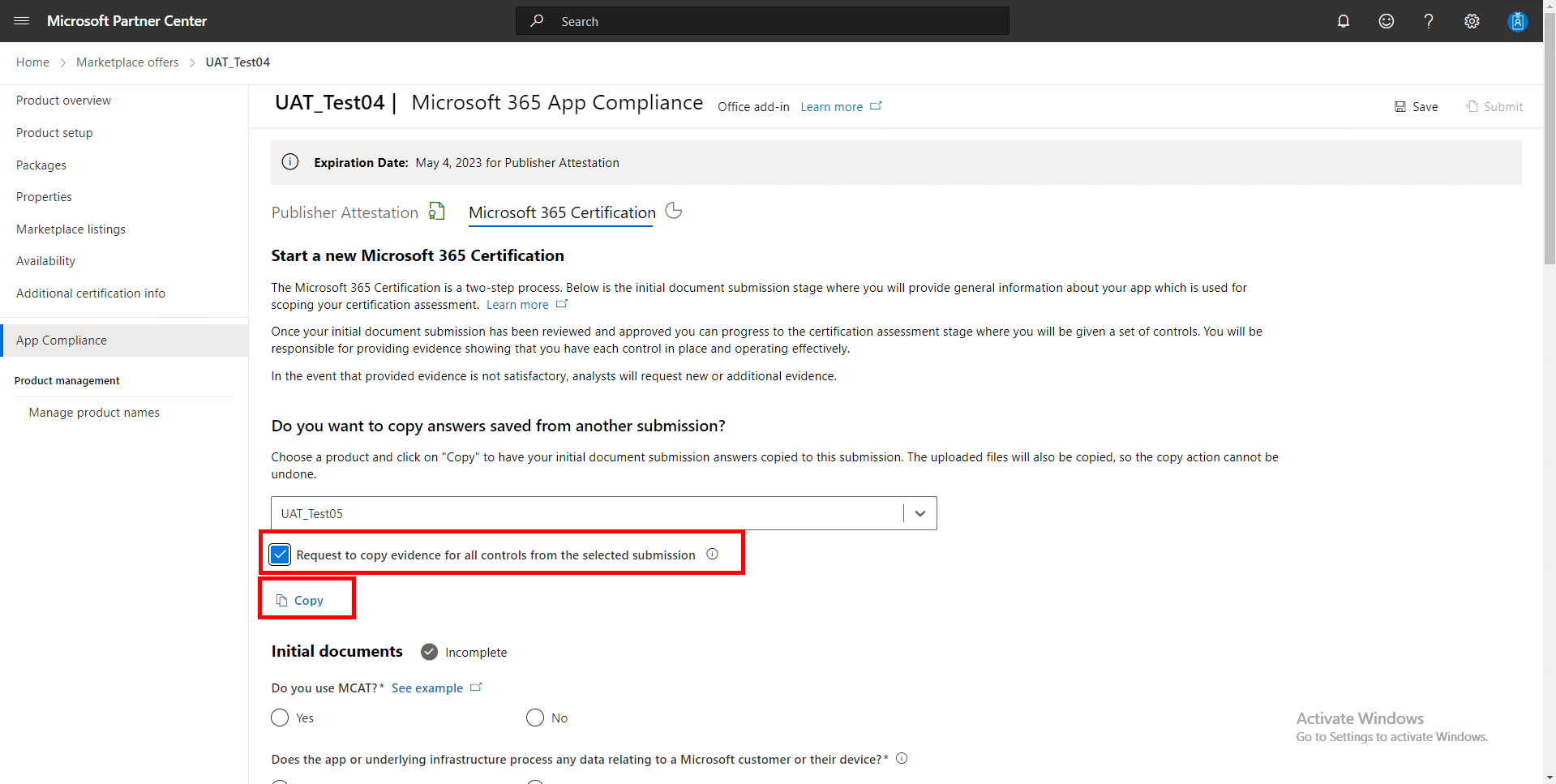
In the drop-down box, select the app you wish to use to clone your submission.
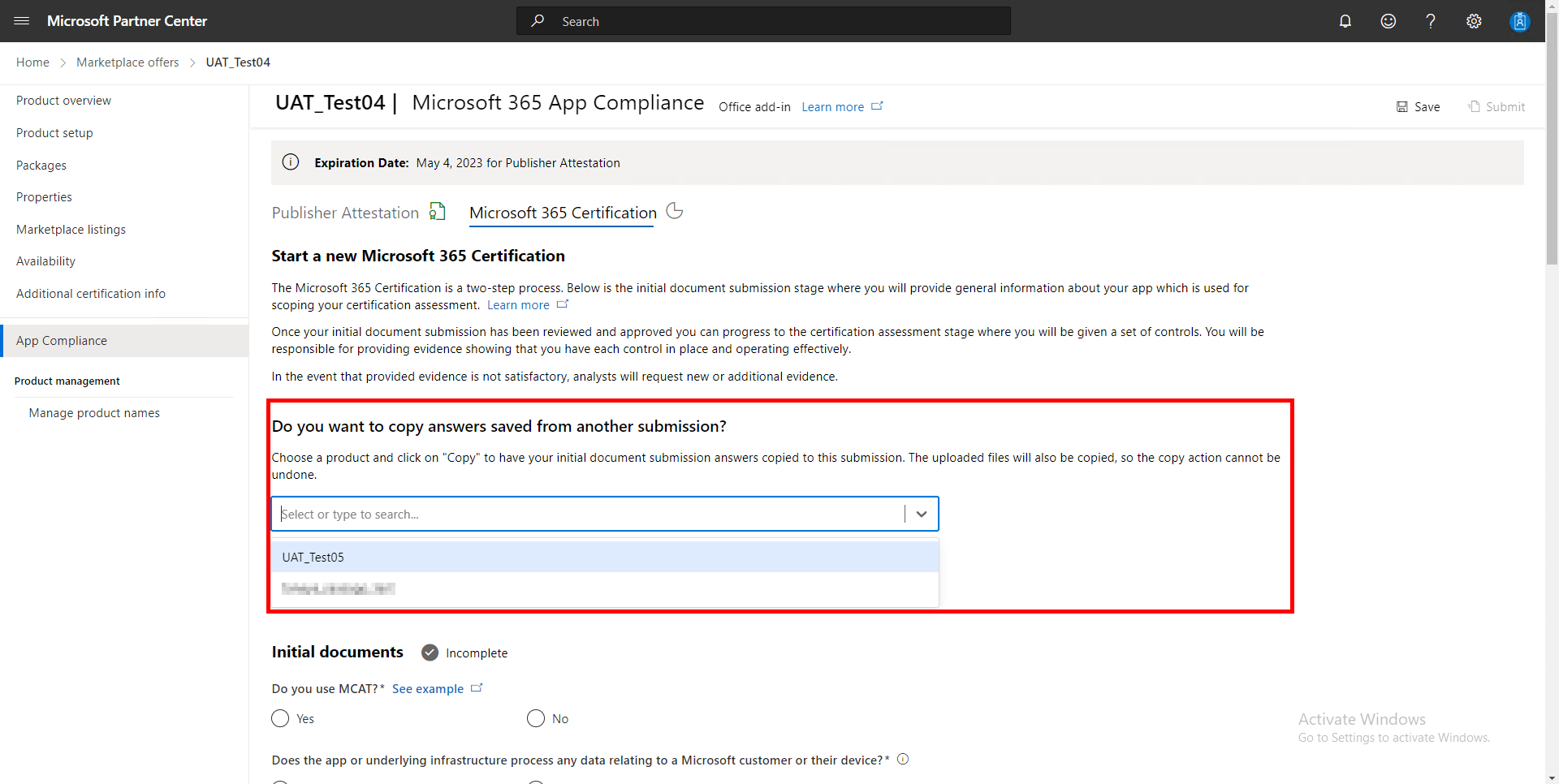
Step 3. You can choose what you want to be cloned
You can choose to ONLY copy the initial document submission. If you wish to do so, simply select copy.
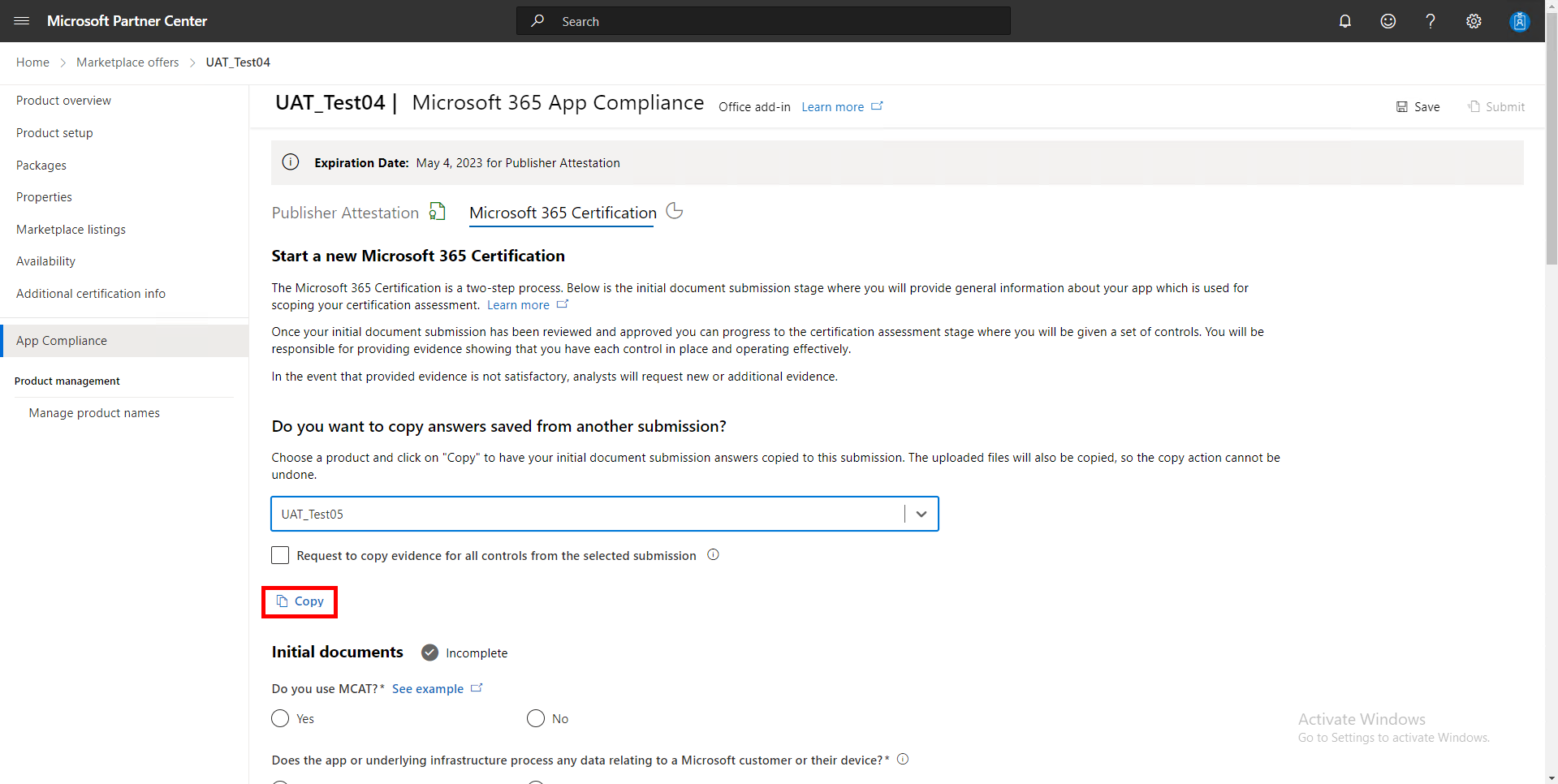
You can also choose to copy all of the evidence from the submission your cloning from. If you wish to do so, select the box that says "Request to copy evidence for all controls from the selected submission", and then select copy.
Step 4. Submit your Initial Document Submission and wait for approval
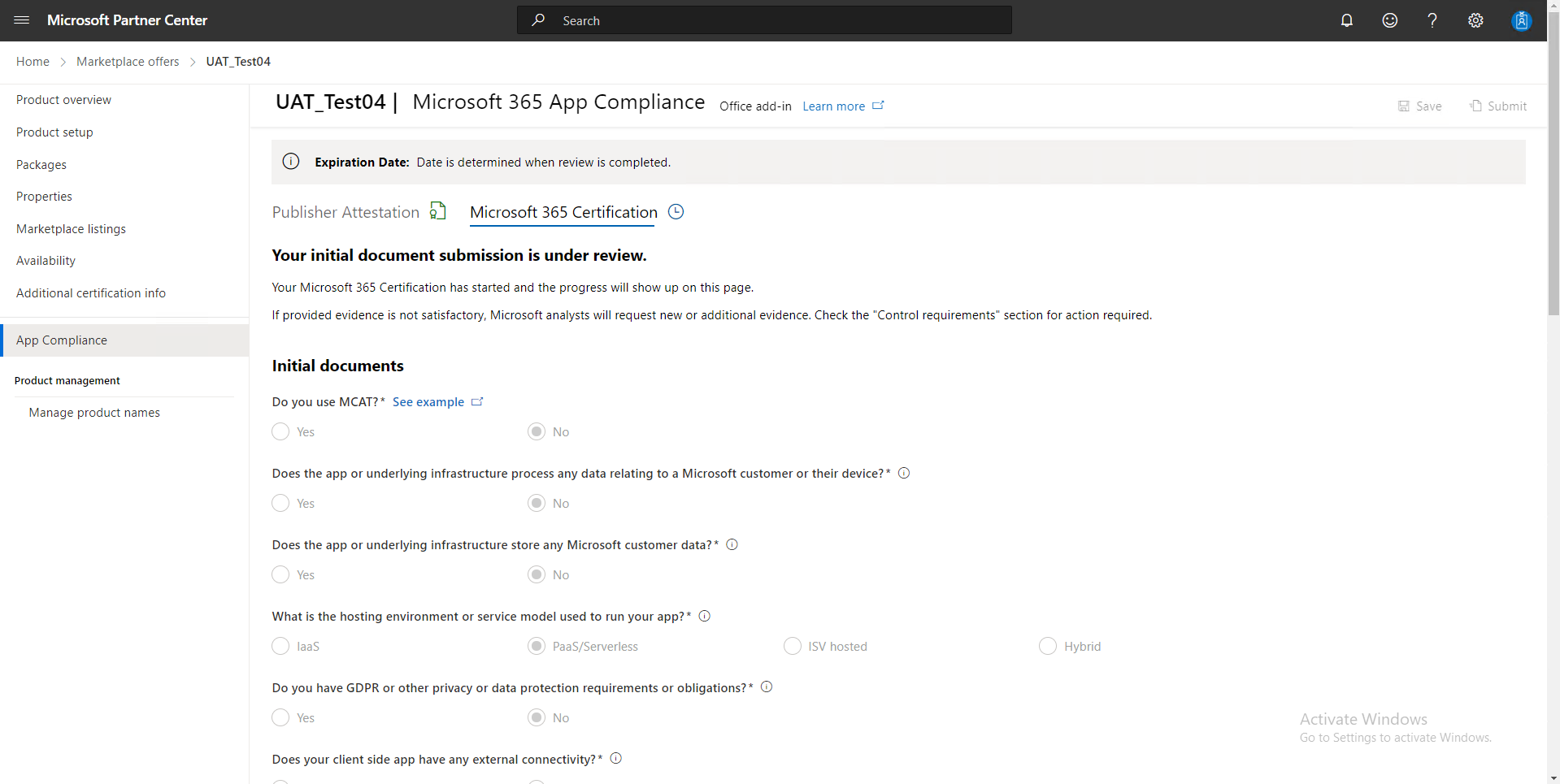
If you requested to copy evidence from your submission, your analyst will need to approve your evidence cloning request.
Step 5. Copy your evidence submission
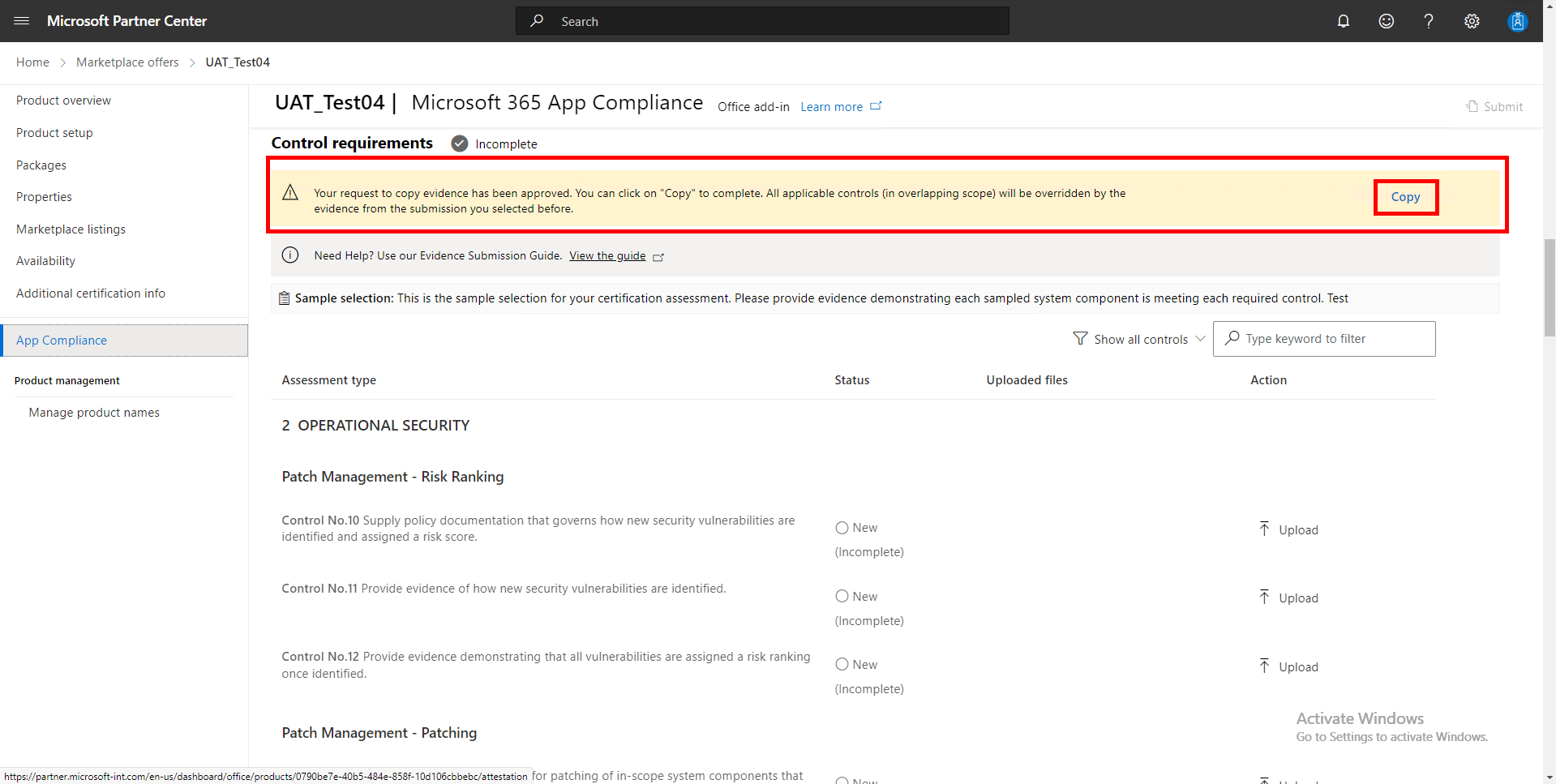
Once your initial document submission and evidence cloning request has been approved, you'll receive a listing of all the controls in scope for your submission. You'll need to select copy to clone all of the evidence from your other submission.
Step 6. Submit your certification submission
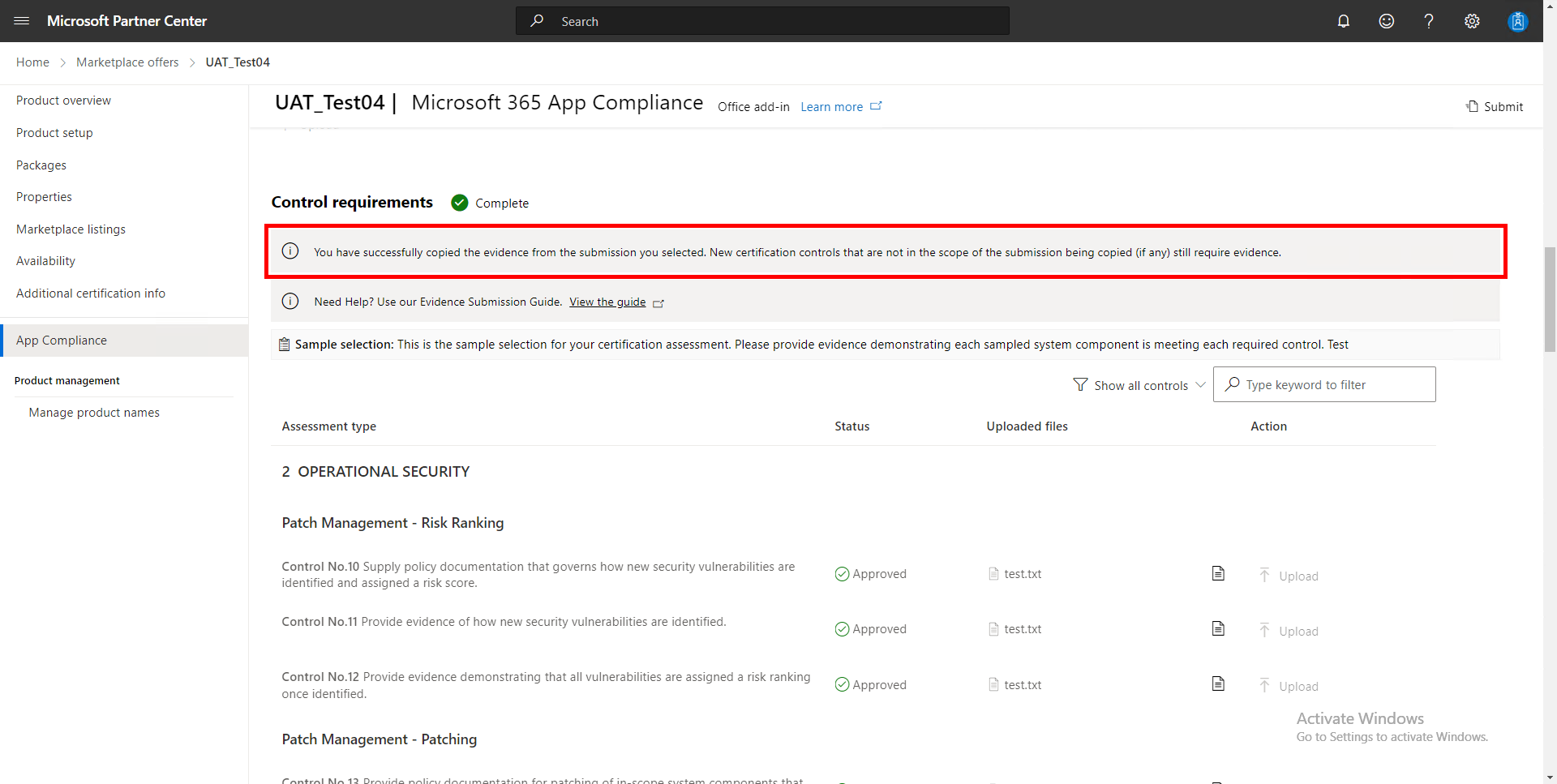
At this point, you've successfully copied all the evidence from your other submission and you can submit your certification assessment for approval.