Note
Access to this page requires authorization. You can try signing in or changing directories.
Access to this page requires authorization. You can try changing directories.
When you make organizational data available to Microsoft 365, you can adjust the permissions that govern which users can see what data. These policies impact user access to data in:
Microsoft 365 Copilot and agents including Workforce Insights
Microsoft 365 People Skills services including People Search, People Card, and Org Explorer
Microsoft 365 apps including Microsoft Teams, Microsoft Office, and more
Insights and Viva Glint aren't subject to the same access policies configured for Microsoft 365 and Microsoft Copilot. Insights and Viva Glint work differently:
Admins explicitly grant access to specific users.
These apps manage datasets that incorporate supplemental data to the people data available in Microsoft 365.
The apps provide additional privacy protections, such as minimum group size and differential privacy.
Access policies in Microsoft 365 Organizational Data Service
Access policies define who can access which organizational data attributes, for what population. The Microsoft 365 Global Administrator or the Organizational Data Source Administrator create and manage these policies centrally in Microsoft 365 Organizational Data Service. Access policies ensure that a consistent set of access rules can be shared alongside the organizational data to the apps that are using that data.
Any changes you make to access policies apply to data from any Microsoft 365 Organizational Data Service connector.
Access policies reference list
Public (internal)
- Visibility: Data is visible to all users in the tenant
- Users: All employees (not editable)
- Population group: All employees (not editable)
Limited access - Selected internal
- Visibility: Data is visible to all users in the tenant, or can be customized to a subset of users, or a subset of the population
- Default audience: All employees
- Default population group: All employees
Limited access - Manager level
- Visibility: Data is visible to the user, their manager chain, and delegates
- Default audience: Managers and delegates
- Default population group: All employees
Limited access - Staging
- Visibility: Intended for controlled release to a small number of users
- Default audience: No additional users
- Default population group: All employees
Important
In Microsoft 365, users have access to data that describes themselves, such as performance ratings. This access is available in addition to any permissions granted by a policy.
Reserved attributes access policies
Reserved attributes are assigned fixed access policies as follows:
| Reserved attribute | Access policy |
|---|---|
| Microsoft_PersonEmail | Public (internal) |
| Microsoft_ManagerID | Public (internal) |
| Microsoft_EmploymentType | Public (internal) |
| Microsoft_JobTitle | Public (internal) |
| Microsoft_Layer | Public (internal) |
| Microsoft_CompanyOfficeCity | Public (internal) |
| Microsoft_CompanyOfficeState | Public (internal) |
| Microsoft_CompanyOfficeCountryOrRegion | Public (internal) |
| Microsoft_LevelDesignation | Public (internal) |
| Microsoft_HireDate | Public (internal) |
| Microsoft_HourlyRate | Manager level |
| Microsoft_SupervisorIndicator | Internal |
| Microsoft_WeeklyBadgeOnsiteDays | Manager level |
| Microsoft_CurrentEmploymentStatus | Manager level |
Manage access policies in Microsoft 365 Organizational Data Service
There are two ways to manage access policies for your data:
At any time, you can make changes to the policies from the Settings page.
When you're importing organizational data to Microsoft 365, you can manage access policy settings as an optional step after you map attributes and configure attribute access.
To change your access policies in Settings:
In the Microsoft 365 admin center, under Settings on the left, select Setup.
Under Setup, select Migration and Imports.
Under the tools to migrate or import data table, select Microsoft 365 Organizational Data Service.
On the Microsoft 365 Organizational Data Service page, select Settings.
Under the Organization-wide access policy section, select Edit access policies.
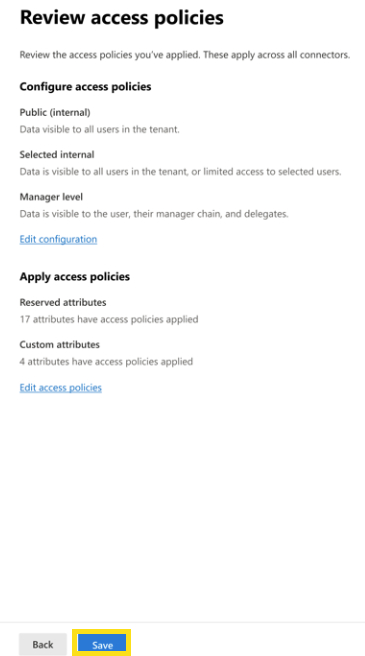
There are three steps to manage access policies: Configure policies; Apply policies; and Review and confirm.
1. Configure new access policies
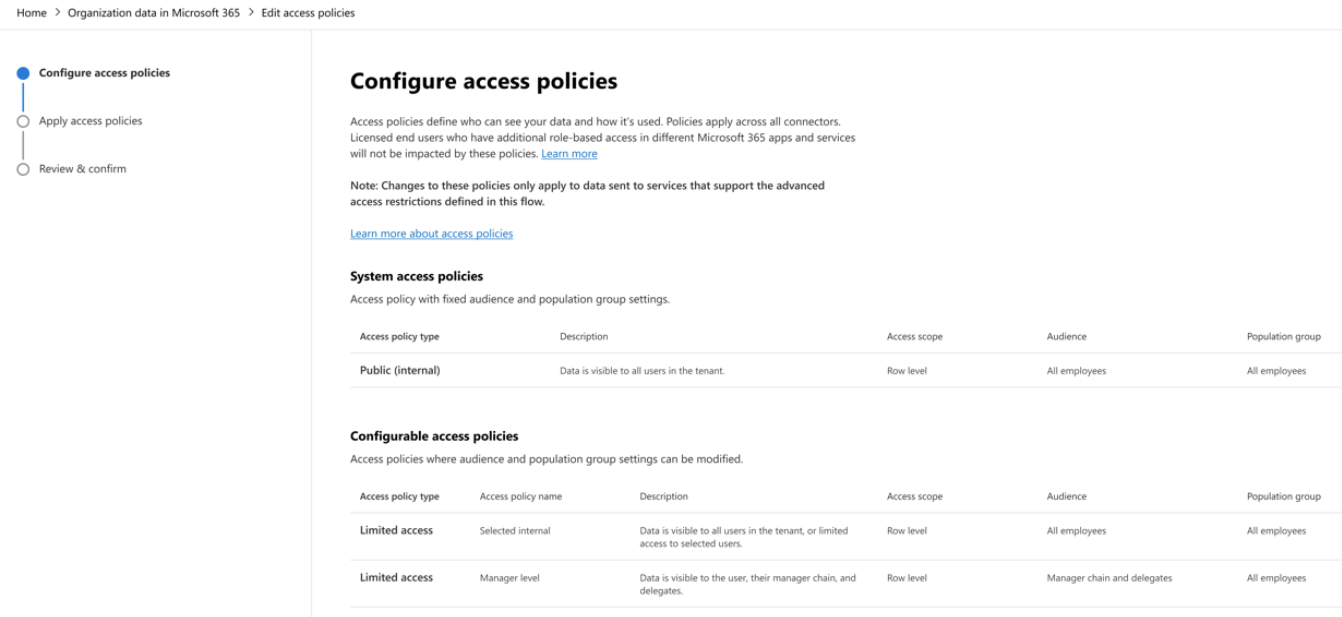
Your first step is to configure your access policies. There are two types of policies: system policies and configurable policies.
System access policies
This is an access policy with defined settings that can't be changed. The only system policy available is Public (internal).
Configurable access policies
These are access policies that have settings that have been pre-defined but can be edited. For example, the audience (who can access the data) and the population group (whose data is available) can be modified. There are only two configurable access policies available: Staging, Selected internal, and Manager level.
Important
Staging is the default policy for custom attributes. The default settings for Staging don't release the data to any users. Admin configuration is required to make custom attributes available to users.
Edit an existing access policy
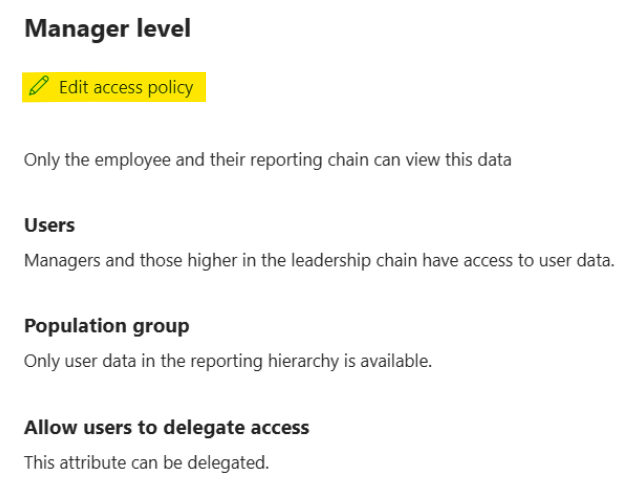
To edit one of the configurable access policies, select the access policy from the list, then select Edit access policy.
Configuration options
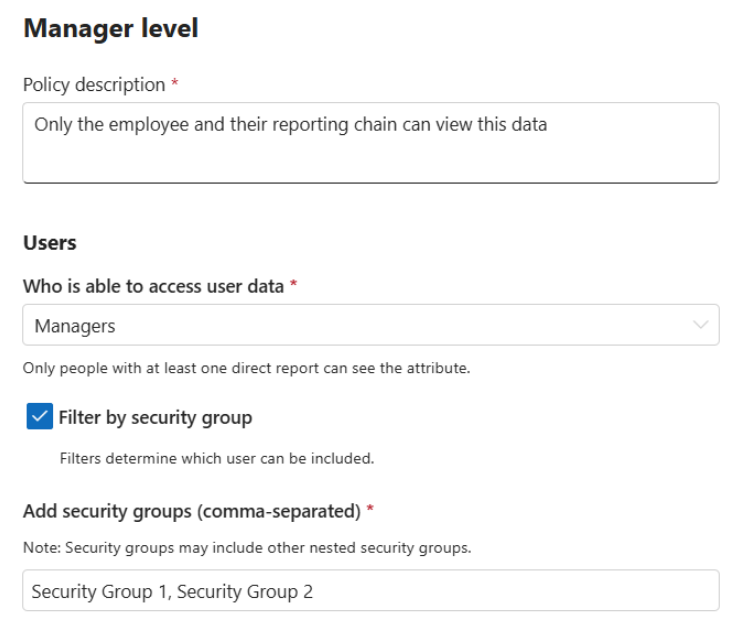
Users: Defines who can access user data
Options:
| Selected Internal | Manager level | Staging |
|---|---|---|
Population group: Defines which data is available to the user
Options:
- Default: All user data is available
- To restrict: Select Only specific employee data is available
If you select Only specific employee data is available, select the following filters to apply:
Filter by reporting hierarchy limits the user to data for the people who report to them directly or indirectly (plus their own data).
Filter by user attributes allows you to specify criteria. Only users who meet the criteria are available.
If you select both filters, only users who meet both criteria are available.
Select Save after you make your updates.
A description of the updated policy configuration is shown in the table on Configure access policies.
Allow users to delegate access
When enabled, if a user has assigned a delegate in Workforce Insights, their delegate has access to the same population as the user under the policy. For example, if the policy says a manager can access the data for their reporting hierarchy, and the manager assigns a delegate in Workforce Insights, then for any attributes with this policy, that manager's delegate can also access the data for that reporting group.
When disabled, the user can still assign a delegate in Workforce Insights, but the delegate won't have access to the user's population scope for attributes where delegation is not enabled in the policy.
2. Apply access policies
Once you've configured your access policies, you can apply the policies to your attributes.
Access policies for reserved attributes
Reserved attribute access policies are preset and aren't editable. But you can review the policies that have been applied. See the list of assigned policies.
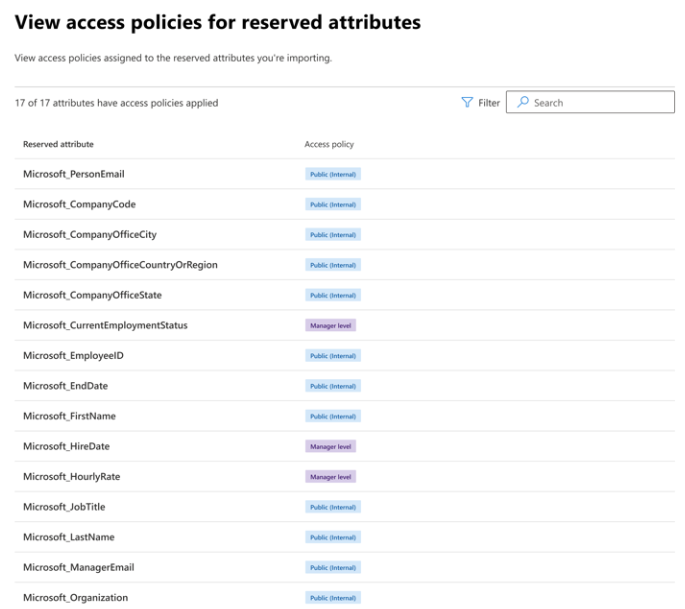
To set access policies for custom attributes, select Next.
Access policies for custom attributes
Access policies for custom attributes apply only to custom attributes that are shared with Workforce Insights. The list populated here reflects the attributes that have been configured to be shared with Workforce Insights.
The default access policy for custom attributes is Staging. Until the Staging policy is configured, no users can access data for custom attributes.
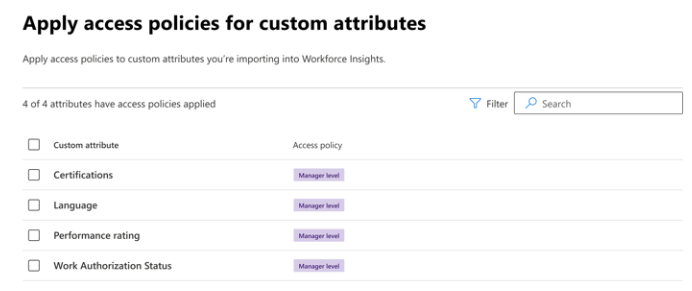
To update attributes, select them from the list, choose Select access policy, and pick the policy you want to apply.
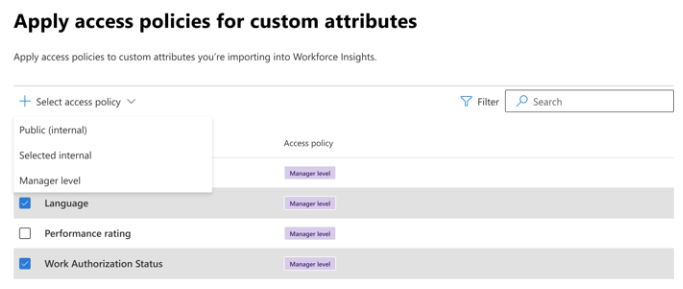
Once complete, select Next.
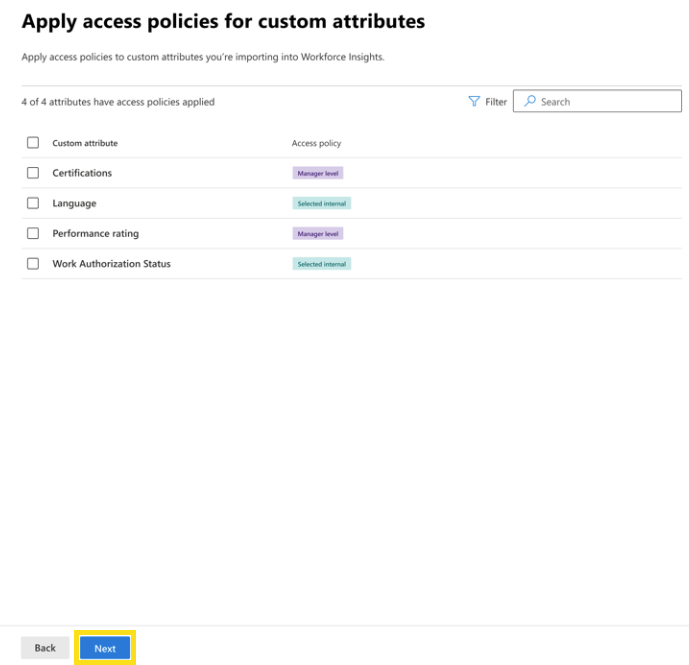
3. Review and confirm
Finally, review the access policy configurations and the reserved and custom attributes with access policies applied. If everything looks correct, select Save.
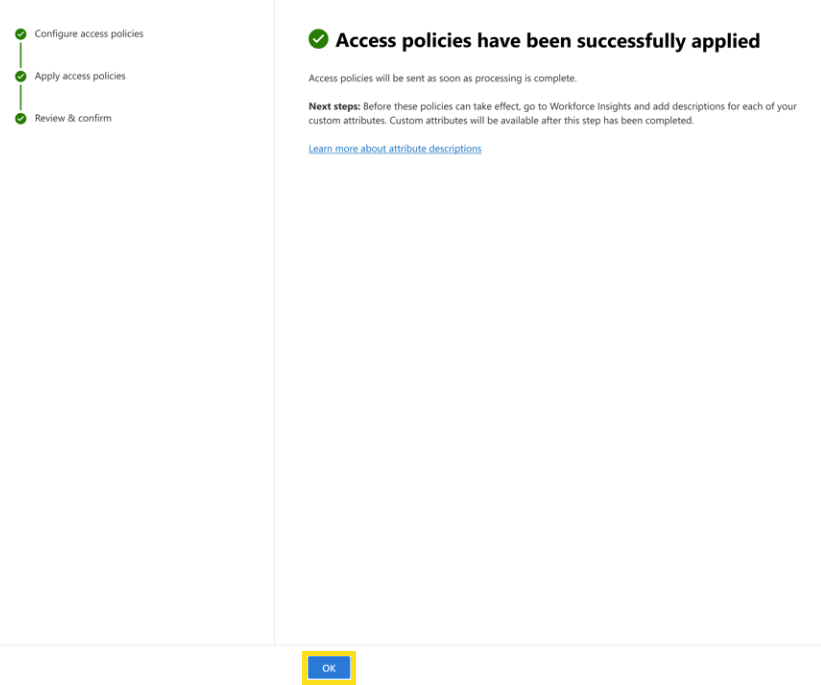
Select Ok to go back to Organizational Data Ingestion in Microsoft 365.