Note
Access to this page requires authorization. You can try signing in or changing directories.
Access to this page requires authorization. You can try changing directories.
Use historical imports to add data for an earlier period or correct existing organizational history used by Viva Insights, including the Copilot Dashboard. Choose an effective start date to insert a period while preserving later records, or use a start date together with an overwrite-until date to correct a broader range across prior uploads.
Important
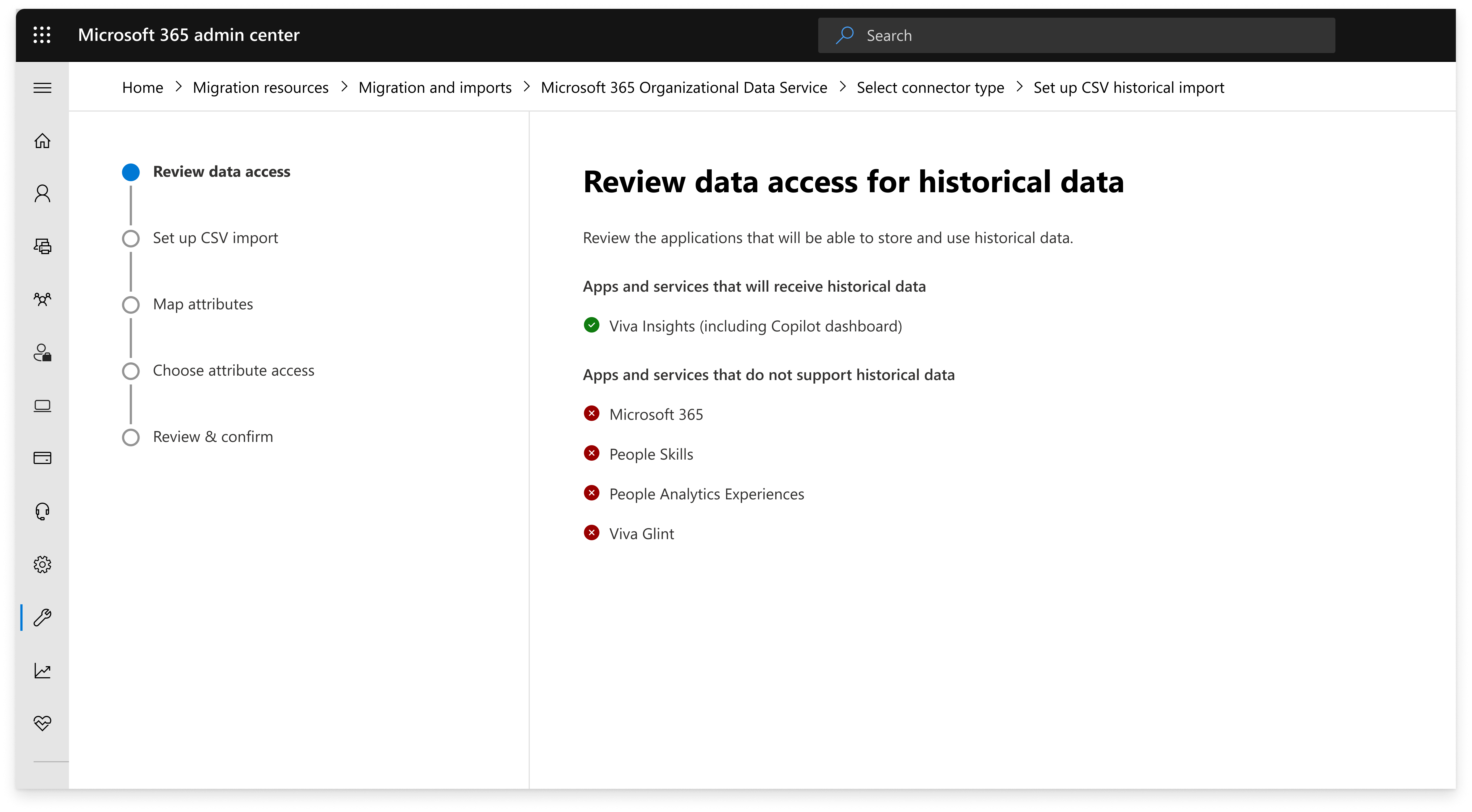
Historical imports are supported only for Viva Insights, including the Copilot Dashboard. Historical data isn't used by Microsoft 365 Profile, People Skills, Org Explorer, or other Microsoft 365 experiences.
Before you begin
Gather the following:
The date range that requires correction
The corrected organizational attribute values
An updated organizational data file containing the attributes that require correction. Microsoft_PersonEmail remains a mandatory field for all uploads.
How to import historical data
The process for importing historical data is the same regardless of whether you're correcting data from a specific date or for a defined period.
Start a new CSV import.
Select Import historical data.
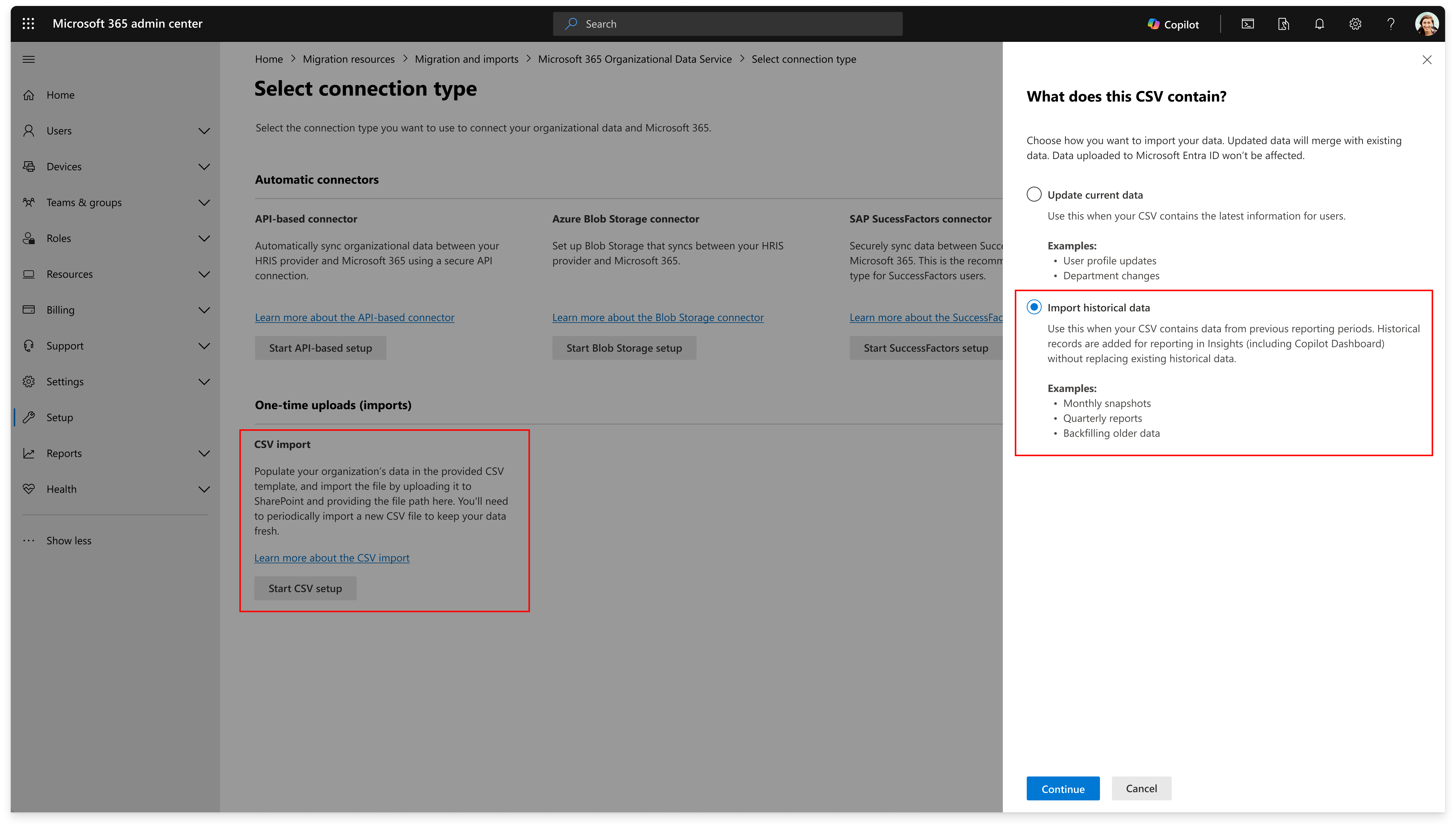
Upload your .csv file from SharePoint or your local device.
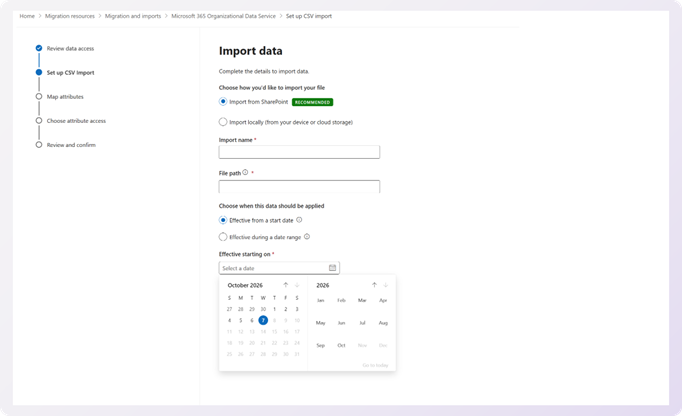
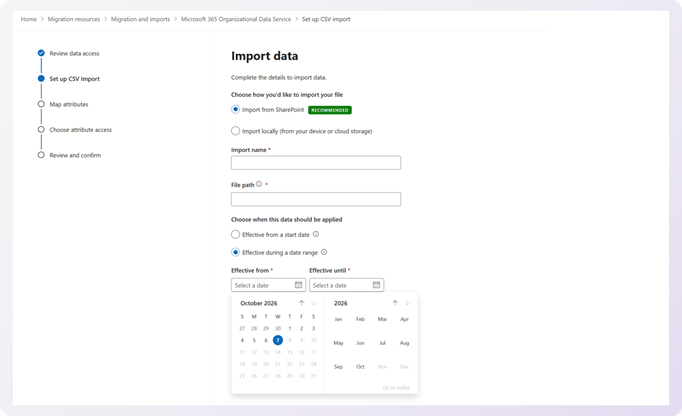
Choose when the imported data should be applied:
Effective from a start date: Use Effective date to add historical values from a given date until the next existing effective-dated observation for that employee and attribute. Use this when later records should remain unchanged, such as adding February between existing January and March records.
Effective during a date range: Use Effective date together with Overwrite until date to correct a chosen period across existing observations from prior uploads. The start is included; the end is excluded. Existing records inside the window don't interrupt the supplied correction.
Complete attribute mapping and access configuration.
Review and submit the import.
When to use an effective start date import
Use Effective from a start date to add a historical value beginning on a specific date while preserving the next value already stored for that employee and attribute.
Organizational data is stored as effective-dated observations. When a value is uploaded, it becomes effective on that date and is projected forward until another value becomes effective. When you add a historical value with an effective start date, the new value is inserted into that history and is projected forward only until the next existing observation takes effect.
Use this option when you want to insert a missing historical value without changing later history.
Common scenarios
Add February's organizational values when January and March records already exist
Insert a missing department or job title change before the next recorded change
Backfill a manager assignment between two existing observations
Add a location change from its actual start while preserving later location records
Supply a missing historical attribute value while retaining the next existing observation as its natural end boundary
Example
Assume organizational data is uploaded quarterly. A is uploaded January 1, B April 1, C July 1, and D October 1. Months without an upload inherit the most recent explicit value.
January 1: Value A is uploaded and projected forward
April 1: Value B becomes effective and replaces A
July 1: Value C becomes effective and replaces B
October 1: Value D becomes effective and replaces C
Before the historical import, the effective values are:

Then you learn that value H should have become effective on May 1.
Upload H with:
- Effective start date: May 1
After the import:
H is inserted as a new explicit observation on May 1. It projects forward until the next existing explicit observation, C on July 1.

Result: H becomes a new observation effective May 1 and is projected through June. The existing C observation remains effective July 1, so C continues to apply from July through September. D still becomes effective October 1.
The effective start date import therefore inserts H into the existing history without replacing C or any later observations.
When to use a date range import
Use Effective during a date range when you need to correct organizational data for a defined historical period, including when that period spans one or more existing observations.
Specify the correction once by providing:
Effective from: The first date the corrected value should apply
Effective until: The exclusive end of the correction window
Existing observations inside the correction window don't interrupt the corrected value. When the correction window ends, the value that would otherwise be effective from the existing history resumes. The existing page also describes the end date as exclusive and explains the restoration behavior at that boundary.
Use this option when you want to correct a specific historical period without having to identify and replace each observation within that period individually.
Common scenarios
Correct a department or manager value across several previously uploaded periods
Correct a historical quarter that contains several effective-dated organizational changes
Apply a revised location or organizational attribute consistently across a chosen reporting period
Correct selected attributes without replacing unrelated attributes or employees
Specify when prior history should resume after the correction, where a restoration value exists
Example
Assume organizational data is uploaded quarterly. A is uploaded January 1, B April 1, C July 1, and D October 1. Months without an upload inherit the most recent explicit value.
January 1: Value A is uploaded and projected forward
April 1: Value B becomes effective and replaces A
July 1: Value C becomes effective and replaces B
October 1: Value D becomes effective and replaces C
Before the historical import, the effective values are:
Then you learn that the employee should instead have had value H from May 1 through August 31.
Upload H with:
Effective from: May 1.
Effective until: September 1.
Note
The effective until date is exclusive. To correct data through August 31, select September 1 as the overwrite-until date.
Requested correction window: May 1 through August 31 → H is effective for May, June, July, and August.

Result: H applies continuously from May 1 through August 31. The existing C observation from July 1 doesn't interrupt the correction window. When the correction ends on September 1, C resumes as the value that would have applied based on the existing history. D still becomes effective on October 1.
The date range import therefore lets you correct the requested historical period while preserving the history outside that period.