Note
Access to this page requires authorization. You can try signing in or changing directories.
Access to this page requires authorization. You can try changing directories.
The Tools page in the Microsoft 365 admin center provides a centralized view of the AI-powered tools available in your organization, including plugins, skills, Model Context Protocol (MCP) servers, and connectors. Use this page to monitor tool availability, manage access, and help ensure compliance with organizational policies.
Use the Registry tab to discover and manage tools available in your tenant. Use the Requests tab to review and approve user requests for tools.
For more information about managing tools, see the following articles:
- Manage plugins, skills, and MCP servers.
- Manage gateway.
- Govern tools with Microsoft Agent 365 and Azure API Management (preview).
- Bring your own (BYO) MCP server.
Key concepts
The Tools page brings together several types of tools that agents can use. The following table describes each tool type:
| Tool type | Description |
|---|---|
| Plugins | Installable packages that bundle capabilities an agent can use, such as skills, MCP servers, and connectors. |
| Skills | Reusable instructions or workflows that teach an agent how to do a task consistently. |
| MCP servers | Standardized servers that expose tools and resources an agent can dynamically discover and use. |
| Connectors | Prebuilt links to external systems and data sources that an agent can read from and write to. |
View the tools registry
Sign in to the Microsoft 365 admin center.
In the left navigation pane, select Agents > Tools > Registry.
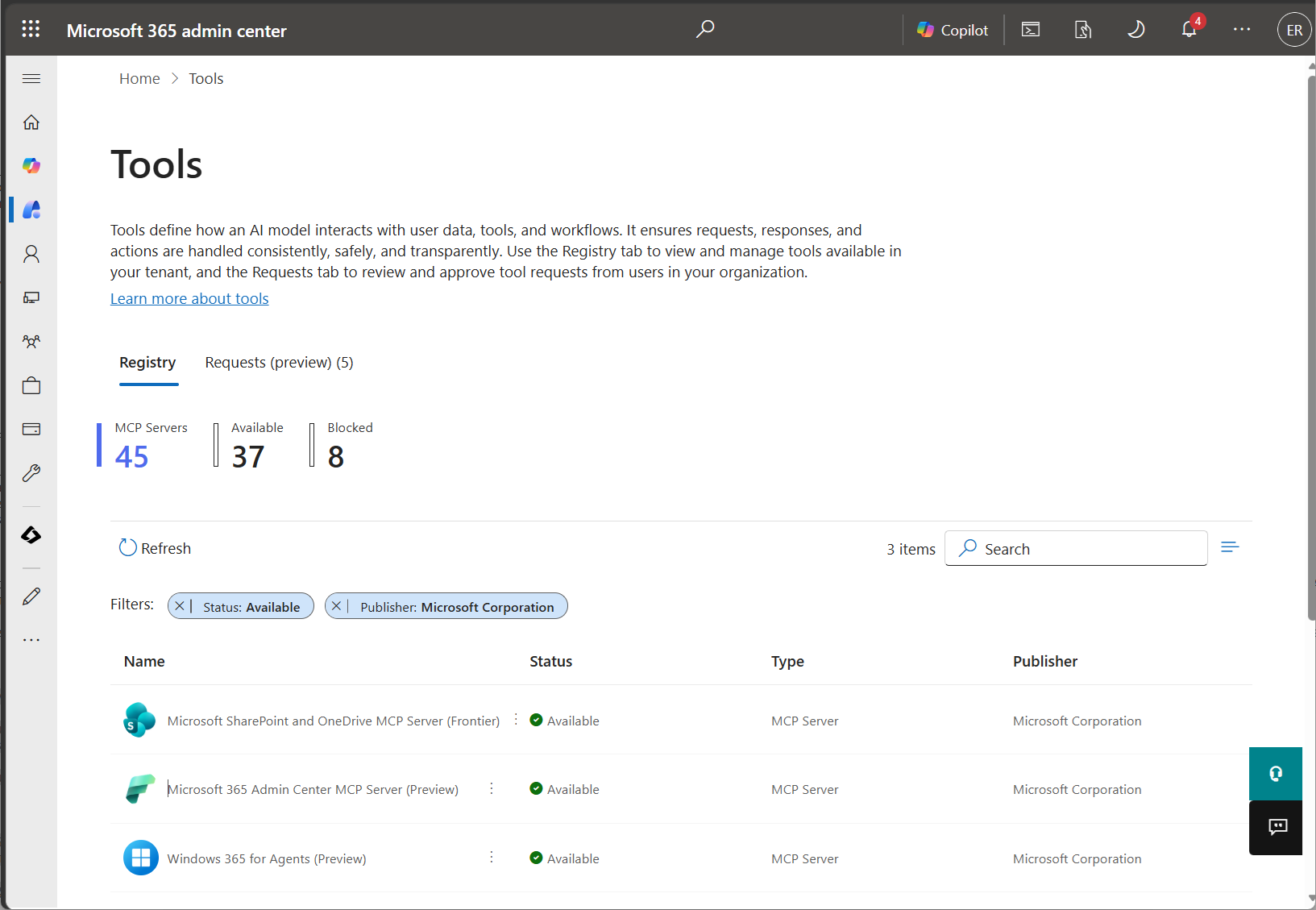
Key components of the Tools page
The agent tools lists on the Registry and Requests tabs provide filters, columns, and actions to help you manage tools.
Actions
Select actions directly from the list, or select a tool to view its overview page. You can take the following actions:
| Action | Description |
|---|---|
| Block | Prevents the selected tool from being used by agents or workflows. |
| Unblock | Restores access to a previously blocked tool. |
Filters
The agent tools registry can contain a large and diverse inventory of tools. Filter the list to narrow the view to the agent tools you want to focus on.
Filters are based on the following criteria:
| Filter | Description |
|---|---|
| Status | Filter tools by their current state, such as Available or Blocked. |
| Publisher | View tools published by Microsoft or other providers. |
Columns
The following table describes the columns that are available in the agent tools registry:
| Column | Description |
|---|---|
| Name | The tool's display name, such as Microsoft Teams MCP Server. |
| Status | Shows whether the tool is Available or Blocked. |
| Type | Shows the tool category, such as MCP Server. |
| Publisher | Shows the publisher, such as Microsoft for first-party tools. |
View Power Platform connector usage (preview)
Important
- This feature is in preview.
- Preview features aren't meant for production use and might have restricted functionality. These features are subject to supplemental terms of use, and are available before an official release so that customers can get early access and provide feedback.
Use the Microsoft 365 admin center to view the Power Platform connectors that agents use in your organization. This view helps you understand which connectors are connected to agents.
Viewing connector usage can help you:
- Discover the Power Platform connectors used by agents in your organization.
- Identify which agents use a specific connector.
- Better understand how connectors are used before applying governance policies.
Note
This experience provides visibility into connector usage but doesn't include management controls.
To view connector usage, follow these steps:
Sign in to the Microsoft 365 admin center.
Select Agents > Tools > Registry.
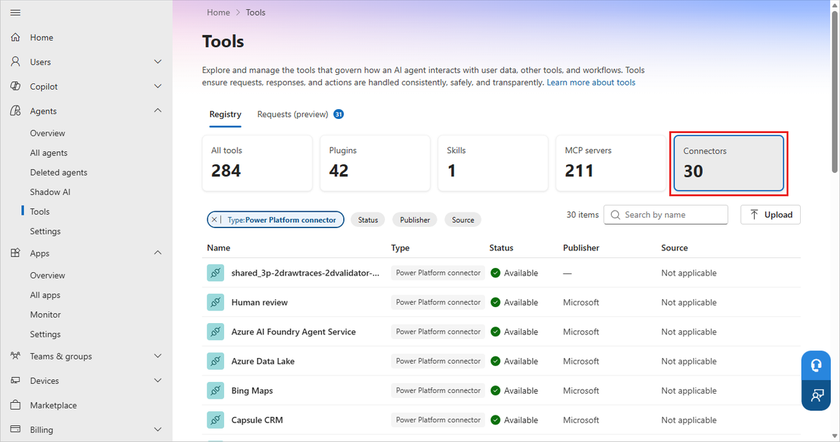
Select Connectors.
Review the list of Power Platform connectors used by agents in your organization.
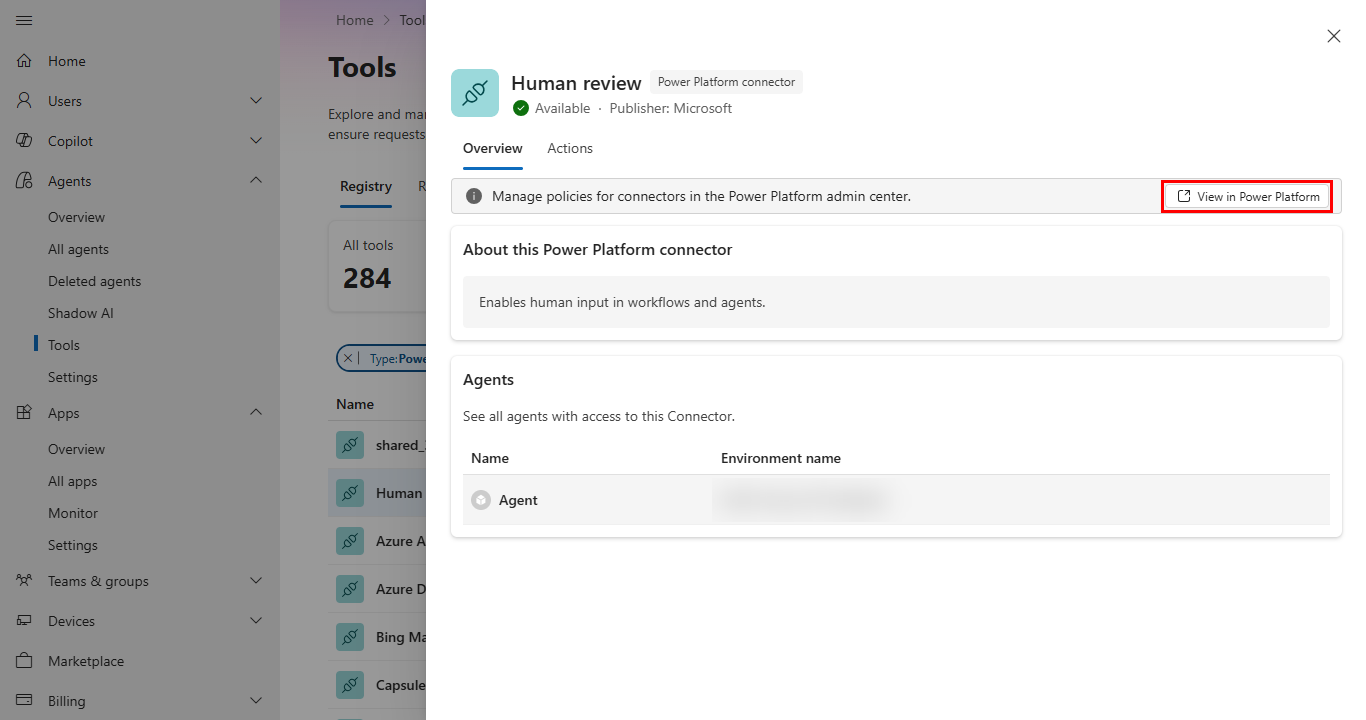
Select a connector to view the agents that use it. The connector's overview page shows the agents associated with the selected connector, making it easier to understand how the connector is used across your organization.
To manage the connector's policy, select View in Power Platform on the connector's overview page. In the Power Platform admin center, you can block, allow, and govern the connector's use. For more information, see Advanced connector policies.