Note
Access to this page requires authorization. You can try signing in or changing directories.
Access to this page requires authorization. You can try changing directories.
When a maker builds an app with Copilot Managed Runtime, for example in Copilot Cowork, Copilot Studio, or the Copilot Managed Runtime CLI, the app is created in the maker's personal environment by default. The maker owns the app and is the environment's only admin. When the maker leaves your organization, the environment and its apps stay behind. People might still use the apps every day, but nobody else can change an app unless the maker gave them edit access, and apps that rely on the departed user's credentials or files can stop working.
This article describes the lifecycle of a personal environment that holds Copilot Managed Runtime apps, and what happens when its owner leaves. It then explains how to hand over the environment, its apps, and their data to someone else, such as the departed employee's manager. For canvas apps, flows, and agents, see Lifecycle and operations for personal environments.
Lifecycle at a glance
| Stage | What happens | What you can do |
|---|---|---|
| Create | Environment routing creates the personal environment the first time a maker builds a Copilot Managed Runtime app. It's a managed environment in the environment group that the matching routing rule names. It starts without Dataverse, and the maker is its admin. | Review the environment group's rules for Copilot Managed Runtime apps before makers start building. |
| Build and share | The maker builds apps and shares them within the sharing rules of the environment group. | Review apps, their owners, and their health in the Microsoft 365 admin center. Block apps that shouldn't run. |
| Inactive | An environment without Dataverse isn't deleted for inactivity. If someone added Dataverse, the environment is disabled after 60 days without activity and deleted 15 days later. | Trigger activity before the environment is disabled, or re-enable it before it's deleted. |
| Owner leaves | Nothing happens automatically. The environment and its apps aren't deleted or reassigned. | Hand over the environment, its apps, and their data, as this article describes. |
| Delete | You delete the environment, or inactivity cleanup deletes it. Its apps are deleted with it. | Recover the environment within seven days. |
Inactivity cleanup
Personal environments that you create for Copilot Managed Runtime apps start without Dataverse. The system doesn't delete personal environments without Dataverse for inactivity. The environment and its apps stay until you delete them.
A personal environment gets Dataverse automatically when you turn on environment routing for Power Apps, Power Automate, or Copilot Studio agents, and the maker is routed to the environment from one of those products. Makers and admins can also add Dataverse in the Power Platform admin center. From then on, the environment follows the inactivity cleanup schedule for developer environments that are managed environments, and you can't turn off this cleanup. When Power Platform deletes the environment, it deletes the Copilot Managed Runtime apps in it too.
| Time without activity | What happens |
|---|---|
| 53 days | Power Platform sends a warning email, and a countdown appears in the Power Platform admin center. |
| 57 days | Power Platform sends a second warning email. |
| 60 days | Power Platform disables the environment. |
| 7 and 11 days after the environment is disabled | Power Platform sends warnings that it will delete the environment. |
| 15 days after the environment is disabled | Power Platform deletes the environment. Admins can recover it for seven days. |
The environment's admins, tenant admins, and the person who created the environment receive the notifications. Automated activity, such as a scheduled flow run, counts as activity. To see when an environment was last active, check the Last activity column in Manage > Environments in the Power Platform admin center. Power Platform updates the column once a day.
To keep an environment, trigger activity in it before it's disabled, or re-enable it before it's deleted. Either action resets the inactivity period. In the Power Platform admin center, select Manage > Environments, select the environment, and then select Trigger environment activity. If the environment is already disabled, select Re-enable environment instead.
Learn more in Automatic deletion of Power Platform environments.
What happens when the owner leaves
When you delete the owner's account in Microsoft Entra ID, Power Platform doesn't delete or reassign their personal environment or the Copilot Managed Runtime apps in it. The environment stays in its environment group, and the group's rules still apply to its apps.
The rest of the lifecycle continues without the owner:
- An app's owner grants edit access to the people who develop the app with them. If the departed user didn't give anyone edit access, nobody else can change the app's source code.
- An app that uses a shared connection reads and writes its data with the connection's credentials, not each user's. If the departed user created that connection with their own account, the connection stops working for everyone when those credentials stop working.
- An app where each user signs in with their own connection doesn't depend on the departed user's credentials. It can still depend on data that the departed user owned, such as files in their OneDrive.
- An environment without Dataverse isn't deleted for inactivity, so its apps stay until you delete them or the environment. If the environment has Dataverse, it follows the inactivity cleanup schedule.
People can rely on the apps in a personal environment every day. Include personal environments, and the Copilot Managed Runtime apps in them, in your offboarding process.
Prepare for owner departures
These practices make departures easier to handle:
- Give apps that other people rely on a second owner, so someone else can maintain them after the maker leaves. To add an owner, run
ms admin add owner, as described in Step 3. Makers can also give a teammate edit access by runningms app share <teammate's email address> --access editin the app's directory. Learn more in Share a Copilot Managed Runtime app with users and groups. - Build apps that a team will rely on in a shared environment that the team owns, instead of in a personal environment. Makers can choose a different environment only in the CLI, by running
ms app createwith the--environment-idparameter. In that environment, turn on the Allow app creation with the Copilot Managed Runtime command line interface (CLI) setting, and make sure the makers have permission to create and update apps. Learn more in Control whether apps can be created using the CLI. - Ask makers to keep the data that apps use in a SharePoint site or another data source that the team owns, rather than in their OneDrive.
- Prefer connections where each user signs in with their own account. If an app needs a shared connection, create it with an account that your team manages rather than a person's account, and give that account access only to the data the app needs.
- Add Copilot Managed Runtime apps to your offboarding checklist. Before you delete a person's account, check which apps they own, and hand them over while their connections still work.
- Keep the Manager attribute current in Microsoft Entra ID, so you know who should take over a departed employee's apps.
Before you begin
- You need the Global Administrator or Power Platform Administrator role to view, block, and delete Copilot Managed Runtime apps in the Microsoft 365 admin center, to change their owners with the Copilot Managed Runtime CLI, and to manage the personal environment in the Power Platform admin center. The AI Administrator, AI Reader, and Global Reader roles can view apps but can't change them.
- To change an app's owners, install the Copilot Managed Runtime CLI, and sign in by running
ms auth login. Learn more in Install the Copilot Managed Runtime CLI. - For the PowerShell steps, install the Microsoft.PowerApps.Administration.PowerShell module, which requires Windows PowerShell 5.x. Learn more in PowerShell support for Power Apps.
- Get the Microsoft Entra object IDs of the departed user and the new owner. Several steps need them, and a deleted user's email address might not resolve.
- Choose the new owner. In most cases, choose the departed employee's manager, the same person who gets access to the employee's OneDrive by default. If an app belongs to another team, choose the person who will maintain it. Learn more in OneDrive retention and deletion.
Important
As an admin of the personal environment, the new owner can see and manage everything in it. Follow your organization's policies for giving someone access to a departed employee's work and data.
Hand over Copilot Managed Runtime apps and their personal environment
The following steps are involved in handing over Copilot Managed Runtime apps and their personal environment. The first four keep the apps running and the data safe. The last two give the apps a long-term home and clean up what's left.
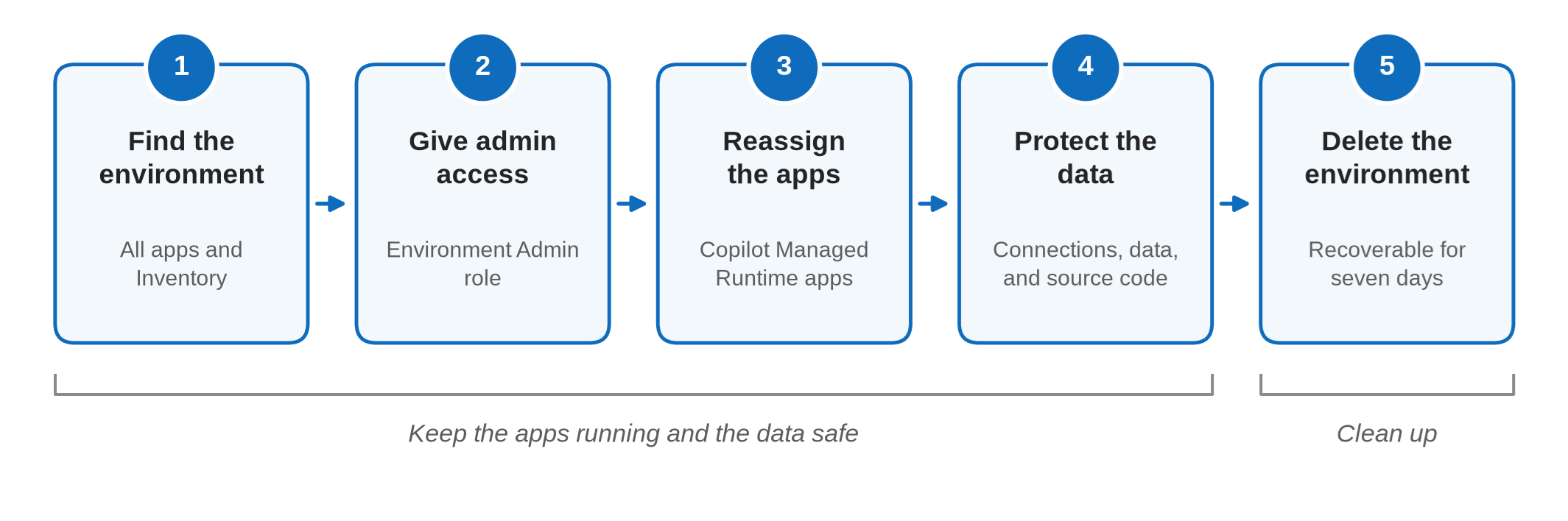
- Find the personal environment and its apps.
- Give the new owner admin access.
- Reassign the apps.
- Protect the data, connections, and source code.
- Delete the personal environment.
Step 1: Find the personal environment and its apps
To find the departed user's apps:
- Sign in to the Microsoft 365 admin center, and go to Apps > All apps.
- Select Choose columns, and add the App ID and Owner ID columns. Then filter the list by Owner, and select the departed user. If you can't find them by name, look for their object ID in the Owner ID column.
- Select an app to open its details. On the Usage and Monitor tabs, check whether people still use it. On the Data & tools tab, see which connectors and data sources it uses.
To find the environment that hosts each app, sign in to the Power Platform admin center, and select Manage > Inventory. Set Item type to Copilot Managed Runtime, filter by Owner, and add the Environment and Environment ID columns. You can also find the departed user's personal environment with PowerShell:
Get-AdminPowerAppEnvironment -CreatedBy <departed user's object ID> -EnvironmentSku Developer
Then decide what to do with each app:
| What you find | What to do |
|---|---|
| Apps that other people use | Reassign them in step 3, and then move them to a shared environment in step 5. |
| Data that apps use, such as files in the departed user's OneDrive | Protect it in step 4. |
| Apps that only the departed user used, or that nobody uses anymore | Block them, and let them be deleted with the environment in step 6. |
| Apps you're not sure about | Reassign them, and let the new owner decide before you delete the environment. |
To block an app, select it in Apps > All apps, and then select Block. People who try to open a blocked app see that it's blocked. Blocking keeps the app and its data, and you can unblock the app later. Learn more in View and oversee apps in Copilot Managed Runtime across your tenant.
Step 2: Give the new owner admin access
You can't change the owner of a personal environment. Instead, make the new owner an admin of the environment, so that someone other than the departed user can manage it while you hand over its apps. As an admin, the new owner can see the resources in the environment and manage its settings within the rules of its environment group.
Personal environments created for Copilot Managed Runtime apps don't have Dataverse unless a maker or admin added it. Assign the new owner the Environment Admin role:
- In the Power Platform admin center, select Manage > Environments, and then select the personal environment.
- On the Access card, under Environment admin, select See all.
- Select Add people, search for and select the new owner, and then select Add.
You can also use PowerShell. This cmdlet works only in environments that don't have Dataverse.
Set-AdminPowerAppEnvironmentRoleAssignment -EnvironmentName <environment ID> -RoleName EnvironmentAdmin -PrincipalType User -PrincipalObjectId <new owner's object ID>
If the environment has Dataverse, assign the System Administrator security role instead. Learn more in Assign security roles to users in an environment that has a Dataverse database.
After you add the new owner, tell them which environment they now manage, which apps are in it, and when you plan to delete it. Environment routing doesn't take them to the departed user's environment. When they build apps in Copilot Cowork or Copilot Studio, the apps are still created in their own personal environment.
If the environment has Dataverse and it's close to being disabled for inactivity, trigger activity in it. If it's already disabled, re-enable it. Either way, you get time to finish the handover. Learn more in Inactivity cleanup.
Step 3: Reassign the apps
Making the new owner an admin of the environment doesn't make them the owner of its apps or give them edit access. Each app keeps its owner until you change it by using the ms admin add owner and ms admin remove owner commands in the Copilot Managed Runtime CLI.
Note
Add the new owner before you remove the departed user, so the app always has an owner.
To reassign an app:
Find the app's ID in the App ID column of Apps > All apps. To show the column, select Choose columns.
Add the new owner:
ms admin add owner <new owner's email address> --app <app ID>Remove the departed user, and confirm the removal when you're prompted. Use their object ID, because a deleted user's email address might not resolve:
ms admin remove owner <departed user's object ID> --app <app ID>
Both commands take these parameters:
| Parameter | Description |
|---|---|
<principals...> |
Required. The users or service principals to add or remove, separated by spaces. Identify users by email address or Microsoft Entra object ID, and service principals by object ID. |
--app <app ID> |
Required. The app to change. Each command changes exactly one app. |
--force |
Optional. Skips the confirmation prompt. To remove owners in a script or another noninteractive session, you must include --force. |
--json |
Optional. Returns the result in JSON format. |
You can run the commands from any directory. They don't read the app from local configuration files, and they look up the app's environment in your tenant, so you don't need to specify it.
To reassign in bulk, filter Apps > All apps by Owner, add the App ID column, and select Export to download the list as a CSV file. Then run the commands for each app in a script, with --force and --json.
After you reassign an app:
- Tell the new owner which apps they now own. As an owner, they can work on the app's source code, give other people edit access, and share the app.
- Ask the new owner to review who else can change the app. In the app's directory, they run
ms app share list --access editto see who has edit access, andms app unshare <principals> --access editto remove access that people no longer need. - If you blocked the app in step 1, unblock it.
- Make sure the new owner has permissions on the app's data sources, and replace connections that depend on the departed user, as described in step 4.
If you can't reassign an app right away:
- Find out whether someone can already maintain the app. If the departed user gave someone edit access, that person can keep working on the app's source code. They find the app by running
ms app list --permission edit, and get its source code by runningms app clone --app <app ID>. Learn more in Collaborate on an app. - Keep the apps that people rely on, and the personal environment that holds them. Deleting the environment deletes the apps in it.
- Block apps that shouldn't run without an owner. Blocking stops people from opening an app but keeps the app and its data, so you can unblock it after you reassign it.
Step 4: Protect the data, connections, and source code
Copilot Managed Runtime apps connect to data in other services through connectors, such as SharePoint lists, Dataverse tables, and SQL Server databases. That data stays in those services. Sharing an app gives people access to run it, not to its data. Unless an app uses a shared connection, the people who use it also need their own permissions and connections for its data sources.
In this step, you make sure the data stays available, replace connections that depend on the departed user, and keep a copy of each app's source code.
Keep the data that apps use
To see what an app connects to, select it in Apps > All apps, and then select the Data & tools tab. Then, for each data source:
- If the data is in files in the departed user's OneDrive, move the files to a SharePoint site that the team owns, and update the app to use the new location. After you delete the user's account, OneDrive keeps their files for 30 days by default, and their manager gets access to them.
- If the data is in Dataverse in the personal environment, back it up and keep what you need before you delete the environment. Learn more in Back up and restore environments.
- If the data is in another service, such as a SharePoint list or a SQL Server database, make sure that the new owner and the people who use the app have the permissions they need.
Replace connections that depend on the departed user
By default, each person who uses an app signs in with their own connection. A maker can also add a shared connection. With a shared connection, the app accesses the data source with the connection's credentials instead of each user's. If those credentials stop working, the connection stops working for everyone.
To find out whether an app uses a shared connection, someone with edit access checks the app's ms.config.json file. A shared connection has a sharedConnectionId under connectionReferences. If the departed user created the connection, that person adds the data source again with a connection they own by running ms app add data-source, and then builds and deploys the app. Learn more in Use shared connections in an app.
Keep the source code
Each app's source code is in a Git repository, either one that the platform manages or one in a GitHub Enterprise Cloud organization. Someone with edit access can find the repository's URL by running ms app info.
- For a repository that the platform manages, someone with edit access keeps a copy by running
ms app clone --app <app ID>. - For a repository in GitHub, give the new owner access to it in GitHub, and keep a copy with
git clone.
Deleting an app with ms app delete doesn't delete its Git repository immediately. It could take several hours before the repo is purged completely.
Step 5: Delete the personal environment
Important
When you delete an environment, you also delete all the resources within it. Before deleting the environment, ensure it doesn't contain resources other than the Copilot Managed Runtime apps. To review the inventory of all resources, go to the Power Platform Admin Center > Manage > Inventory.
When no one relies on the apps in the personal environment, and the new owner has the data and source code they need, delete the environment. Deleting the environment also deletes the Copilot Managed Runtime apps in it. Personal environments without Dataverse aren't deleted for inactivity, so you need to delete them yourself.
Before you delete the environment, review its apps, their owners, and what depends on them. Don't assume that an environment is unused just because no one remembers creating it.
- In the Power Platform admin center, select Manage > Environments.
- Select the personal environment, and then select Delete.
- Confirm the deletion.
You can also run Remove-AdminPowerAppEnvironment -EnvironmentName <environment ID>.
To delete a single app instead, select it in Apps > All apps in the Microsoft 365 admin center, and then select Delete. Deleting an app is permanent.
Recover a deleted personal environment
If you delete a personal environment too soon, or inactivity cleanup deletes it before the handover is done, you can recover it for seven days after it's deleted.
- In the Power Platform admin center, select Manage > Environments.
- Select Recently deleted environments.
- Select the environment, and then select Recover.
With PowerShell, run Get-AdminPowerAppSoftDeletedEnvironment to find the environment, and then run Recover-AdminPowerAppEnvironment -EnvironmentName <environment ID>. Learn more in Recover an environment.
Frequently asked questions
Can I change the owner of a personal environment?
No. To hand over a personal environment, make the new owner an admin of it, as described in Step 2, and then reassign the apps in it.
What's the difference between blocking and deleting an app?
Blocking an app stops people from opening it. The app and its data are kept, and you can unblock the app later. Deleting an app removes it permanently. Block an app while you decide what to do with it, and delete it only when you're sure nobody needs it.
Is a personal environment that holds Copilot Managed Runtime apps deleted for inactivity?
Not if it doesn't have Dataverse. Personal environments created for Copilot Managed Runtime apps start without Dataverse, and environments without Dataverse aren't deleted for inactivity. If a maker or admin added Dataverse, the environment follows the inactivity cleanup schedule for developer environments. It's disabled after 60 days without activity and deleted 15 days later.
What happens if I don't do anything?
The personal environment and its apps stay. Apps that use the departed user's shared connections, or files in their OneDrive, can stop working for the people who use them. Nobody can change an app unless the departed user gave them edit access. If the environment has Dataverse, inactivity cleanup can eventually delete it and the apps in it.
Does the new owner need a license?
It depends on what they do with the apps:
- To run an app, a user needs a Power Apps Premium license, or must be included in a spending policy that includes Copilot Managed Runtime. They also need permissions and connections for the app's data.
- To build apps with the CLI, no license is required.
- To build apps in Copilot Cowork, a user needs a Microsoft Copilot license and Copilot Credits.
- To build apps in Copilot Studio, no Copilot license is required. Building uses Copilot Credits billed to the environment through Copilot Studio billing.
Learn more in Copilot Managed Runtime licensing FAQ.
Related content
- What is a personal environment?
- Lifecycle and operations for personal environments
- Environment routing for Copilot Managed Runtime
- Copilot Managed Runtime overview and key concepts for admins
- View and oversee apps in Copilot Managed Runtime across your tenant
- Share a Copilot Managed Runtime app with users and groups
- Collaborate on an app
- Use shared connections in an app
- Copilot Managed Runtime CLI command reference
- Recover an environment