Note
Access to this page requires authorization. You can try signing in or changing directories.
Access to this page requires authorization. You can try changing directories.
Important
- This article is intended for IT administrators.
- The capability is enabled by default in all Microsoft 365 Copilot licensed tenants.
Microsoft 365 Copilot combines the power of large language models with your data and apps in Microsoft 365. It captures natural language commands to produce content and analyze data. It enables access to and use of other apps, such as Jira, Dynamics 365, or Bing Web Search.
You can manage agents for Copilot by using the Microsoft 365 admin center. You can enable, disable, assign, block, or remove agents for your organization, and manage Copilot capabilities.
Overview
Agents enhance the functionality of Copilot by adding search capabilities, custom actions, connectors, and APIs. Agents are custom versions of Microsoft 365 Copilot that combine instructions, knowledge, and skills to perform specific tasks or scenarios. For more information, see Get started with agents for Microsoft 365 Copilot.
However, before users can access these agents, the agents must undergo a streamlined process of submission and approval. To learn more, see Publish agents.
The hub Copilot experience shows the list of agents that are available and deployed for the user. Users can toggle it on or off to restrict access of Copilot to any specific agents during the interaction. Users can also add or remove agents in their Copilot experience by right-clicking on the agents and selecting the appropriate option. Users can only access the agents that the admin allows and that they install or are assigned to.
Agent types you can manage
You can manage several types of agents in Microsoft 365 Copilot, each serving different purposes:
Published by your organization: Built with predefined instructions and actions. These agents follow structured logic and are best for predictable, rule-based tasks. Before agents become available to users, these agents go through an admin approval and publishing process to ensure compliance and readiness.
Shared by creator: Shared agents are custom versions of Microsoft 365 Copilot that combine instructions, knowledge, and skills to perform specific tasks or scenarios. Creators can create and share these agents through multiple channels, such as Microsoft 365 Copilot Studio, Microsoft 365 Copilot Agent Builder, and more. Shared agents enhance the functionality of Copilot by adding search capabilities, custom actions, connectors, and APIs. For more information, see Share agents with other users.
As an admin, you can view shared agents on the Agents page in the Microsoft 365 admin center. You can see a list of all shared agents, including details such as the agent's name, creator, creation date, host products, and availability status. You can search for specific agents and manage their lifecycle, including blocking agents that are deemed unsafe or noncompliant.
For your users, shared agents are available through Copilot on different surfaces. Users can interact with these agents to perform specific tasks or get assistance based on the agent's capabilities.
Microsoft agents: Developed by Microsoft and integrated with Microsoft 365 services.
External partner agents: Created by external developers or vendors. You can control their availability and permissions.
Frontier agents: Experimental or advanced agents that use new capabilities or integrations. These agents might be in early stages of development or testing and could require more oversight or limited rollout.
App Builder agent: A type of Frontier agent developed by Microsoft that can be managed as part of Microsoft 365 Copilot. You can also manage App Builder using Power Platform admin center.
Workflows agent: A type of Frontier agent developed by Microsoft that can be managed as part of Microsoft 365 Copilot. Flows created in Copilot are saved to the default environment unless environment routing is enabled for Copilot Studio. You can also manage flows using the Power Platform admin center.
Get started
The following administrator roles can manage agents in the Microsoft 365 admin center:
- AI Admin
- Global Reader (view-only, no edit)
Important
Use roles with the fewest permissions. Accounts with lower permissions help improve security for your organization. Global Administrator is a highly privileged role. Limit its use to emergency scenarios when you can't use an existing role. For more information, see About admin roles in the Microsoft 365 admin center.
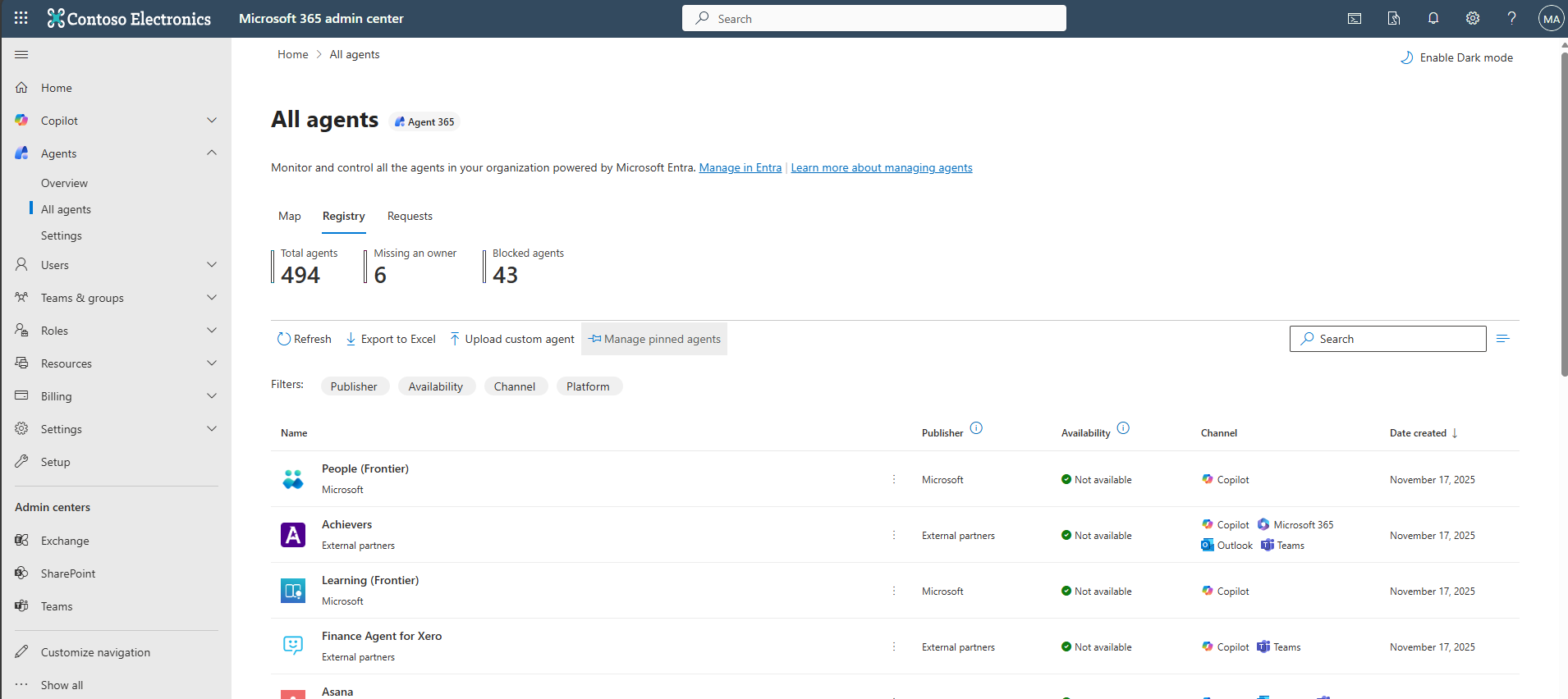
You can manage agents in the Microsoft 365 admin center by using the Agents page. On this page, you can:
- View available, deployed, or blocked agents.
- Configure agent availability and access.
- Perform actions such as publishing, deploying, blocking, or removing agents.