Deploy add-ins in the Microsoft 365 admin center
Note
Integrated Apps is the recommended and most feature-rich way for most customers to centrally deploy Office add-ins to users and groups within your organization.
Office Add-ins help you personalize your documents and streamline the way you access information on the web (see Start using your Office Add-in). As an admin, you can deploy Office Add-ins for the users in your organization by using the Centralized Deployment feature in the Microsoft 365 admin center.
For more information on how to determine if your organization can support Centralized Deployment, see Determine if Centralized Deployment of add-ins works for your organization.
To learn more about managing add-ins after deployment, see Manage add-ins in the admin center
Note
For Word, Excel and PowerPoint use a SharePoint App Catalog to deploy add-ins to users in an on-premises environment with no connection to Microsoft 365 and/or support for SharePoint add-ins required. For Outlook use Exchange control panel to deploy in an on-premises environment without a connection to Microsoft 365.
Recommended approach for deploying Office Add-ins
To roll out add-ins by using a phased approach, we recommend the following:
Roll out the add-in to a small set of business stakeholders and members of the IT department. If the deployment is successful, move to step 2.
Roll out the add-in to more individuals within the business. Again, evaluate the results and, if successful, continue with full deployment.
Perform a full rollout to all users.
Depending on the size of the target audience, you can add or remove roll-out steps.
Deploy an Office Add-in using the admin center
Before you begin, see Determine if Centralized Deployment of add-ins works for your organization.
- In the admin center, go to the Settings > Integrated apps > Add-ins page.
Note
You can also deploy add-ins in the admin center through Integrated Apps. Integrated Apps is the recommended place for admins to deploy add-ins, and is available to Global Administrator, Azure Application Administrator and Exchange Administrator.
If you still want to continue using Centralized Deployment for admin deployment of add-ins, navigate to Settings, then select Integrated Apps. On top of the Integrated Apps page, choose the Add-ins link. If Integrated Apps is not available for you, you should be able to navigate to Centralized Deployment from Settings, and then select Add-ins.
Note
You can also deploy add-ins in the admin center through Integrated Apps. Integrated Apps is visible to Global and Exchange administrators. If you don't see the above steps, go to the Centralized Deployment section by going to Settings > Integrated apps. On the top of the Integrated apps page, choose Add-ins.
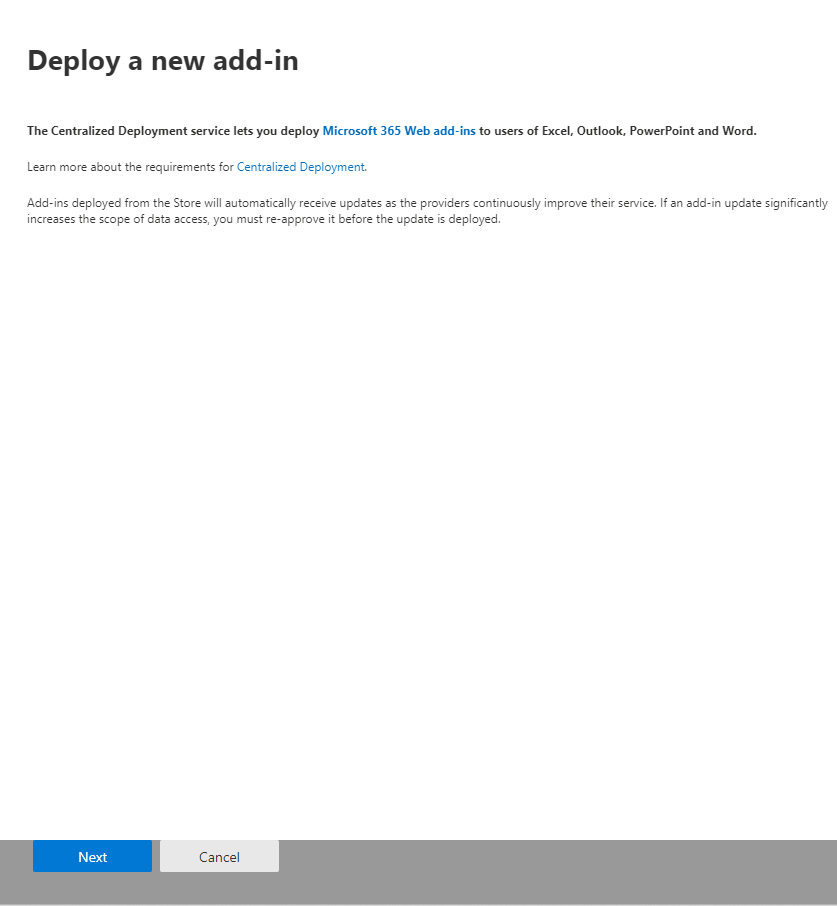
Select Deploy Add-in at the top of the page, and then select Next.
Select an option and follow the instructions.
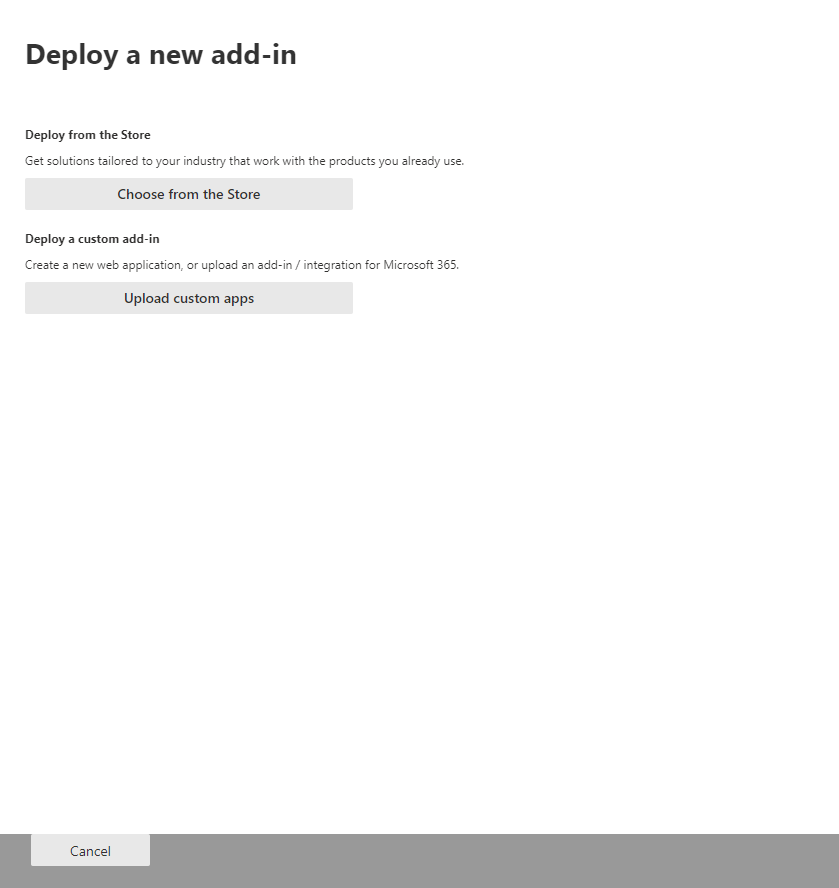
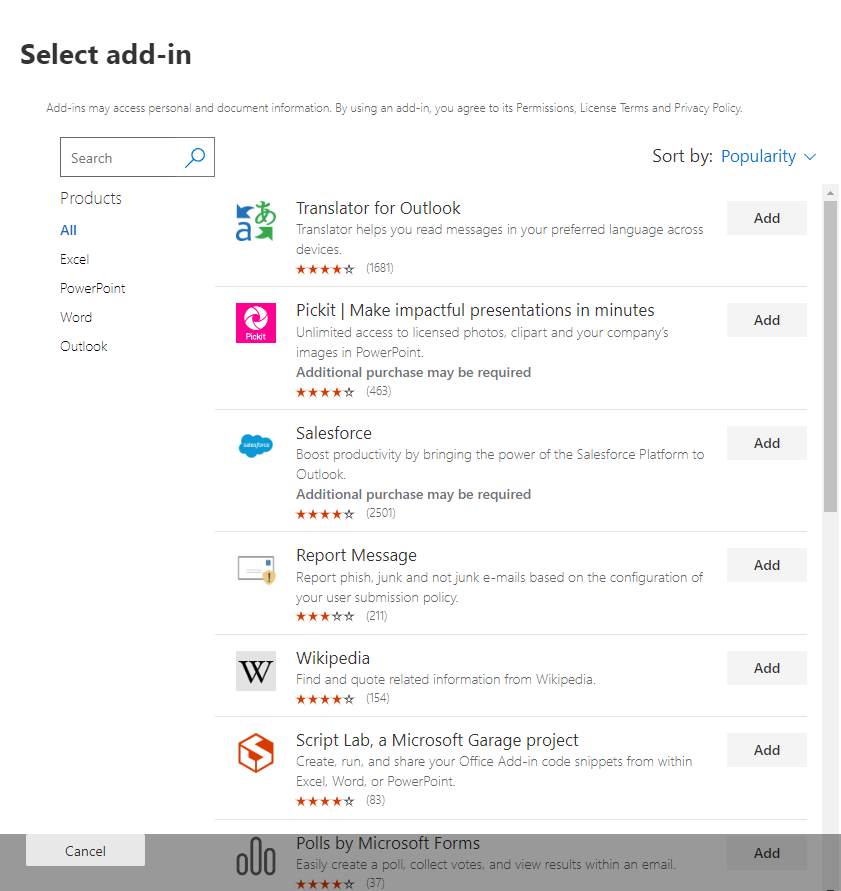
If you selected the option to add an add-in from the Office Store, make your add-in selection.
You can view available add-ins by categories: Suggested for you, Rating, or Name. Only free add-ins are available from the Office Store. Paid add-ins aren't supported currently. After you select an add-in, accept the terms and conditions to proceed.
Note
With the Office Store option, updates and enhancements are automatically deployed to users.
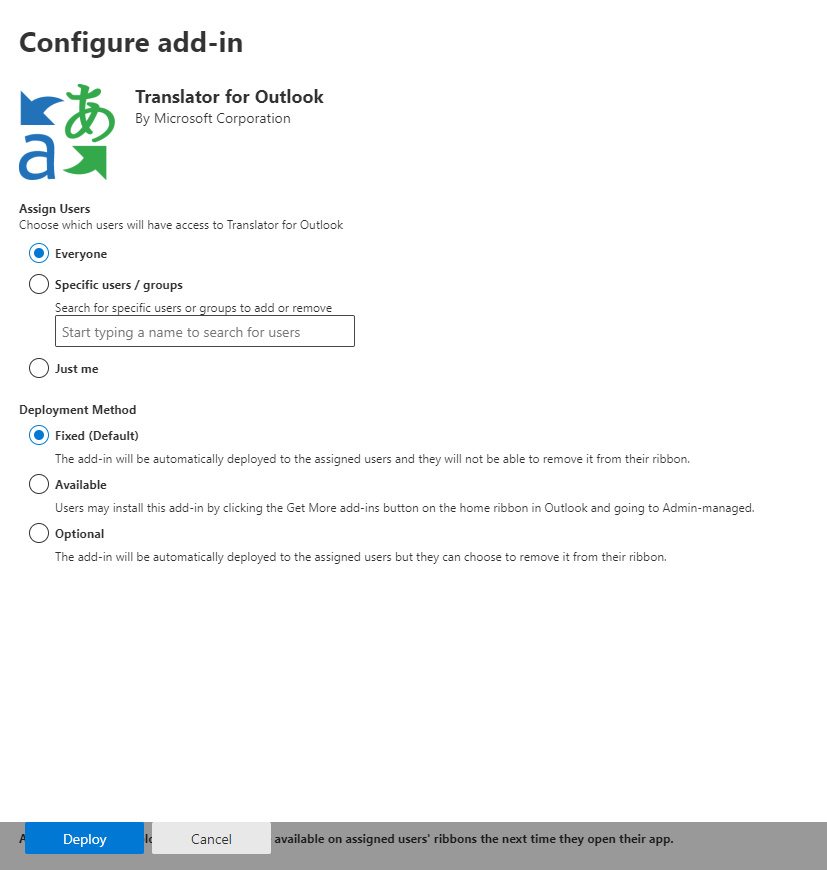
On the next page, select Everyone, Specific users/groups, or Just me to specify who the add-in is deployed to. Use the Search box to find specific users or groups.
Note
To learn about other states that apply to an add-in, see Add-in states.
Select Deploy.
A green tick appears when the add-in is deployed. Follow the on-page instructions to test the add-in.
Note
Users might need to relaunch Microsoft 365 to view the add-in icon on the app ribbon. Outlook add-ins can take up to 24 hours to appear on app ribbons.
When finished, select Next. If you've deployed to just yourself, you can select Change who has access to add-in to deploy to more users.
If you've deployed the add-in to other members of your organization, follow the instructions to announce the deployment of the add-in.
It's good practice to inform users and groups that the deployed add-in is available. Consider sending an email that describes when and how to use the add-in. Include or link to Help content or FAQs that might help users if they have problems with the add-in.
Considerations when assigning an add-in to users and groups
Global admins and Exchange admins can assign an add-in to everyone or to specific users and groups. Each option has implications:
Everyone This option assigns the add-in to every user in the organization. Use this option sparingly and only for add-ins that are truly universal to your organization.
Users If you assign an add-in to an individual user, and then deploy the add-in to a new user, you must first add the new user.
Groups If you assign an add-in to a group, users who are added to the group are automatically assigned the add-in. When a user is removed from a group, the user loses access to the add-in. In either case, no additional action is required from the admin.
Just me If you assign an add-in to just yourself, the add-in is assigned to only your account, which is ideal for testing the add-in.
The right option for your organization depends on your configuration. However, we recommend making assignments by using groups. As an admin, you might find it easier to manage add-ins by using groups and controlling the membership of those groups rather than assigning individual users each time. In some situations, you might want to restrict access to a small set of users by making assignments to specific users by assigning users manually.
More about Office Add-ins security
Office Add-ins combine an XML manifest file that contains some metadata about the add-in, but most importantly points to a web application which contains all the code and logic. Add-ins can range in their capabilities. For example, add-ins can:
Display data.
Read a user's document to provide contextual services.
Read and write data to and from a user's document to provide value to that user.
For more information about the types and capabilities of Office Add-ins, see Office Add-ins platform overview, especially the section "Anatomy of an Office Add-in."
To interact with the user's document, the add-in needs to declare what permission it needs in the manifest. A five-level JavaScript API access-permissions model provides the basis for privacy and security for users of task pane add-ins. The majority of the add-ins in the Office Store are level ReadWriteDocument with almost all add-ins supporting at least the ReadDocument level. For more information about the permission levels, see Requesting permissions for API use in content and task pane add-ins.
When updating a manifest, the typical changes are to an add-in's icon and text. Occasionally, add-in commands change. However, the permissions of the add-in do not change. The web application where all the code and logic for the add-in runs can change at any time, which is the nature of web applications.
Updates for add-ins happen as follows:
Line-of-business add-in: In this case, where an admin explicitly uploaded a manifest, the add-in requires that the admin upload a new manifest file to support metadata changes. The next time the relevant apps in Microsoft 365 start, the add-in will update. The web application can change at any time.
Note
Admin does not need to remove a LOB Add-in for doing an update. In the Add-ins section, Admin can simply click on the LOB Add-in and choose the Update Button in the bottom right corner. Update will work only if the version of the new add-in is greater than that of the existing add-in.
Office Store add-in: When an admin selected an add-in from the Office Store, if an add-in updates in the Office Store, the add-in will update later in Centralized Deployment. The next time the relevant Office applications start, the add-in will update. The web application can change at any time.
Related content
Manage add-ins in the admin center (article)
Build your first Word task pane add-in (article
Minors and acquiring add-ins from the store (article)
Use Centralized Deployment PowerShell cmdlets to manage add-ins (article)
Troubleshoot: User not seeing add-ins (article)
Feedback
Coming soon: Throughout 2024 we will be phasing out GitHub Issues as the feedback mechanism for content and replacing it with a new feedback system. For more information see: https://aka.ms/ContentUserFeedback.
Submit and view feedback for