Note
Access to this page requires authorization. You can try signing in or changing directories.
Access to this page requires authorization. You can try changing directories.
If you're responsible for configuring how email works for everyone in a business, this article is for you. It explains how to customize Focused Inbox or turn it off for your business, and answers frequently asked questions.
To turn off Focused Inbox just for yourself, see Turn off Focused Inbox.
If you want to be sure that your users receive business-specific email messages, such as those from HR or payroll, you can configure Focused Inbox so these messages reach the Focused view. You can also control whether users in your organization see the Focused Inbox in their mailbox.
Turn Focused Inbox on or off in your organization
Use PowerShell to turn Focused Inbox on or off for everyone in your organization. Want to use this feature in the Microsoft 365 admin center? Let our Engineering team know. Vote here!
To turn off Focused Inbox
The following PowerShell example turns Focused Inbox Off in your organization. However, it doesn't block the availability of the feature for your users. If they want, they can still re-enable Focused Inbox on each of their clients.
You need to be assigned permissions before you can perform this procedure or procedures. To see what permissions you need, see the "Transport rules" entry in Messaging policy and compliance permissions.
Run the Get-OrganizationConfig cmdlet.
Get-OrganizationConfigLook for FocusedInboxOn to view its current setting:

Run the following cmdlet to turn off Focused Inbox.
Set-OrganizationConfig -FocusedInboxOn $falseRun the Get-OrganizationConfig cmdlet again and you see that FocusedInboxOn is set to $false, which means it's turned off.
To turn on Focused Inbox
In Step 5, run the following cmdlet to turn on Focused Inbox.
Set-OrganizationConfig -FocusedInboxOn $true
What do users see after I turn on Focused Inbox?
Your users see the Focused view only after they close and restart Outlook. When they restart Outlook, they see a tip in the Outlook user interface that gives them the option to use the new Focused Inbox.
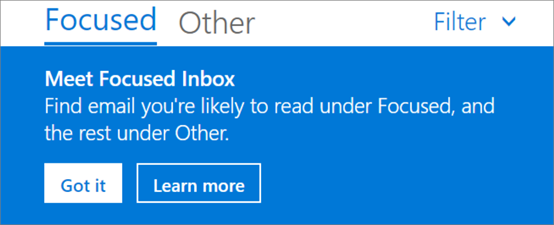
If you're switching from Clutter to Focused Inbox, users can decide to enable it ("Try it") or dismiss the feature. If the user has multiple supported clients, they can enable or disable Focused Inbox individually on each one. The tip looks like this:
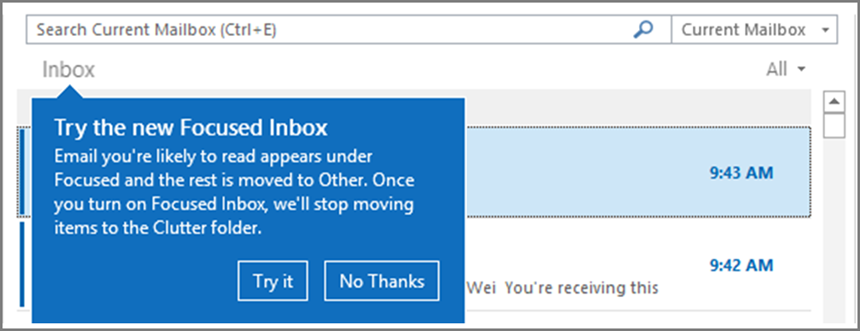
When a user decides to start using Focused Inbox, the feature automatically disables Clutter. The Clutter folder converts into a standard folder that the user can rename or delete.
Turn Focused Inbox on or off for specific users
This example turns Focused Inbox Off for Tim Matthew in the Contoso organization. However, it doesn't block the availability of the feature to Tim. Tim can still re-enable Focused Inbox on each of his clients.
You need to be assigned permissions before you can perform this procedure or procedures. To see what permissions you need, see the "Transport rules" entry in the Messaging policy and compliance permissions article.
Run the Get-FocusedInbox cmdlet, for example:
Get-FocusedInbox -Identity <tim@contoso.com>Look for
FocusedInboxOnto view its current setting:
Run the following cmdlet to turn off Focused Inbox:
Set-FocusedInbox -Identity <tim@contoso.com> -FocusedInboxOn $falseOR, run the following cmdlet to turn it on:
Set-FocusedInbox -Identity <tim@contoso.com> -FocusedInboxOn $true
Use the UI to create a transport rule to direct email messages to the Focused view for all your users
Go to the Exchange admin center.
Navigate to Mail flow > Rules. Select Add a rule and then select Create a new rule....
After you finish creating the new rule, select Save to start the rule.
Use PowerShell to create a transport rule that directs email messages to the Focused view for all your users
You need to be assigned permissions before you can perform this procedure or procedures. To see what permissions you need, see the "Transport rules" entry in Messaging policy and compliance permissions.
Run the following command to deliver all messages from "Payroll Department," for example, to the Focused Inbox.
New-TransportRule -Name <name_of_the_rule> -From "Payroll Department" -SetHeaderName "X-MS-Exchange-Organization-BypassFocusedInbox" -SetHeaderValue "true"
Important
In this example, both "X-MS-Exchange-Organization-BypassFocusedInbox" and "true" are case sensitive. Also, Focused Inbox honors the X-header that bypasses Clutter. So if you use this setting in Clutter, it's used in the Focused Inbox. For detailed syntax and parameter information, see New-TransportRule.
How do you know if this rule worked?
You can check email message headers to see if the email messages are landing in the Inbox due to the Focused Inbox transport rule bypass. Pick an email message from a mailbox in your organization that has the Focused Inbox transport rule applied. Look at the headers stamped on the message, and you should see the X-MS-Exchange-Organization-BypassFocusedInbox: true header. This header means the bypass is working. For info on how to find the header information, see View the Internet header information for an email message.
What does the user see?
If a transport rule is in place, a notification shows for the override. Outlook on the web disables the Always move to Other option and shows a tooltip. Outlook clients on desktop allow you to select Always move to Other from a pop-up dialog.
Turn on or off Clutter
Microsoft received reports that Clutter suddenly stopped working for some users. If Clutter stops working, you can enable it again for specific users. See Configure Clutter for your organization.
FAQ for Focused Inbox
Here are answers to frequently asked questions about Focused Inbox.
Can I control how I roll out Focused Inbox in my organization?
Yes. You can turn Focused Inbox on or off for your entire organization, or you can turn it on or off for specified users.
Is the Focused Inbox feature only available for Office 2016 clients?
Yes, only users with Office 2016 are affected. The feature isn't going to be backported to Outlook 2013 or earlier.
How long does it take for Focused Inbox changes to take place in Outlook?
Once you turn on or turn off Focused Inbox, the settings take effect when your users close and restart Outlook.
What happens to Clutter once I turn on Focused Inbox?
After switching, you no longer receive less actionable email in the Clutter folder. Instead, email is split between the Focused and Other tabs in your inbox. The same algorithm that moved items to the Clutter folder now powers Focused Inbox, meaning that any emails that were set to move to Clutter are now moved to Other. Any messages already in your Clutter folder remain there until you decide to delete or move them.
Check out this post by Tony Redmond, Microsoft MVP: How the Focused Inbox Replaces Clutter Inside Office 365.
Can I keep users on Clutter? What is Microsoft's recommendation when it comes to using Clutter vs Focused Inbox?
Yes, you can keep users on Clutter and disable Focused Inbox. However, eventually Clutter is fully replaced with Focused Inbox so Microsoft recommends moving to Focused Inbox now. To learn more about when you use Clutter with Exchange Online, see this blog post: Update on Focused Inbox and our plans for Clutter.
Should I disable Clutter for my end users if we're going to move everyone to Focused Inbox?
No. You can explicitly disable Clutter for a mailbox by running the Set-Clutter cmdlet. However, if you disable Clutter, the mailbox owner sees messages that were previously redirected to the Clutter folder remain in the Inbox. They have to process those messages until their client is upgraded to a version that supports the Focused Inbox. It's best not to disable Clutter until the upgraded clients are available.
Why are there two different cmdlets for managing Focused Inbox?
Focused Inbox has two associated states:
Organization Level: Focused Inbox state, and an associated last update timestamp.
Mailbox Level: Focused Inbox state, and an associated last update timestamp.
How does Outlook decide to show the Focused Inbox experience with these two states?
Outlook decides which experience to show by choosing the cmdlet with the latest timestamp. By default, both timestamps are null, and in this case, the feature is enabled.
Why does the Get-FocusedInbox cmdlet return "true" when I turn off Focused Inbox in my organization?
Two cmdlets control Focused Inbox. When you run Get-FocusedInbox for a mailbox, it returns the mailbox level state of the feature. Outlook chooses the experience based on which cmdlet state was last modified.
Can I run a script to see who turned on Focused Inbox?
No, and this limitation is by design. Focused Inbox enablement is a client-side setting, so the cmdlet can only tell you if the user's mailbox is eligible for the client experience. It's possible for the feature to be simultaneously enabled in some clients and disabled in others. For example, it can be enabled in Outlook app and Outlook Mobile but disabled in Outlook on the web.
Related content
Configure Clutter for your organization (article)
Configure shared mailbox settings (article)
Create signatures and disclaimers (video)