Note
Access to this page requires authorization. You can try signing in or changing directories.
Access to this page requires authorization. You can try changing directories.
You can now use Mistral's models within Copilot Studio. These models are hosted by Mistral outside of Microsoft. You can elect to use Mistral's models with Microsoft 365 apps and features.
Mistral models can help people in your organization with some of the following:
- Summarize complex information
- Answer questions using source material
- Synthesize across multiple sources
- Idea generation, drafting and editing
When your organization chooses to use an Mistral model, your organization is choosing to share your data with Mistral to power Copilot Studio features. This data is processed outside all Microsoft managed environments and audit controls, therefore Microsoft's customer agreements, including the Product Terms and Data Processing Addendum (DPA) don't apply. In addition, Microsoft's data residency commitments, audit and compliance requirements, service level agreements, and Customer Copyright Commitment don't apply to your use of Mistral's services. Instead, use of Mistral's services is governed by Mistral's Terms of service and Data processing addendum.
Important
Some Mistral services may be offered under preview terms. Mistral Medium 3.5 is offered in public preview. For more information, see Remote agents in Vibe. Mistral AI models offered in Copilot Studio are currently limited to Mistral Medium 3.5.
Before you begin
Before users in your organization can use Mistral, they need to be assigned a Microsoft 365 Copilot license.
Connect to Mistral in the Microsoft 365 Admin Center
Before your organization can connect to Mistral AI models, you must allow access in the Microsoft 365 admin center.
You have to be a member of the Global administrator role to perform this task. For more information, see About admin roles .
- Go to the Microsoft 365 admin center and select Copilot -> Settings.
- On the Copilot settings page, select View all.
- Select AI providers for other large language models.
- Under Available models for your organization, choose Mistral.
- Under Choose who can access Mistral models for Copilot and generative AI experiences, agree to the Terms and Conditions.
- Under Choose which users can access Mistral models, select the users or groups that you want to have access.
- Choose Allow provider.
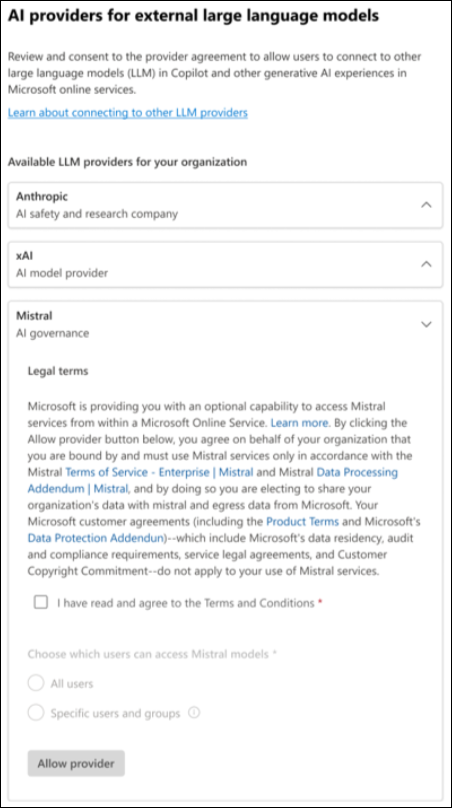
After you connect, it may take a few hours for the connection to complete.
Note
You can restrict user access to AI subprocessors by assigning permissions to specific users or Microsoft Entra ID security groups in the Microsoft 365 admin center. These assignments are applied at the provider level and enforced across Microsoft 365 Copilot and Copilot Studio experiences. When access is limited by user or group membership, only the assigned users can use Copilot features or agents that rely on that AI provider. Review existing user or group assignments and update policies or configurations as needed. For more information on user and security group access, see Assign AI provider access to users and groups. For more information on creating security groups, see Create a security group.
Controls for Copilot Studio in the Microsoft Power Platform Admin Center
Once enabled in the Microsoft 365 admin center, additional administrator controls are available in the Microsoft Power Platform admin center (PPAC) to allow Mistral to be used in Copilot Studio. For more information, see Allow external large language models (LLMs) for generative responses.
Disable Connection to Mistral
Your organization may decide that it no longer wants users to be able to access other LLMs. You can disable the model provider:
- Go to the Microsoft 365 admin center and select Copilot -> Settings.
- On the Settings page, select View All.
- Select AI providers for other large language models.
- Under Available models for your organization, choose Mistral and select Block provider.
Once you disconnect Mistral, users can't use Mistral's AI models. After completing the steps to disconnect Mistral in Microsoft 365, it may take several hours for the service to be fully disabled for your users.