Note
Access to this page requires authorization. You can try signing in or changing directories.
Access to this page requires authorization. You can try changing directories.
Microsoft 365 Copilot connectors extend the reach of Microsoft 365 Copilot and Microsoft Search experiences by connecting to data beyond Microsoft 365. Your organization can either index external data by using synced connectors or connect to data in real time by using federated connectors. This flexibility ensures that users can securely search and interact with both enterprise and external data sources within Microsoft 365 apps and Copilot experiences.
Types of Copilot connectors
The following types of Copilot connectors are available:
- Synced connectors: Index data into Microsoft Graph for Copilot and search. Microsoft offers two configuration options for synced connectors - Tenant configuration which admins configure and self-serve configuration which users configure.
- Federated connectors: Use a Model Context Protocol (MCP) model to fetch data in real time, without indexing content into Microsoft 365. For more information, see Federated connectors overview.
The following table summarizes the key differences between synced connectors and federated connectors.
| Feature | Synced connectors - Tenant configuration | Synced connectors - Self-serve configuration | Federated connectors |
|---|---|---|---|
| Data | Indexed into Microsoft 365 | Indexed into Microsoft 365 | Fetched live |
| Access model | Organization-level | User-level | User-level |
| Setup | Admin configures | Admin enables; users authenticate | Admin enables; users authenticate |
| Use cases | Broad indexing | Index personally relevant content | Sensitive, dynamic, or live data sources |
| Default connectors | Yes | Yes (limited) | Yes |
| Custom connectors | Yes | No | No |
Synced connectors - Tenant configuration
Synced connectors crawl and index content from external sources into Microsoft Graph. You can discover this indexed data in Copilot and Microsoft Search experiences. Synced connectors support organization-level use, with admins configuring and managing connections in the Microsoft 365 admin center.
Synced connectors have the following key features:
- Index external data so it appears in Copilot and Microsoft Search results.
- Support connections to cloud-based (SaaS) and on-premises data sources.
- Respect source permissions; users only access content for which they have appropriate permissions.
- Microsoft and ecosystem partners provide a wide range of ready-to-use connectors.
- You can build custom synced connectors to ingest your business data.
The following video provides an overview of the synced connector setup process.
For more information, see Set up synced connectors in the admin center.
Synced connectors - Self-serve configuration
Synced connectors support self-serve configuration, with admins enabling the connector and users authenticating to it. Self-serve sync connectors crawl limited recent data per user to enable users to index content of choice easily.
Self-serve sync connectors have the following key features:
- Index external data so it appears in Copilot and Microsoft Search results.
- Synchronize a user’s external content into Microsoft Graph, scoped to that individual user.
- Connect using the user’s own identity, credentials, and consent — not admin credentials.
- Enforce the source system’s permissions, so a user only sees content they already have access to.
- When a user disconnects or an admin disables the connector, the indexed content is removed and synchronization stops.
For more information, see Self-serve sync connectors overview.
Federated connectors
Federated connectors use an MCP model to fetch data in real time, without indexing content into Microsoft 365. Federated connectors are ideal for connecting to live, dynamic, or sensitive data sources that shouldn't be indexed.
Federated connectors have the following key features:
- No indexing required; data remains in the source system.
- Connector fetches responses in real time through MCP APIs.
- Secure by design; federated access respects source permissions and authentication (OAuth 2.0).
- Default federated connectors are provided by Microsoft and appear as Ready in your connections list in the Microsoft 365 admin center.
- Federated connectors are read-only; they can search and fetch content but can't write data back.
Connector architecture
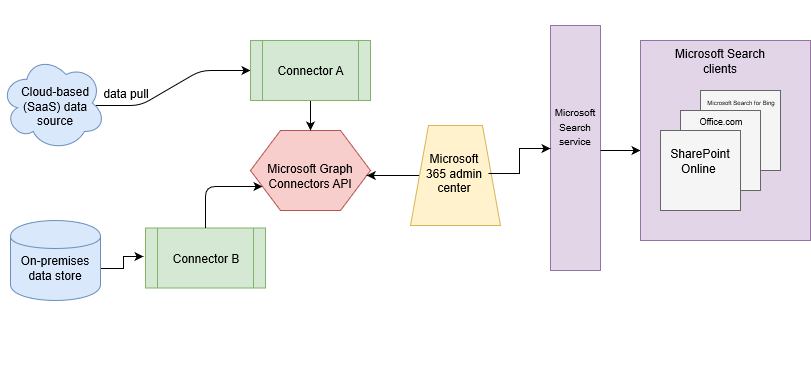
The following diagram shows how both types of connectors integrate external data into Copilot and Microsoft Search experiences:
- Synced connectors: Data flows from the source, is indexed in Microsoft Graph, and becomes available in search and Copilot.
- Federated connectors: Data remains in the source system and is fetched in real time when users query Copilot or Search.
How Copilot connectors work
A Copilot connector defines a connection to an external data source and syncs content into Microsoft 365. It uses the Microsoft Graph connectors API to ingest items into the Microsoft Graph index. Each item includes content, metadata (like title and URL), and an access control list (ACL) that enforces permissions.
After the content is ingested:
Unified index - The item becomes part of your organization’s cloud search index. It's full-text searchable and processed by semantic indexing AI for relevance.
Permission-based filtering - Search and Copilot only show items to users who have access in the source system.
Continuous sync - Connectors periodically check for changes. New, updated, or deleted content is reflected in the index. Admins can configure sync frequency and trigger full crawls as needed.
Microsoft hosts the indexing pipeline in the cloud for most connectors. After setup, the process is automated. External content is stored securely in your tenant, and users only see what they're allowed to access.
Prebuilt and custom connectors
Microsoft offers over 100 prebuilt connectors for popular services, including:
- File sharing and content management - Box, Dropbox, Google Drive, Confluence, MediaWiki, network file shares.
- Enterprise apps and databases - Salesforce, ServiceNow, Dynamics 365, Azure services, SQL/Oracle databases, SAP.
- Other platforms - Workday, Zendesk, Jira, and more.
To use a prebuilt connector, select the connector in the Microsoft 365 admin center, provide credentials and configuration details, and the Microsoft connector service handles the rest. Microsoft or certified partners maintain and update these connectors regularly.
If no prebuilt connector exists for your system, you can build a custom connector by using the Microsoft 365 Agents Toolkit or the Microsoft Graph connectors API. Building a custom connector requires a developer to define a schema, register the connection in Microsoft Entra ID, and write code to pull and push data.
For on-premises sources, you can use the Microsoft Graph connector agent to securely index local content.
Custom connectors offer flexibility but require maintenance. Use prebuilt connectors when possible, and reserve custom development for unique or critical sources.
Copilot connectors for people data
Copilot connectors for people data integrate people data into Microsoft 365 applications to enhance and unify individual profiles. They provide a synchronized view of people data while keeping the original data authoritative in its source system. These connectors improve identity cohesion, Copilot response relevance, and data discoverability within Microsoft 365, including updated profile cards and search capabilities. For more information, see Copilot connectors for people data.
Microsoft 365 Copilot and connectors
The conversational Copilot Chat experience in Microsoft 365 Copilot, Teams, Outlook, and other Microsoft 365 apps use connector content to respond to user queries. When users ask questions or request help, Copilot retrieves data from internal and external sources.
For example, the user query "Give me a summary of the Contoso deal" might return details from a Salesforce record if that system is connected. Copilot cites the source and provides a quick summary without requiring the user to open Salesforce.
Connectors make Copilot Chat a more powerful assistant, capable of answering questions beyond Microsoft 365 content, via the following key features:
Multiturn conversation - Follow-up questions stay in context and can pull from multiple connectors.
Content previews and links - Users can open referenced items for more detail.
Read-only by default - Copilot Chat can't write back to external systems unless the experience is extended with action connectors or plugins.
Security enforced - Users only see content they're authorized to access.
Copilot Search and connectors
Microsoft 365 Copilot Search is an AI-powered enterprise search experience that helps users quickly find relevant information across Microsoft 365 and beyond. Copilot Search acts as a universal search layer that integrates seamlessly into the Microsoft 365 Copilot app across desktop, web, and mobile platforms. It automatically includes indexed connector content when generating responses—no extra setup required.
For example, if a user asks, "How do I file an expense report?", Copilot Search looks across Microsoft 365 and connected systems. If a relevant page is found in an internal finance wiki (via a connector), Copilot uses it to generate a concise answer with a citation.
Copilot connectors enhance the Copilot Search experience by providing the following benefits:
- Unified indexing - External data is indexed alongside Microsoft 365 content, enabling a single, comprehensive search experience.
- Personalized results - Signals from Microsoft Graph and connector-ingested data help tailor results based on user roles, behaviors, and organizational relationships.
- Copilot extension - A browser add-on that enhances search relevance by incorporating signals from external work-related sites—without tracking general browsing activity.
The extensive connector ecosystem makes Copilot Search an enterprise-wide knowledge discovery platform that helps users find what they need, when they need it—no matter where the data lives.
Microsoft Search and connectors
After connectors are set up, users discover external content through Microsoft Search across Office.com, SharePoint, Outlook, Teams, Bing (work account), and other apps. Connectors enhance the Microsoft Search experience with the following features:
- Integrated results - External items appear in the All results view alongside internal content. Each result is labeled with its source (for example, Confluence VPN Access Policy) and opens in its native app.
- Verticals and filters - Admins can create custom search verticals (tabs) for specific connectors. Users can refine results by source or metadata properties.
- Result display - Connector results show a title, snippet, and metadata. Admins can customize layouts, but the default display is clean and consistent.
- Contextual suggestions - Connector content appears in features like Microsoft Editor or messaging extensions, helping users find and use external knowledge without switching apps.
Search relevance algorithms rank external and internal results equally, based on query match, freshness, and user context.
Custom agents and extensibility
Connectors are essential knowledge sources for custom agents built with Copilot Studio or the Microsoft 365 Agents Toolkit. These agents are tailored to specific domains or tasks, such as IT help desk or sales support.
Connectors enhance agents for Copilot with the following features:
- Domain-specific knowledge - Agents can use Copilot connectors to answer questions from relevant sources.
- Action-taking capability - Agents can be extended with Power Platform connectors or API plugins to perform tasks (for example, reset passwords, create tickets).
Admins control which connectors and actions each agent can use to ensure governance and security.
For example, a Sales agent might use a Salesforce connector for data and a Power Platform connector to update records—all within a conversational interface.