Note
Access to this page requires authorization. You can try signing in or changing directories.
Access to this page requires authorization. You can try changing directories.
You can use the Restrict brand kit creation policy in Microsoft 365 Copilot to control who can create brand kits. These brand kits can contain:
- Multiple logos.
- Color palettes.
- Fonts.
- Images.
- Templates.
Brand kits use these items to generate branded artifacts. You can also manually add brand assets to existing designs, decks, and images.
For organizations that require tighter governance over branded asset creation, restrict this capability to a designated group of users by using the Restrict brand kit creation policy.
When you enable this policy and specify a security group, only members of that group can create brand kits. All other users can still access and generate branded content but can't create new brand kits. For more information on brand kits, see Create and manage official Brand kits in the Microsoft 365 Copilot app.
To enable this functionality, admins must configure the Restrict brand kit creation policy, which involves:
- Creating a mail-enabled security group that includes the users permitted to create brand kits.
- Enabling the policy and scoping it to that security group.
Prerequisites
- A mail-enabled security group that includes users that have permission to create brand kits. For more information, see Use the Exchange admin center (EAC) to create a mail-enabled security group.
Configure Restrict brand kit creation policy
Follow these steps to enable the Restrict brand kit creation policy for your organization:
Sign in to the Microsoft 365 Apps admin center with an account that has appropriate privileges.
From the left navigation bar, select Customization.
Under Customization, select Policy Management.
In the Policy configurations page, select an existing tenant-level policy where the scope is set to This policy configuration applies to all users to edit it. Make sure to select the policy instead of just checking it.
If an apply to all users policy doesn't exist, create a new tenant-level policy with scope set to This policy configuration applies to all users by following these steps:
Select Create or + Create.
In the Start with the basics page of the Basics step, enter a name and description for the policy, and then select Next. For example:
- Name: Apply to all users.
- Description: Policy that applies to all users.
Under Select the scope in the Choose the scope page of the Scope step, select This policy configuration applies to all users, and then select Next.
In the Configure Settings page of the Policies step, select Next.
In the Review configuration and create page of the Review and publish step, review the settings, and then select Create.
In the Policy configuration created page, select Done.
Once the apply to all users policy is created, select the policy from the Policy configurations page to edit it. Make sure to select the policy instead of just checking it.
In the Start with the basics page of the Basics step, select Next.
In the Choose the scope page of the Scope step, make sure the scope is set to This policy configuration applies to all users, and then select Next.
In the Configure Settings page of the Polices step:
Use the Search search box to search for brand kit.
Once the Restrict brand kit creation policy appears in the search results, select it.
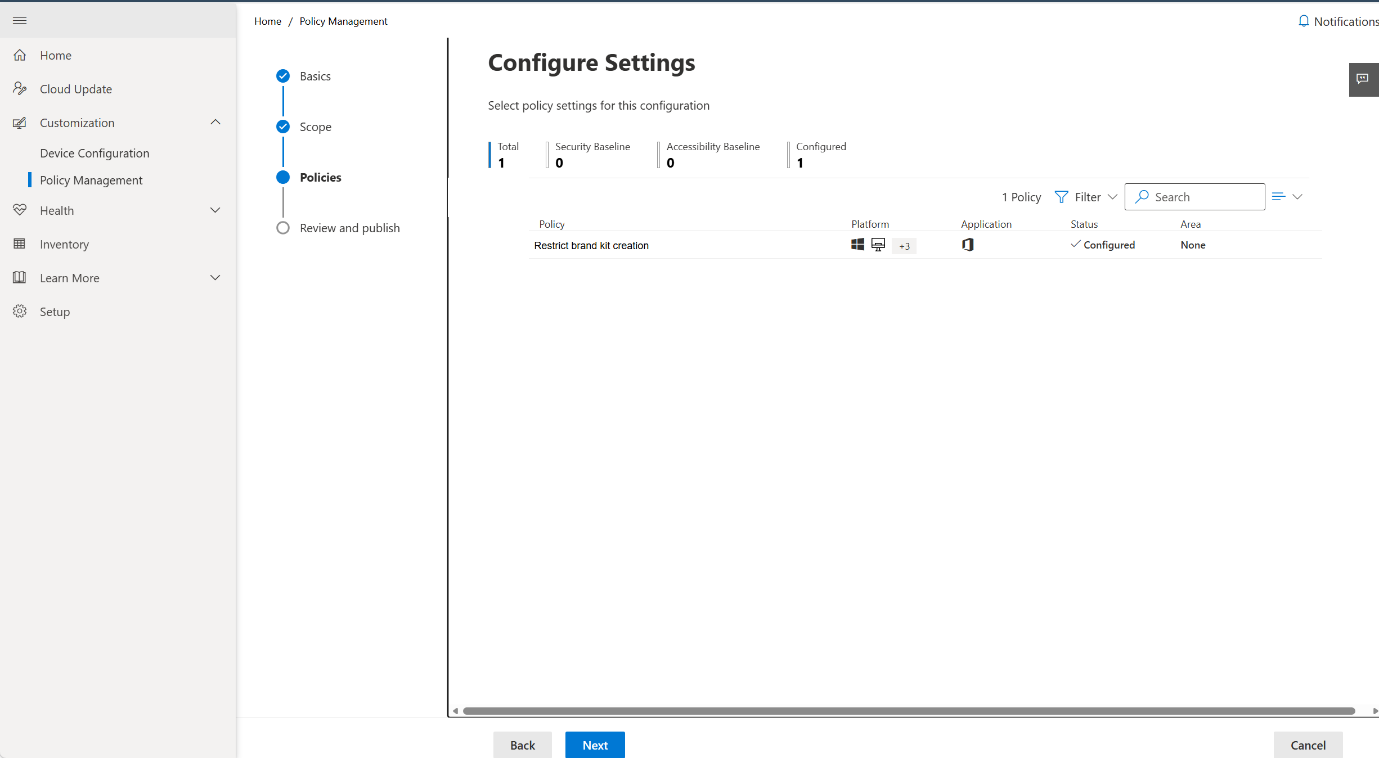
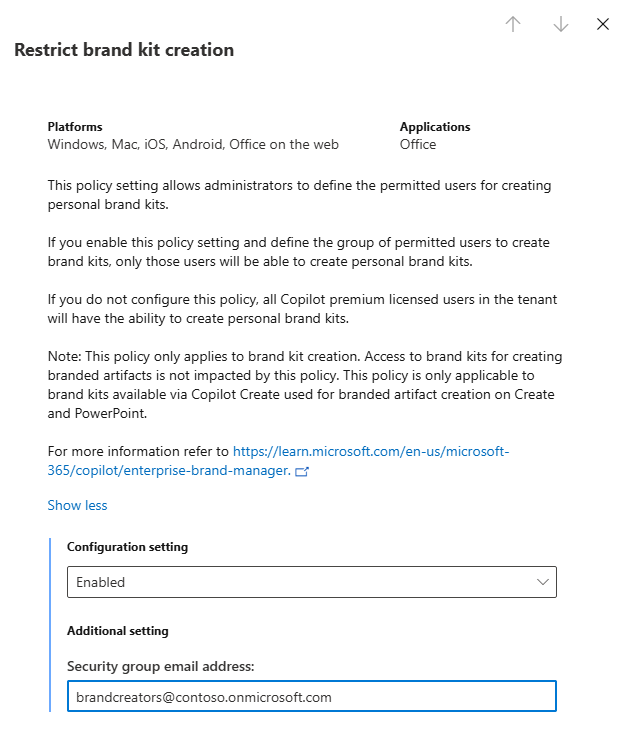
In the Restrict brand kit creation pane:
Select the Configuration setting drop-down menu and set the policy to Enabled.
Under Additional setting, enter the email address of the security group whose members are permitted to create brand kits in the Security group email address: field. Users outside this group don't see the option to create a brand kit.
Select Apply.
In the Configure Settings page of the Polices step, select Next.
In the Review configuration and update page of the Review and publish step, review the settings, and then select Update.
In the Policy configuration updated page, select Done.
Note
It can take up to 24 hours after you create the policy for restrictions to take effect for users in your organization.
Policy behavior by user
The following table describes the experience for users based on their group membership when you enable this policy.
| User | In Restrict Brand Kit Creation Group | In Enterprise Brand Manager group | Experience |
|---|---|---|---|
| A | No | No | Can't create or edit any brand kit. |
| B | Yes | No | Can create personal brand kits. Can't publish a kit as an official brand kit. |
| C | No | Yes | Can't create or edit any brand kit. |
| D | Yes | Yes | Can create both personal brand kits and publish official brand kits. |
If a user who isn't in the permitted group receives a shared brand kit with edit rights, they can only view the kit. On opening it, they see the following message:
Your admin has restricted the rights for brand kit creation and editing. Please contact your admin for permission.
Note
This policy applies to brand kit creation only and doesn't affect access to published official brand kits. This policy is independent of the Enterprise Brand Manager policy, which governs publishing and management of official brand kits. A user must pass both policy checks to upgrade a personal kit to an official brand kit.