Note
Access to this page requires authorization. You can try signing in or changing directories.
Access to this page requires authorization. You can try changing directories.
[This article is prerelease documentation and is subject to change.]
Connect Cowork with the business information and processes you use across Dynamics 365 and Power Apps. Ask questions in natural language to find customer, sales, service, finance, or operations information, understand key details and relationships, and get help deciding what to do next.
For example, you can ask Cowork to:
- Add the service improvement plan to the renewal opportunity
- Create a follow-up task for the account owner
- Reassign account ownership
- Escalate the service issue for an unresolved case
- Update the contract record to the contract
You stay in control. Cowork respects the role-based access and permissions already set by your organization, so it only shows information and offers actions that you are authorized to use. Some experiences might vary based on your organization’s apps, licenses, policies, and available services.
Important
- This is a preview feature.
- These features are subject to supplemental terms of use, and are available before an official release so that customers can get early access and provide feedback.
Install the Business apps (preview) plugin
An admin must install the Business apps (preview) plugin for users. Users can't add the plugin in Cowork until an admin installs it for them.
Sign in to the Microsoft 365 admin center.
Select Agents > Tools > Plugins.
In the Name column, select Business apps (preview).
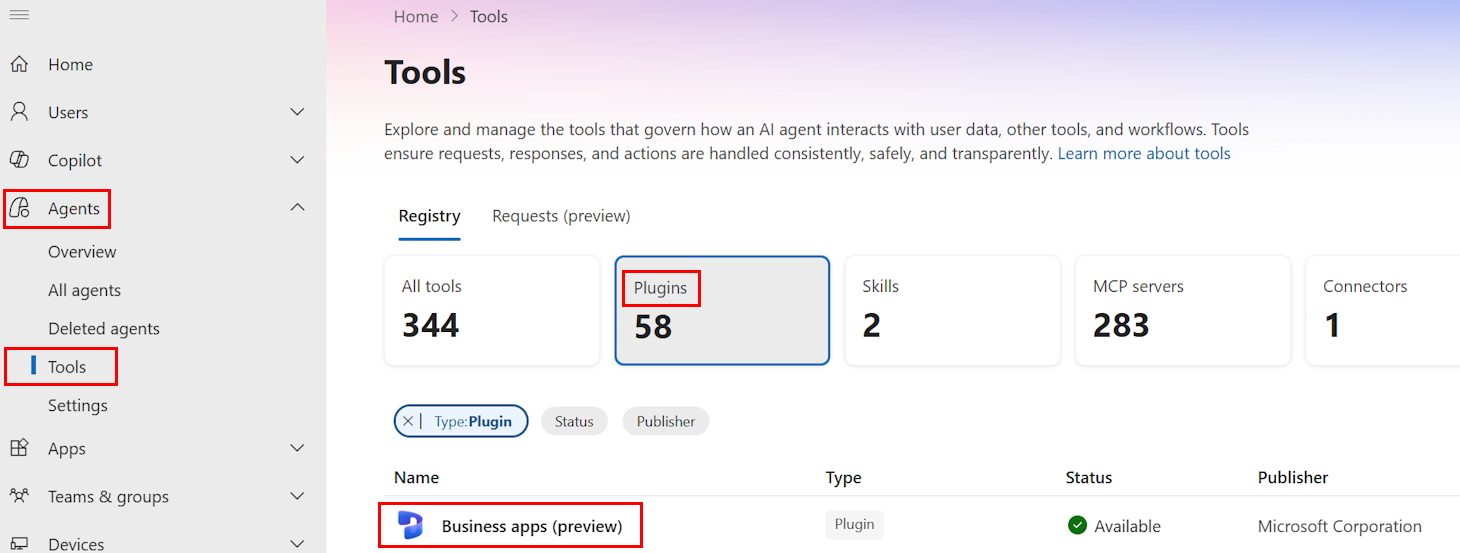
In the Business apps (preview) panel, select the Install button.
In the Installed for field, select All users or Specific users and groups.
Select Next.
In the Review and install panel, review your choices and select Install.
When the installation finishes, a green message appears saying the installation completed successfully.
Close the Business apps (preview) panel by selecting the (X) in the top right corner.
Set up the Business apps (preview) plugin
After an admin installs the Business apps (preview) plugin, you can add it to Cowork.
Open Copilot and select Cowork > Customize.
In the Business apps (preview) screen, select Show more.
In the Business apps (preview) screen under the MCP servers heading, select the Connect button next to Business apps (preview).
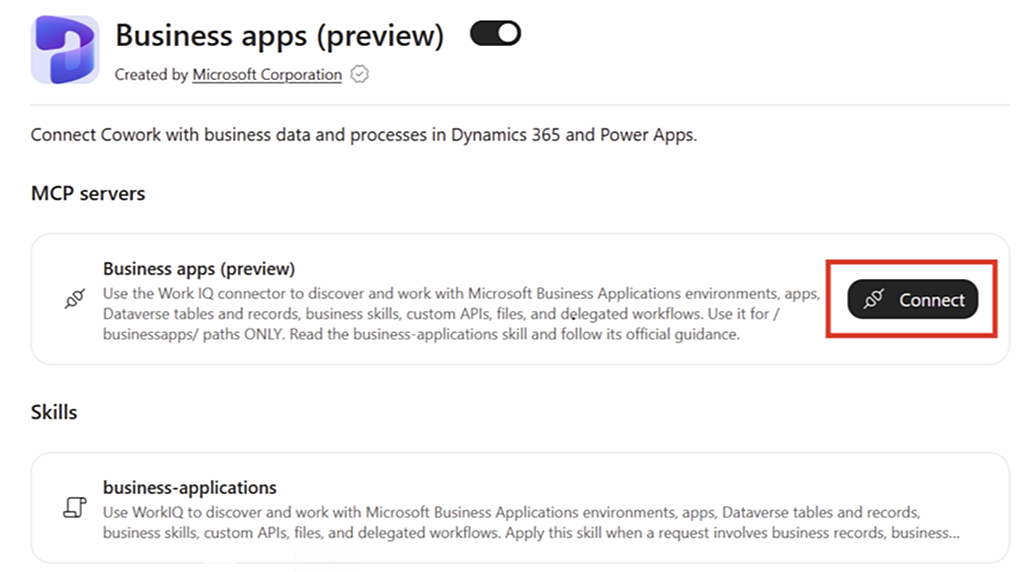
Select your credentials. A number appears to approve your sign in request.
Enter the number in the Authenticator app.
You're ready to create a chat in Cowork with the Business apps (preview) plugin.
Use case: Create a prompt in Cowork to find your environments
Once you add the Business apps (preview) plugin in Cowork, you can use it to create a prompt. You can interact with your business application data through natural language prompts.
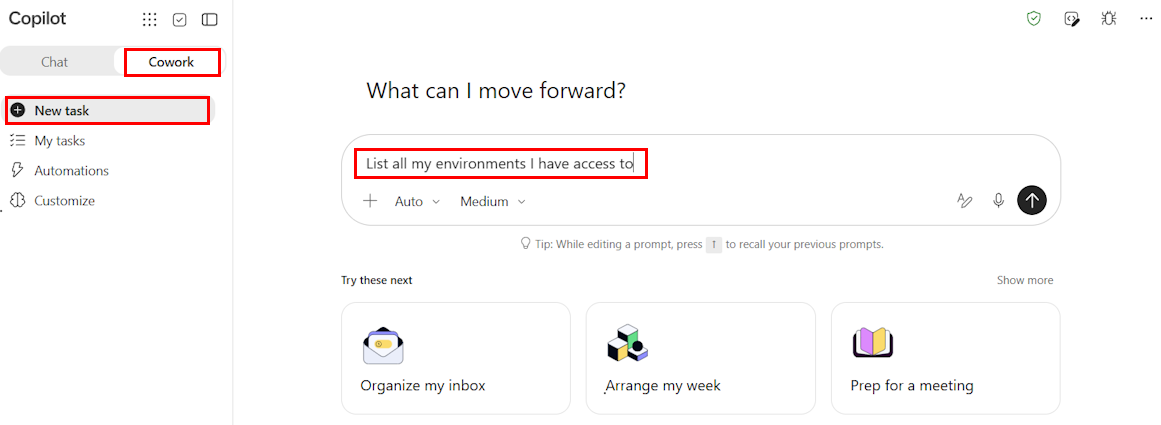
In Copilot, select Cowork > New task.
In the prompt box, enter a prompt. For example, you can ask, List all environments I have access to, as shown in the following screenshot.
View results from the environments prompt
In this example, the user has access to four business app environments:
| Environment | Environment ID | URL |
|---|---|---|
| Test | A#####b2-fd99-ed7a-ae43-656305434e0a | https://orgda#####.crm.dynamics.com |
| contoso-us-prod | 5#####b9-d5c1-e19b-800c-d27f1fe2011b | https://org6d#####.crm.dynamics.com |
| Contoso | B#####a6-e17f-ea77-aff8-1133ec603402 | https://org376#####.crm.dynamics.com |
| contoso-eu-prod | Fc#####-958b-ed69-a497-e11d6ebf8d40 | https://org3ec#####.crm4.dynamics.com |
Use case: Create a prompt in Cowork for table discovery by topic
Use the Business Applications in Work IQ plugin in Cowork to search across environments for tables related to a topic. For example, enter the prompt What tables exist that involve customer accounts? to return a list of tables grouped by the environments they appear in.
Note
The result of this and subsequent prompts might differ based on which environments you have access to.
View results from the table discovery by topic prompt
The following list shows the results that Cowork found. Cowork tells you in its own words how it found the answers. For example, the results might say something like, I found them by searching..., or I left out tables where....
Example
All four environments have tables for customer accounts. I found them by searching table names for "account" or "customer," so treat this as a starting list. I left out tables where "account" means a messaging channel account, such as SMS or WhatsApp.
In all four environments
- account: the main customer accounts table
- customeraddress: addresses for accounts and contacts
contoso-us-prod and contoso-eu-prod only
- contoso_customerrequest: a custom table for customer requests
Test and Contoso only
These two environments have the Dynamics 365 sales and service apps installed, so they add these tables:
- Account insights and research: msdyn_accountresearchresult, msdyn_accountresearchagenttrigger, msdyn_accountresearchsummarytrigger, msdyn_oobaccountresearchresult, msdyn_opportunityaccountresearchresult, msdyn_customaccountinsightsresult
- Account KPIs: msdyn_accountkpiitem, msdyn_dailyaccountkpiitem
- Customer assets: msdyn_customerasset, msdyn_customerassetattachment, msdyn_customerassetcategory
- Customer feedback and communication: msdyn_customerfeedbacksurvey, msdyn_customerfeedbacksurveyinvite, msdyn_customerfeedbacksurveyresponse, msdyn_customeremailcommunication, msfp_customervoiceuseractivity
- Customer profiles and lists: msdyn_preferredagentcustomeridentity, msdyn_targetcustomerprofileprefillagenttrigger, msdyn_vivacustomerlist
- Marketing customer data: msdynmkt_customerdatamapping, msdynmkt_customerdataselection
Tables like contact, opportunity, incident (cases), and invoice also link back to accounts, but they don't match the name-based search. Cowork can pull the columns for any of these tables or show sample account records from one environment.
Use case: Create a prompt in Cowork for table relationships
Use the Business Applications in Work IQ plugin in Cowork to map the relationships connected to a table. For example, the prompt Show me the relationships around account returns the relationships around the account table in the contoso-us-prod environment.
The account table doesn't list which tables point to it, so incoming links cover only the tables Cowork opened. There might be more.
Links from account to other tables
| Column | Links to | Meaning |
|---|---|---|
| parentaccountid | account | Parent company (account hierarchy) |
| masterid | account | The account this one was merged into |
| msa_managingpartnerid | account | Managing partner account |
| primarycontactid | contact | Main contact person |
| ownerid / owninguser / owningteam | systemuser / team | Who owns the account |
| owningbusinessunit | businessunit | Business unit that owns the account |
| preferredsystemuserid | systemuser | Preferred user to serve the account |
| createdby / modifiedby (and their "on behalf by" versions) | systemuser | Who created or last changed the account |
| createdbyexternalparty / modifiedbyexternalparty | externalparty | Outside party that created or changed the account |
| slaid / slainvokedid | sla | Service level agreement |
| transactioncurrencyid | transactioncurrency | The account's currency |
Links from other tables to account
| Table | Column | Meaning |
|---|---|---|
| contact | parentcustomerid (account or contact) | The company a contact belongs to |
| contact | accountid | Account lookup |
| contact | msa_managingpartnerid | Managing partner account |
| customeraddress | parentid (account or contact) | Extra addresses for the account |
| contoso_customerrequest | contoso_customerid | Customer requests, which also link to contoso_project through contoso_linkedprojectid |
The Contoso and Test environments have the full sales and service apps, so their account table likely has more links, such as opportunities, cases, and invoices. Cowork can map one of those relationships next.
More use cases
With Business Applications in Work IQ, you can ask Cowork practical questions across your Dataverse, Dynamics 365 Sales, Dynamics 365 Service, and custom Power Apps data. You don't need to know table names, relationships, or which environment contains the right records—Cowork can help discover the relevant business data and return governed answers based on your existing permissions. This matters because it helps your teams move faster from business question to actionable insight while continuing to rely on the controls already applied in your source systems.
Here are more use cases that you can try out:
- Show me everything related to this account across sales, service, and custom tables.
- Which opportunities are at risk based on close date, stage, or missing next steps?
- Show me high-priority cases that are still open or close to breaching SLA.
- What custom tables exist for customer onboarding, and how are they connected?
- Find business records assigned to my team that are overdue, blocked, or missing required information.