Note
Access to this page requires authorization. You can try signing in or changing directories.
Access to this page requires authorization. You can try changing directories.
Skills in Microsoft 365 Copilot Chat are generally available. A skill packages task-specific instructions, quality criteria, and optional supporting files or scripts so users don't need to repeat the same workflow in each conversation.
You can author a skill for use directly in Copilot Chat without creating a declarative agent. Users can select an installed skill explicitly or let Copilot select it automatically when it's relevant. Users control automatic invocation for each skill.
Choose the skill's scope
| Target | Authoring and distribution path |
|---|---|
| A personal skill used directly in Copilot Chat | Author a standalone SKILL.md file or a skill ZIP. Users can also create and edit personal skills with Copilot Chat. |
| A skill distributed as part of a plugin | Use Work IQ Dev Tools to create a Microsoft 365 app package, then use a supported sharing or publishing method. |
Author a personal skill
Tip
If you are planning to package your skill as a plugin, follow the steps in Package a skill in a plugin instead. The Work IQ Dev Tools automate most of the steps in this section.
Each skill requires a file named SKILL.md. Add optional resources and scripts only when the task needs them.
release-notes/
|-- SKILL.md
|-- references/
|   `-- release-note-format.md
`-- scripts/
    `-- format_release_notes.py
Start SKILL.md with YAML front matter containing a name and description. For WIQD plugin skills, the name must match the containing folder exactly. Use 1-64 lowercase alphanumeric characters and hyphens, with no leading, trailing, or consecutive hyphens. The description can contain 1-1,024 characters and should identify the requests that activate the skill.
For example:
---
name: release-notes
description: Draft release notes or a changelog from a supplied list of changes, grouped into Features, Fixes, and Other.
---

# Release notes

Use this skill when the user asks for release notes or a changelog.

1. Use the change list supplied by the user. If it is missing, ask for it.
2. Group the changes into Features, Fixes, and Other.
3. Use references/release-note-format.md for the output structure.
4. Preserve issue and pull request links from the supplied input.
5. Don't invent changes, links, version numbers, or release dates.
6. Return the draft and identify any missing information.
Include every file the instructions reference. For example, if you add a formatting script, explain when to run it, what inputs it accepts, and how to handle failures. Keep credentials, tokens, and secrets out of the skill.
Design guidelines
Keep the skill focused
- Give the skill one defined job, with clear inputs, outputs, and boundaries.
- Include phrases in the description that users are likely to use for that job.
- Keep
SKILL.mdunder 20,000 characters as an authoring recommendation. Move detailed reference material into supporting files and explain when to read them. - Keep the directory shallow and include only files needed for the task. Confirm the file count, directory depth, and package-size limits for each target host.
Add supported resources and scripts
Use file types supported by the Chat skill runtime:
| Category | File types |
|---|---|
| Instructions and resource files | .json, .xml, .yaml, .yml, .ini, .config, .utf8, .docx, .doc, .docm, .pdf, .ppt, .pptx, .ppsm, .xlsx, .xls, .xlsm, .csv, .tsv, .txt, .rtf, .md, .html, .htm, .png, .jpg, .jpeg, .gif, .bmp, .log |
| Scripts | .py, .js, .mjs, .cjs, .ts, .mts, .sh, .bash |
Chat skills and agent-attached skills have separate upload paths. Don't apply the Agent Builder and Agents Toolkit limits to a personal Chat skill upload.
Respect the script runtime boundary
Skill scripts:
- Can't access the internet or network at runtime.
- Can't install packages at runtime.
- Can use only packages already available in the runtime.
- Can't make authenticated network calls.
When a task requires external data or actions, have Copilot invoke an enabled connector or other supported external capability. Don't put network calls into a skill script as a substitute.
For a plugin that includes a remote MCP connector, use the app manifest's agentConnectors configuration. In the skill instructions, explain when and why Copilot should use the connector. Connection setup and user permissions remain separate from the skill instructions.
Account for data protection
Uploaded Chat skill files are stored in tenant-scoped SharePoint Embedded containers. Sensitivity labels are retained and label policies are honored. User-defined permissions and Double Key Encryption aren't supported.
Review the instructions, resources, scripts, data access, and outputs against your organization's requirements. Use Plan data, privacy, and security for the broader solution.
Upload the skill
For a direct skill upload, provide either SKILL.md alone or a ZIP with SKILL.md at its root and any supporting files beneath it. Don't include an extra enclosing directory above SKILL.md in the ZIP.
In Copilot Chat, select Agents > More agents. Select the drop-down beside Add, and select Upload skill.
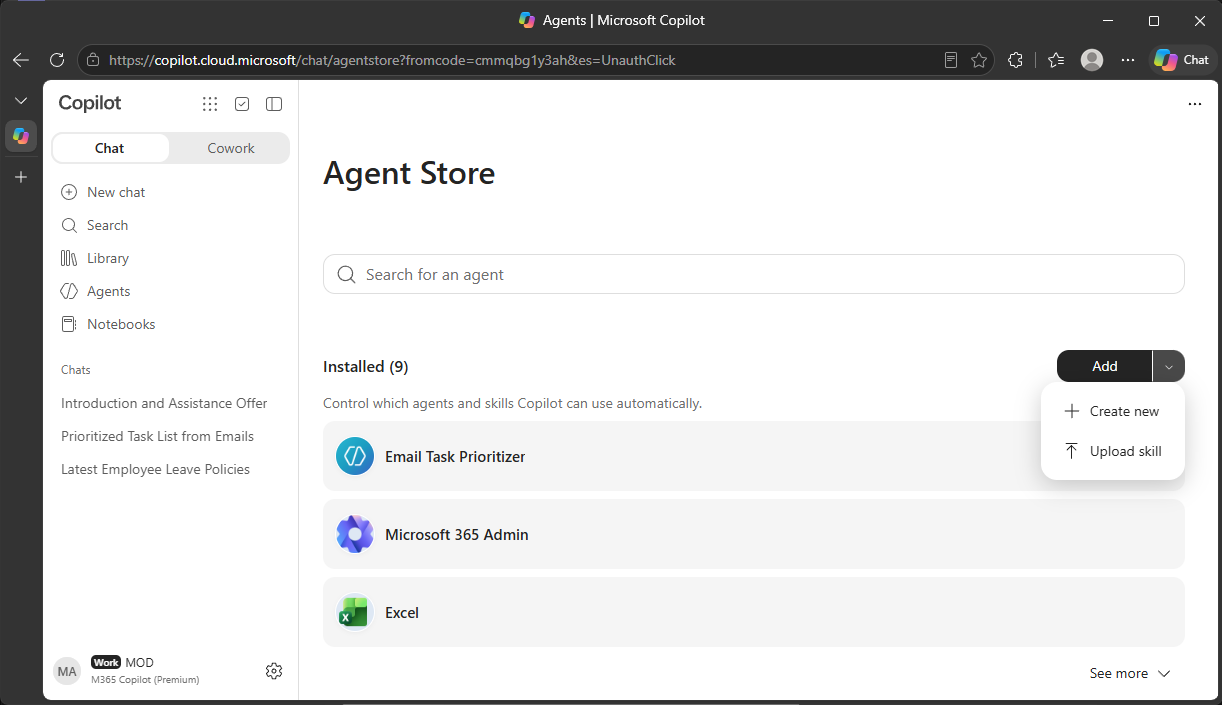
Add your SKILL.md or ZIP file and select Upload.
Package a skill in a plugin
Work IQ Dev Tools provides a pro-code workflow for creating, validating, provisioning, packaging, and sharing a skill-based plugin.
Note
Work IQ Dev Tools is in preview, and its wiqd plugin command tree is alpha. General availability of skills in Copilot Chat doesn't change the tool's release status.
Follow the WIQD installation and authentication prerequisites in Build a plugin.
Create a plugin project, and add a skill:
wiqd plugin create --name release-notes-plugin
Set-Location release-notes-plugin
wiqd plugin add skill --name "Release Notes"
Edit the generated
appPackage/skills/release-notes/SKILL.md, and add any referenced resources or scripts, following the guidance in Design guidelines.Follow the WIQD workflow to provision the intended environment, package the plugin, and validate the actual built ZIP. Source validation alone doesn't inspect skill content or prove runtime behavior.
Publish or share the plugin, and make it available to the intended users.
Note
The Microsoft 365 app manifest registers plugin-level skills through agentSkills. A declarative agent references its agent-scoped skills through agent_skills in the declarative agent manifest. Don't interchange these properties or assume that declaring a skill on one surface registers it on the other.
For format rules, manifest details, and host-specific constraints, see the WIQD plugin authoring reference. A skill intended for both Chat and Cowork must meet the requirements of both hosts.
Test discovery and invocation
Test the installed skill in each Microsoft 365 experience you intend to support:
- Confirm that an intended user can find and select the skill.
- Explicitly select the skill, provide representative input, and check its output and supporting files.
- Enable automatic invocation and use a request that matches the skill description. Confirm that Copilot selects the intended skill.
- Turn automatic invocation off and confirm that the skill isn't automatically selected. Explicit selection is a separate use case.
- Test missing inputs, ambiguous requests, unavailable tools, and script failures. Ensure the response identifies the problem rather than silently returning an incomplete result.
- If the plugin includes other capabilities, test them together. Confirm that the intended connector or MCP tool is actually invoked.
- If you support both Chat and Cowork, verify discovery, installation, and execution in both. Don't infer availability or editing support in one product from a successful test in the other.
Publication, deployment, sharing, and installation are distinct steps. Verify the installed experience for the intended audience rather than treating a successful package upload as proof that the skill is discoverable.