Note
Access to this page requires authorization. You can try signing in or changing directories.
Access to this page requires authorization. You can try changing directories.
The Microsoft 365 Copilot Agent Evaluations CLI (@microsoft/m365-copilot-eval) reads connection and authentication settings from environment variables. This article shows you where to obtain each value.
For the list of variables and where to put them, see Agent Evaluations CLI overview and Quickstart: Use the Agent Evaluations CLI.
Before you begin
Gather the following items before you collect values:
- Access to the Azure subscription that hosts your Azure OpenAI model in Microsoft Foundry project.
- Sign-in access to the Microsoft 365 tenant where your Copilot agent is deployed.
- The Azure AI Developer role on the Microsoft Foundry project. If you can't deploy models or access the project, ask your subscription administrator.
Get your tenant ID (TENANT_ID)
TENANT_ID is the Microsoft Entra tenant ID where your agent is deployed. It's a GUID in the form xxxxxxxx-xxxx-xxxx-xxxx-xxxxxxxxxxxx.
Use any of the following methods.
Option 1: Microsoft Entra admin center
- Sign in to the Microsoft Entra admin center with an account in the target tenant.
- Select Identity > Overview.
- Copy the Tenant ID value.
Option 2: Azure CLI
If you have the Azure CLI installed:
az account show --query tenantId --output tsv
If you belong to multiple tenants, sign in to the correct one first:
az login --tenant <tenant-domain-or-id>
Option 3: Azure portal
- Sign in to the Azure portal.
- Select Microsoft Entra ID from the portal menu.
- Copy the Tenant ID from the Overview page.
Tip
If runevals connects but reports that your agent can't be found, the most common cause is a TENANT_ID that doesn't match the tenant your agent is deployed to. See Tenant mismatch.
Deploy a GPT-5 mini model in Microsoft Foundry
The evaluation tool uses a Microsoft Foundry project with a GPT-5 model to score responses with cloud evaluation. GPT-5 mini is recommended, but you can use any GPT-5 model. You need the project endpoint (AZURE_AI_PROJECT_ENDPOINT) and the model deployment name (AZURE_AI_MODEL_NAME). The Foundry path authenticates with Microsoft Entra, so you don't need an API key.
If you don't already have a Microsoft Foundry project with a deployed model, follow these steps to create one:
Sign in to the Azure portal.
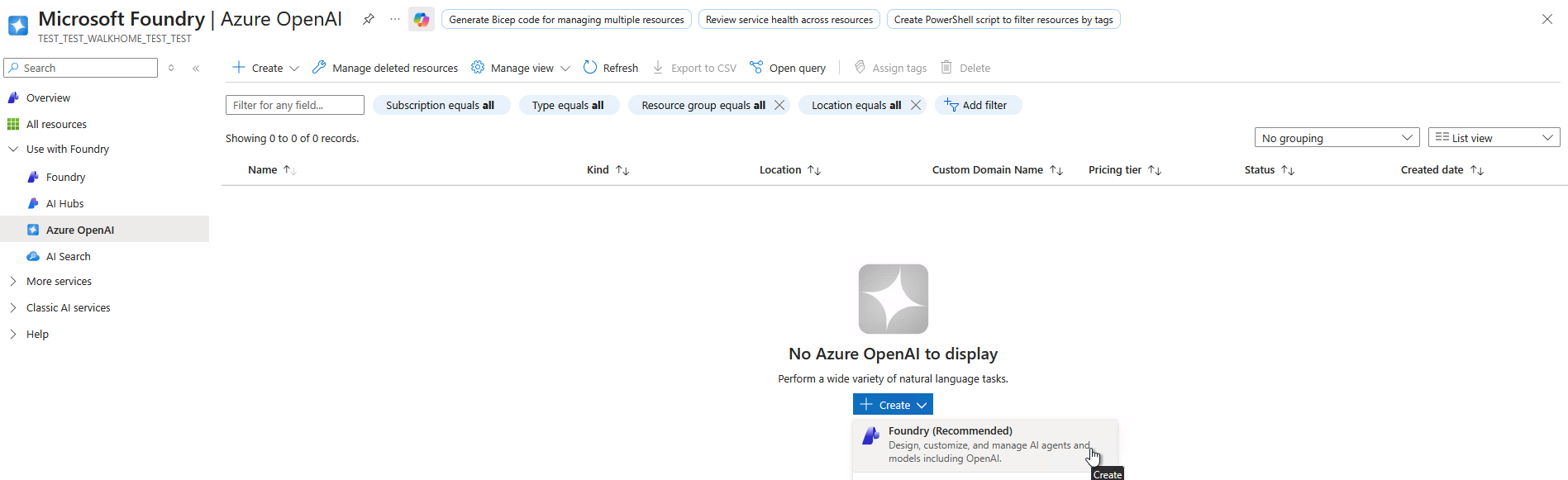
In the search bar, enter OpenAI and select Azure OpenAI from the results.

Select Create to create a Microsoft Foundry resource.
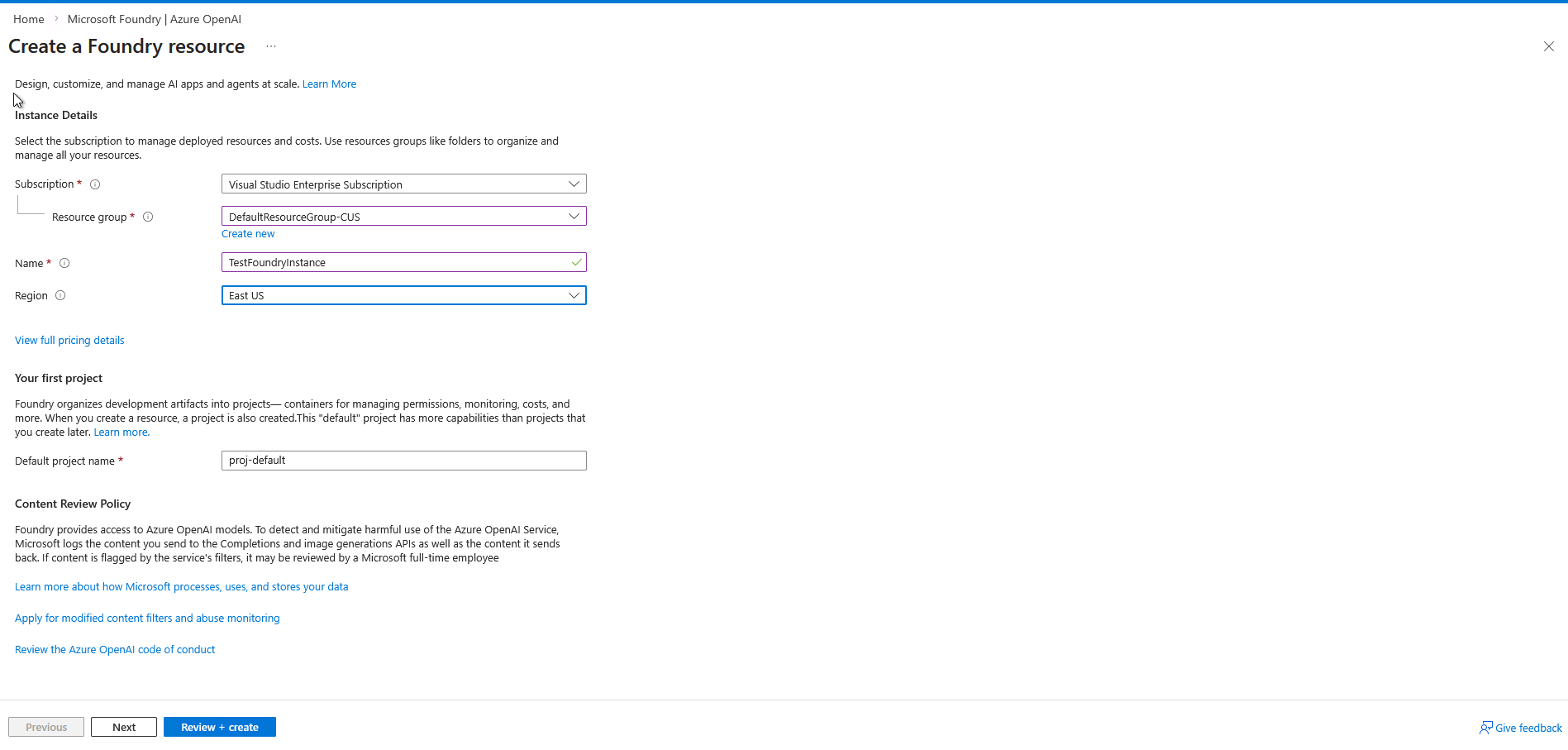
On the Create AI Foundry resource form, fill in the details, and then select Review + create.
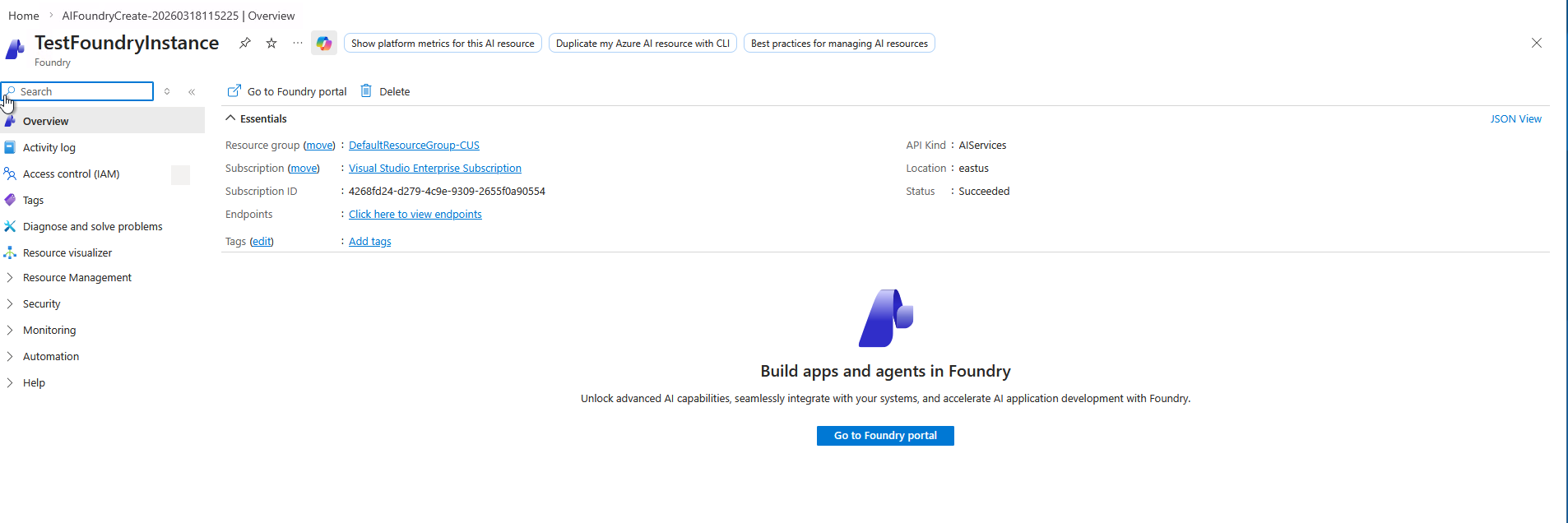
After the resource is deployed, open the Microsoft Foundry portal.
In the left navigation, select Models + endpoints.
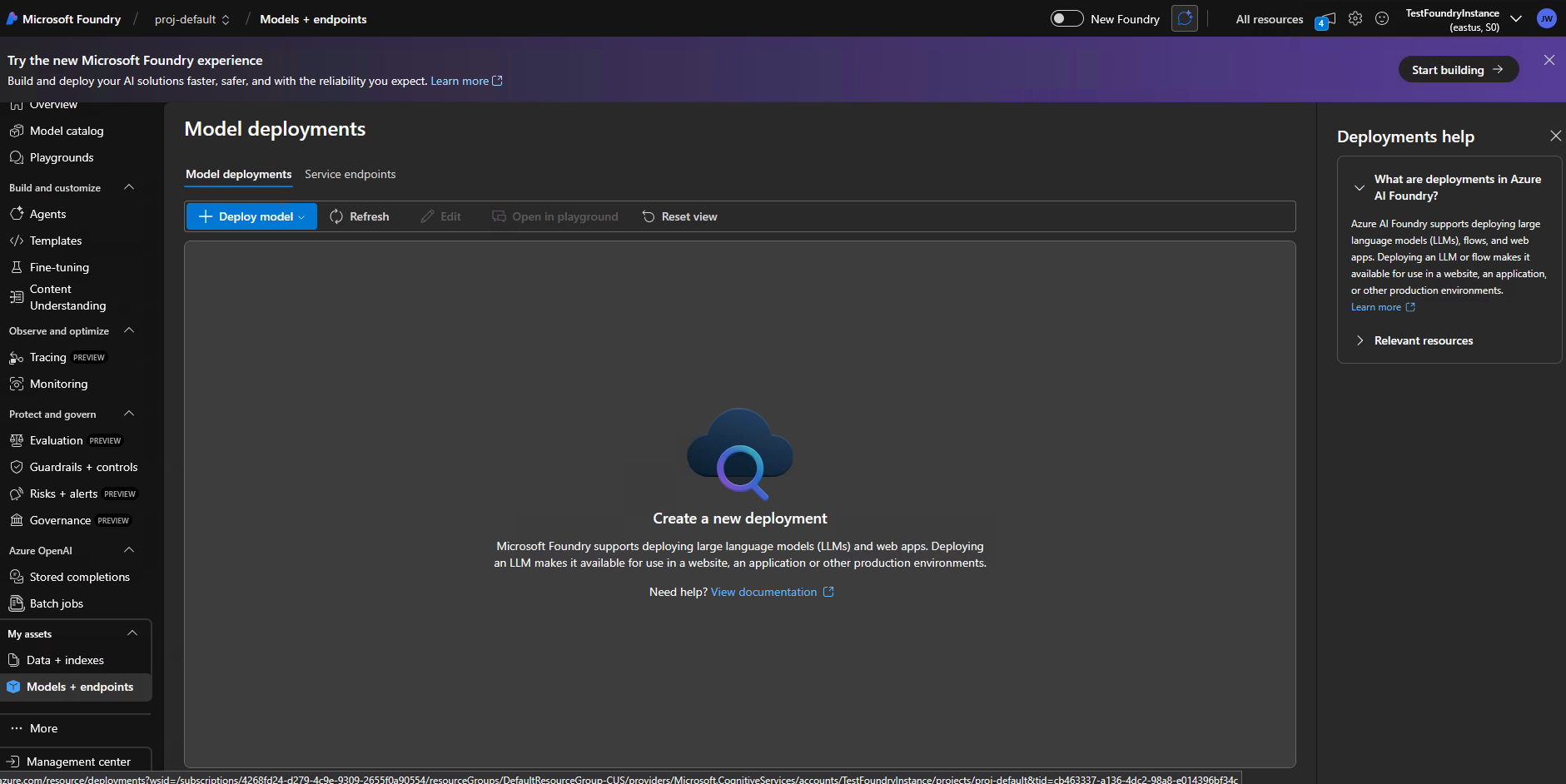
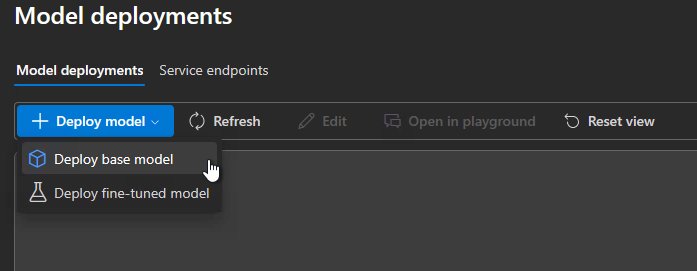
Select Deploy model > Deploy base model. Select the gpt-5-mini model. GPT-5 mini is supported for the Foundry cloud-evaluation path.
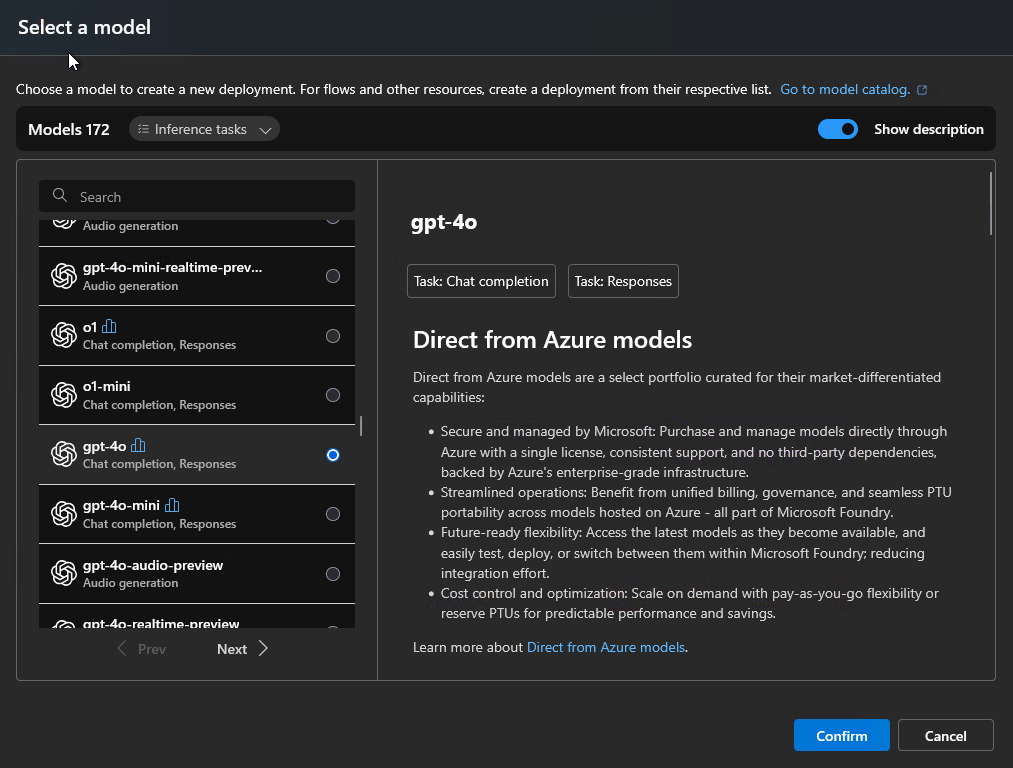
Select Confirm, and then select Customize.
Adjust the capacity as needed for your evaluation workload.
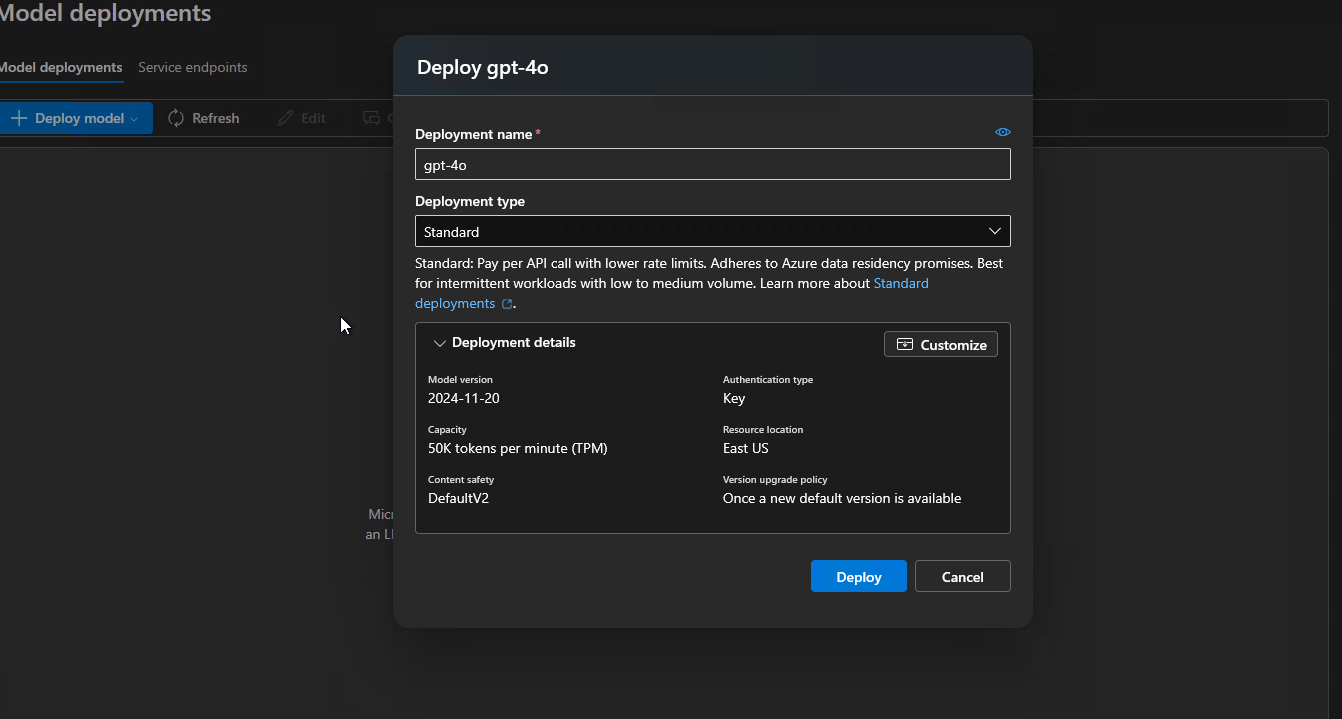
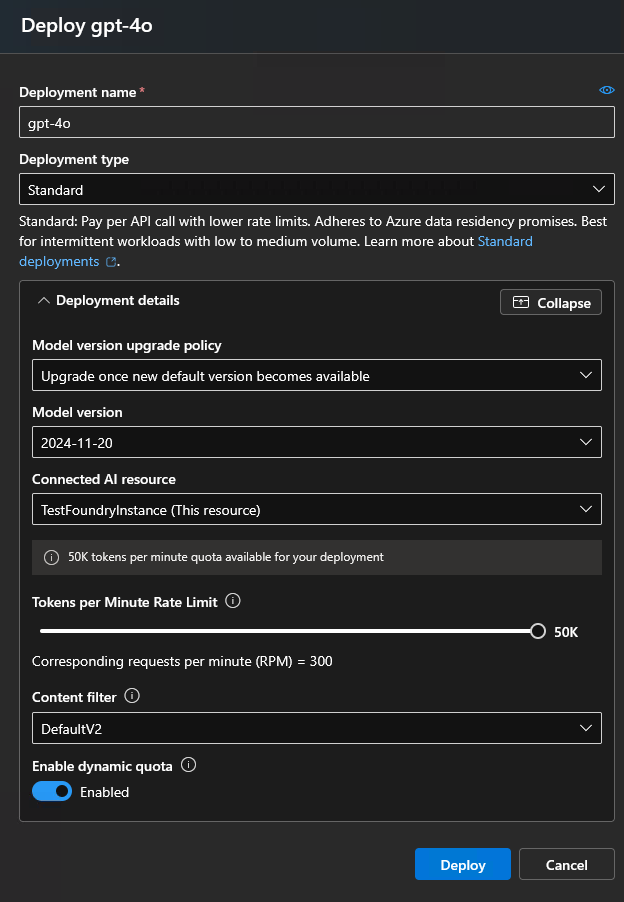
Select Deploy and wait for the deployment to report Succeeded.
From the Foundry project home page, copy the Project endpoint. This value is for
AZURE_AI_PROJECT_ENDPOINT.Under Recent work, select the GPT-5 mini deployment. On the deployment's Details tab, copy the deployment Name. This value is for
AZURE_AI_MODEL_NAME.Add these values to your env file. For details, see Step 3 of the Quickstart.
Sign in with Microsoft Entra
The Foundry cloud evaluation path uses Microsoft Entra authentication instead of an API key. Sign in with the Azure CLI before you run evaluations:
az login
If the Foundry project is in a different tenant, sign in to that tenant:
az login --tenant <tenant-id>
You need the Azure AI Developer role on the Foundry project.
Get your agent ID (M365_AGENT_ID)
M365_AGENT_ID identifies the Copilot agent that runevals sends test prompts to. The CLI accepts two formats:
- User-scoped:
U_xxxxxxxx-xxxx-xxxx-xxxx-xxxxxxxxxxxx - Tenant-scoped:
T_<agent-name>.declarativeAgent
Microsoft 365 Agents Toolkit projects
If you built your agent by using the Microsoft 365 Agents Toolkit, you don't need to set M365_AGENT_ID directly. The CLI auto-detects the agent ID from M365_TITLE_ID, which the Agents Toolkit writes to .env.local during provisioning.
To confirm, open .env.local in your project root and look for a line similar to:
M365_TITLE_ID="U_0dc4a8a2-b95f-edac-91c8-d802023ec2d4"
Non-Microsoft 365 Agents Toolkit projects
Set M365_AGENT_ID explicitly in env/.env.<environment>. Get the value from the location where your agent was published - for example, the Microsoft Teams admin center, the Microsoft 365 admin center, or the deployment output from your publishing pipeline.
Override the agent at run time
To evaluate a different agent without editing env files, pass --m365-agent-id on the command line:
runevals --m365-agent-id "U_0dc4a8a2-b95f-edac-91c8-d802023ec2d4"
For details, see --m365-agent-id in the CLI reference.
Set the model deployment
Two variables control which Microsoft Foundry project and model deployment the CLI uses for scoring. AZURE_AI_MODEL_NAME has a working default, so you can accept the default or set both values explicitly in your env file:
AZURE_AI_PROJECT_ENDPOINT="https://<account>.services.ai.azure.com/api/projects/<project>"
AZURE_AI_MODEL_NAME="gpt-5-mini"   # deployment name in Foundry
| Variable | Default | When to change |
|---|---|---|
AZURE_AI_PROJECT_ENDPOINT |
None | Always set this value to the endpoint of the Microsoft Foundry project used for scoring. |
AZURE_AI_MODEL_NAME |
gpt-5-mini |
You want to score with a different deployment in your Microsoft Foundry project. |
AZURE_AI_MODEL_NAME must match the deployment name exactly as it appears in your Microsoft Foundry project.
Get AZURE_AI_MODEL_NAME from Foundry
- Sign in to the Microsoft Foundry portal and open your project.
- Select Models + endpoints.
- Copy the Deployment name of the model you want to use for scoring.
Validate your values
After you gather the values and add them to the appropriate env file (see Step 3 of the Quickstart), run:
runevals --init-only --log-level debug
This command loads your environment, initializes the Python runtime, and surfaces configuration errors without running evaluations. If it completes without error, your values are loaded correctly.
Warning
--log-level debug might print raw API payloads. Review the output before sharing it. Redaction is pattern-based and might not catch every key or identifier.
Troubleshooting
Use the following table to troubleshoot issues you might encounter.
| Symptom | Likely cause | Next step |
|---|---|---|
| Authentication error on startup | Signed in to the wrong Microsoft 365 account, or TENANT_ID doesn't match your agent's tenant. |
See Authentication errors. |
| Tool connects but no agent is found | TENANT_ID mismatch, or the agent isn't deployed to that tenant. |
See Tenant mismatch. |
| Scoring fails with 401 or 403 | You aren't signed in with az login, or your account lacks the Azure AI Developer role on the Foundry project. |
See Foundry scoring errors. |
| Value in env file is ignored | Another env file earlier in the precedence order sets the same variable. | See Environment file precedence. |