Note
Access to this page requires authorization. You can try signing in or changing directories.
Access to this page requires authorization. You can try changing directories.
Line-of-business (LOB) MCP apps connect Microsoft 365 Copilot to enterprise systems that support core business functions, such as CRM, IT service management, ERP, and HR. This article provides developers and architects with core design patterns and common pitfalls for integrating the data, relationships, permissions, and workflows from these systems.
Why LOB MCP apps require additional design
In a declarative agent, MCP apps add an interactive app widget to an MCP tool response. Microsoft 365 Copilot provides the conversational entry point, the MCP server connects to an external system, and the app widget lets users review, explore, or act on data without leaving the conversation.
Users working in Microsoft 365 Copilot often need to retrieve information or perform actions in line-of-business (LOB) systems such as Salesforce, ServiceNow, HubSpot, Microsoft Dynamics 365, SAP business applications, Workday, Jira, and Coupa. These packaged enterprise applications include extensive prebuilt data structures, relationships, and business logic, which organizations often customize further. As a result, even two deployments of the same LOB product can expose different fields, values, relationships, permissions, and workflows. User requests are also varied and can combine business names, filters, related records, and actions without following a fixed structure.
For example, a user might ask Copilot, “Find Global Fizz and show its related open records.” Supporting requests like this requires more than exposing tools that retrieve or update data. The MCP app must interpret business terms, validate them against the target environment, resolve related records, preserve access controls, and coordinate multi-step workflows. These requirements call for deliberate patterns across tool design, data handling, and interactive experiences.
For foundational guidance, see Build an MCP plugin, Add UI with MCP apps, and UX guidelines for MCP apps.
The following design principles, based on the Salesforce, ServiceNow, and HubSpot reference samples, address these challenges from the data model through tool design and interactive workflows.
Map the LOB data model before defining tools
Before defining the MCP tools that Copilot can call, review the supported conversation scenarios and the LOB application's data model. Each LOB application has an out-of-the-box data model, but organizations can customize it extensively. Therefore, the product's default schema or a reference sample might not match the target environment. Verify each entity and field, including its API name, label, data type, required or read-only status, accepted values, and relationships.
Work with the LOB application customization team to identify environment-specific changes. Keep the MCP server, tool schemas, and app widgets aligned with the current data model so they don't drift from the LOB system.
Separate responsibilities across MCP app components
LOB MCP apps must apply customized business rules, preserve source-system permissions, resolve related records, and handle consequential updates across agent instructions, MCP tools, LOB integration, and the app widget. Keep these responsibilities separate so rules are enforced consistently and each layer can be secured, tested, and changed independently.
- Use agent instructions and tool descriptions to guide tool selection and argument preparation. Validate every tool call on the server; don't rely on instructions to enforce permissions, allowed values, relationships, or query safety.
- Use the MCP server entry point—the code that receives incoming MCP requests—to route tool calls. Keep business rules, value translation, relationship resolution, and result preparation in the tool handlers or helper code used by those handlers.
- Use the LOB client or adapter for downstream authentication and API communication. Keep pagination, retries, throttling, and source-system error handling behind this boundary.
- Build and maintain the app widget in its source files. The app widget displays results, collects input, and uses the host bridge to call MCP tools. It must not store credentials, make authorization decisions, or call the LOB API directly. Generate the deployable app widget HTML from this source; don't edit generated files directly.
Match authentication to the LOB system
Authentication to the MCP endpoint and authentication from the MCP server to the LOB system are separate boundaries. The following options describe downstream LOB authentication. Verify what the target system supports before choosing an approach:
- Delegated identity uses each user's sign-in token. It preserves per-user permissions and audit history, but requires LOB support, additional authentication setup, and token management.
- Application identity uses a client ID with a secret or certificate. It simplifies service-to-service access, but the LOB system attributes actions to the application instead of the user.
- Shared credential uses one private token, API key, or service-account password for everyone. It's simple to configure, but the LOB system can't apply per-user permissions or attribution.
For MCP endpoint options, see MCP authentication.
Build a contextual experience, not another application
LOB systems already provide full applications for broad workflows, exploration, and administration. Don't recreate that application or replicate its screens inside an MCP app. Replicating full screens increases load time and makes the experience feel less conversational. Use an LOB MCP app for the focused UI needed by the current conversation, and direct broader work to the LOB system.
Let the conversation establish the task and use the app widget when the task benefits from structured review or interaction.
For example, a user might ask:
User: "Show my open opportunities closing this month."
The app widget can present the filtered records for review and editing without reproducing the full CRM experience.
Let users traverse related business entities in the app widget
LOB information often spreads across related entities. Understanding an account, case, employee, or supplier might require viewing associated records while keeping the primary record in context. Use app widget state and UX features such as expandable sections or detail views so users can explore these relationships without making a separate conversational request for each entity.
For example, when a user asks Copilot for an account, the returned account becomes the primary record that the app widget keeps in context:
User: "Show the Global account."
Show the account's key fields with controls for related entities such as Opportunities, Cases, and Contacts. Preserve the account context in app widget state. When a selected view needs related data, invoke the appropriate MCP tool through the host bridge by using the current account ID. Load related records only when the user opens that view, and keep the primary record visible.
Use lists to show the key fields for review, and add an Edit button that opens the detailed form for the selected record.
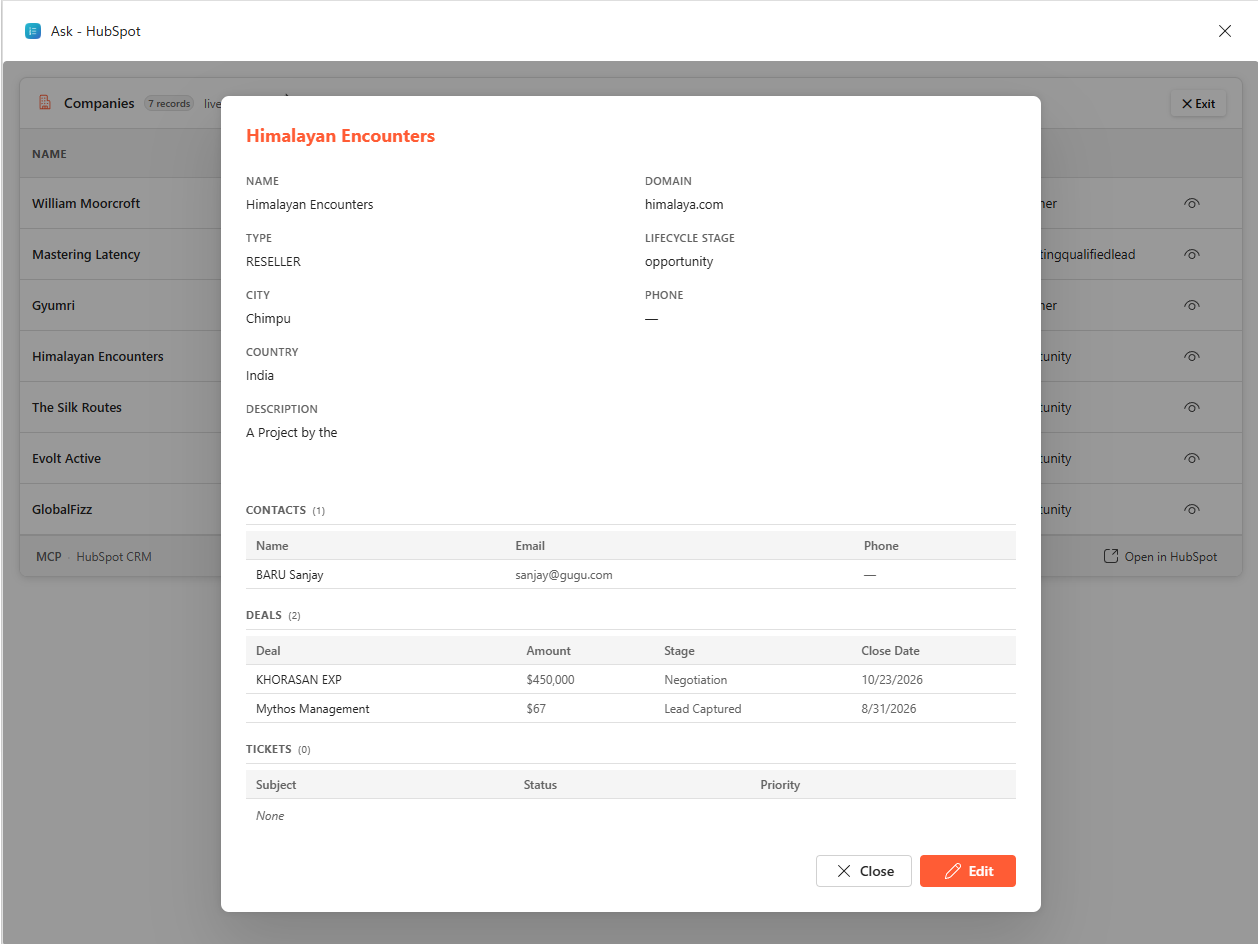
The conversation establishes the business context once, and the UI lets the user continue exploring that context through direct interaction.
The initial request might instead name the related view the user wants:
User: "Show opportunities for the Global account."
Use the related-entity traversal experience only when users need to explore across records. Traversal screens are heavier because they maintain context and load multiple related views. Keep inline app widgets focused. When traversal requires more space, use an expanded surface that preserves the conversation. For independent operations, use a focused app widget designed for that task.
Prefill app widgets with conversation context
When a user creates an LOB record, the form can contain many required, controlled-value, and relationship fields. Users often provide some of this information in their request. Prefill those values in the create form so the user can review them and complete the remaining fields without repeating information. This pattern uses the conversation to supply context and the app widget to provide structured review and interaction.
For example, the user's request might supply values for several form fields:
User: "Create a contact for Maya Chen at Contoso with the email
maya@contoso.com."
show_create_form(
    entity="contact",
    prefill={"first_name": "Maya", "last_name": "Chen",
             "email": "maya@contoso.com", "company_name": "Contoso"}
)
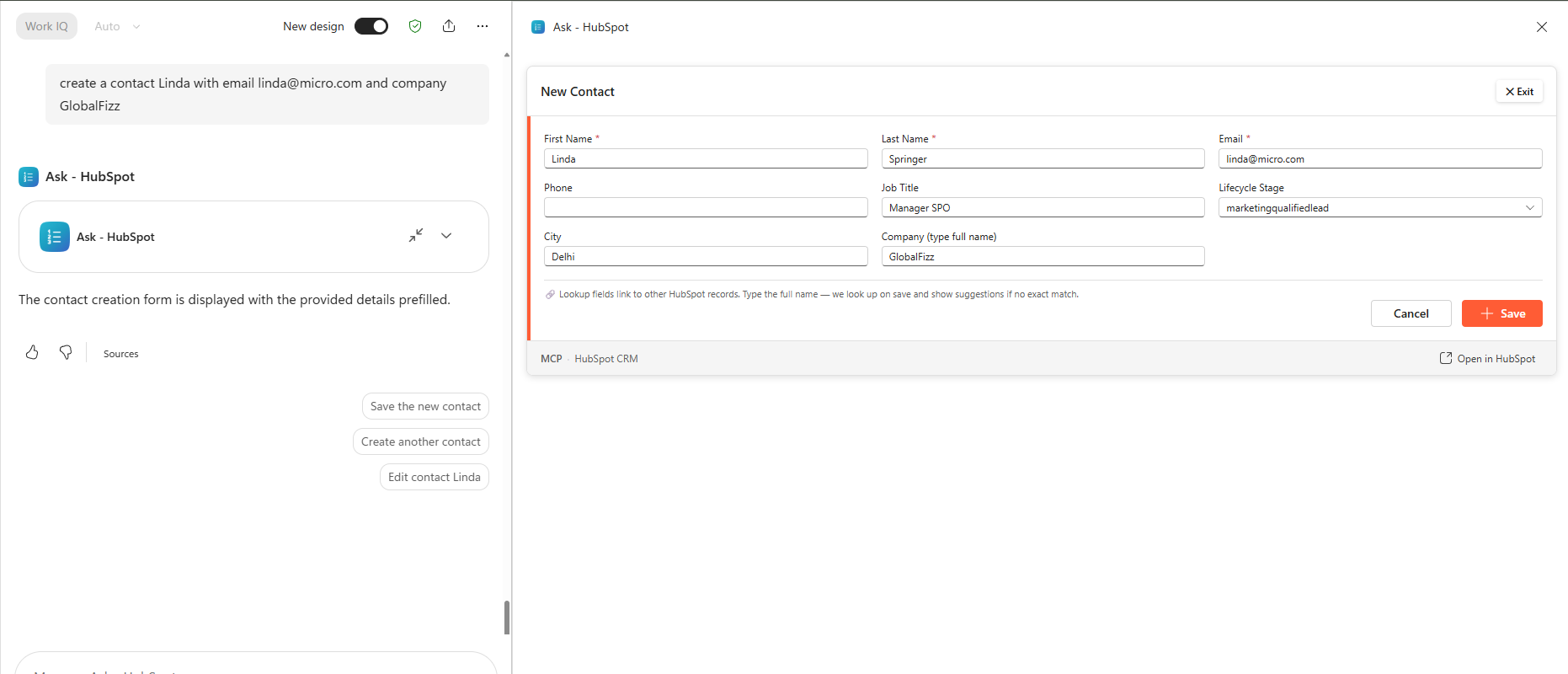
The app widget opens with those values populated so the user can review them and complete any missing fields. Treat prefilled values as user input: validate them on the MCP server before creating the record.
Use Work IQ when Microsoft 365 work context can improve the task. It can help ground requests involving “my” and provide relevant context for creating or updating records.
Design tools and interactions for LOB data
Design tools around business operations
LOB systems typically expose large, complex APIs with many entities and operations. Don't mirror the entire API as MCP tools. Define a focused set of business operations that users need, and give each tool a distinct name, description, and input schema. Keep supporting work, such as building API filters and resolving related record names, inside the MCP server.
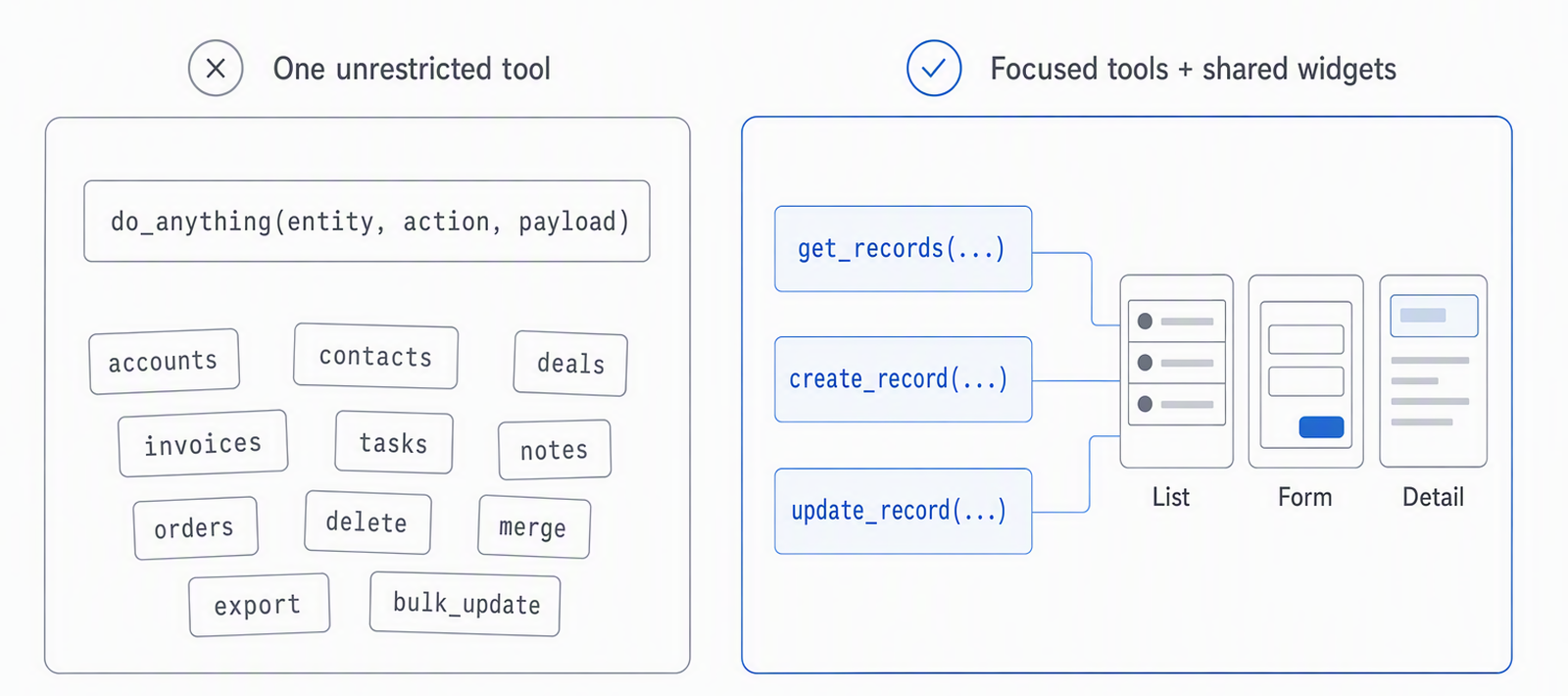
Design tools and app widgets together. Reuse a small set of optimized app widgets for common interaction types, such as lists, forms, and detail views, rather than creating a separate widget for every tool or entity. This approach keeps the user experience consistent and reduces widget code, loading overhead, and maintenance.
Create separate tools for common operations such as get, create, and update:
get_records(...)
create_record(...)
update_record(...)
Also avoid one unrestricted tool that accepts any entity and action. Its broad schema makes validation, authorization, routing, and result handling less predictable.
Handle record matches before viewing or editing
Users usually search for LOB records by business names, such as account, company, or contact names, rather than by stable record IDs. Record IDs often contain many digits and are impractical to remember or enter in conversation. For example, a Salesforce record can have an 18-character ID such as 0015g00000ABCDeAAH, which a user is unlikely to know or type. Business names are often proper nouns, and users might enter partial values or make spelling mistakes. A search can therefore match zero, one, or multiple records. Use a name-to-ID resolution pattern to turn the user's text into a verified stable record ID before viewing or editing. This approach prevents the operation from being applied to the wrong record. Never assume that the first match is the intended record. Declare the supported search fields and record-ID parameter in the tool schema.
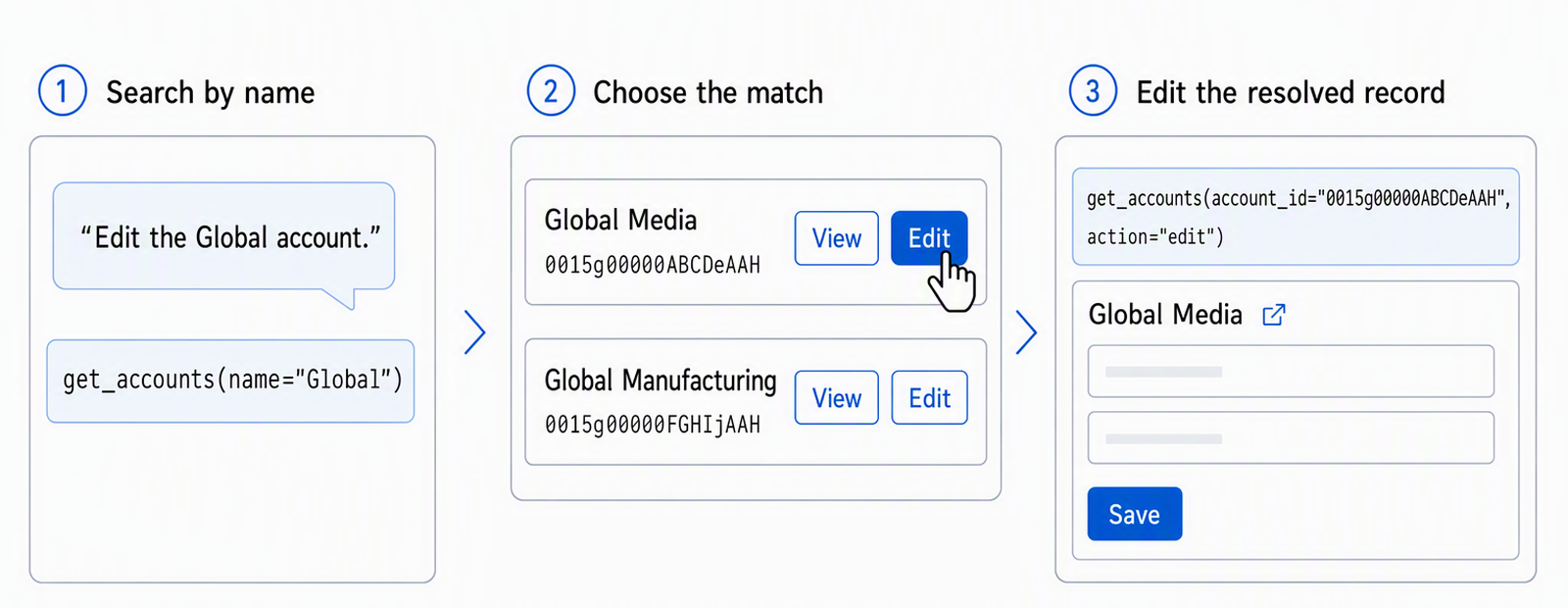
For example, a user might identify the account to edit by name:
User: "Edit the Global account."
First, call the tool with the user's text:
get_accounts(name="Global")
The MCP server maps the text to a supported Contains or LIKE search with a result limit. For more information about mapping filters to LOB query operators, see Build filtered lists on the MCP server. This approach discovers candidate records when the user doesn't provide the exact stored name. Return lightweight candidate results with each stable ID and the recognizable fields needed to distinguish records:
{
  "structuredContent": {
    "type": "accounts",
    "items": [
      {
        "id": "0015g00000ABCDeAAH",
        "name": "Global Media"
      },
      {
        "id": "0015g00000FGHIjAAH",
        "name": "Global Manufacturing"
      }
    ]
  }
}
After the candidate results return, continue based on the match count. For a single unambiguous match, call the tool again with its ID and the requested action. For multiple matches, display a list with View or Edit controls; the selected control calls the tool with that record's ID. In either case, the second call uses the resolved ID and requested action:
get_accounts(account_id="0015g00000ABCDeAAH", action="edit")
If no records match, prompt the user to refine the search.
Capture this two-call pattern in the agent instructions, and declare both the name filter and record-ID input in the tool definition:
{
    "name": "get_accounts",
    "description": "Get accounts. Pass account_id to retrieve one record; add action='edit' to open the edit form. Filters: name, industry, account_number, and type.",
    "handler": get_accounts,
}
Map controlled and pick list values and dependencies
LOB systems often use controlled-value fields, also called pick lists, choice fields, or enumerations. Users see labels such as Closed Won, while the API might require a stored code such as closedwon. Don't assume that a familiar label has the same stored value in every implementation.
Controlled-value fields accept only values configured in the target LOB environment. Stored values can be text codes, numbers, or other system identifiers. Using a display label, arbitrary text, or a stale stored value in queries or other CRUD requests can cause validation errors, failed writes, or missing results.
Retrieve labels and codes from the LOB metadata API and cache them for reference. If the LOB system doesn't provide a metadata API, maintain and verify the mappings through administrative configuration. Refresh the cached or configured mappings when the source configuration changes so the tools and app widgets don't drift.
For example, the following case-insensitive lookup translates a user-facing label into its stored code:
label_to_code = {item["label"].casefold(): item["value"] for item in allowed_values}
normalized_value = user_value.casefold()
if normalized_value not in label_to_code:
    raise ValueError("The value is not supported by the LOB system.")
status_code = label_to_code[normalized_value]
When controlled-value fields have dependencies—one selection controls another—capture those relationships in the metadata used by the MCP server and app widget. For example, if Category controls Subcategory, selecting Hardware should show only its allowed subcategories. Validate the selected combination on the MCP server before writing to the LOB system.
valid_codes = dependencies[category_code]
if subcategory_code not in valid_codes:
    raise ValueError("The subcategory is not valid for the selected category.")
Build filtered lists on the MCP server
LOB queries often combine conditions across different field types and related records. Users express these conditions through business labels and names, while the LOB API requires exact field names, stored values, data types, and query operators. Define one focused list tool for each supported business entity so the MCP server can validate, translate, and execute the complete query.

For example, a user might express a minimum amount in business terms:
User: "Show deals worth at least 20,000."
Agent instructions guide Copilot to match the request to an appropriate tool and use only the filters declared in its description. The tool schema and handler reject unsupported filters.
Before calling a list tool, match each condition in the user's request to a filter declared in the tool description. Don't omit an unsupported condition or replace it with a different filter. Ask the user to revise the request when the tool doesn't support a requested filter.
Copilot interprets “at least 20,000” as a minimum-amount condition. It selects get_deals because the tool description declares the corresponding amount_min filter:
{
    "name": "get_deals",
    "description": "Get deals. Filters: amount_min (inclusive minimum amount), stage.",
    "handler": get_deals,
}
Copilot then maps the condition to the declared tool parameter:
get_deals(amount_min="20000")
The MCP server validates the value and maps the tool parameter to the field and operator required by the LOB API:
FILTERS = {"amount_min": ("amount", ">=")}

def build_filter(parameter: str, value: str) -> str:
    field, operator = FILTERS[parameter]
    return f"{field} {operator} {float(value)}"

lob_filter = build_filter("amount_min", "20000")
LOB records contain many data types, and each can require a different parameter shape and query operator. Applying one filtering pattern to every field can cause invalid queries or incorrect results. Map each supported data type to the appropriate parameters and operators:
| Data type | Operator | Parameter pattern | Example |
|---|---|---|---|
| Free-form text | Contains or LIKE |
One parameter | name |
| Controlled value | Equality | One parameter | stage |
| Related record | Equality | One parameter | account_id |
| Number | Lower and upper bounds | *_min, *_max |
amount_min, amount_max |
| Date | Start and end bounds | *_from, *_to |
close_date_from, close_date_to |
For text filters used to locate one record, Contains or LIKE results are candidates rather than a verified identity. Resolve the intended candidate to its stable record ID before a view or edit operation.
Validate and format every value before adding it to the LOB query. Execute all conditions as one server-side query rather than asking Copilot to combine results from several tool calls, which can lose filters or produce inconsistent results. Return one authoritative structured list.
When the user refines the request in a later turn, retain the applicable filters and add or replace only the conditions that changed:
User: "Show deals worth at least 20,000."
User: "Now show only the closed-won deals."
get_deals(amount_min="20000", stage="Closed Won")
Return the same structured list type after each refinement so the host renders the results consistently.

Limit and cache list results
LOB entities can contain thousands of records, and their APIs can be slow or throttled. Returning large lists increases response time and payload size, while displaying them overwhelms the app widget and occupies too much space in Microsoft 365 Copilot.
Apply default and maximum result limits on the MCP server, use predictable sorting, and indicate when more records are available. Let users refine their filters or use an explicit Load more action backed by server-side pagination.
Cache suitable list, metadata, and related-record results to reduce repeated LOB API calls:
cache = TTLCache(maxsize=200, ttl=120)
items = None if refresh else cache.get(cache_key)
Choose expiration times based on how frequently the data changes. Include the query and security context in cache keys, don't share user-specific results between users, and invalidate affected entries after writes. When the user requests refreshed or latest data, bypass the cache and call the LOB API.
Resolve related names in lists without N+1 lookups
LOB data is highly relational. Records often store links to accounts, contacts, owners, or other entities as system IDs, and can include self-referential relationships such as parent accounts or manager hierarchies. Users, however, need recognizable business names. Resolving each ID with a separate request creates an N+1 query pattern that becomes slower as the list and its relationships grow.
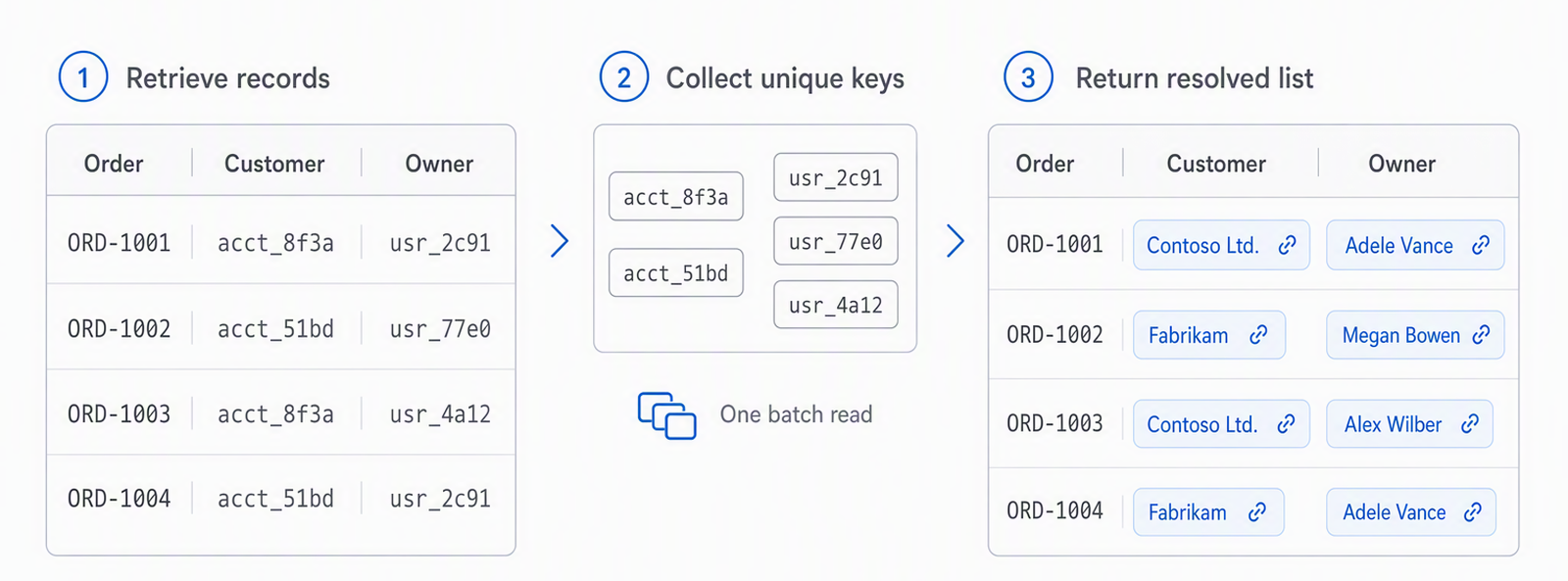
First use the LOB API's relationship projection, join, or display-value capability to return related names with the original query. If that isn't supported, collect the unique foreign keys and use the LOB system's batch-association, batch-read, or IN query capability.
The fallback flow is:
retrieve records → collect unique foreign keys → batch-read related names
Resolve the related values on the MCP server before returning the structured list. This approach replaces per-row lookups with a small number of requests and reduces loading time and throttling risk.
Build aggregations on the MCP server
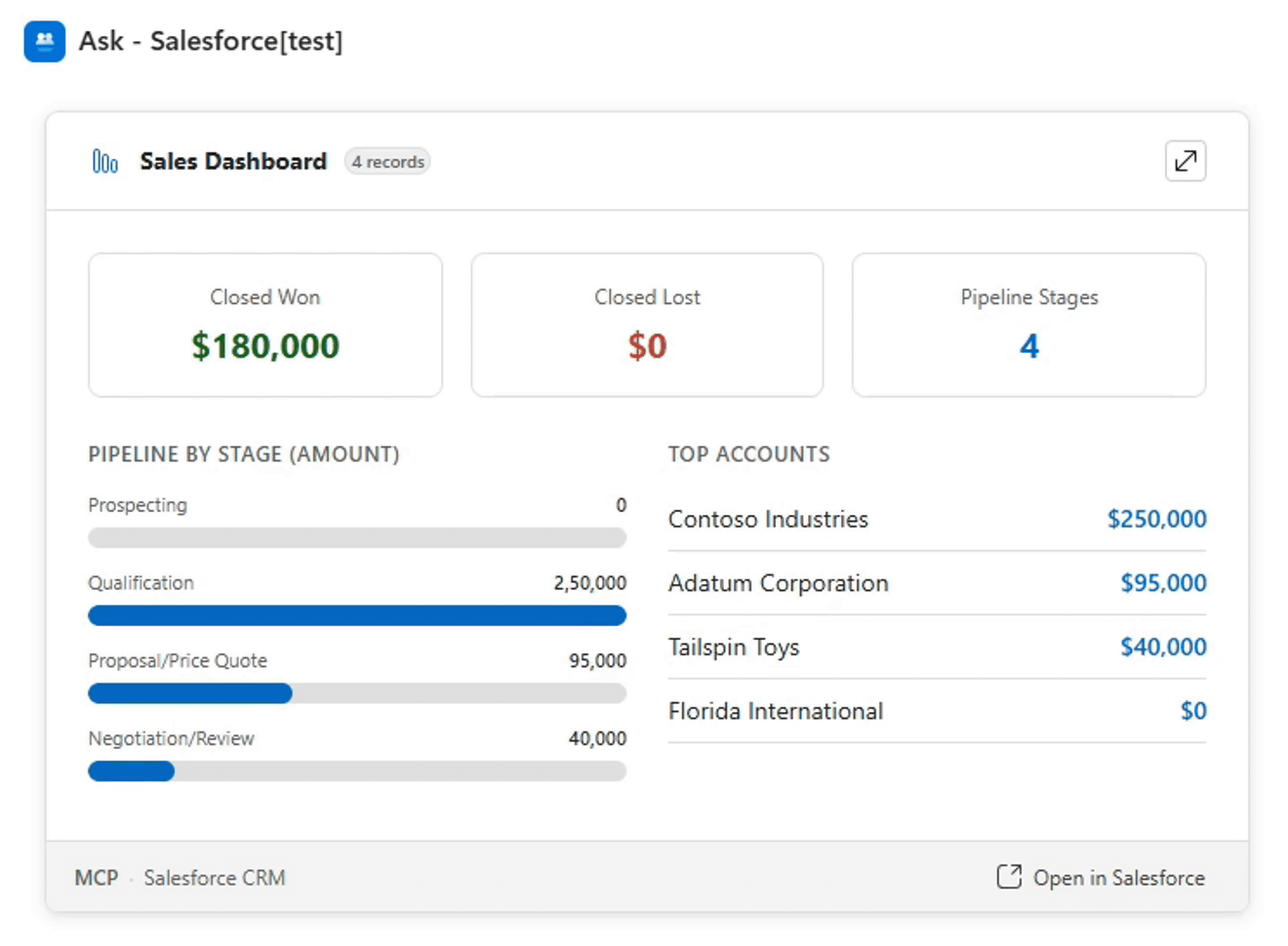
LOB entities can contain hundreds of thousands or more records. Summaries and dashboards can aggregate this data across categories, stages, owners, or time periods. Don't retrieve all underlying records and ask Copilot or the app widget to calculate the result. Use LOB aggregation APIs or grouped queries on the MCP server and return only the calculated data the app widget needs. If the LOB API doesn't support aggregation, calculate the result on the MCP server from a bounded, paginated data set and make the scope clear to the user.
Resolve relationships before creating the record
Users recognize related records by names such as company, contact, owner, or parent account, but LOB APIs require record IDs that users typically don't know or provide when creating or updating a record. Accept recognizable names for relationship inputs, then resolve them internally to the record IDs required by the LOB API.
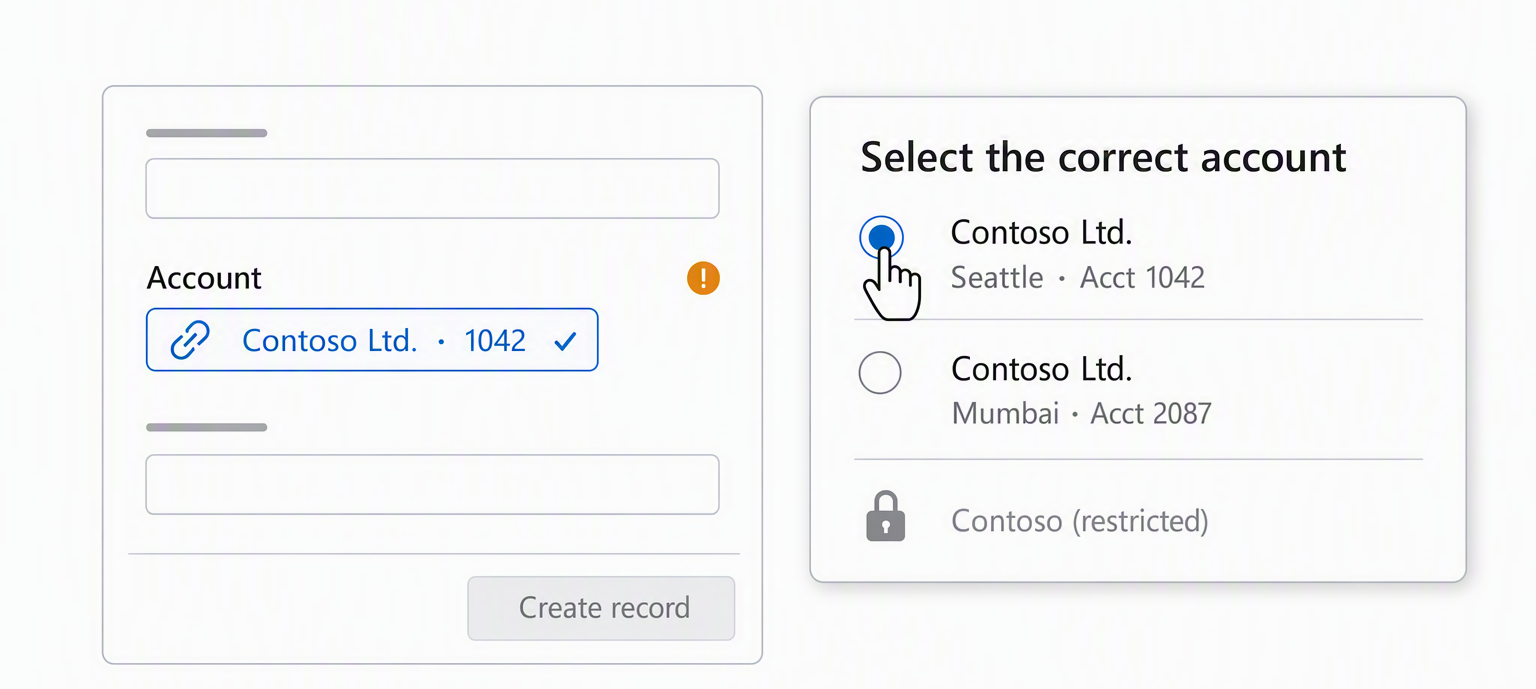
Label the field as a related record; an indicator such as Company: Contoso 🔗 can reinforce that the server resolves the name.
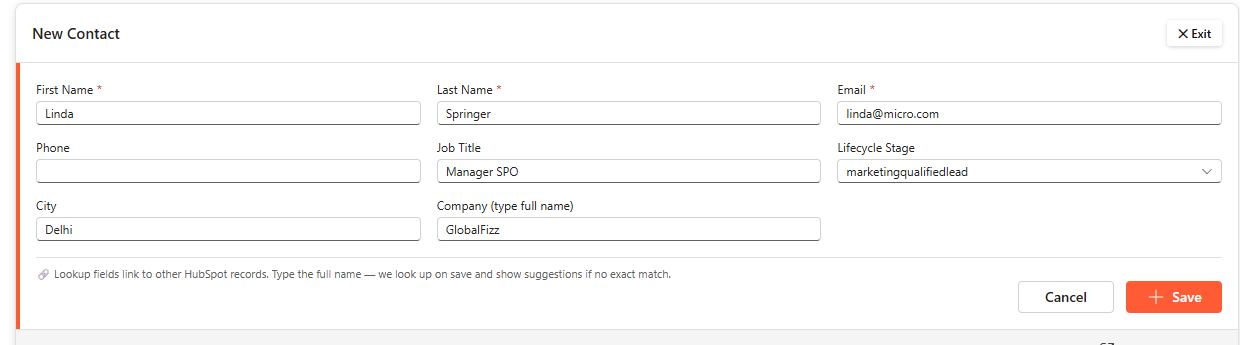
When the user selects Save, resolve each relationship to exactly one matching record that the user is authorized to access and associate before calling the create API. Never select the first match when a name is ambiguous:
"Contoso" → company_id="company_123"
If a name is unresolved or ambiguous, keep the form and its values open, and show a persistent structured alert with possible matches. Let the user select the intended record, then resubmit its stable record ID.
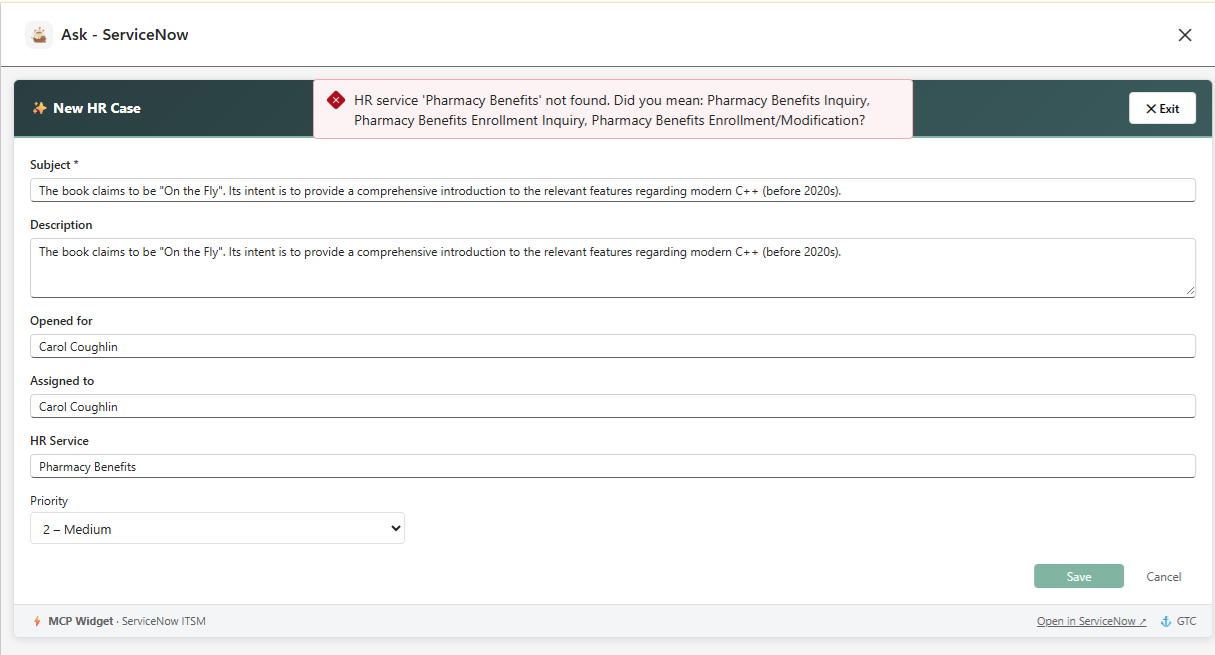
Return this correctable condition in structuredContent rather than setting top-level isError, so the app widget can request a correction without treating the tool call as failed.
Protect relationship changes during updates
Relationship changes can have greater business impact than ordinary field edits, such as changing an account owner, reassigning a case, or moving a contact to another company.
A simpler pattern is to keep relationship fields read-only in general edit forms:
Company: Contoso 🔗 [read-only]
This approach allows the user to understand the record’s relationships without making a consequential reassignment look like an ordinary text edit.
When relationship changes are supported, a dedicated tool keeps them separate from general updates.
Use dedicated tools for actions with broader effects
Some business actions do more than update a field and have a dedicated LOB API. In a CRM system, converting a lead can create related account, contact, and opportunity records and invoke additional workflow rules.
Represent such operations with dedicated tools:
convert_lead(lead_id="lead_123", create_opportunity=true)
The dedicated tool calls the LOB system's native operation rather than reconstructing it through generic create or update calls, which can bypass validation, related-record creation, workflow behavior, and audit history.
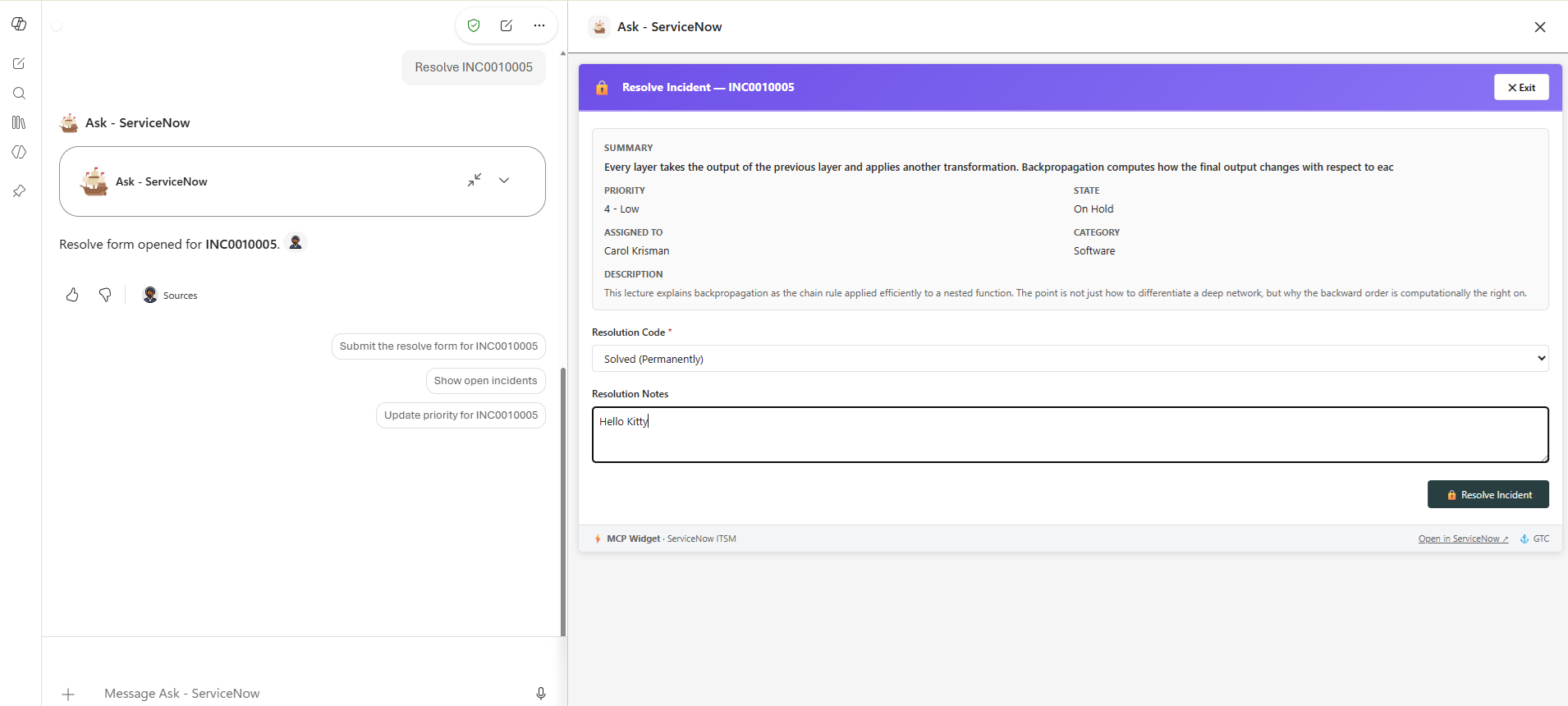
Resolving an incident through ServiceNow's native action is another example of a dedicated business operation.
Start building an LOB MCP app
Use one of the following options to apply these design principles:
- Customize a working app: Open the MCP Apps tab in the Microsoft Copilot Agent Kit's Agent Library to download working LOB MCP apps for Salesforce CRM, ServiceNow ITSM, and HubSpot CRM. Together, these apps demonstrate the patterns in this article and can be adapted to your organization's data model and workflows.
- Explore the source code: Review the MCP interactive UI samples for the server, app widget, and deployment source.
Connect an app to a development environment, try the experiences discussed in this article, and adapt them to your own LOB workflows.