Note
Access to this page requires authorization. You can try signing in or changing directories.
Access to this page requires authorization. You can try changing directories.
You can identify and address Copilot adoption gaps in your organization by using the Organizational Messages feature that's built into the Microsoft 365 Copilot usage report. This feature sends notifications directly to the users you need to reach to increase usage and adoption. The built-in feature is easy to use and implement. It targets two common usage scenarios and uses preset message templates.
This video provides an overview of the Microsoft 365 Copilot usage report and the built-in Organizational Messages feature. It's 2 minutes and 26 seconds long.
What is the Microsoft 365 Copilot usage report and how can it help me
The Microsoft 365 Copilot usage report is an aggregated, privacy‑preserving report available in the Microsoft 365 admin center. It helps answer a key adoption question:
“We assigned Copilot licenses – are people actually using Copilot?”
By using this report, you can:
- Review summary views and trends.
- Note users or time periods with low or declining usage.
- Identify Copilot usage trends in specific Microsoft 365 apps.
- Notify inactive Copilot users who might need guidance or reminders.
For example, during a phased rollout or training campaign, you can track whether Copilot usage is increasing at the expected rate. The report can tell you the number of inactive users for a certain time range (for example, users who didn't use Copilot in the past 28 days).
Drive Copilot adoption using the built-in Organizational Messages feature
After identifying adoption gaps in your organization, you can take action by using the Organizational Messages feature that's built into the Microsoft 365 Copilot usage report.
In the phased roll-out example, use the report to find out that Copilot usage isn't at the desired level. Then, use the built-in Organizational Messaging feature to directly notify all inactive Copilot users to try to increase usage.
Use the pre-made recommendation cards
The report includes two ready-made recommendation cards targeted for two different audiences.
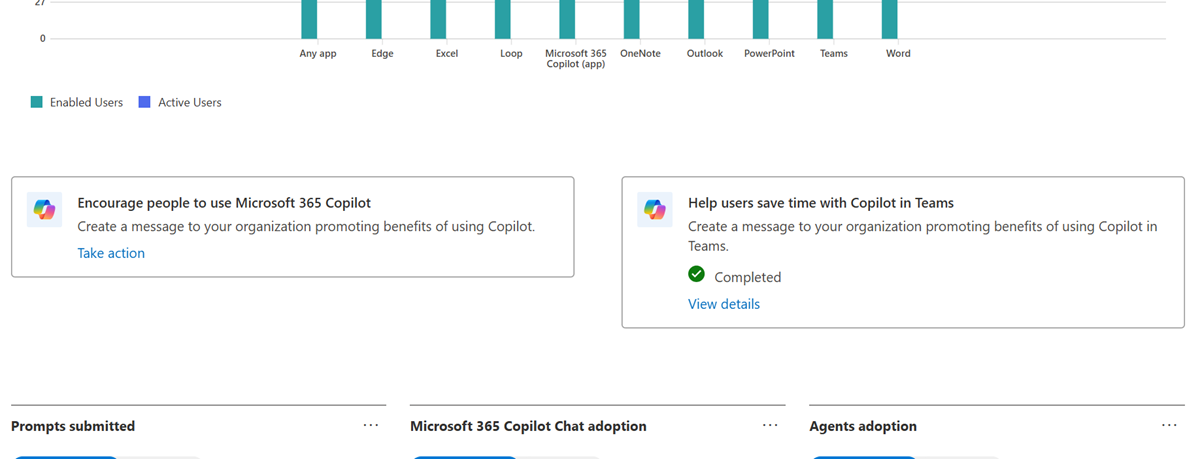
Encourage people to use Microsoft 365 Copilot
- Goal: Create a message to your organization promoting benefits of using Copilot.
- Target recipients: All Windows 11 users with Microsoft 365 Copilot licenses who didn't use the product in a rolling 30-day window.
- Why you would use this: Recommended when data in the report shows that the number of active users aren't as high as desired, and you want to send a notification to all inactive users to try to increase their usage.
- Message content: Choose from a set of three message types with premade content, each containing a title, message, and link for your users to visit when they interact with the message.
- Copilot is now available in Microsoft 365 apps. See how it can enhance your work.
- Try Copilot! Discover a new world of knowledge and unleash your creativity.
- Improve productivity and problem-solving with Copilot, your new AI-powered assistant.
- Message location: A Windows 10/11 notification message displays in the bottom right of the screen. Selecting Learn more opens a link to the Microsoft 365 Copilot help & learning page.
Help users save time with Copilot in Teams
- Goal: Create a message to your organization promoting benefits of using Copilot in Teams.
- Target recipients: All new Microsoft Teams users with Microsoft 365 Copilot licenses who didn't use Copilot in Teams within a rolling 30-day window.
- Why you would use this: Recommended when data in the report shows that the Copilot usage when using the Microsoft Teams app isn't as high as desired, and you want to send a notification to all inactive users in Teams to try to increase their usage.
- Message content: Choose from a set of three message types with premade content, each containing a title, message, and link for your users to visit when they interact with the message.
- Quickly search and use information from Teams using Copilot.
- Get summaries, key insights, and action items from your discussions with Copilot.
- Quickly craft new messages, catch up on chats, and get meeting summaries from Copilot.
- Message location: This message appears next to the Copilot Chat experience in Teams when a user opens the Microsoft Teams app. Selecting Learn more opens a link to Use Copilot in Microsoft Teams meetings.
How to use the built-in Organizational Messages feature
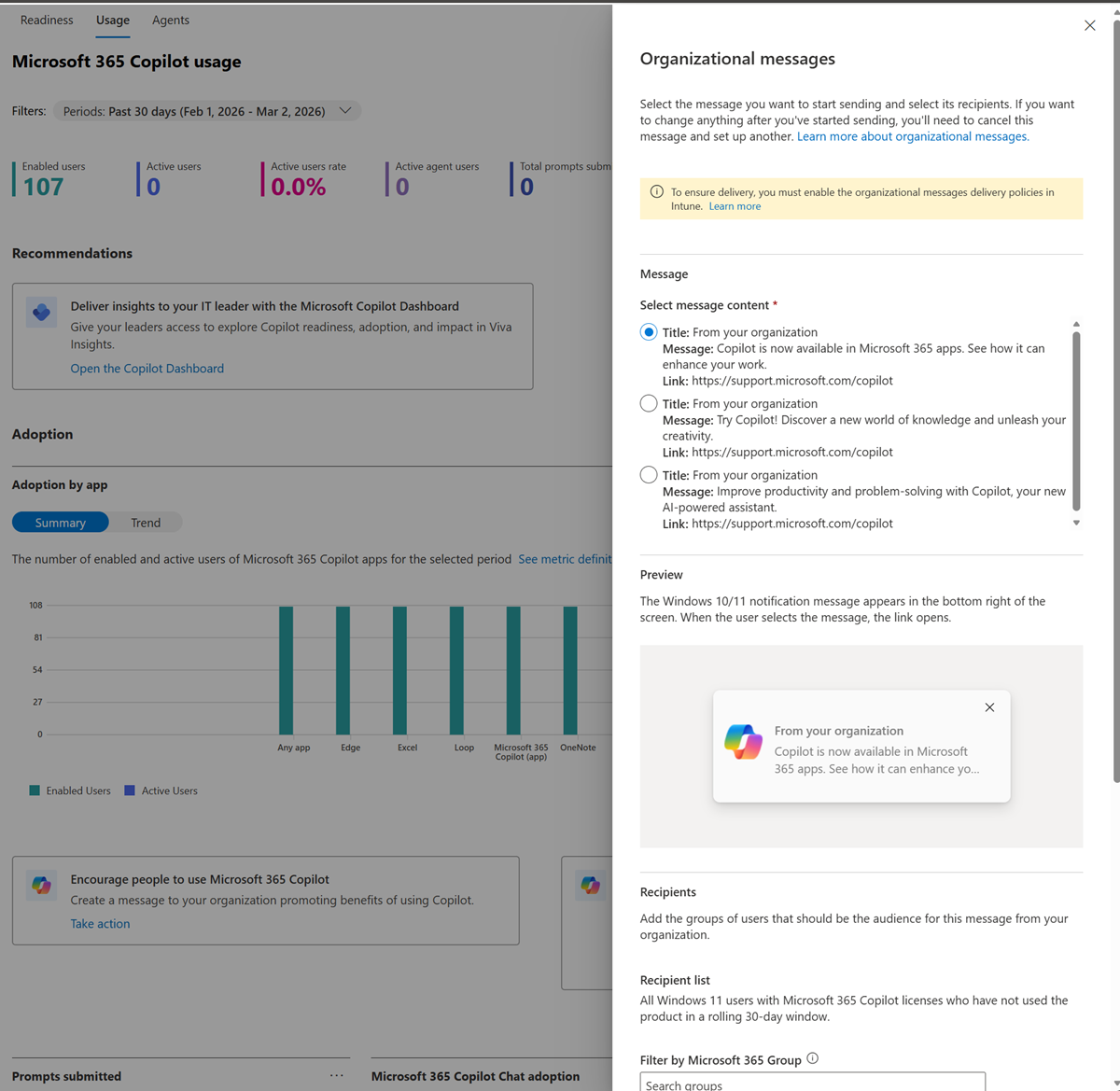
- In the Microsoft 365 Copilot usage report, select the tile for the scenario you're addressing.
- Encourage people to use Microsoft 365 Copilot
- Help users save time with Copilot in Teams
- In the tile, select Take action.
- In the Organizational messages pane, in the Message section, select the message type. You see a preview of how the message appears to your users.
- In the Recipient list, choose to restrict the message to only members of Microsoft 365 groups that you select. For example, if you want to send the message only to inactive users in a certain department in your organization.
- In the Schedule section, select a Start date and End date for sending the message. Under Frequency, select how often you want to send the message (weekly, monthly, or bi-monthly).
- Select the acknowledgement checkbox if you agree.
- Select Schedule message.
How do I know if users acknowledged the notification?
Users can acknowledge the notification message by selecting either the Got it or Learn more buttons. The notification no longer displays to the user after acknowledgement.
You can track how many users acknowledged your message in the Organizational Messages page in the Microsoft 365 admin center.
- In the Microsoft 365 admin center, in the left nav pane, select Reports, and then select Organizational Messages.
- On the Organizational Messages page, in the Manage message section, you see all active messages listed.
- Find your message in the list. You see data about your message, including total messages seen, total clicks, and click through rate.
For more information about using the Organizational Messages feature built-in to the Microsoft 365 Copilot usage report, see Microsoft 365 Copilot features adoption using organizational messages.
Need more? Use the full-featured Organizational Messages Hub
If you need more than what the built-in Organizational Messages feature provides in the Microsoft 365 Copilot usage report, use the full-featured Organizational Messages page in the Microsoft 365 admin center. For more information, see Organizational Messages.