Note
Access to this page requires authorization. You can try signing in or changing directories.
Access to this page requires authorization. You can try changing directories.
The Knowledge agent in SharePoint empowers you to build richer, more intelligent document libraries for streamlined content management. By simplifying the configuration process, it ensures consistent and accurate data capture across your organization.
With recommended metadata columns, the agent improves library-scoped chat experiences and enables rule-based automation flows that support efficient business processes. This approach keeps your SharePoint libraries organized, relevant, and continuously up-to-date-making document management smarter and more scalable.
Get suggested columns and metadata
To get suggested columns and metabase based on the content in your document library, follow these steps.
Launch the quick action
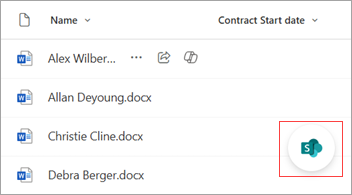
In the lower-right corner of your document library, select the AI quick actions icon.
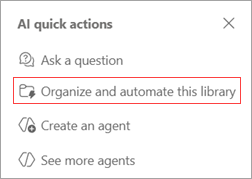
From the AI quick actions menu, select Organize and automate this library.
The chat panel opens and displays a list of suggested actions related to columns.
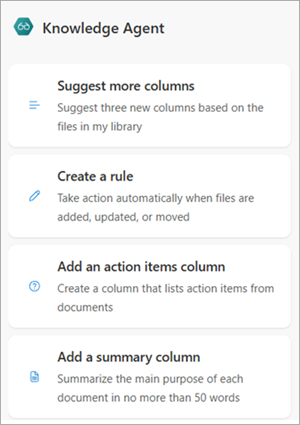
You can also enter a custom action in the chat panel.
Use a suggested action
From the chat panel, select an action. For this example, we use Suggest more columns.
In the chat box, review the instruction provided. If needed, you can modify the text to better suit your intent. Once you're ready, select Send (
 ) to submit your action.
The agent analyzes your library and suggests new columns, which appear highlighted and marked as AI-generated. This might take a few moments.
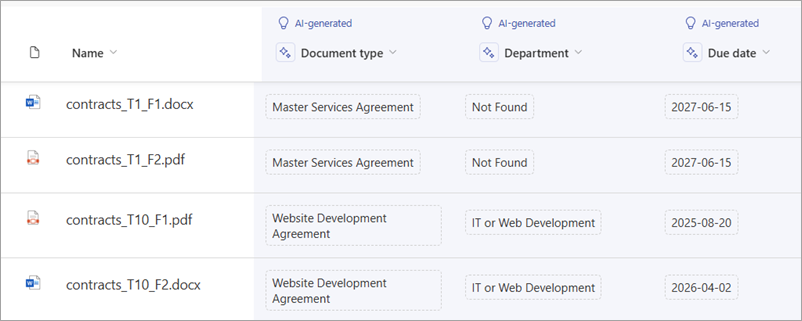
The suggested column information is also displayed in the chat panel.
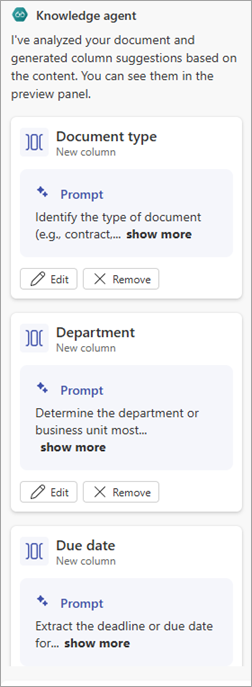
Review the suggested columns and the associated metadata to make sure they're appropriate for your content.
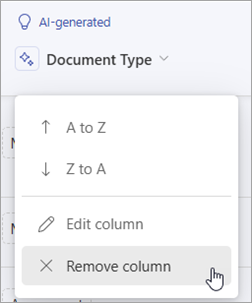
To remove a suggested column:
From the document library page, select the column name, and then select Remove column.
From the chat panel, on the column card, select Remove.
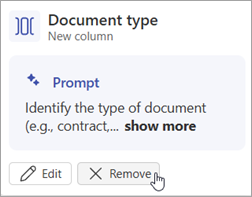
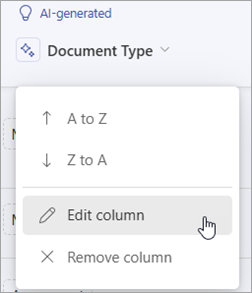
To rename the column or to refine the metadata in a suggested column:
From the document library page, select the column name, and then select Edit column.
From the chat panel, on the column card, select Edit.
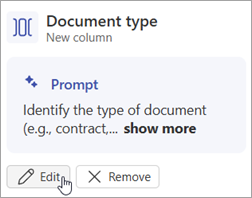
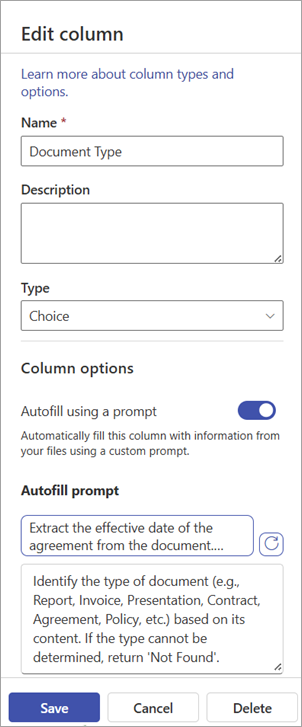
On the Edit column panel, you can change the column name or modify the instruction that generates the metadata. After you edit the instruction, test it to make sure it gives you the information you want. When you're done making changes for that column, select Save.
Enter a custom action
In the chat panel's text box, enter your own instruction.
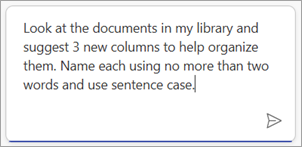
Select Send (
) to submit your action.
Save your changes
When you're ready to save all of the column changes, select Save changes.
On the Save and apply your changes? confirmation screen, select Apply changes.

Natural language automations
Create automations using plain language
With the Knowledge agent, you can automate tasks in your document library simply by describing what you want to happen. No need to learn technical jargon or navigate complex menus-just explain your intent in everyday language. The agent interprets your request, suggests the right workflow, and sets it up for you automatically.
Supported automation actions
- Send an email (for example, "Email me when a contract is approved")
- Move a file (for example, "Move reviewed invoices to the Verified Expenses folder")
- Copy a file (for example, "Copy all Northwind Traders invoices to their folder")
- Translate a file (for example, "Create a translated copy in French when a new policy is added")
How it works
The agent parses your chat input and, using library metadata, suggests a workflow.
You see a summary card in chat and can confirm or edit before enabling.
If your request references data not yet tracked (for example, "Property state"), the agent suggests creating the necessary column.
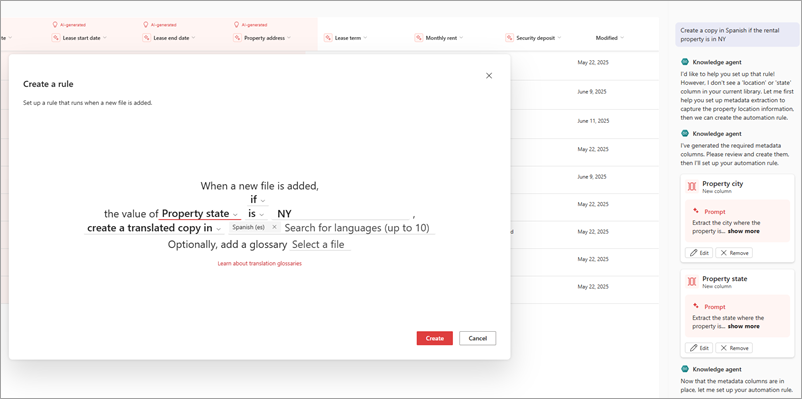
For more complex automations or if the agent needs more details, you might be prompted for clarification or directed to the Create a rule screen for advanced editing.
Example prompts
- "Alert me to unpaid invoices due in the next seven days."
- "Flag invoices missing invoice numbers."
- "Move 'Reviewed' invoices to the Verified Expenses folder."
- "Copy all invoices from Northwind Traders to their folder."
- "Translate new HR policies to Spanish."
How automations are surfaced in chat
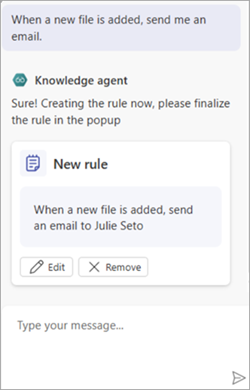
When you use the Knowledge agent to organize and automate your document library, the agent communicates proposed workflows and automations directly in the chat panel as interactive cards. Each card summarizes the trigger, conditions, and actions that are set up. For example, after you describe your intent (for example, "Alert me when an invoice is due in seven days"), the agent parses your request and presents a card in chat showing:
- Trigger: When a new file is added, or when a file or metadata is modified
- Condition: For example, "Invoice Date is within seven days"
- Action: For example, "Send an email to me"
You can review, confirm, or edit the workflow directly from the chat card before it's enabled. This keeps you in control and ensures transparency at every step. If more information is needed, the agent prompts you in chat to clarify details before finalizing the automation.
Frequently asked questions
What do I need to set up to see these capabilities?
You need to have a Microsoft Copilot license and be a site owner or a member to see the agent button.
A tenant administrator must enable Knowledge Agent for the tenant, either for all sites or for selected sites.
Why am I seeing errors when I try to process files?
The Knowledge agent can't process encrypted files, so it's likely that the files in your document library are encrypted. If your organizational policy allows, you need to change the sensitivity label on the files for the Knowledge agent to be able to process them.
I don't see the "Organize and automate" skill in the floating button. What's happening?
The Organize and automate this library action is only available to site owners or site members when in the root of a document library. It's disabled if the user has navigated into a folder.
How does the agent keep me in control?
Every agent action is shown as a card in chat for your review. You can edit or decline any suggestion, and changes aren't applied to the document library until you select Save changes.
What kinds of automations can I create with the Knowledge agent?
The agent can help you configure rules to send email notifications, move or copy files, and created translated document copies based on triggers like file creation, file change, or metadata change.
What if I want to edit an automation later?
You can edit automations via the chat panel by selecting Edit on the rule card.
What languages are supported?
The agent supports the same languages as Copilot for text-based prompts and responses, but can only process files in English currently.
How can I provide feedback on this feature?
Share your experience with us by filling out this quick survey.