Note
Access to this page requires authorization. You can try signing in or changing directories.
Access to this page requires authorization. You can try changing directories.
Overview
There are a few steps to setting up the solution.
A Global Administrator procures and assigns the required SharePoint Content Solution - Agreements Trial license.
A SharePoint Administrator creates a workspace.
Workspace owners configure their workspace.
Deploy the Agreements app to Microsoft Teams.
Create workspaces
Workspaces allow you to organize and manage agreements across your organization. When you create a workspace, a SharePoint site is created and is assigned to the workspace. You can create workspaces for business processes or departments in your organization that manages agreements. For example, you can have one workspace for your procurement team, and another one for your human resources team. Agreements, templates, and other files exist within the workspace and are stored in the corresponding SharePoint site. Roles are assigned to users at a workspace level, and permissions can be managed at a workspace level.
Prerequisites
Before creating a workspace for SharePoint Agreements, you need to ensure:
The user implementing the steps in the article needs to be either a Global Administrator or SharePoint Administrator.
Important
Microsoft recommends that you use roles with the fewest permissions. Using roles with the fewest permissions helps improve security for your organization. Global Administrator is a highly privileged role that should be limited to emergency scenarios when you can't use an existing role. For more information, see About administrator roles in the Microsoft 365 admin center.
The SharePoint Content Solution - Agreements Trial license is assigned to users in your organization.
Download and install the latest SharePoint Online Management Shell.
The minimum required version of the SharePoint Online Management Shell is 16.0.25513.12000.
It is recommended that only the latest version of the SharePoint Online Management Shell is installed.
Review instructions at Get Started with the SharePoint Online Management Shell to validate the version you have installed, uninstall previous versions or update the current version to ensure the pre-requisites have been met.
Note
You must be a SharePoint Administrator or Global Administrator to create sites through the SharePoint Online Management Shell.
Create a workspace
Launch the SharePoint Online Management Shell, and sign in as a Global Administrator or SharePoint Administrator.
Run the following command to connect to your tenant.
Connect-SPOService -Url "https://<tenantName>-admin.sharepoint.com"Where:
- <tenantName> is the name of your SharePoint tenant.
Example:
Connect-SPOService -Url "https://contosoelectronics-admin.sharepoint.com"Note
The Connect-SPOService cmdlet might require the use of modern authentication to connect. For information about how to add modern authentication flow to your SPO-Connect cmdlet, see the Connect-SPOService documentation.
- <tenantName> is the name of your SharePoint tenant.
Run the following command to create a new SharePoint site and set it as an Agreements workspace.
New-SPOSite -Url "<URL>" -Owner "<user>" -StorageQuota 1000 -Title "<Workspace Name>" -EnableAgreementsSolution -Template "STS#3"Where:
- <URL> is the target URL of the new site.
- <User> is the email address of the owner of the new workspace.
- <Workspace Name> is the name you would like for the new workspace.
Example:
New-SPOSite -Url "https://contosoelectronics.sharepoint.com/teams/LegalAgreements" -Owner "megan@contosoelectronics.onmicrosoft.com" -StorageQuota 1000 -Title "Legal agreements" -EnableAgreementsSolution -Template "STS#3"
Deploy the Agreements app to users in Microsoft Teams
As a Global administrator or a Teams administrator, you can manage the Agreements app in the Microsoft Teams Admin Center and deploy the app to all users or specific users in your organization.
Add the Agreements app in Microsoft Teams
To add the Agreements app to Microsoft Teams, follow these steps (no administrator privileges needed):
Launch Microsoft Teams.
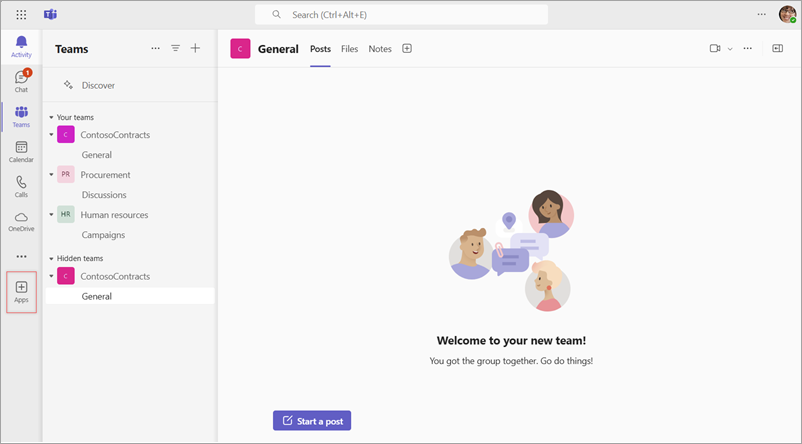
On the left navigation menu, select Apps.
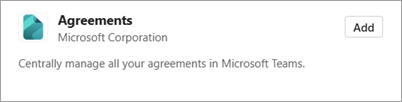
Search for Agreements, and then select Add.
You see the Agreements app on the left navigation menu.
For ease of access, you can right-click Agreements and pin the app to the left navigation menu.
Configure the workspace
Workspace owners can configure the workspace from the Agreements app. They can assign users to different roles in the workspace and manage the categories available in the workspace.
Manage roles
To manage roles in a workspace:
As a workspace owner, launch the Agreements app in Teams.
Go to the Setup & access tab.
From the left navigation menu, select the Roles option.
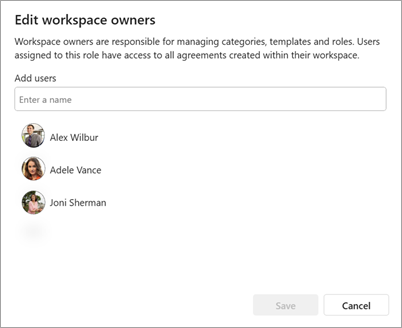
Select the role you would like to manage. You can now manage the list of users assigned to each role.
Manage categories
To manage categories in the Agreements app:
As a workspace owner, launch the Agreements App in Teams.
Go to the Setup & access tab.
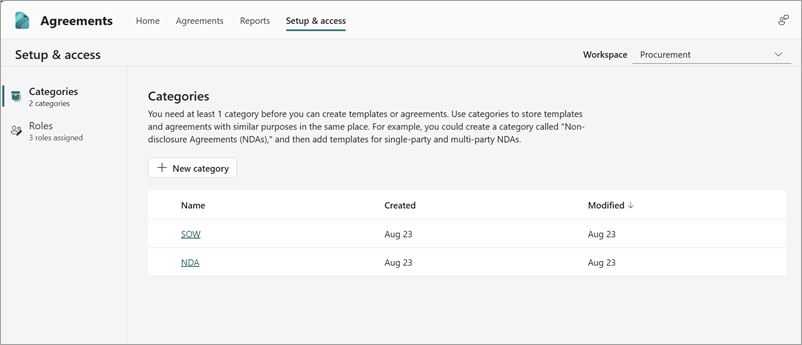
From the left navigation menu, select the Categories option.
All the existing categories available in your workspace are displayed. You can rename an existing category or create new categories as needed.