Note
Access to this page requires authorization. You can try signing in or changing directories.
Access to this page requires authorization. You can try changing directories.
Every student is unique with different strengths and abilities. Microsoft learning tools help personalize learning experiences, empowering students to access and engage with the content being taught.
- Accessibility tools such as Immersive Reader, Read Aloud, Dictation, and Translator give students inclusive tools to access reading and writing in ways that meet diverse needs.
- Applications such as Teams, Word, and OneNote Notebook not only allow for collaboration with peers, but also allow students and educators to organize their workflow.
- Presentation Coach in PowerPoint and Reading Progress allow students to demonstrate proficiency in student learning allowing for a more holistic student progress analysis. This learning path helps teachers recognize and address various learning needs with Microsoft learning tools.
Accessibility tools for Microsoft 365
Microsoft 365 offers various accessibility tools to ensure everyone can use its features effectively. Here are some key tools:
- Accessibility Assistant: Helps identify and resolve accessibility issues in documents, spreadsheets, and presentations.
- Immersive Reader: Reads text aloud and highlights it simultaneously, making it easier to follow along.
- Live Captions and Transcripts: Available in Microsoft Teams to make meetings more inclusive for people who are deaf or hard of hearing.
- Dictate: Allows users to write documents and emails using voice commands.
- Screen Reader Support: Compatible with popular screen readers for visually impaired users.
- Accessible Templates: Provides templates designed to be accessible for everyone.
- Translator
- Voice Typing
- Narrator
- Live Captions These tools are designed to support a wide range of needs, including vision, hearing, learning, and mobility.
These features are generally available in the following Microsoft 365 Education licenses:
- Microsoft 365 A1: Basic plan with essential tools.
- Microsoft 365 A3: Includes additional features like advanced security and compliance tools.
- Microsoft 365 A5: Offers the most comprehensive set of features, including advanced analytics and security.
For more information on Microsoft 365 accessibility tools:
Differentiation and accommodations in the learning environment
What is differentiation?
Differentiation is using different approaches to what students learn, how they learn it, and how they demonstrate what they learned. Approaches are built into the lessons giving students voice and choice in their learning. There are four curricular elements to take into consideration every day in the classroom:
- Content - input, what students learn
- Process - how students go about making sense of ideas and information
- Product - output, or how students demonstrate what they learned
- Learning environment - the effect of students' emotions and feelings on their learning
What are accommodations?
Accommodations are modifications or adjustments to the learning environment that enable students with disabilities to have equal access to education. These accommodations are individual ways content or instructions need to be presented to a student in order to provide equitable and inclusive access to instruction. The overall goal of accommodations is for every individual to be able to access the content independently. Accommodations can include text to speech technology, such as Immersive Reader; speech to text using Dictation, and access to a screen reader such as Narrator.
Creating an environment that is welcoming, inclusive, and unbiased to all students is as important as the lessons and content.
Create accessible content
Creating carefully planned content with all students’ needs in mind decreases the time needed by the educator to create accommodations and modifications and allows a wider audience of students to access the content.
Run the Accessibility Assistant
Make your documents accessible and easier for everyone to read and edit. Use the Accessibility Assistant to find and fix accessibility issues before you send an Outlook email or share your document. The Accessibility Assistant is not enabled by default but you can enable it in your settings.
Try out assistive technology
Going through the process of using assistive technology helps educators understand how the technology works, allowing them to better assist students. Working with the technology can include:
- Immersive Reader and Read Aloud - check materials such as websites to make sure they're compatible with the Immersive Reader
- Screen reading software such as Narrator - check that a screen reader is able to navigate the content
- Screen magnification - understand what students see and confirm that it's usable
- Speech to text - practice dictating in the document that will be sent to students
Present content in multiple ways
Creating lessons that use various senses is an easy way to build differentiation and accommodations right into a lesson. All students benefit from content presented in multiple ways, increasing the opportunity for student understanding.
An example of multisensory differentiation is providing captions on a video. Captions ensure students receive the information visually. Using captions provides built-in accommodation for students who are deaf or hard of hearing. Here are other categories of multisensory learning:
Visual
- Text, graphics, pictures
- Videos
- Live meetings with demonstrations
Hearing
- Audio recordings
- Verbal explanations of content
Kinesthetic-tactile
- Taking Notes
- Drawing
- Hands-on work
- Physically moving body
Use accessible media
Multimedia videos need to be accessible by all users, including students who are blind or have low vision and deaf or hard of hearing.
Verbalize all relevant visual information for students who are blind and low vision. Explain all relevant parts of graphics, images, or any on-screen text.
Captions are critical for students who are deaf/hard of hearing to access auditory content. There are other instances where captions are beneficial. For example:
- The location is loud
- Students need to be quiet
- Students have an auditory processing disorder, or
- Students need translation into another language
Use consistent formatting
Using consistent and familiar formatting for materials and content helps students focus on the content versus trying to navigate through a new format with each lesson. Many of the Microsoft 365 apps have built-in accessible templates:
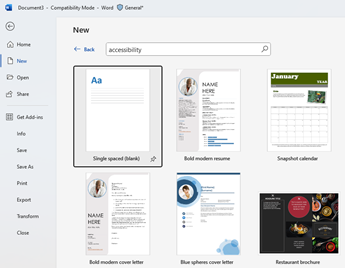
Creating a new Word document? Type accessible into the online search for templates, and the results include only templates that are considered accessible.
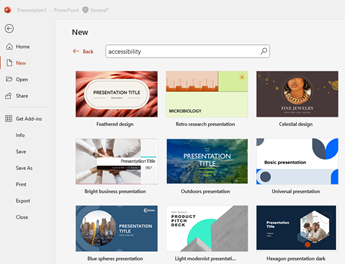
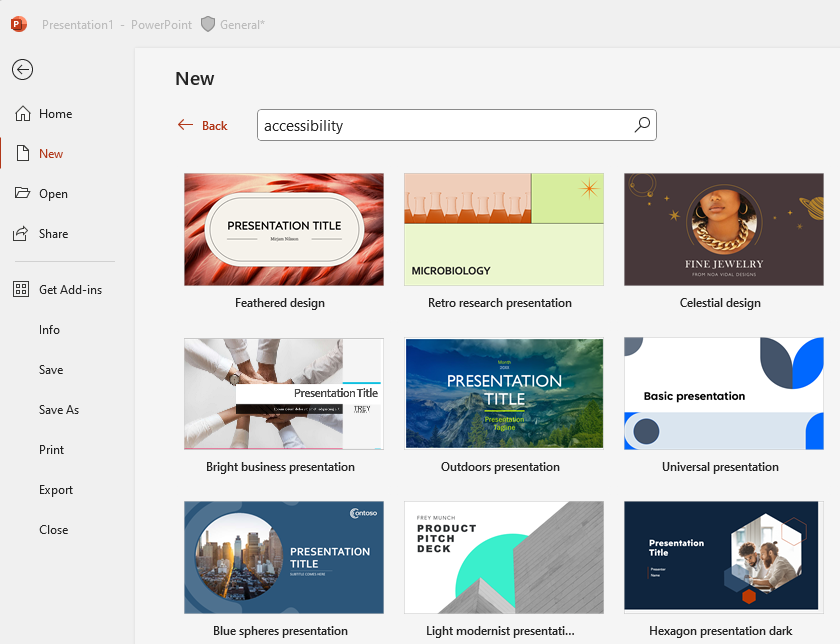
PowerPoint also has accessible templates that can be used for many different types of presentations. Create a similar flow for all slides and presentations. Keep slides as simple as possible
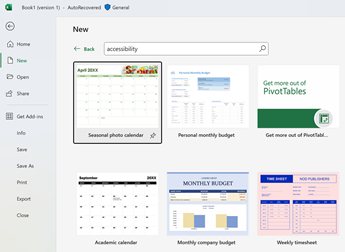
Excel templates help create spreadsheets that can be read by a screen reader

Create an adaptable process
Allow access to content before the lesson
Students who have slower executive functioning or sensory processing, use assistive technology, or experience anxiety might find having content in advance of class beneficial, enabling them to focus on the lesson with some prior knowledge, as well as being able to engage with familiar content.
Use a consistent workflow
Whether materials are in Teams, Stream for videos, or a OneNote Class Notebook, it's important students know exactly where to go to access materials in a timely way with minimal opportunity for frustration or distraction.
- Determine which apps and tools will be used for the class. As often as possible, use the same tools in lessons, so students can focus on the content, not on learning a new tool.
- If new tools are introduced, give students the opportunity to explore the tool, whether that is independently or together as a class; this minimizes frustration and increases confidence.
- Materials should always be stored in the same place, using a system that is simple and easy to use. Create channels in Teams with purpose, for example, the General channel is for fun peer-to-peer chats, while another channel is for questions and discussion about a class-related topic.
- Consistency of naming material. Model good nomenclature by teaching students how they should name their work by using the same system for educator-created materials.
- Help students create a workflow in their OneDrive, documents, and Teams that best suits their personal needs and preferences.
Allow time for assistive technology
Students using assistive technology during a lesson might need a few minutes to set up before the lesson starts or access during the lesson. Check in with students to ensure they have everything they need and are ready to go before and during the lesson. These needs can include:
- Immersive Reader to access reading materials
- Ease of Access Center to personalize the computer
- Narrator as a screen reading tool
- External Assistive technology such as a Braille display or buttons and switches
Use synchronous and asynchronous learning
Synchronous learning
Student interest can be more fully engaged in synchronous learning by considering how the class is conducted.
Teams Meetings
When meeting in a live meeting, it's important to create an environment that reaches each student in the classroom.
- Establish norms - set clear expectations and review them at the beginning of each class meeting.
- Create an agenda for lessons with consistent flow and/or schedule. Students being able to anticipate what is coming next might decrease anxiety and help students be organized and stay on task throughout the lesson.
- Turn on captions - students might be in a noisier place, have a hearing disability, or need help with focus.
- Create opportunity for peer collaboration during the lesson, in a chat.
- Present thoughtful timing during meetings - offer students enough time to find and complete materials and provide longer pauses to give students time to process and formulate ideas.
- Provide multisensory opportunities to engage students by watching, listening, talking, and hands-on activities during each lesson.
- Initiate frequent check-ins with the class in different ways, ensuring students are engaged and understanding the content. Provide multiple ways such as a hand raise, a comment in the chat, or coming off mute to talk.
PowerPoint Live
Live Presentations in PowerPoint online allows students to watch a presentation on their devices and read live subtitles in their preferred language. Students can use "pinch to zoom" to view the slides more clearly on mobile devices, give feedback, send live reactions to the educator, and navigate back to review previous slides.
- In the online version of PowerPoint, students can connect to a live presentation where they follow along and move through the slides at their own pace, without impacting the educator.
- In a Teams call, educators can easily share the screen on which they have a PowerPoint presentation by selecting Present Live. A slide with a QR code and short URL link allows students to easily connect to the live presentation from any device, including mobile.
- Students can react in real time, using emojis, allowing for frequent check-ins without interrupting the flow of the lesson.
- Subtitles are available in over 60 languages. These languages are chosen by the student, not the educator. Subtitles make sure that all students are engaged and included in the lesson by breaking language barriers and including students who are deaf or hard of hearing.
Asynchronous learning
Opportunities for students to engage content in sory ways creates interest and variety when working independently or in remote settings. Students might prefer content in one format over another. Differentiation gives students built-in ownership of their learning. For example, use recorded lessons in PowerPoint Recorder and use Replay in OneNote for students to watch and listen to a concept.
Opportunities for differentiation
- Instructions should be clear and concise
- Use multiple modalities such as written and verbal
- Minimize distractions on the page
- Use bulleted lists to increase white space
- Embed verbal instructions using the audio recording feature in OneNote
- Consistent workflow, formatting is critical to making it easy to find content, minimizing frustration and distraction
- Verify that materials are accessible before distributing
- Frequent check-ins on work completion. Have students work in OneNote and Teams, making it easy to check on progress as students work
- Keep videos short and limited in number, use video editor or record a Teams meeting and upload to Stream
Differentiation and accommodation tools in Windows and Office 365
Provide opportunities for students to have voice and choice in creating work by giving options for students to complete and demonstrate understanding.
Reading and writing
There are many tools to differentiate and accommodate students in reading and writing easily and in non-stigmatizing ways, including:
Math
Many students need more help or alternative explanations in math, and with these tools, educators can differentiate content easily and quickly:
- Math Tools in OneNote
- Replay in OneNote
- PowerPoint Recorder
- Math Solver
Vision and Hearing
Windows and Office 365 have many built-in tools to help students with visual impairments use the computer.
- Ease of Access Center
- Immersive Reader
Speech, language, and communication
Meeting with students who are working on conversational language is important to allow students the opportunity to speak. There are many tools students can use to practice through remote learning. These include:
- Practice speaking with Presenter Coach in PowerPoint
- Immersive Reader
- Live captions
- Translation