Note
Access to this page requires authorization. You can try signing in or changing directories.
Access to this page requires authorization. You can try changing directories.
Microsoft 365 for Education customers have access to many generative AI features included in their licensing. All generative AI features follow Microsoft’s Responsible AI principles, and access to generative AI features can be controlled by IT administrators.
Teach in the Microsoft 365 Copilot App
Teach in the Microsoft 365 Copilot App is a home where educators can easily access AI-powered teaching tools to create lesson plans, draft materials like quizzes and rubrics, and quickly make modifications to language, reading level, length, difficulty, alignment to relevant standards, and more.
Teach is available to users with the following SKUs assigned and Microsoft 365 Copilot chat enabled:
- Microsoft 365 A1/A3/A5 for Faculty/Staff
- Office 365 A1/A1 Plus/A3/A5 for Faculty/Staff
Teach isn't available to students, enterprise or business customers, or consumer/personal accounts.
Teach is enabled by default and can be accessed in the Microsoft 365 Copilot app on web, Windows, and Mac. Teach can be accessed directly here.
To disable Teach for select or all users, remove access Microsoft 365 Copilot chat following the instructions in step 2 at Remove access to Copilot Chat.
Learn more:
- Teach in the Microsoft 365 Copilot App (end users)
- Get started with the Microsoft 365 Copilot app (IT admins)
Learning Activities
Learning Activities are a Microsoft Education experience designed to help educators and students transform passive content into active learning. With just a few selections, educators and students can now create engaging practice activities like flashcards directly from existing learning content.
Learning Activities are available to users with the following SKUs:
- Microsoft or Office 365 A1/A3/A5 for Faculty/Staff
- Microsoft or Office 365 A1/A3/A5 for Students
- Microsoft 365 Business Basic/Business Standard/Business Premium
- Microsoft 365 E3/E5
- Microsoft 365 F1/F3
- Office 365 E1/E1 Plus/E3/E5
- Office 365 F3
Note
Availability for students is limited to students aged 13+. To help ensure appropriate access, admins must take additional steps to manage deployment: Microsoft 365 Copilot Chat for Students 13+ | Microsoft Community Hub.
Learning Activities aren't available for consumer or personal Microsoft 365 accounts.
Learning Activities are enabled by default, and available in the Learning Activities web app, Teach in the Microsoft 365 Copilot App, and Teams for Education. Learning Activities can be accessed directly at https://learningactivities.edu.cloud.microsoft/.
To disable Learning Activities:
In Teach in the Microsoft 365 Copilot App:
- Remove access Microsoft 365 Copilot chat for select or all users following the instructions in step 2 at Remove access to Copilot Chat.
In the Learning Activities web app:
- Remove access Microsoft 365 Copilot chat for select or all users following the instructions in step 2 at Remove access to Copilot Chat.
In Teams for Education (only for Educators):
- Follow the instructions at set up AI content recommendations in an institution.
In PowerShell (only for Tenant Admins to disable Learning Activities for users in their tenant):
- Run the following PowerShell script:
Install-Module Microsoft.Graph.Authentication
Connect-MgGraph -Scopes "Application.ReadWrite.All"
$ServicePrincipal = Invoke-MgGraphRequest -Uri "/v1.0/servicePrincipals?`$filter=AppId eq '22d27567-b3f0-4dc2-9ec2-46ed368ba538'"
Invoke-MgGraphRequest -Uri "/v1.0/servicePrincipals/$($ServicePrincipal.value.id)" -Method PATCH -Body @{ 'accountEnabled' = $false }
- Run the following PowerShell script:
To enable or disable Learning Activities in an Enterprise tenant (admin):
Note
- You must be a Global admin or Office Apps admin to manage this setting.
- This setting applies to your entire organization. You can’t enable or disable Learning Activities for specific users or groups.
In the Microsoft 365 admin center (https://admin.microsoft.com), go to Settings > Org settings.
In the Services tab, select Learning Activities.

In the Learning Activities panel, check or uncheck Turn on Learning Activities.
- Checked: Learning Activities is available to users in your organization.
- Unchecked: Learning Activities is disabled for all users in your organization.
Select Save.
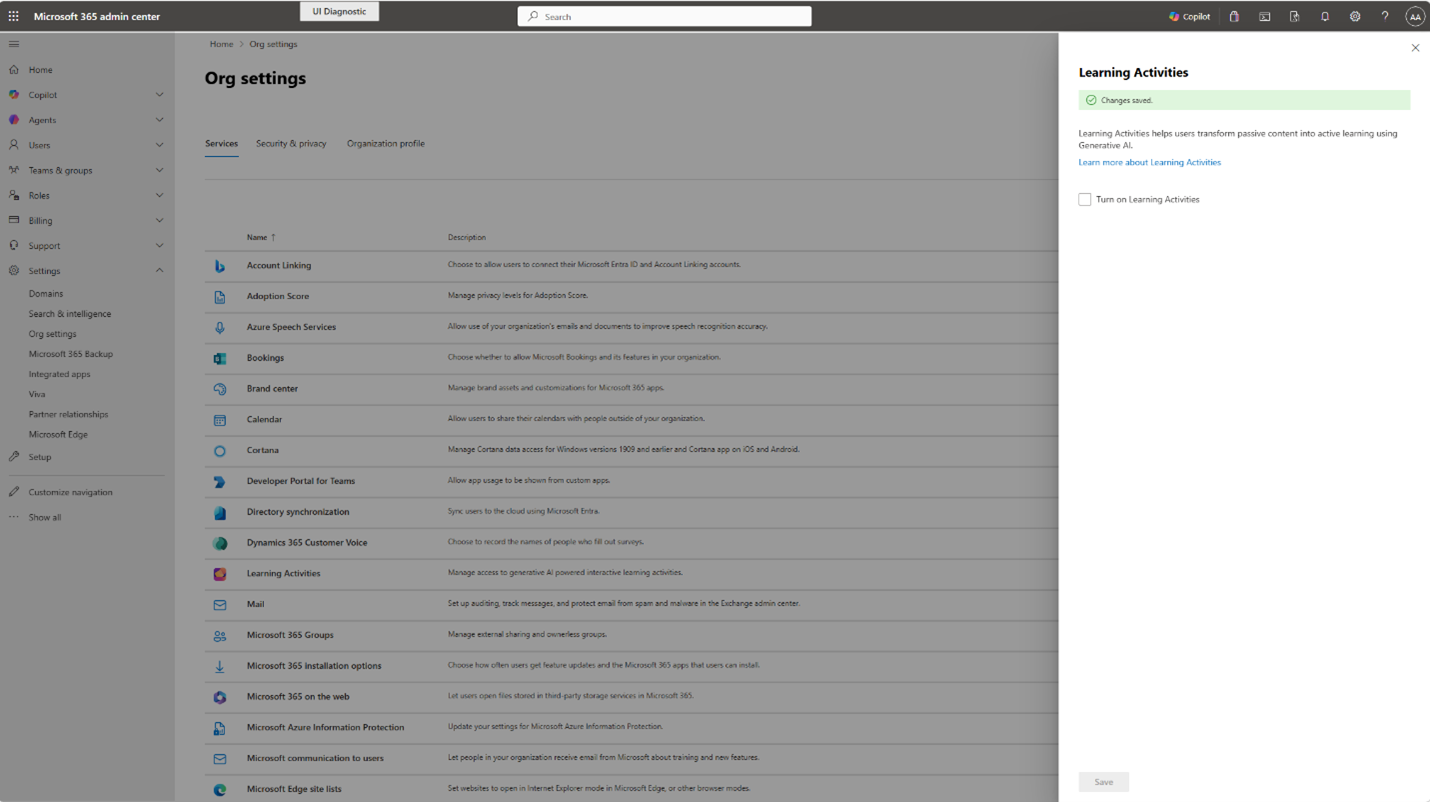
A confirmation banner (Changes saved.) appears at the top of the panel to confirm your change.
Note
Changes may take up to 24 hours to take effect across your organization.
When Learning Activities is turned off, users who try to access Learning Activities see a sign-in error indicating that Learning Activities is disabled. This is expected behavior. Users won’t be able to access Learning Activities until an admin turns the feature back on.
Generative AI in Teams for Education
Teams for Education enables educators to create collaborative classrooms, connect in professional learning communities, and communicate with students and guardians. Included in Teams for Education are generative AI features for educators to enhance the Assignments, Classwork, Reading Progress, and Insights apps.
Generative AI in Teams for Education is available to users with the following SKUs:
- Microsoft 365 A1/A3/A5 for Faculty/Staff
- Office 365 A1/A1 Plus/A3/A5 for Faculty/Staff
Generative AI features in Teams for Education are enabled by default. To disable these features, follow the instructions at set up AI content recommendations in an institution.
Learn More:
Transparency documentation and responsible AI FAQs
An AI system includes not only the technology, but also the people who use it, the people affected by it, and the environment in which it's deployed. Transparency documentation and FAQs are intended to help you understand:
- How AI technology works
- The choices system owners and users can make that influence system performance and behavior
- The importance of thinking about the whole system, including the technology, the people, and the environment
You can use transparency documentation and FAQs to better understand specific AI systems and features that Microsoft develops.
Transparency documentation and FAQs are a part of a broader effort to put our AI principles into practice. To find out more, see Microsoft AI principles.
Learn more about the capabilities and impacts of specific features: