Note
Access to this page requires authorization. You can try signing in or changing directories.
Access to this page requires authorization. You can try changing directories.
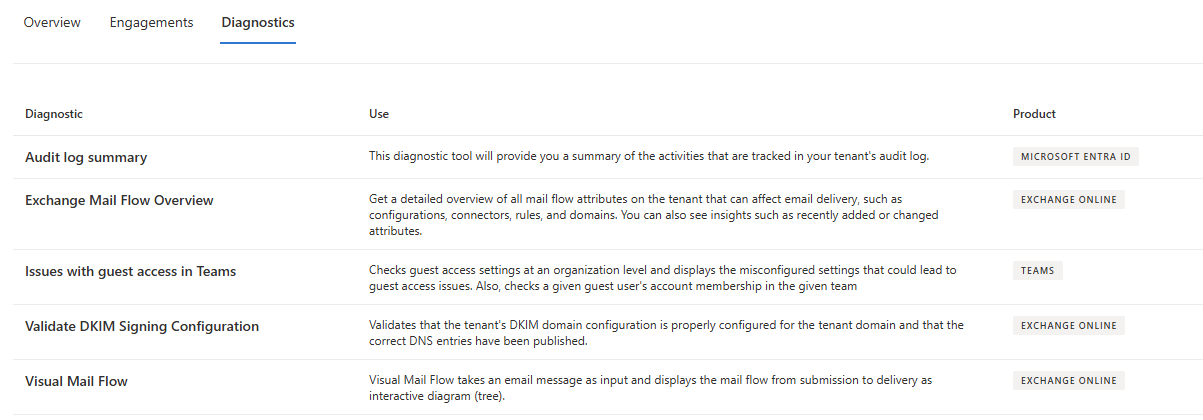
The Diagnostics page hosts diagnostic tools for self-service issue resolution within your environment.
In this section:
- Visual Mail Flow
- Validate DKIM Signing Configuration
- Audit Log Summary
- Issues with Guest Access in Teams
Visual Mail Flow
Visual Mail Flow enables you to examine issues related to mail flow, such as email submission, group expansion, processing by transport agents (such as AntiSpam, mail flow rules, Data Loss Prevention), and delivery.
Some common situations where Visual Mail Flow can be useful:
- Checking the delivery status of recipients
- Determining reasons for nonreceipt of emails by certain recipients
- Understanding variations in email delivery between recipients
- Identifying mail flow rules applied to an email and their actions
- Identifying Data Loss Prevention rules applied to an email and their actions
Input requirements
To use Visual Mail Flow, you need either the email's Message ID or the Network Message ID. You can locate either the message ID or the network message ID by opening the email in question, go to File -> Properties -> Internet headers. You can parse through the headers to find either the message ID or network ID. Alternatively, you can copy/paste the entire internet header box and use a tool like Message Header Analyzer to parse this information for you.
Note
Ensure the submitted messages are within the age range of 1 to 90 days.
- Message ID: Found in the email header with the "Message-ID:" token. Users can provide this information to help investigate specific messages. Be sure to include the full message ID. This might include angle brackets (<>). Although the form varies depending on the email system, here's an example of what a message ID would look like:
<08f1e0f806a47b4ac109109ae6ef@server.domain>. - Network Message ID: Found in the email header with the "X-MS-Exchange-Organization-Network-Message-Id:" token. An example of a network message ID is
4d4c1224-7398-4e8e-949f-ce1932c4ab9d.
Running the diagnostics
Enter either the Message ID or Network Message ID, then select Troubleshoot to start the diagnosis. Results are generated in approximately 30 seconds.
Understanding the results
The Visual Mail Flow diagnostic result includes:
- Summary: General conclusion on the mail flow.
- Highlights: List of outstanding info and detected issues.
- Recommendations: Intelligent recommendations for resolving detected issues.
The Visual Mail Flow Tree is an interactive display showing the stages an email went through, with the ability to zoom, drag, and view detailed node information. By examining the tree, you can gain a detailed understanding of how Exchange Online processed the email. In some cases, you might notice that the tree node is split into multiple child nodes. This is due to Exchange Online's bifurcation feature, which separates recipients into multiple sets to process them separately during mail flow.

Investigating further
Select a tree node to view a flyout with other details, including recipients processed and node-specific properties for troubleshooting mail flow issues. The flyout contains other details for you to review and investigate. It contains a common "Recipients" property to show which recipients this node processed, and more node-specific properties that vary between nodes to help better troubleshoot mail flow issues.
Tip
Emails sent to many recipients or large groups will take a longer time to query or could time out. Querying emails with fewer recipients could improve your experience.

If Visual Mail Flow can't help you resolve the issue, contact Microsoft Support for further help.
Validate DKIM Signing Configuration
The Validate DKIM (DomainKeys Identified Mail) Signing Configuration tool in Microsoft Admin Center is designed to help administrators verify and troubleshoot DKIM configurations for their domain. DKIM is an email authentication method that enhances email security by allowing receiving mail servers to verify the authenticity of the sender's email through a digital signature. This verification process helps prevent email spoofing and ensures the integrity of the message.
The Validate DKIM Signing Configuration tool is used to:
- Validate the DKIM signing configuration for a domain.
- Identify issues with DKIM setup, such as missing, incorrect, or improperly enabled configurations.
- Provide actionable insights to help resolve configuration issues and ensure email messages are properly authenticated and trusted by recipient systems.
Scenarios for usage
This diagnostic tool is useful in the following scenarios:
- Initial Setup: After configuring DKIM for a new domain, use the tool to verify that the setup is complete and correct.
- Troubleshooting: If emails from your domain are being marked as spam or aren't passing DKIM validation, use the tool to diagnose potential configuration issues.
- Configuration Updates: When updating DKIM settings or DNS records, use the tool to confirm that changes have been applied correctly.
Steps and outputs
Step 1: Access the Validate DKIM Signing Configuration Tool
Navigate to Microsoft Admin Center:
- Sign in to the Microsoft Admin Center.
- Go to the Diagnostics section.
Select Validate DKIM Signing Configuration:
- Choose the Validate DKIM Signing Configuration tool from the list of available diagnostics.
Step 2: Input Required Information
Tenant:
- The tool will automatically pull the default tenant information from the HTML.
Vanity Domain:
- Select the domain you want to test from the dropdown list of available domains.
Step 3: Review Diagnostic Results
After running the diagnostic, you'll receive one of the following results, depending on the status of your DKIM configuration:
Slide 1: No Configuration Created nor Enabled
- Description: DKIM signing configuration for the domain hasn't been created. Emails might use default domain settings.
- Action Required: Create the necessary DKIM signing configuration. Follow the PowerShell link provided in the diagnostic output to create the configuration. Then, configure DKIM using the steps outlined in the Set up DKIM to sign mail from your Microsoft 365 domain article.
Slide 2: Configured but Possibly Published Incorrectly
- Description: DKIM configuration entries for the domain are either not published or published incorrectly.
- Action Required: Check the DNS entries for errors. Ensure that CNAME records correctly point to the Microsoft published public key entry as specified in the DKIM configuration. Correct any issues with the CNAME publishing and refer to the Set up DKIM to sign mail from your Microsoft 365 domain article for further instructions.
Slide 3: Created but Not Enabled
- Description: DKIM signing configuration for the domain has been created but not yet enabled.
- Action Required: Enable DKIM signing for the domain. Follow the steps in the Set up DKIM to sign mail from your Microsoft 365 domain article to enable and validate the configuration.
Slide 4: Properly Created and Correct DNS Entries Enabled
- Description: DKIM signing configuration is correctly created and enabled with accurate DNS entries.
- Action Required: No further action is required. Your DKIM configuration is properly set up, and your emails are authenticated correctly by recipient systems.
Troubleshooting and support
If you encounter issues with the Validate DKIM Signing Configuration tool or need further assistance, consider the following steps:
- The diagnostic output includes specific details about configuration errors. Use these details to pinpoint and correct issues.
- Refer to the Set up DKIM to sign mail from your Microsoft 365 domain article for comprehensive guidance on DKIM configuration.
- If issues persist, contact Microsoft support for further assistance.
By using the Validate DKIM Signing Configuration tool effectively, you can ensure that your email authentication is robust and that your messages are protected from spoofing and tampering.
Audit log summary
The audit log summary provides a comprehensive overview or count of the activities tracked within your tenant's audit log. This diagnostic tool is useful for reviewing admin actions, identifying unusual administrative activity, or investigating potential rogue administrators.
Inputs
Search the number of days prior to the current date (max 30 days)
If you enter 10, the diagnostic will review the log for up to 10 days prior to the current date
If left blank, the diagnostic will run with the value of seven days
Outputs
The output is split into two sections:
Users with High Activity - Users who have performed a specific action at a much higher rate than the average user will be listed here, along with the count of each action they have taken.
Full User List - All users, along with a list of their activities and corresponding counts, will be displayed here in alphabetical order. Actions performed by apps will be grouped together.
Issues with guest access in Teams
The Microsoft Teams Guest Access Diagnostic is designed to resolve issues that might prevent guests from joining a team. It covers potential problems related to inviting guests, accessing Teams content, and using certain guest features. Since guest settings are controlled both at the organizational and team levels, the diagnostic identifies any misconfigurations that could affect guest access. It consolidates all these issues into a single report, where each misconfiguration is accompanied by administrative guidance. Moreover, it reviews how guest user accounts are provisioned and accepts optional inputs at the organization, team, and user levels, allowing you to tailor the output to your needs.
Organization-level settings
These settings at the organization-level are evaluated to check for misconfiguration.
| Setting | Where it's located | Setting values considered "misconfigured" |
|---|---|---|
| External collaboration setting's guest invite setting | Microsoft Entra Admin Center | "No one in this organization can invite guest users including admins (most restrictive)" "Only users assigned to specific admin roles can invite guests" |
| Microsoft 365 group guest settings | Microsoft Admin Center | Either one or both settings are turned off: "Let group owners add people outside your organization to Microsoft 365 Groups as guests" "Let guest group members access group content" |
| SharePoint External Sharing settings | SharePoint Admin Center | "Only people in your organization" Existing guests only" |
| Guest Access setting | Teams Admin Center | Off |
User-level setup
If a guest user is supplied as an input, the diagnostic verifies their account provisioning in both Entra and Teams. Furthermore, if a Teams team is also provided, it checks whether that guest is a member of the specified team.
Additional settings
In addition, this diagnostic also displays some settings that could affect your guest access experience. These settings aren't evaluated for misconfiguration.
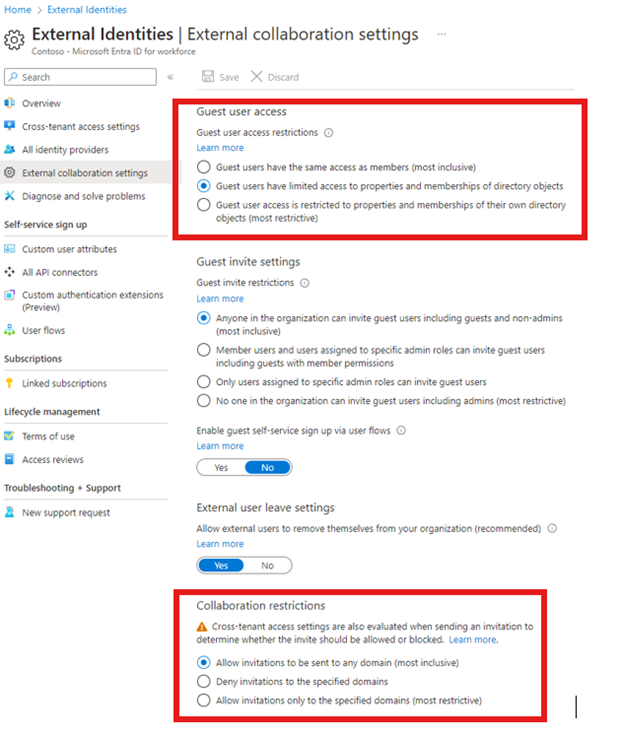
External collaboration's collaboration restriction setting and guest user access restriction setting in Microsoft Entra Admin Center.
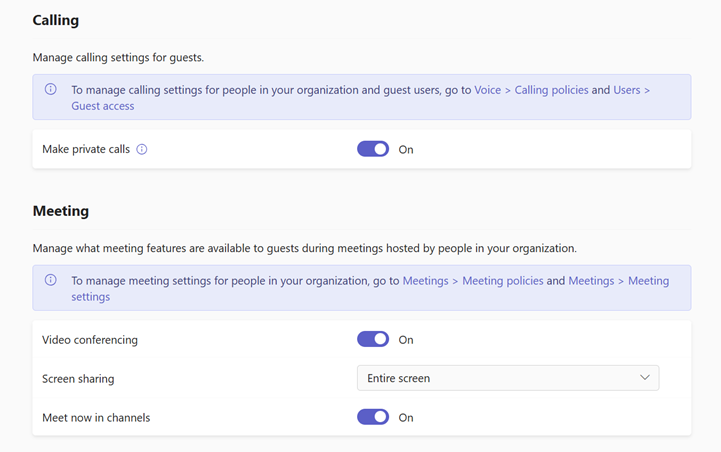
Guest feature settings in Teams Admin Center
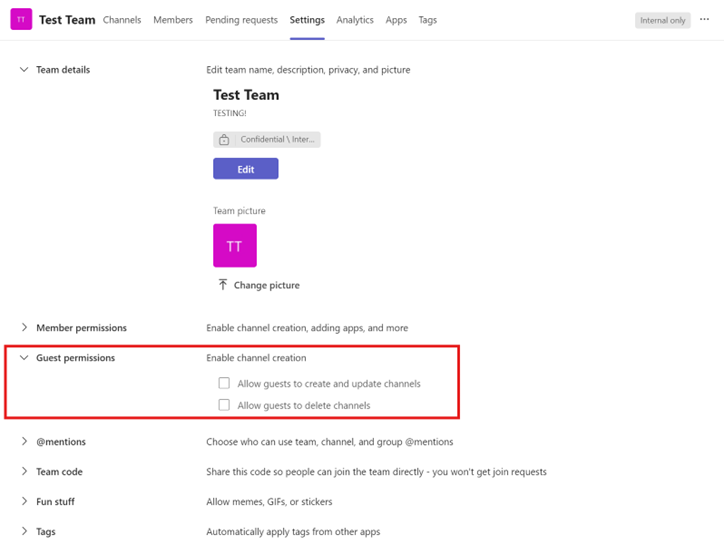
Teams guest permissions in Teams app
We aim for this diagnostic to resolve your guest access issues and provide a seamless guest experience in Teams. If problems persist, reach out to Microsoft support for assistance.