Note
Access to this page requires authorization. You can try signing in or changing directories.
Access to this page requires authorization. You can try changing directories.
The Engagements pivot in Engineering direct offers a centralized overview of all customer-specific engagements with Microsoft. This section allows users to request and track engineering-led escalations, post-incident analyses, Business Process Awareness (BPAs), and Customer Advisory Board (CAB) discussions. Each engagement type provides detailed insights, status updates, and filtering options to help manage support efficiently.
Engineering Escalations
The Engineering Escalations view under Engineering Direct provides visibility into all engineering-level support escalations raised for your tenant. These include cases submitted directly by your organization through the Escalate to Engineering feature, and issues elevated by Microsoft Support when advanced troubleshooting is required. This view helps monitor escalation activity, review trends, and gain insights into how issues are distributed across products, severity levels, and sources.
Overview of Engineering Escalations
At the top of the page, several visual summaries provide quick insights into your tenant's escalation activity:
- Total escalations - The total number of escalations associated with your tenant.
- Open escalations - The number of currently active or unresolved escalations.
- Escalations by product - A workload-based view that shows how many escalations relate to services such as Microsoft Exchange, SharePoint, or Teams.
- Customer raised escalations - Displays the number of escalations initiated directly by your organization.
- Distribution by escalation source - A chart showing whether escalations were raised by your organization or Microsoft Support.
- Distribution by severity - Summarizes escalations by severity level (Severity 1, A, B, or C).
- Escalations per week by status - A trend chart showing how many escalations were created and closed each week.
Note
These insights update automatically as new escalations are raised or resolved.
Engineering Escalations report
Below the overview section, the engineering escalations report provides a detailed, filterable table of all active and historical escalations for your tenant. You can use this table to review case progress, assigned severity, and escalation sources.
You can:
- Search by title, ticket number, or keywords.
- Filter by status, product, severity, or escalation source.
- Refresh the data to view the most recent updates.
- Export the results for reporting or analysis.
| Column | Description |
|---|---|
| Title | The name or brief summary of the escalation. |
| Created by | The user who initiated the escalation. |
| Ticket | The unique escalation identifier. |
| Severity | Indicates the escalation's priority (for example, A, B, C, or 1). |
| Escalation date | When the escalation was created. |
| Status | The current state of the escalation(Open, Closed, In Progress). |
| Escalation source | Identifies whether the escalation originated from your organization or from Microsoft Support. |
Tip
Combine filters and charts to spot recurring service request trends or identify products that require the most attention.
Benefits of Engineering Escalations
The Engineering Escalations view helps your organization:
- Maintain visibility into engineering-level escalation
- Understand patterns across products and severity levels.
- Identify and manage high-impact issues efficiently.
- Improve collaboration with Microsoft support and engineering teams.
Business Project Awareness (BPAs)
The Business Project Awareness (BPA) feature in the Engineering Direct portal enables organizations to notify Microsoft about upcoming business activities or infrastructure changes that might impact their Microsoft 365 services. During these periods, Microsoft's Service Engineering team provides elevated monitoring and proactive engagement to help identify and mitigate potential risks.

Examples of qualifying projects include:
- Major datacenter or network changes
- Mergers, acquisitions, or divestitures
- Large-scale product launches or migrations
- Tenant rebranding or restructuring
Submit a new BPA request
If you're planning a significant business event, you can submit a BPA request to inform Microsoft's Service Engineering team in advance.
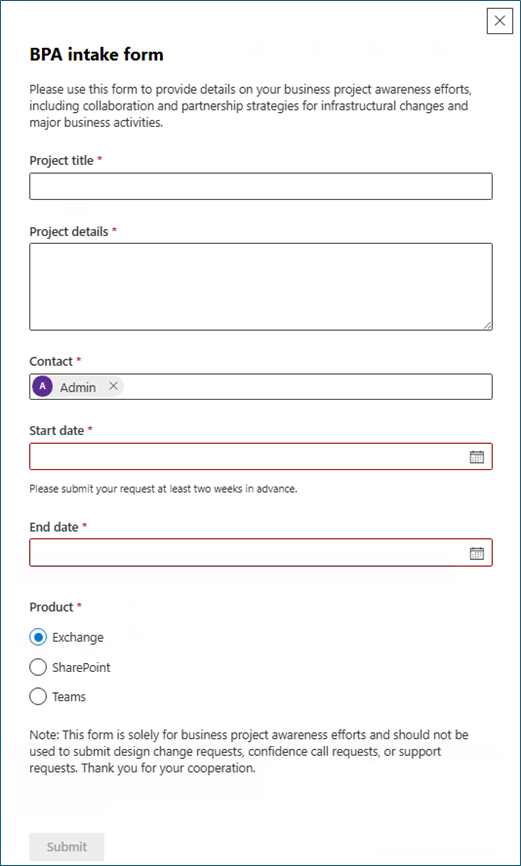
- In the Enhanced engagements section, go to Engagements > BPAs.
- Select Submit new BPA.
- Enter the required details about your planned activity, including:
- Project title and Project details
- Start and end dates
- Products (for example, Exchange, SharePoint, Teams)
- Primary contact information
- Review your information and select Submit.
Once submitted, your request will appear in the BPA overview table with its current status.
BPA overview
The BPA overview section provides a summary of all BPA requests submitted for your tenant.
It includes:
- Total BPAs and Active BPAs
- Active BPAs by workload (Exchange, SharePoint, Teams)
- A searchable and filterable list of BPA requests
You can:
- Filter BPAs by status or workload
- Export BPA data for reporting or tracking
- Refresh the view to see the latest submissions
Each BPA entry includes key details:
| Column | Description |
|---|---|
| Project title | Name of the submitted business activity |
| Ticket ID | Unique identifier for the BPA request |
| Start/ End date | Duration of the planned event |
| Product | Microsoft 365 workload impacted |
| Created by | Person who submitted the BPA |
| Contact | Primary contact for follow-up |
| Status | Current state of the request (for example, Submitted, In review, Closed) |
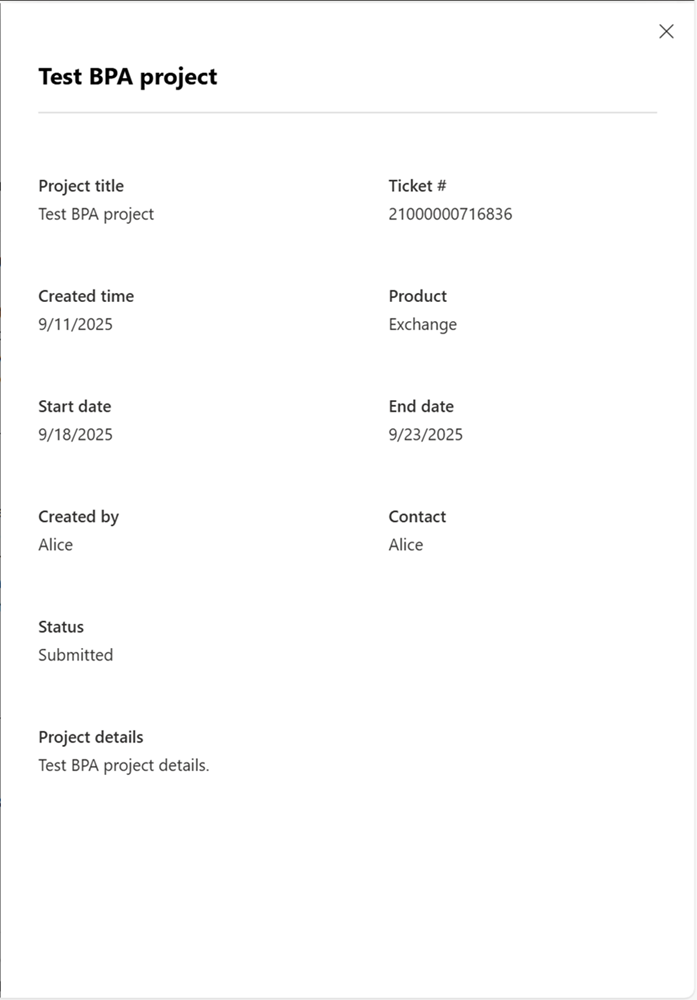
By clicking the project title, a flyout would be shown form right side of the portal, which would allow you to view BPA request details (for example, project details).
Active BPAs by workload
The Active BPAs by Workload chart provides a quick visual summary of ongoing BPA engagements by product area. This helps you identify which workloads currently have active awareness requests and plan accordingly.
Customer Advisory Board (CAB)
The Customer Advisory Board offers you a prioritized voice into the evolution of Microsoft 365 through various virtual and in-person engagements with engineering, designed to facilitate roadmap discussions and feedback loops into all in-scope product teams.
CAB overview
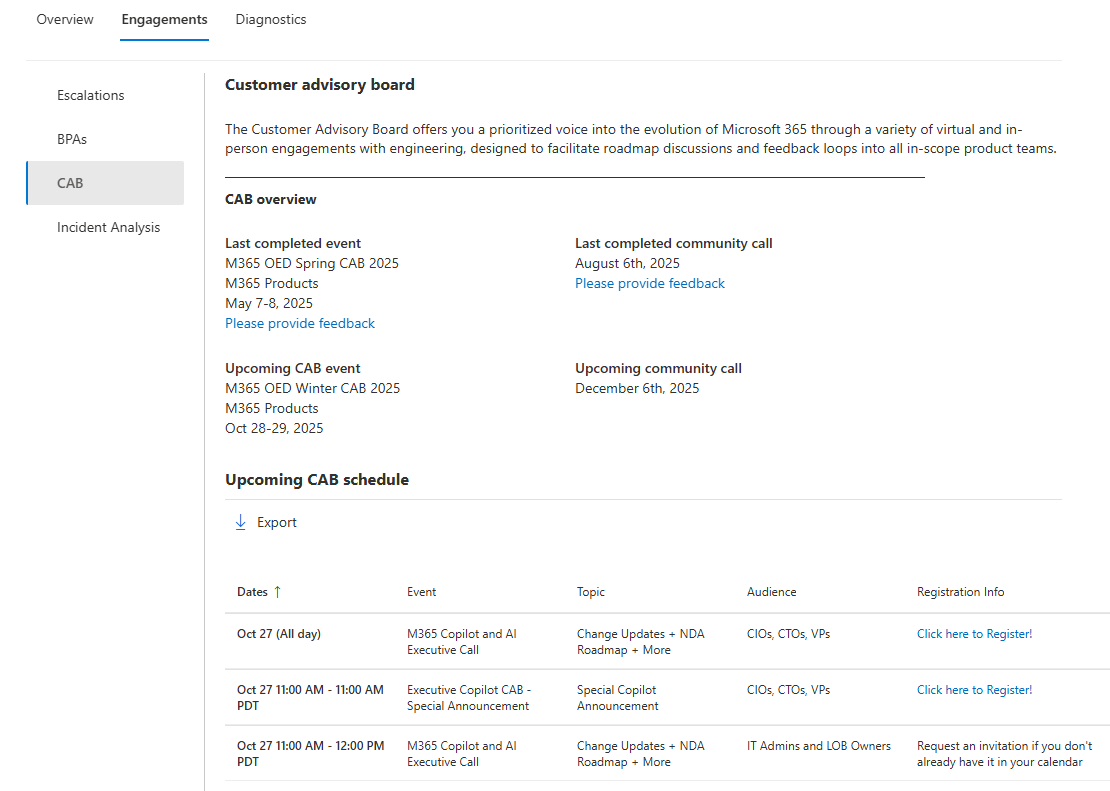
The CAB overview section provides quick access to recent and upcoming engagement details.
- Last completed event - Displays the most recent in-person CAB event and links to its feedback form.
- Upcoming CAB event - Shows the next scheduled in-person CAB session.
- Last completed community call - Displays the most recent virtual community call and provides a feedback link.
- Upcoming community call - Highlights the next scheduled community call.
If a CAB event or call hasn't been scheduled yet, the corresponding date and details won't be displayed. These fields automatically update once new schedule information becomes available. If a CAB event or call hasn't been scheduled yet, the corresponding date and details won't be displayed. These fields automatically update once new schedule information becomes available.
Note
CAB event and call details are refreshed periodically. When no upcoming events are listed, it means the schedule is still being finalized and will appear once available.
Upcoming CAB schedule
The Upcoming CAB schedule lists all planned engagements with Microsoft 365 engineering teams. Each entry provides event details, topics, audience, and registration information. You can:
- View upcoming and past CAB sessions.
- Export the schedule for tracking and internal coordination.
- Register for upcoming sessions directly from the portal.
Each schedule entry includes:
| Column | Description |
|---|---|
| Column | Start and end dates for the CAB engagement |
| Dates | Title of the CAB session or community call |
| Event | Microsoft 365 workload impacted |
| Topic | Key discussion areas (for example, product roadmap updates, feature deep dives) |
| Audience | Recommended participants (for example, CIOs, CTOs, IT Admins) |
| Registration Info | Direct registration links or invitation details |
Tip
If registration details aren't available for an upcoming event, check back later. The information will appear automatically once registration links are available.
Benefits of CAB
The Customer Advisory Board program allows you to:
- Engage directly with Microsoft engineering teams.
- Preview and provide feedback on Microsoft AI at Work Roadmap, formerly known as the Microsoft 365 Roadmap, plans.
- Network with peers across industries facing similar challenges.
- Influence future product and service enhancements.
Incident analysis
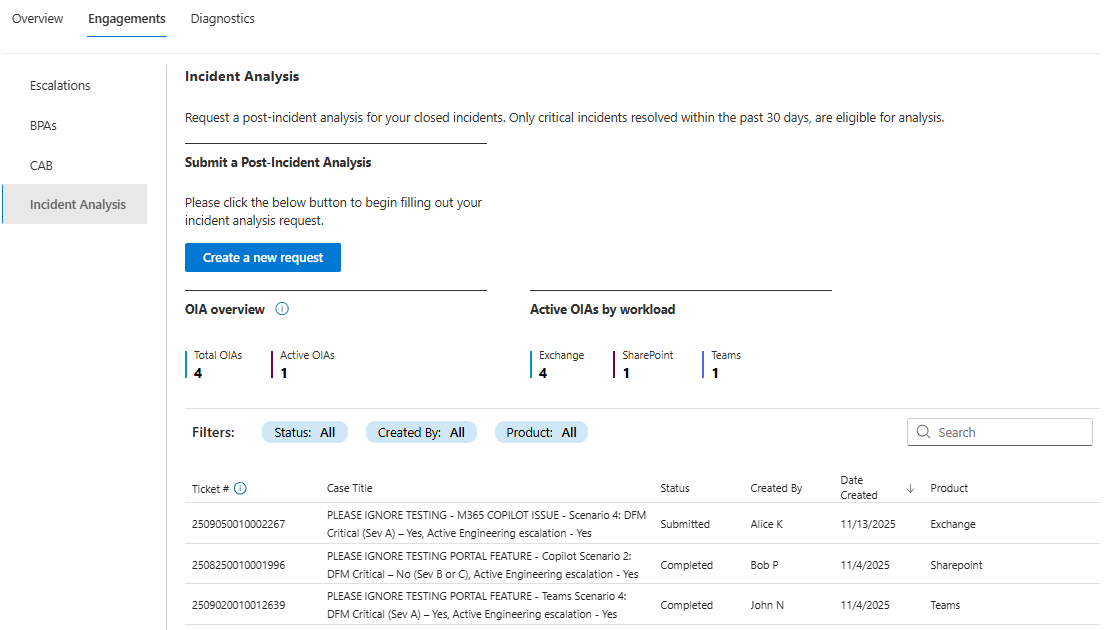
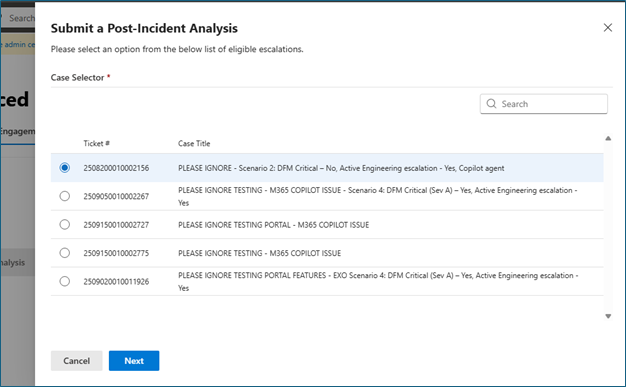
The Incident Analysis page in Enhanced engagements allows you to request post-incident analysis for closed incidents. You can submit a request for incidents that have been resolved in the last 30 days. In addition, you can view insights into your current incident analysis requests, including their status, and see a report of all past requests.
To submit a post-incident analysis request:
- Go to the Incident Analysis page and navigate to the Incident Analysis section under Engagements.
- Select Create a new request. A flyout menu will open, showing a list of eligible incidents that can be selected for post-incident analysis.
- Select a case. In the flyout menu, choose an incident by selecting the ticket number from the available list.
- Review case details after selecting an incident where you'll also see additional details related to the ticket. Follow the prompts to complete your analysis request.
- Submit your request. Once you've reviewed the information, submit your post-incident analysis request.
Incident Analysis overview
The Incident Analysis (IA) Overview section provides a snapshot of the current state of your post-incident analysis requests:
- Total IAs: Displays the total number of open post-incident analysis requests.
- Active IAs: Shows the number of active requests that are being worked on.
Active IAs by workload
This section breaks down your active post-incident analysis requests by workload type:
- Exchange: The number of active analysis requests related to Exchange incidents.
- SharePoint: The number of active analysis requests related to SharePoint incidents.
- Teams: The number of active analysis requests related to Teams incidents.
Incident analysis filters
You can refine your view of the incident analysis requests by using the following filters:
- Status: Filter by the current status of the request (for example, Submitted, Completed).
- Created By: Filter by the user who created the request.
- Product: Filter by the product associated with the incident (for example, Exchange, SharePoint, Teams).
Request Report
The Request Report section displays a table with all the post-incident analysis requests that have been submitted. For each request, you can see the following details:
- Ticket #: The unique identifier for the incident.
- Case Title: The title of the incident request.
- Status: The current status of the request (for example, Submitted, Completed).
- Created By: The user who created the request.
- Date Created: The date when the request was created.
- Product: The product associated with the incident (for example, Exchange, SharePoint, Teams).
Navigation and Pagination
The request report is displayed in a paginated table format. You can navigate through the pages of requests by using the pagination controls at the bottom of the table:
- Next and Previous arrows allow you to move between pages.
- The Items per page selector lets you adjust how many requests are displayed on each page.