Note
Access to this page requires authorization. You can try signing in or changing directories.
Access to this page requires authorization. You can try changing directories.
This article describes how to use the Data Location Card in the Microsoft 365 admin center to determine where your Customer Data is stored and understand your Data Residency commitments.
For definitions of italicized terms, see Key terms and definitions.
Overview
The Data Location Card (DLC) in the Microsoft 365 admin center allows Tenant Global Administrators to see where Customer Data associated with certain Microsoft 365 Core Services and Microsoft 365 Expanded Services is stored at rest. Currently, data location details are available for Exchange Online, SharePoint, OneDrive, Microsoft Teams, Microsoft 365 Copilot, the built-in security features for all cloud mailboxes (formerly Exchange Online Protection (EOP)), and Viva Connections. For more information, see Microsoft 365 services data locations.
Note
Microsoft Defender for Office P1, Microsoft Purview (select services), and Microsoft 365 Copilot Chat are covered by Durable Commitments on Data Location but not currently displayed in the Data Location Card. For more information, see Microsoft 365 services data locations.
Access the Data Location Card
To access the Data Location Card:
- Sign in to the Microsoft 365 admin center.
- Navigate to Settings > Org settings > Organization profile > Data location.
Understanding the Data Location Card
The Data Location Card displays three columns:
| Column | Description |
|---|---|
| Services | The Microsoft 365 services covered by Data Residency |
| Current Geography | The location where Customer Data is currently stored |
| Committed Geography | The location where Microsoft commits to store Customer Data based on your Data Residency commitments |
Determining your Committed Geography
The Data Location Card shows a single Committed Geography based on your Tenant's various commitments:
| Condition | Committed Geography |
|---|---|
| Tenant has active Advanced Data Residency (ADR) subscription | Local Region Geography associated with ADR commitment |
| Tenant qualifies for Data Residency based on Product Terms | Geography associated with Product Terms |
| Tenant's Default Geography is in the European Union or EFTA | European Union/EFTA |
| None of the above conditions | "No Commitment" - Microsoft stores data where it best enables service delivery |
Product Terms data residency setting
Important
This setting is only available to eligible commercial Tenants with a Default Geography of France, Germany, Norway, Sweden, or Switzerland. Tenants with a paid Data Residency offering - Advanced Data Residency (ADR), Advanced Data Residency for Education (ADR-E), or Multi-Geo Capabilities - don't see this setting because their Data Residency is already governed by that offering. Tenants that qualify for Data Residency based on Product Terms but didn't opt into the Legacy Move Program might not be eligible. If your organization isn't eligible, this setting doesn't appear and your current commitment is unchanged.
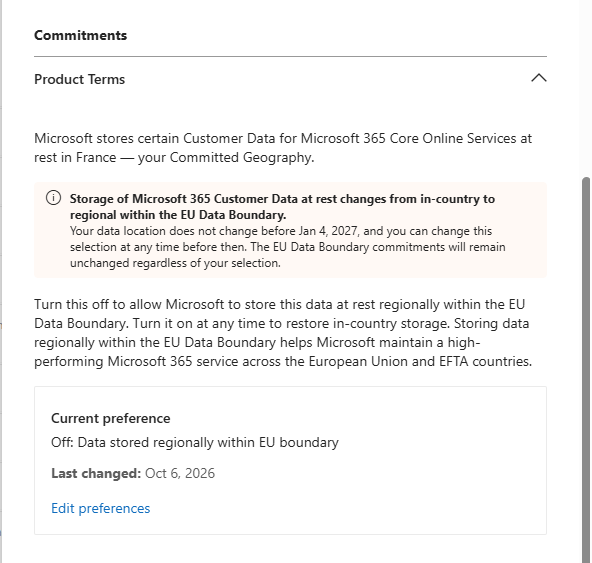
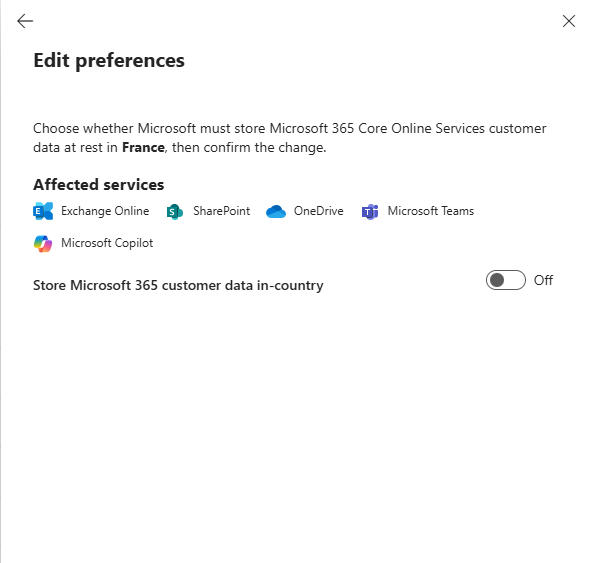
Eligible Tenants can use the Store Microsoft 365 customer data in-country setting on the Data Location Card to choose whether Microsoft keeps their Microsoft 365 Core Services Data at Rest in their Product Terms-associated Geography or allows that data to be stored and moved outside of it. The setting is located within the Data location section of the Microsoft 365 admin center. Navigate to Admin > Settings > Org settings > Organization profile > Data location > Commitments.
The setting applies only to the Microsoft 365 Core Services: Exchange Online, SharePoint, OneDrive for Business, Microsoft Teams, Microsoft 365 Copilot, and Microsoft 365 Copilot Chat.
Note
This setting doesn't affect any European Union Data Boundary (EUDB) commitment. If your organization has an EUDB commitment, it remains in place regardless of how this setting is configured.
| Setting | What it means |
|---|---|
| On | Microsoft keeps your Microsoft 365 Core Services Data at Rest in your Product Terms-associated Geography. |
| Off | Microsoft might store your Microsoft 365 Core Services data regionally within the EU Data Boundary. |
When you change this setting, your Committed Geography updates to reflect your choice. Because moving in-scope Customer Data takes time, your Data Location Card might temporarily show a mismatch between your Current Geography and Committed Geography until the move completes.
This choice isn't permanent. If the setting is Off, you can turn it back On at any time. Microsoft recommits your data to your Product Terms-associated Geography and begins moving it back, which can take approximately six months to complete. For more information about the setting, see Product Terms Data Residency.
Common scenarios
Mismatch between Current Geography and Committed Geography
A discrepancy between Current Geography and Committed Geography may appear in the following scenarios:
ADR purchased but migration not initiated
If a Tenant Global Administrator hasn't yet opted in to migration after purchasing ADR, the Data Location Card shows a mismatch. To resolve:
- Access the Data Location Card
- Select the option to initiate migration
- Allow time for the migration to complete

ADR migration in progress
After opting in to migration, the Committed Geography updates immediately, but the Current Geography updates only when each service completes migration.

Eligible for Product Terms but didn't participate in Legacy Move Program
If a Tenant is eligible for Data Residency based on Product Terms but didn't participate in the Legacy Move Program, there may be a mismatch. To initiate migration, purchase ADR licenses and opt-in.
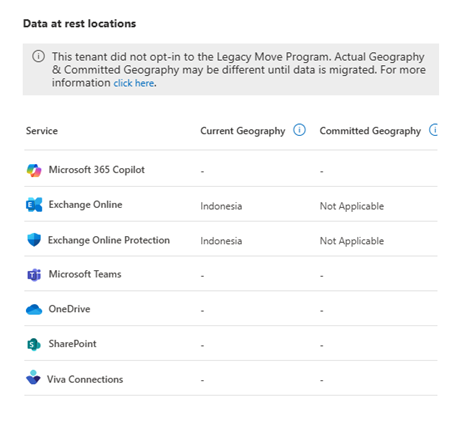
ADR licensing requirements not met
If a Tenant fails to meet ADR licensing requirements, the Committed Geography changes to reflect the new commitment status.

Current Geography is more specific than Committed Geography
The Current Geography may be more granular than the Committed Geography. For example, a French Tenant may show:
- Current Geography: "France"
- Committed Geography: "European Union/EFTA"
Since France is part of the European Union, the data is compliant with the commitment.

No data residency commitment
If a Tenant doesn't have any Durable Commitment on Data Location, the Committed Geography displays "No Commitment".

Product Terms data residency setting changed
When an eligible Tenant turns the setting Off, its Committed Geography for the Microsoft 365 Core Services changes to "No Commitment," and Microsoft might begin moving the in-scope Customer Data out of the Product Terms-associated Geography. When a Tenant turns the setting back On, its Committed Geography updates to the Product Terms-associated Geography immediately, while the Current Geography continues to show the data's present location until migration back completes. In both directions, the Data Location Card might display a mismatch between Current Geography and Committed Geography until the move completes.
Services without a displayed location
If a "-" appears next to a Microsoft 365 service, the Tenant doesn't currently have an active subscription for that service.

Multi-Geo customers
For customers with Microsoft 365 Multi-Geo Capabilities, the Data Location Card displays only information related to the Tenant's central location. Information on Satellite Geography locations isn't shown on the Data Location Card.
Note
Tenants with Multi-Geo subscriptions are not in scope for EUDB, even if the Tenant is in a country or region in the EU or EFTA. If your Data Location Card doesn't show an EUDB commitment, this may be the reason.
For information on Satellite Geography locations, see Multi-Geo overview.

Data stored in Europe without EUDB commitment
Some Tenants may have Customer Data stored in "Europe" but don't have an EU Data Boundary (EUDB) commitment based on their Default Geography. In these cases, an information message appears at the bottom of the Data Location Card.
