Note
Access to this page requires authorization. You can try signing in or changing directories.
Access to this page requires authorization. You can try changing directories.
Users can attach files to a message so the agent can read, summarize, or otherwise reason over them for that turn. Attachments are a per-turn input from the user, not a persistent maker-configured data source.
Note
Features in this article are used by agents or workflows powered by the GitHub Copilot harness.
Usage-based billing applies to using, building, testing, and evaluating agents. These actions might consume Copilot Credits. Learn more in Manage costs for agents powered by the GitHub Copilot harness.
Attachments vs. knowledge sources
Attachments and knowledge sources are different concepts. Choose the one that matches your scenario.
| Concept | Who provides it | Scope | Typical use |
|---|---|---|---|
| Attachment | The end user, per message | One conversation | "Summarize this contract", "What's in this screenshot?" |
| Knowledge source | The maker, at design time | Every conversation with the agent | Policy docs, product catalogs, help articles |
Add a knowledge source when the agent should always have access to the same content. Ask users to attach a file when the content is unique to their request.
Supported attachment types
| Type | Examples | Notes |
|---|---|---|
| Excel | .xls, .xlsx | Text and tables are extracted for the agent to reason over. |
| Images | .png, .jpg, .gif, .webp | The agent uses vision-capable models to describe or answer questions about the image. |
| PDFs | Text is extracted for the agent to reason over. | |
| PowerPoint | .ppt, .pptx | Text and images are extracted for the agent to reason over. |
| Text documents | .txt, .csv, .html, .md | Content is passed to the agent as text. |
| URLs | Any publicly reachable HTTP or HTTPS URL | The agent downloads the linked file for the current turn (see the URL download behavior later in this article). |
| Word | .doc, .docx | Text is extracted for the agent to reason over. |
Note
User-attached files support Microsoft Purview labels.
Where users attach files
Users can attach files in any surface where the agent runs:
- The Preview tab in Copilot Studio, when you test the agent. Learn more in Test an agent.
- Any published channel that supports attachments, such as Microsoft Teams, Microsoft Copilot, and web chat.
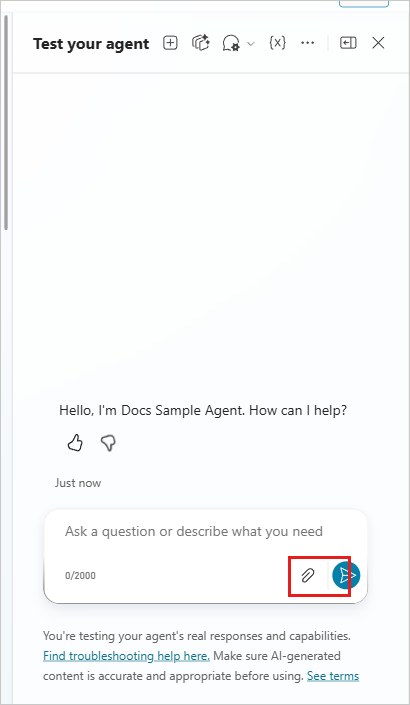
The user selects the attachment icon in the message composer, chooses one or more files, adds an optional message, and sends the turn. The agent receives the attachments together with the message.
How the agent processes attachments
- The agent reads each attachment when it processes the message. Attachments influence only the turn they're sent with, unless the agent references them again later in the same conversation.
- If an attachment can't be processed (for example, an invalid file or a failed URL download), the agent skips that attachment and processes the rest of the message. The message is still sent.
- Attachments don't replace knowledge sources, memory, or tool outputs. They're another signal the agent considers for the current turn.
URL attachments
When a user attaches a URL, the agent downloads the file at that URL and treats it like an uploaded attachment for the turn.
- The download must complete within 30 seconds. Slower responses time out and the URL is skipped for that turn.
- The URL must be publicly reachable from Microsoft's service. Links that require sign-in or that sit behind a firewall don't work.
- The message continues to send even if the URL download fails.
Retention and limits
Attachments are stored for the lifetime of the conversation, not just the current turn. If a user attached a file earlier in the conversation, the agent can reference it again in a later turn (for example, "compare this to the file I sent earlier").
| Item | Limit |
|---|---|
| Attachment size (per file) | 16 MiB |
| URL attachment download timeout | 30 seconds |
| Attachment retention (per conversation) | 28 days after the last activity in the conversation |
| Attachment behavior on failure | The agent skips the failed attachment and continues to process the message |
After the retention window elapses, stored attachments are deleted from the conversation and are no longer available for the agent to reference. This same retention window applies to any files the agent creates during the conversation.